

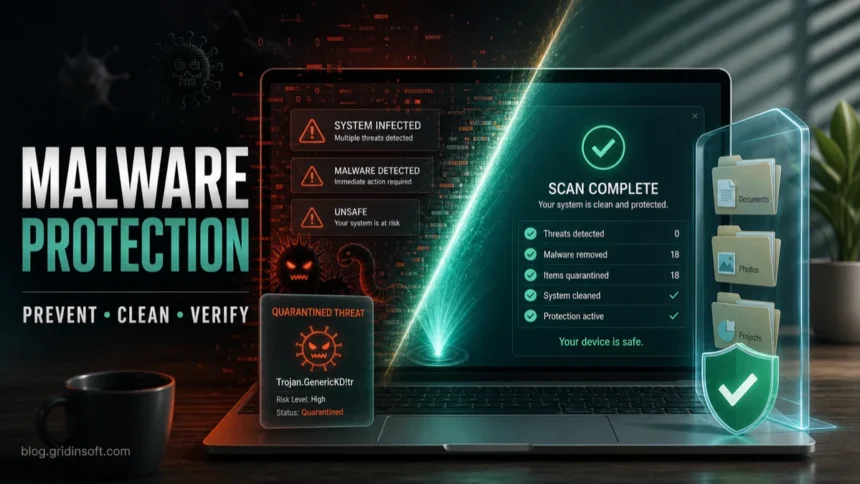
Malware protection is worth using because it gives you three things that habits alone cannot provide: real-time blocking before a risky file runs, detection when malware hides in the system, and a cleanup path after an infection. It is not magic, and it should not replace updates, backups, careful downloads, or strong passwords. But when a fake installer, stealer, adware bundle, browser hijacker, or trojan reaches a Windows PC, a good anti-malware tool can quarantine the visible threat, find related files, check startup points, and help you verify that the symptoms do not return.
The old advice was simply “install antivirus.” A more useful question in 2026 is: what should malware protection do for you at the moment you need help? This guide explains the real benefits, the limits, and the cleanup sequence that makes Gridinsoft Anti-Malware useful when a computer already shows infection signs.
Quick Verdict: What Malware Protection Helps With
- A downloaded file looks suspicious: scan it before execution and block known or suspicious behavior.
- Pop-ups, redirects, or fake alerts keep returning: look beyond the browser for adware, startup entries, unwanted apps, and browser changes.
- The PC became slow after an installer, crack, or fake update: check for miners, trojans, loaders, bundled apps, scheduled tasks, and hidden folders.
- A security tool removed something, but symptoms came back: run a deeper cleanup pass and confirm whether persistence is still active.
- You entered passwords on a possibly infected computer: clean the device before signing back in, while recovering passwords and sessions separately.
How Malware Protection Works
Modern malware protection is a workflow, not just a scanner button. It should reduce risk before infection, detect suspicious behavior, quarantine threats, clean related components, and help you verify the PC after reboot. The UK National Cyber Security Centre describes antivirus products as tools that detect, quarantine, and delete malicious code to prevent damage; modern products update automatically to keep pace with new threats [1].
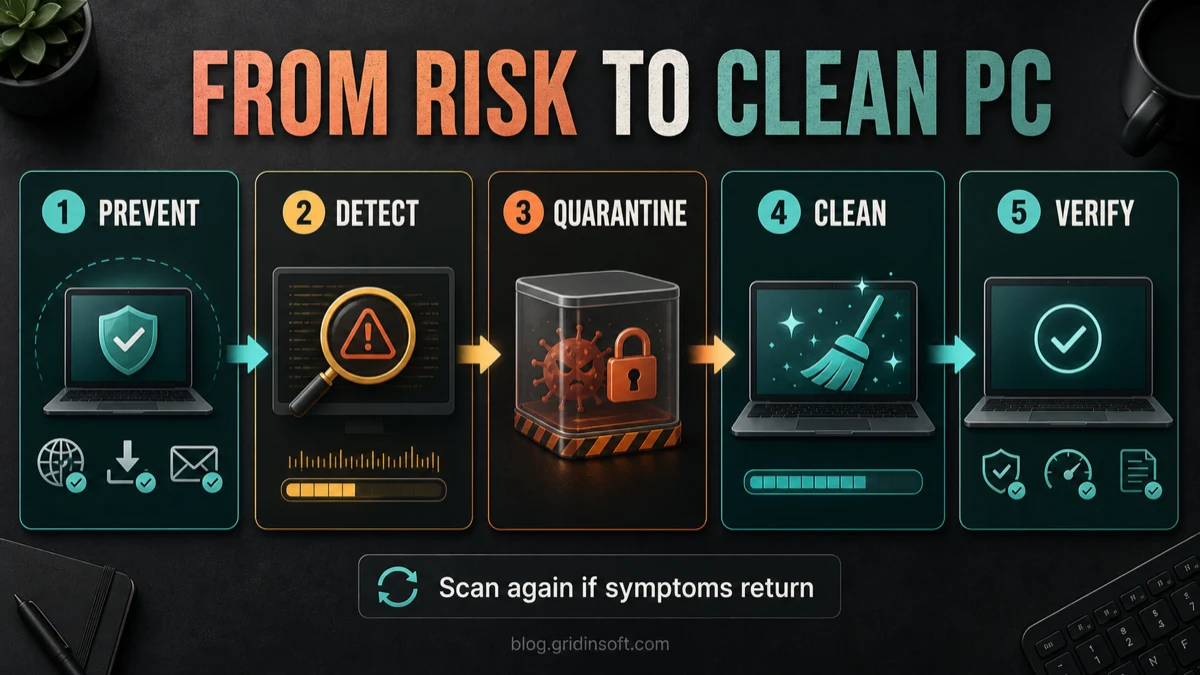
That workflow matters because many infections are not a single obvious file. A fake update may drop a loader, change a browser policy, add a scheduled task, install an extension, and then download the next payload later. If you only delete the download from the Downloads folder, the visible part may be gone while the persistence remains.
The Benefits That Matter in Real Incidents
1. It blocks risky files before execution
The easiest malware cleanup is the one you never need. Real-time protection checks new files, archives, scripts, installers, and suspicious downloads before they get a chance to run. This is especially useful with fake browser updates, cracked software, game mods, PDF tools, video codecs, and “free premium” installers, where the page may look harmless but the payload is not.
2. It catches hidden leftovers after a bad click
Malware often creates supporting components: startup entries, scheduled tasks, services, browser extensions, proxy settings, temporary folders, and registry changes. Gridinsoft Anti-Malware is useful after an incident because it can scan for detections, hidden files, startup entries, scheduled tasks, bundled apps, browser changes, and other persistence clues instead of making the user hunt through Windows manually.
3. It helps with adware and browser hijackers
Adware is rarely just “annoying.” It can inject ads, redirect searches, add notification spam, push fake virus alerts, or install unwanted extensions. If your homepage, search engine, notifications, or browser policy keeps changing, use the browser cleanup steps and then scan the PC. Our guides on adware, browser notification spam, and Managed by your organization removal cover those related symptoms.
4. It reduces data-theft risk after suspicious software ran
Password stealers, keyloggers, remote access trojans, and malicious extensions can target browser passwords, cookies, tokens, crypto wallets, email sessions, and saved forms. Malware protection can help remove the local threat, but it cannot undo credentials that were already stolen. If a suspicious file ran, clean the computer first, then change important passwords from a trusted device and revoke sessions. For stealer-style recovery, see the Gridinsoft password stealer cleanup guide.
5. It gives you a safer restore decision
Sometimes a user wants to restore a quarantined file because it looks like a false positive. A second scan helps here. If the file came from an official vendor, has a valid signature, matches the expected path, and no related symptoms appear, the risk may be lower. If it came from a repack, crack, fake update, email attachment, random cloud link, or unknown mirror, treat it as unsafe until proven otherwise.
Do You Need Malware Protection If Windows Defender Is On?
Windows already includes Microsoft Defender Antivirus on supported systems, and Microsoft describes it as built in, always on, and designed to protect against viruses, spyware, and other malware [2]. For many careful users, Defender plus updates, browser warnings, backups, and safe download habits can be a reasonable baseline.
Extra anti-malware help becomes more valuable when the problem is already active: repeated alerts, fake update downloads, adware that returns after removal, unknown browser extensions, cracked software, high CPU after an installer, suspicious startup items, or a PC that was used to enter passwords after malware symptoms appeared. In those cases, the question is not only “do I have protection?” but “can I verify cleanup now?”
What Malware Protection Cannot Promise
Trustworthy security software should be clear about its limits. Malware protection can detect and remove many threats, but it cannot guarantee that every possible sample is caught, prove a computer was never exposed, recover stolen passwords, reverse fraudulent payments, or decrypt ransomware files. It also cannot make unsafe behavior safe: running cracks, disabling warnings, ignoring browser permission abuse, or reusing passwords still creates risk.
Independent testing can help compare products, but it should be read as one signal, not a personal guarantee. AV-TEST, for example, evaluates consumer Windows security products with current public versions, realistic scenarios, and multiple protection layers [3]. Your own safety still depends on updates, backups, account recovery, browser hygiene, and whether you act quickly when symptoms appear.
If You Suspect Infection, Use This Cleanup Flow
- Stop running the suspicious file or installer. Close it, do not click through prompts, and do not install “recommended” cleaners from pop-ups.
- Disconnect from risky networks if the PC is behaving strangely. This is useful when you see unknown remote access tools, repeated command windows, or traffic spikes.
- Run a full malware scan. Use Gridinsoft Anti-Malware or another trusted security tool to check the full system, not only the Downloads folder.
- Quarantine or remove detections. Do not restore a file just because you recognize the app name; malware often impersonates familiar programs.
- Reboot and scan again if symptoms return. Returning alerts, pop-ups, redirects, or startup entries usually mean persistence was missed.
- Clean browsers separately. Remove unknown extensions, notification permissions, search-provider changes, and suspicious policies.
- Recover accounts from a clean device. Change email, banking, work, cloud, social, crypto, and gaming passwords if malware may have seen your logins.
If the infection started with a download, email attachment, fake update, or unknown tool, run the scan before signing back into important accounts. A password reset on an infected device can hand the new password to the same malware.
If the process path is wrong, the name imitates a Windows component, or high CPU started after an unknown installer, scan for hidden miners, services, startup entries, and bundled components.
Download Anti-MalwareWhere Gridinsoft Anti-Malware Fits
Gridinsoft Anti-Malware is most useful when the reader needs a practical cleanup path, not just a definition of malware. Use it when a suspicious file already ran, a browser keeps changing, pop-ups return after removal, a fake update installed something, a security alert keeps coming back, or the PC feels slow after a risky download.
- Full system scan: checks whether detections, hidden files, bundled apps, or persistence clues exist outside the obvious download.
- Quarantine review: shows which files were blocked and whether any should stay isolated instead of restored.
- Browser and startup cleanup: helps identify whether unwanted changes are being recreated by an app, extension, scheduled task, or startup entry.
- Follow-up scan after reboot: confirms whether symptoms are gone or the same behavior returns and needs deeper review.
For suspicious links and domains, you can also check a URL with the Gridinsoft Website Reputation Checker. For an individual file you have not run yet, the Gridinsoft Online Virus Scanner can provide a safer first look before the file touches your system.
How to Choose Malware Protection Without Overbuying
Do not choose security software only by the longest feature list. Look for protection that solves your actual risk:
- Real-time file protection for downloads, scripts, archives, and installers.
- Web protection for malicious domains, phishing pages, and fake update sites.
- Clear quarantine controls so you know what was blocked and why.
- Full-system scanning for leftovers, startup entries, scheduled tasks, and bundled apps.
- Low-friction cleanup because a tool that is confusing during an incident will be ignored.
- Honest limits with no claims of guaranteed removal, password recovery, or ransomware decryption.
FAQ
What is malware protection?
Malware protection is security software that helps prevent, detect, quarantine, remove, and verify threats such as trojans, spyware, ransomware, adware, miners, and unwanted apps.
Is malware protection the same as antivirus?
The terms overlap in everyday use. Antivirus started as virus detection, while anti-malware usually emphasizes broader threat cleanup. Modern security tools often combine both ideas: real-time protection, web protection, behavior checks, quarantine, and full-system scans.
Do I still need malware protection if I use Windows Defender?
Defender is a built-in baseline for supported Windows systems. Extra anti-malware scanning is most useful when symptoms are already present, when a risky file ran, when adware or browser changes return, or when you want to verify cleanup after another tool quarantined something.
Can malware protection remove every infection?
No security tool can honestly guarantee that. Malware protection can remove many threats and related components, but serious incidents may still require account recovery, browser cleanup, backups, a second scan, or in extreme cases a clean Windows reinstall.
Will malware protection recover stolen passwords?
No. It can help remove the local malware that may have stolen data, but exposed passwords, browser sessions, recovery email settings, and connected apps must be changed or revoked separately from a clean device.
Why do pop-ups return after I remove malware?
Recurring pop-ups often mean a browser notification permission, extension, unwanted app, startup entry, scheduled task, or browser policy is still active. Remove the browser-level change and scan the PC for the component that may be restoring it.
References
- National Cyber Security Centre. “What is an antivirus product? Do I need one?” NCSC, accessed June 20, 2026. https://www.ncsc.gov.uk/guidance/what-is-an-antivirus-product
- Microsoft Support. “Consumer antivirus software providers for Windows.” Microsoft, accessed June 20, 2026. https://support.microsoft.com/en-us/windows-antivirus-software-providers
- AV-TEST. “Test antivirus software for Windows 11 – April 2026.” AV-TEST Institute, accessed June 20, 2026. https://www.av-test.org/en/antivirus/home-windows/


I’m wondering if Grindin soft has any Malware for Telephones that will stop infectious calls. AS I am getting several calls that are non communicative and are tracking my usage. I asked carrier and they say no. So I would like to install something from the only supplier that I trust. I do hope that you can help. My phone has been hacked Twice. If you have anything please advise.
Thank You
Ronald RS Welch Sr