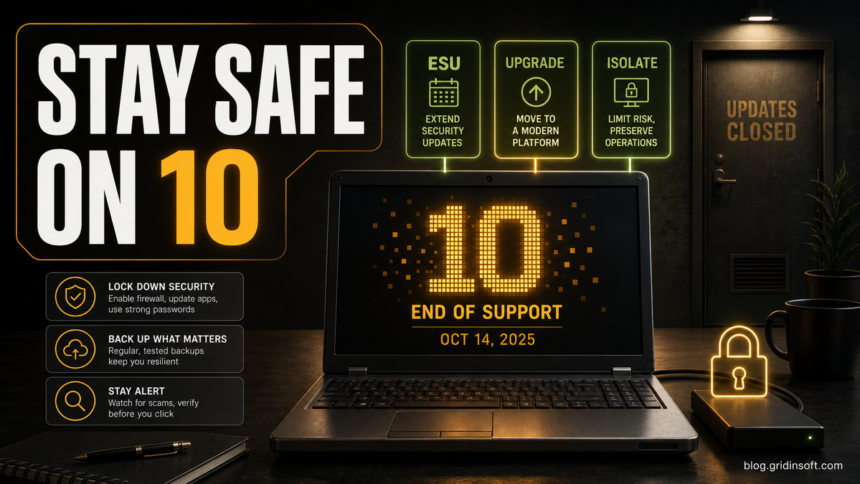
Windows 10 still boots and runs, but the security decision changed after October 14, 2025. If your PC is still on Windows 10 in 2026, treat it as an unsupported system unless it is enrolled in Extended Security Updates (ESU). The safest path is to upgrade a compatible PC to Windows 11. If the hardware cannot upgrade yet, use ESU, keep apps patched, back up important files, and limit what that Windows 10 PC is allowed to do online.
This guide is for the realistic case many home users now face: the computer works, Windows 11 says the hardware is not eligible, and replacing the device is not immediate. You can reduce risk, but you should not pretend Windows 10 is a normal fully supported daily-driver platform anymore.
What Changed After Windows 10 End of Support?
Microsoft ended support for Windows 10 on October 14, 2025. After that date, normal Windows 10 devices no longer receive free security fixes, feature updates, or technical support from Microsoft. The operating system does not shut down, and your files do not disappear, but newly discovered Windows vulnerabilities become more dangerous over time because the base system is no longer patched in the usual way.
That is why the old advice “just keep Windows updated” is no longer enough by itself. In 2026, the real question is which of these paths fits your computer:
- Upgrade: move to Windows 11 if the device is compatible.
- Enroll: use Windows 10 Consumer Extended Security Updates if you need more time.
- Replace: move your files to a supported device when the old PC cannot be trusted for sensitive work.
- Isolate: keep the Windows 10 PC for narrow offline or low-risk tasks only.
First, Check Whether the PC Can Move to Windows 11
Before hardening Windows 10, check whether the machine can leave Windows 10 cleanly. Open Settings > Update & Security > Windows Update and check for the Windows 11 upgrade message. If Windows Update says the PC is not eligible, use Microsoft’s PC Health Check app or the Windows 11 requirements page to understand what blocks the upgrade, such as TPM 2.0, Secure Boot, CPU support, RAM, or storage.
Avoid random “Windows 11 compatibility bypass” installers from search results, YouTube descriptions, Telegram posts, or pop-up ads. Fake update tools and fake activators are common malware delivery paths. If you decide to install or repair Windows, use Microsoft’s official installation media, not a third-party “upgrade assistant” from an ad.
If You Stay on Windows 10, Enroll in ESU
For a home PC that must keep Windows 10 for now, ESU is the most important step because it extends security updates for eligible Windows 10 devices for a limited period. ESU is not a feature-upgrade program and it does not make Windows 10 modern again, but it keeps critical security patching alive while you plan the move.
Check Windows Update for an ESU enrollment banner or Microsoft’s Windows end-of-support page. If the PC belongs to a business, school, or managed organization, ask the admin before enrolling or changing licensing. Managed devices may use a different ESU route than consumer PCs.
Lock Down the Windows 10 PC You Still Use
Once the support plan is clear, harden the device for the work it actually does. The goal is to reduce exposure, not to build a perfect fortress around an aging OS.
Install Every Remaining Windows and Driver Update
Open Settings > Update & Security > Windows Update and install all available updates. Restart until Windows Update shows nothing important left. Also update your browser, PDF reader, Office apps, graphics driver, printer software, VPN client, password manager, and any remote-access tools you still use.
Old applications can be just as dangerous as the operating system. Remove software you no longer need, especially abandoned browser extensions, old Java runtimes, cracked utilities, game repacks, driver updaters, and “PC optimizer” tools.
Use a Supported Browser and Reduce Browser Risk
Most attacks against home users start in the browser: fake update pages, malicious ads, credential phishing, push-notification spam, or infected downloads. Use a browser that still supports Windows 10, keep it updated, and remove extensions you do not recognize. If a site asks you to install a codec, browser update, driver update, or security certificate, close it and verify the download from the vendor’s official site.
If you are already seeing unwanted tabs, notification spam, or suspicious search redirects, clean the browser before doing banking or email. Our McAfee pop-up removal guide and browser tab storm guide cover common browser symptoms that can overlap with adware.
Keep Windows Defender Firewall On
Open Windows Security > Firewall & network protection. Make sure the firewall is enabled for Domain, Private, and Public networks. On home Wi-Fi, avoid setting unknown networks as trusted. If you do not use Remote Desktop, file sharing, old game servers, or printer sharing, turn those features off instead of leaving open listening services on an unsupported PC.
Turn On Ransomware Protection for Important Folders
Controlled Folder Access can block untrusted apps from changing protected folders. Open Windows Security > Virus & threat protection > Ransomware protection > Manage ransomware protection, then enable Controlled folder access. Add your most important folders and allow only apps you trust.
This can cause friction with older software, so test it with your normal workflow. If a trusted app is blocked, add that app manually instead of switching the feature off permanently. For the verification steps before making that exception, use our Controlled Folder Access allow-or-block guide.
Use BitLocker or Device Encryption Where Available
Encryption protects the files on a lost or stolen laptop. Windows 10 Pro usually supports BitLocker, and some Windows 10 Home devices support Device Encryption. Check Settings > Update & Security > Device encryption, or open Control Panel > System and Security > BitLocker Drive Encryption.
Save the recovery key somewhere separate from the PC. Do not keep the only copy of the recovery key on the encrypted drive itself.
Use a Password Manager and MFA
A Windows 10 PC that is past normal support should not also rely on reused passwords. Use a password manager, generate unique passwords, and turn on multi-factor authentication for email, banking, cloud storage, social media, and Microsoft accounts. If malware steals one password, MFA can stop the attacker from immediately taking over the account.
Back Up Before You Need the Backup
Keep at least one backup that is not constantly connected to the PC. Ransomware and wipers can encrypt or damage files on attached drives and synced folders. For important documents, photos, tax files, and work files, combine cloud backup with an external drive that you plug in only for backup sessions.
Test restore on a few files. A backup you never tested is only a hope with a progress bar.
Scan for Malware Before Moving Sensitive Data
If you are preparing to migrate from Windows 10 to a new PC, scan the old machine first. Do not move browser profiles, cracked software, suspicious installers, or unknown startup items blindly. Gridinsoft Anti-Malware can help check for trojans, adware, spyware, rootkits, and suspicious persistence before you transfer files or sign in on a new device.
After uninstalling the suspicious app or deleting the visible threat, use Gridinsoft Anti-Malware to check hidden files, startup entries, scheduled tasks, bundled apps, browser changes, and other persistence points that can restore malware.
Download Anti-MalwareWhat Not to Do on an Unsupported Windows 10 PC
The more sensitive the task, the stronger the case for a supported device. If your Windows 10 PC is not enrolled in ESU, avoid using it for:
- online banking, tax filing, cryptocurrency wallets, or password vault recovery;
- administrator work for websites, hosting panels, ad accounts, or business email;
- storing the only copy of important files;
- installing cracked software, keygens, repacks, or unofficial driver packs;
- remote desktop exposure from the internet;
- clicking “security update” pop-ups that appear inside a browser page.
If the old computer must stay in use, make it boring: one updated browser, only necessary applications, no pirated software, no exposed remote access, and a tested backup.
Practical Security Checklist for Windows 10 in 2026
- Confirm whether the PC can upgrade to Windows 11.
- If staying on Windows 10, enroll in ESU when eligible.
- Install all remaining Windows, browser, Office, and driver updates.
- Remove old apps, unknown browser extensions, cracked tools, and “optimizer” software.
- Keep Windows Defender Firewall enabled for every network profile.
- Use Controlled Folder Access for documents, photos, and work folders.
- Enable BitLocker or Device Encryption and save the recovery key safely.
- Use a password manager and MFA for important accounts.
- Keep offline or versioned backups.
- Scan the system before migrating files to a new PC.
- Do not trust browser pop-ups that claim you need a Windows update, codec, driver, or certificate.
Should You Replace the PC?
If the device cannot run Windows 11 and you use it for money, work, health records, school accounts, or family photos, replacement is usually safer than stretching Windows 10 indefinitely. ESU buys time; it is not a permanent home. If the computer is only used offline for an old scanner, label printer, music library, or local software, isolation may be enough: disconnect it from daily browsing, keep backups, and do not use it as your main account-sign-in machine.
Before choosing defenses, it helps to know who you are defending against. Our types of hackers guide explains the difference between malicious actors, authorized testers, insiders, and low-skill tool users.
FAQ
Is Windows 10 safe to use after end of support?
It is safer with ESU and strict hardening, but it is no longer the same as using a fully supported Windows version. Without security updates, risk increases as new vulnerabilities are found.
Will Windows 10 stop working?
No. Windows 10 continues to run after end of support. The problem is security maintenance, not an automatic shutdown.
Is antivirus enough for Windows 10 after support ended?
No antivirus can fully replace operating-system security patches. Use antivirus or anti-malware protection as one layer, but combine it with ESU, app updates, backups, MFA, and reduced exposure.
What if my PC cannot upgrade to Windows 11?
Use ESU if eligible, remove unnecessary apps, keep the browser and critical software updated, avoid sensitive work on that machine, and plan a replacement or a supported alternative.
References
- Microsoft Support. “Windows 10 support has ended on October 14, 2025.” Microsoft, accessed June 7, 2026. https://support.microsoft.com/en-us/windows/windows-10-support-has-ended-on-october-14-2025-2ca8b313-1946-43d3-b55c-2b95b107f281
- Microsoft Learn. “Windows 10 release information.” Microsoft, accessed June 7, 2026. https://learn.microsoft.com/en-us/windows/release-health/release-information
- Microsoft Support. “Windows 10 notification: ‘Your device has reached the end of service.’” Microsoft, accessed June 7, 2026. https://support.microsoft.com/en-us/windows/windows-10-notification-your-device-has-reached-the-end-of-service-74caa4aa-81b4-4dca-b972-8df3246d6db5