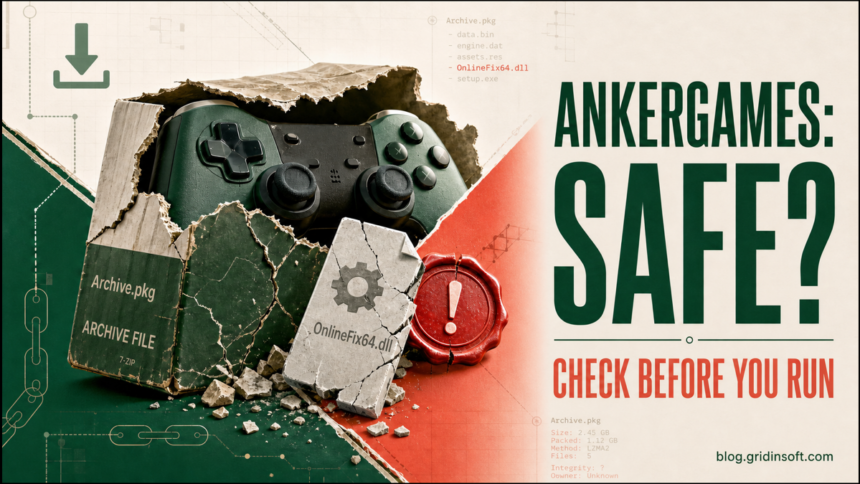
AnkerGames cannot guarantee that every modified game package is safe. Its current safety page says it tests releases but acknowledges that these checks cannot rule out malware. It advises users to keep antivirus protection enabled and flagged files quarantined during investigation.[1] Disabling protection or re-extracting a flagged game does not verify its safety. An OnlineFix64.dll alert may be a false positive in one package and a real warning in another; the filename alone proves neither case.
Your next step depends on what happened. If you only visited a page, close it and check downloads and browser permissions. If you downloaded or extracted an archive, keep it closed and scan it. If you ran the game, launcher, script, or DLL, treat the PC as potentially changed: remove the same-download chain, check persistence, scan the whole system, and secure exposed accounts from a clean device when compromise signs appear.
Is AnkerGames safe?
The practical answer is do not treat AnkerGames downloads as trusted software. The name currently points users toward ankergames.net, but search results also contain lookalike domains, unrelated sites, and pages using similar branding. A familiar page design, community recommendation, HTTPS lock, or high traffic does not verify the archive that reaches your PC.
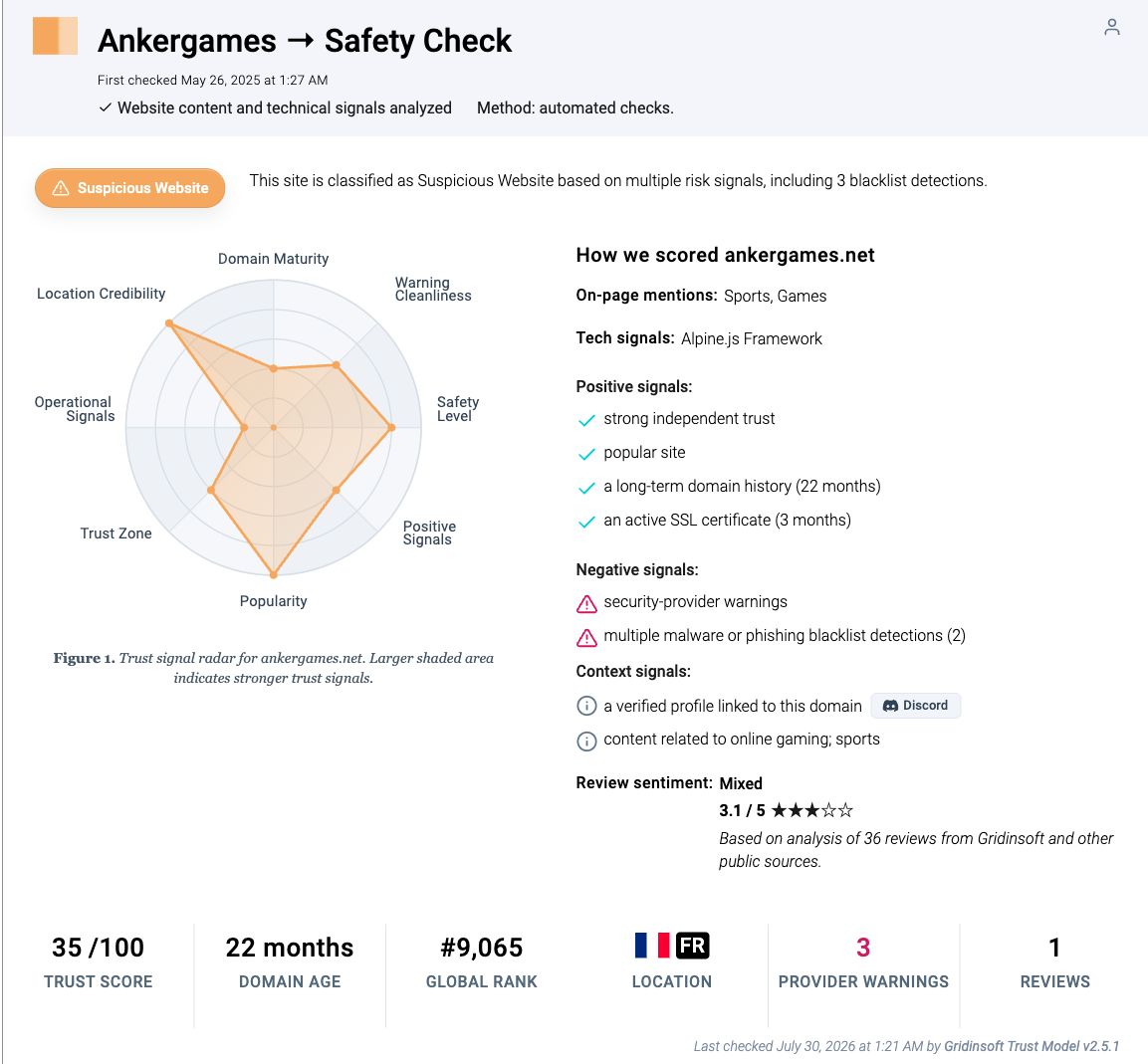
Gridinsoft’s current AnkerGames reputation report shows a 35/100 trust score and three provider warnings. That supports caution at the domain level, not a claim that every game or every DLL is malicious. One public ANY.RUN task also assessed a submitted AnkerGames game URL as malicious activity, but the sandbox itself warns that user actions can affect the result.[2] Neither signal replaces file-specific evidence.
Check the exact domain before the file
Do not use a search-result snippet, social post, or download button to decide that you reached the intended site. Check the complete hostname in the address bar before signing in, accepting notifications, or downloading anything. A missing letter, extra word, different top-level domain, or redirect to another file host changes the source chain.
- Record the full hostname. Write it down or take a screenshot without exposing account data.
- Count every redirect. The page, advertising redirect, file host, torrent, archive, and extracted executable are separate trust decisions.
- Reject unexpected prompts. Do not allow notifications, install an extension, paste a command, or run a small “download manager” to obtain the game.
- Do not use clone lists as approval. A page that copies the name can change owners, files, and redirects without warning.
If you only opened a page and nothing downloaded or ran, infection is not automatic. Close it, remove any notification permission you accepted, review new browser extensions, and check the Downloads list. Escalate to the Windows cleanup steps if a file opened, a command ran, security settings changed, or redirects continue after the tab is closed.
What is OnlineFix64.dll?
OnlineFix64.dll is a filename found in modified multiplayer game packages. Security tools may object to patching, injection, authentication bypass, packing, or obfuscation associated with a crack or online fix. Those behaviors can trigger HackTool or GameHack-style detections without proving credential theft. They can also hide a loader, stealer, miner, or unrelated payload. Malware can reuse the same familiar filename.
Judge the exact file, not the name. Record its full path, size, cryptographic hash, digital-signature status, detection labels, archive name, and download chain. Compare those facts with the safe-file verification checklist. Keep the item quarantined while you investigate it. Microsoft’s guidance says a suspected false positive can be submitted for analysis; it does not recommend disabling protection as proof that the file is safe.[3]
If the file came from an Online-Fix package, the Online-fix.me safety guide explains that source’s own download and execution chain. Do not assume two files with the same name have the same hash or behavior.
Match the response to what happened
- You only viewed the page: Close it and review downloads, notification permissions, and extensions. A normal visit without a download, accepted prompt, or browser exploit does not prove Windows was infected.
- An archive downloaded but stayed closed: Quarantine or delete it and scan the download folder. Do not open it just to see whether another alert appears.
- You extracted the archive: Scan the original and extracted folders. Do not launch the game, setup helper, script, crack, shortcut, or DLL to “test” it.
- You ran the game, launcher, or DLL: Assume Windows may have changed. Remove the full source chain, check apps and persistence, run full scans, reboot, and scan again.
- You see repeated alerts or account abuse: Disconnect the PC if activity is ongoing. Use a clean device to secure email and other important accounts, then consider a clean reinstall if trust cannot be restored.
How to review a possible false positive safely
- Keep the detection quarantined. Do not restore it, select Allow on device, add a folder exclusion, or disable real-time protection.
- Check the full path. One expected DLL inside the extracted game folder is different from a copy in
%LOCALAPPDATA%\Temp, Startup, a browser profile, or another unrelated location. - Compare detection types. A consistent HackTool/GameHack label is different from a mix that includes Trojan, loader, stealer, RAT, miner, script, or credential-theft behavior.
- Review the surrounding package. Look for unexpected executables, scripts, password-protected archives, browser extensions, security exclusions, scheduled tasks, services, and small download helpers.
- Use vendor review channels. Submit the exact hash or file to the security vendor that raised the alert when the file is not private. Do not upload save files, browser profiles, documents, credentials, or customer data to public services.
Windows Sandbox can reduce exposure during controlled analysis, but it is not a certificate of safety and should not be used to run a suspicious game merely to satisfy curiosity. Read the Windows Sandbox limits before relying on it for an unknown file.
If you ran the game or DLL
- Stop testing the package. Close the game, launcher, archive tool, and download tabs. Disconnect Wi-Fi or Ethernet if remote control, rapid file changes, security tampering, or active account abuse is visible.
- Preserve useful evidence. Note the exact alert, filename, path, time, source page, archive name, and hash. Do not reopen the payload or share it through chat.
- Remove the same-download chain. Delete or quarantine the original archive, extracted folder, torrent leftovers, duplicate copies, setup helpers, and separately downloaded “updates” from the same incident.
- Review installed apps. Sort Settings → Apps → Installed apps by date. Remove software clearly tied to the download, but do not delete random Windows or driver components.
- Check persistence. Review Startup apps, Task Scheduler, services, Windows Security exclusions, browser extensions, notification permissions, proxy settings, and recently created files under
%USERPROFILE%\Downloads,%LOCALAPPDATA%\Temp, and%APPDATA%\Microsoft\Windows\Start Menu\Programs\Startup. - Scan, reboot, and verify. Update security intelligence, run a Full scan, reboot, and scan again. Use Microsoft Defender Offline if detections return, scans are interrupted, or an unknown process interferes with cleanup.
Deleting the visible game folder may not remove a loader, scheduled task, service, startup entry, browser change, security exclusion, or stealer component created after execution. After the manual checklist, run a full Gridinsoft Anti-Malware scan, remove confirmed detections, reboot, and scan again if symptoms return. A scan can find malicious files and persistence; it cannot restore stolen passwords or prove that no account data was exposed.
Cracks, repacks, and activators can add Defender exclusions, startup tasks, services, browser changes, stealers, or miners outside the folder you meant to install. Scan for those changes before trusting the PC.
Check this PC for leftoversSecure accounts only when exposure justifies it
An unopened archive does not require every password to be changed. Use a clean phone or another trusted computer when an executable ran, a loader or stealer was detected, browser sessions were active during suspicious behavior, or you see unknown logins, messages, trades, recovery changes, or connected apps.
- Secure the primary email account and password manager first.
- Review recent security events, recovery methods, forwarding rules, devices, and connected apps.
- Sign out unfamiliar sessions or all sessions where the service supports it.
- Change unique passwords for Steam, Discord, email, Microsoft, social, shopping, banking, work, and wallet-related accounts that were saved or used on the affected PC.
- Enable a passkey, authenticator app, or hardware-key MFA after access is stable.
For the full order after a suspicious game, mod, launcher, or crack ran, use the game-download infostealer recovery checklist.
When is a clean reinstall safer?
A clean Windows reinstall is not necessary for every blocked DLL or unopened archive. It becomes the safer choice when a stealer, RAT, rootkit, ransomware, unknown administrator script, or remote-access tool ran; security settings will not stay enabled; detections or tasks return after Offline scan; unknown administrator accounts appear; or you cannot determine what the package changed.
Back up documents, photos, and essential project files. Leave behind executables, scripts, shortcuts, browser profiles, archives, installers, and the downloaded game folder from the incident. Restore from a backup created before the suspicious install when possible.
What not to do
- Do not disable antivirus or add a broad game-folder exclusion because the site or a forum calls every alert a false positive.
- Do not assume the canonical-looking domain, HTTPS, a community vote, or one clean scan certifies every redirect and archive.
- Do not publish or follow working piracy links, mirror lists, DRM-bypass steps, or paste-and-run commands.
- Do not keep launching the package to see whether the warning returns.
- Do not change important passwords on the affected PC while possible stealer activity remains.
- Do not delete random services, registry entries, or Windows files without identifying their owner.
FAQ
Is every OnlineFix64.dll file malware?
No. The filename is used by modified game packages and may trigger a HackTool or GameHack detection, but it can also be copied by malicious files. The exact hash, path, source chain, detection types, and behavior matter more than the name.
Can I make the game safe by adding an antivirus exclusion?
No. An exclusion prevents scanning; it does not verify the file. Keep the item quarantined and use file-specific evidence or the security vendor’s submission process before considering restoration.
Is deleting the AnkerGames folder enough after I ran it?
Not always. Execution may create a startup entry, scheduled task, service, browser change, exclusion, or another payload outside the game folder. Check persistence and run full scans before treating cleanup as complete.
Should I reinstall Windows after an AnkerGames alert?
Not for an unopened archive or one quarantined file with no execution. A clean reinstall is safer when a stealer, RAT, rootkit, ransomware, or unknown admin script ran, or when detections and security changes keep returning after offline cleanup.
References
- AnkerGames. “Safety & Verification.” AnkerGames, accessed October 17, 2026. AnkerGames safety guidance.
- ANY.RUN. “Malware Analysis: ankergames.net/game/r-e-p-o.” ANY.RUN Interactive Sandbox, analysis dated March 21, 2025; accessed July 30, 2026. ANY.RUN report.
- Microsoft Support. “Troubleshoot Problems with Detecting and Removing Malware.” Microsoft, accessed July 30, 2026. Microsoft Support.