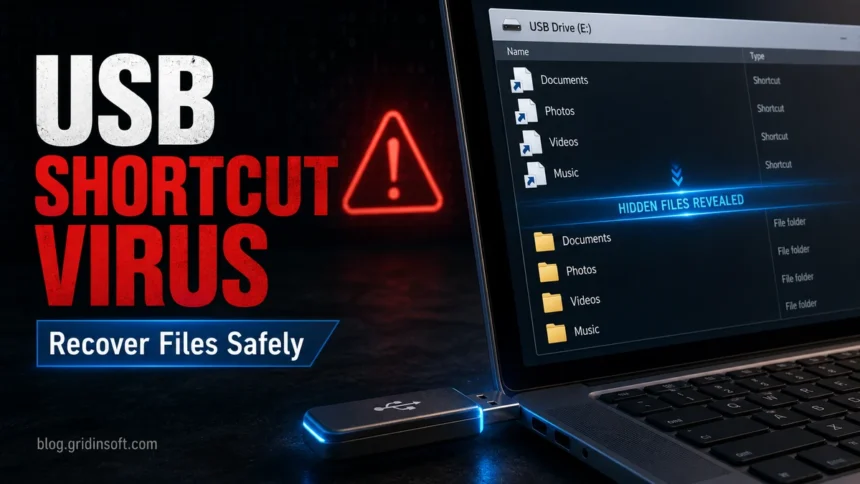
A USB shortcut virus hides real files on a removable drive and leaves clickable .lnk shortcuts in their place. If Microsoft Defender or another security tool removed the detected Trojan but the shortcut still appears, do not open that shortcut. First scan the Windows PC and the USB drive, then reveal hidden files safely, copy only known personal files, delete suspicious .lnk, autorun.inf, script, or executable leftovers, and format the USB drive only after backup.
This guide explains how to remove the active malware, recover files that were hidden with file attributes, and decide when formatting the USB drive is the safer final step.
USB shortcut virus safe recovery order
- Do not open the shortcut. A fake
.lnkfile can launch the hidden script or executable that caused the infection. - Check whether files are hidden, not gone. If the USB drive shows used space but only shortcuts are visible, the real folders are probably hidden by file attributes.
- Use
attribonly on the verified USB drive letter. The command can restore visibility, but it does not remove the malware by itself. - Clean the host PC too. If shortcuts come back after deletion or formatting, the Windows computer is likely recreating them.
- Check AutoPlay/Autorun risk. Plugging in a USB drive is not the same as opening a shortcut; the dangerous step is clicking a suspicious
.lnk, script, or installer, or leaving old AutoPlay behavior enabled. - Format after backup. Formatting is a good final USB cleanup step, but only after scanned personal files are safely copied elsewhere.
Are the USB files gone or just hidden?
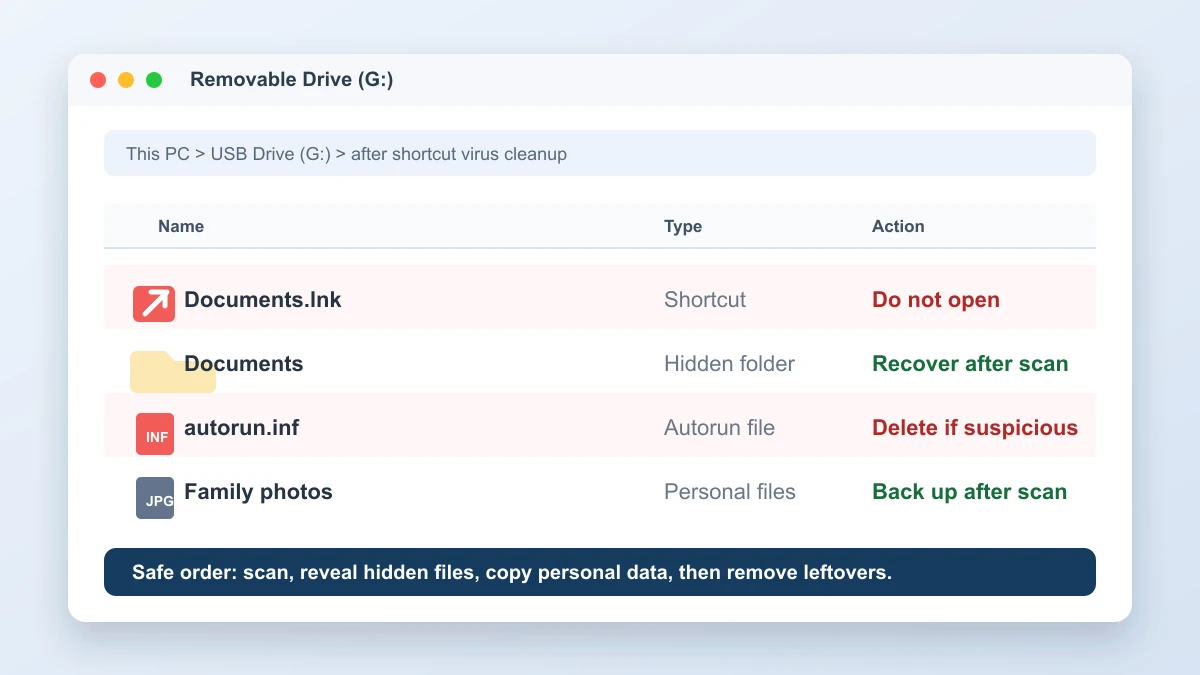
In most shortcut-virus cases, the original files are still on the drive but marked as hidden, system, or read-only. Before running commands, open the USB drive properties and compare used space with the files you can see. If the drive shows gigabytes of used space while File Explorer shows only shortcuts, recoverable files are likely still present.
Windows can hide system-flagged files even when normal hidden items are visible. That is why the attrib -h -r -s /s /d G:\*.* command is useful: it removes the attributes that make the real files disappear from view. If the used space drops close to zero or the files still do not return, stop writing to the USB drive and recover data to a different drive instead of formatting immediately.
What is USB Shortcut Virus?
Shortcut Virus is a type of malware that makes the data look as lost, turning all the files into shortcuts. The virus modifies the file structure on a USB drive, replacing real files and folders with shortcuts with the same icons and names. This tricks the user and causes the virus to launch when they try to open the file. However, the original files are usually hidden or moved to a hidden partition.
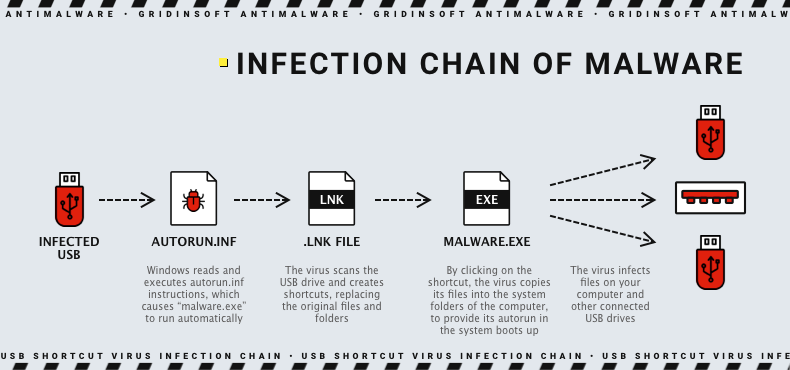
The virus spreads primarily through USB devices and automatically copies its executable file to the device. This file is usually saved in the root directory of the USB drive and disguised as a safe, familiar file using common icons and names such as “My Documents” or “Recycle Bin”. It also actively uses the autorun functionality via the Windows registry. This allows it to run malicious code as soon as the device is connected to the computer. The “.lnk” files are a key element of this process, as they can be executed automatically and mask the launch of the malicious executable.
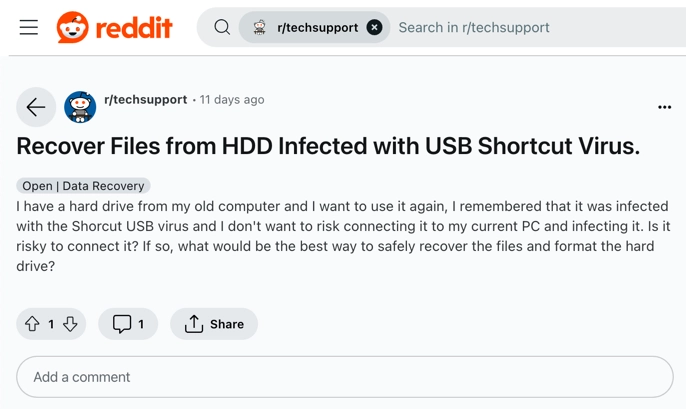
Some users want to re-use old drives that may contain this malware. But for many, it is a risk to plug the drive into a current computer and infect it. That leaves the practical question: how can you safely recover files or format a hard drive after a USB shortcut infection?
How Is Shortcut Virus Dangerous?
Shortcut Virus poses a serious threat to users who regularly use removable media. The main dangers associated with this virus include:
- The worst part is that the virus can also hide or delete the original files on the USB drive. This often results in the loss of important information that may be difficult or impossible to recover.
- Shortcut Virus easily and stealthily spreads from one device to another, infecting all USB devices connected to the infected computer.
- Shortcut Virus can function as a Trojan by collecting user’s personal data such as passwords, financial information and other sensitive data.
- Once on system disks, the virus can disable or compromise a computer’s security, making the system more vulnerable to other malicious attacks.
How to remove USB Shortcut Virus?
Shortcut Virus removal requires a careful order: stop launching the shortcut, scan the Windows PC and USB drive, reveal the hidden real files, delete only suspicious shortcut/autorun/script/executable leftovers, and then rescan before trusting the drive again.
If Defender removed it but the shortcut is still there
A remaining shortcut after a Microsoft Defender cleanup does not always mean the Trojan is still active. It can be a stale .lnk file, a hidden-folder symptom that Defender did not undo, or evidence that the host PC is still recreating shortcuts when the USB is opened. Use this order:
- Do not open the shortcut. Opening it can run the command embedded in the
.lnkfile. - Right-click the removable drive and scan it with Microsoft Defender or your active security tool. Then scan the Windows PC as well, not only the USB drive.
- Copy only known personal files, such as documents and photos, after they are visible and scanned. Do not copy unknown
.lnk,.exe,.vbs,.js,.bat, orautorun.inffiles into the clean backup folder. - Use the
attribcommand on the USB drive letter to remove hidden/system/read-only flags from files and folders that the malware concealed. - Delete leftover shortcuts and suspicious autorun/script/executable files from the USB root after the safe files are backed up.
- If the same shortcut reappears on this or other USB drives, check the PC for persistence in Startup, Run registry keys, scheduled tasks, services, and recently installed apps. At that point, treat the computer as infected, not just the removable drive.
- After file recovery, format the USB drive before reusing it if you do not need to preserve anything else on it.
If the PC keeps recreating shortcuts after repeated scans, move recovery work to a clean Windows installation or a trusted recovery environment. Our clean Windows install USB after malware guide covers the safer rebuild path when the host system cannot be trusted.
Step 1: Disable USB device autorun and AutoPlay prompts
On modern Windows, a USB drive normally should not run autorun.inf just because it was plugged in. The practical risk is still real: a shortcut-virus infection can trick you into clicking a malicious .lnk, script, or fake folder, and older or modified AutoPlay settings can make removable-media behavior less predictable.
- Open Settings → Bluetooth & devices → AutoPlay and turn off Use AutoPlay for all media and devices, or set removable drives to take no automatic action.
- If this is an older Windows PC or a managed machine where AutoPlay keeps returning, open “Registry Editor” (press Win + R, type regedit and press Enter).
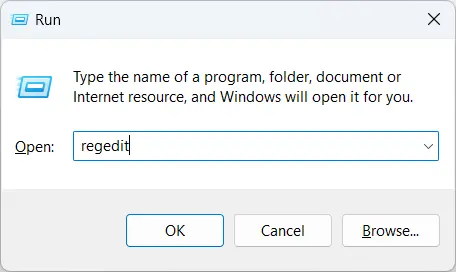
- Navigate to the
HKEY_CURRENT_USER\Software\Microsoft\Windows\CurrentVersion\Policies\Explorerpath.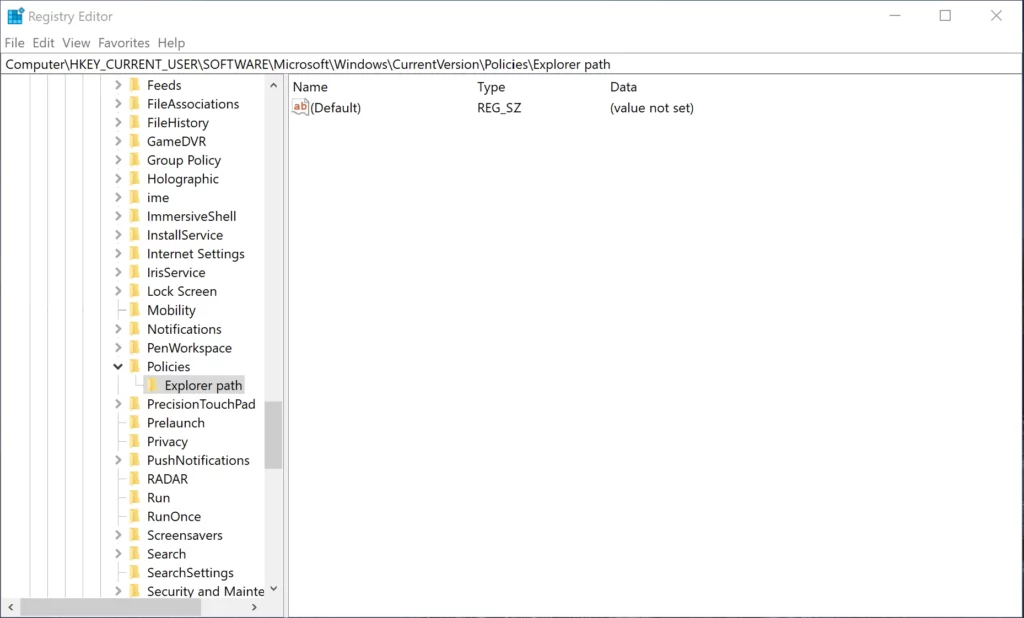
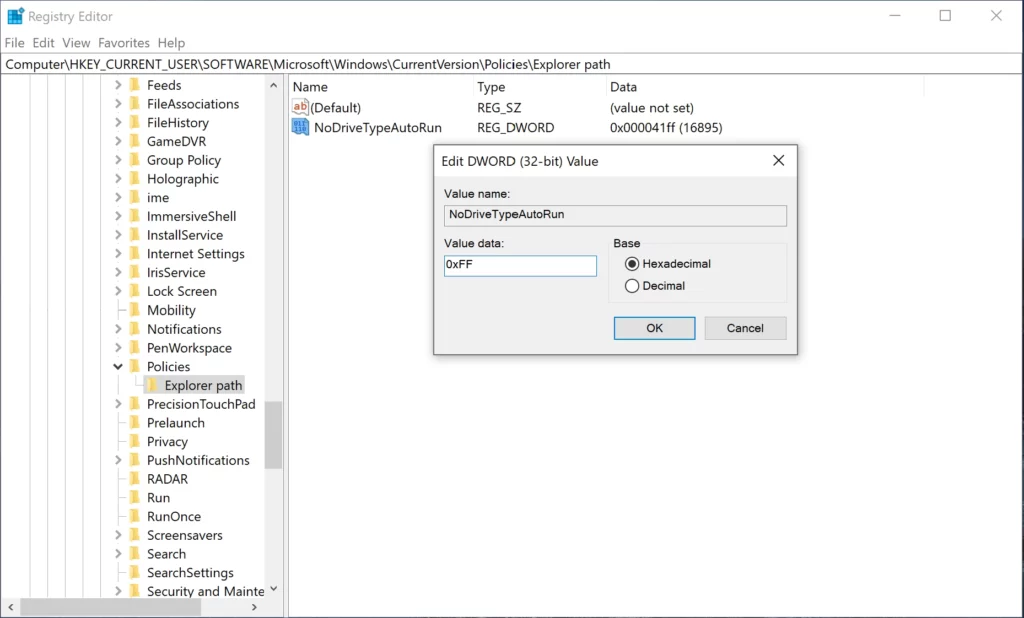
- Create or modify a DWORD value named NoDriveTypeAutoRun and set the value to 0xFF to disable autorun for all disk types.
Step 2: Cleanup the registry
Since the virus can create registry entries to run automatically, you need to clean the registry:
- Open “Registry Editor” (press Win + R, type regedit and press Enter).
- Navigate to:
HKEY_CURRENT_USER\Software\Microsoft\Windows\CurrentVersion\Run

HKEY_LOCAL_MACHINE\SOFTWARE\Microsoft\Windows\CurrentVersion\Run
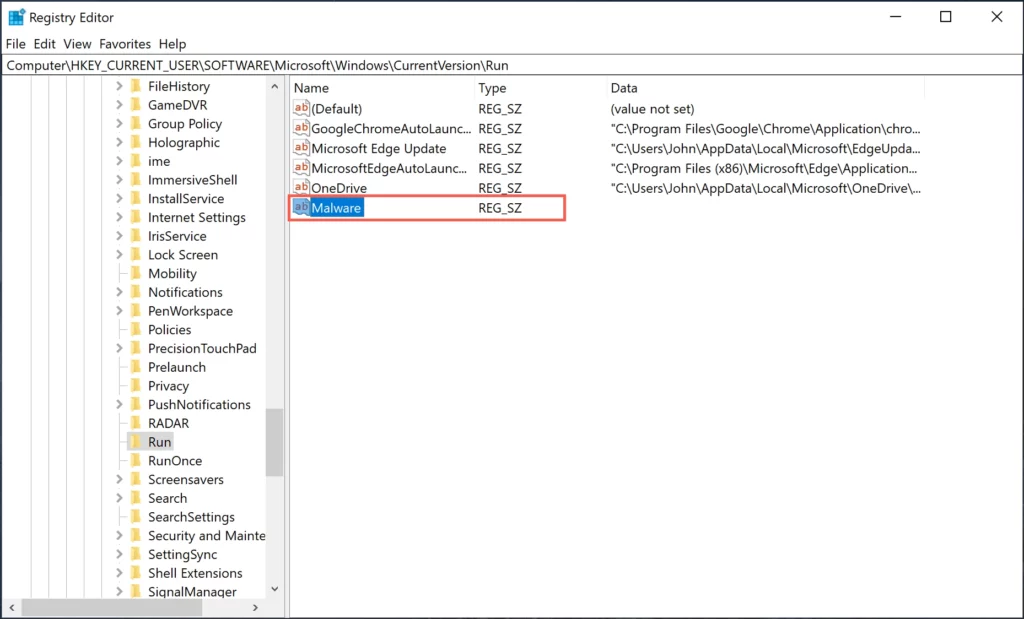
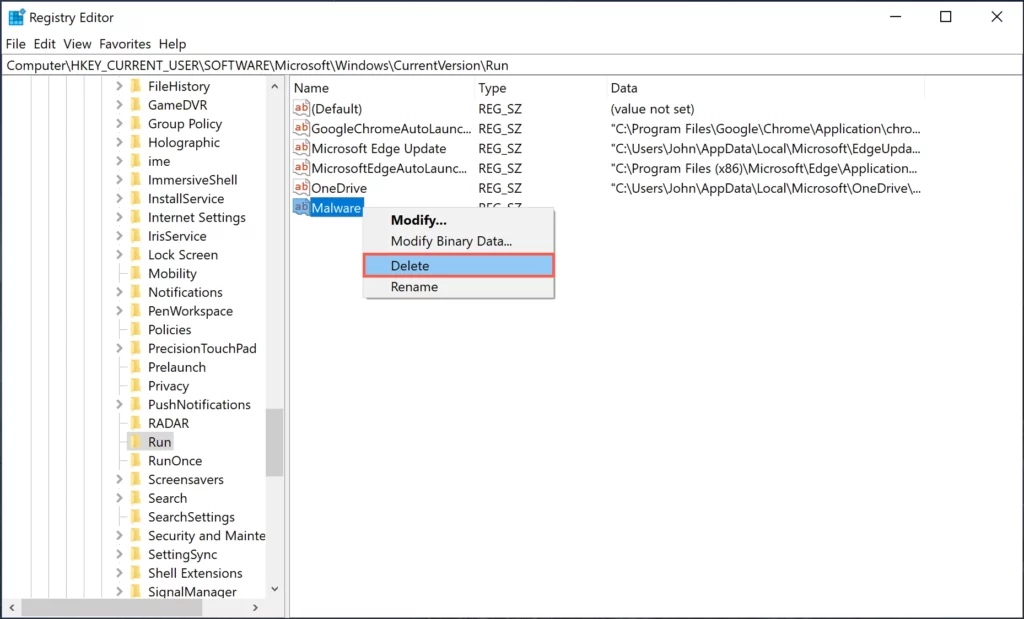
- Remove any suspicious values that may run malicious files on system startup.
Step 3: Manual file recovery and cleanup
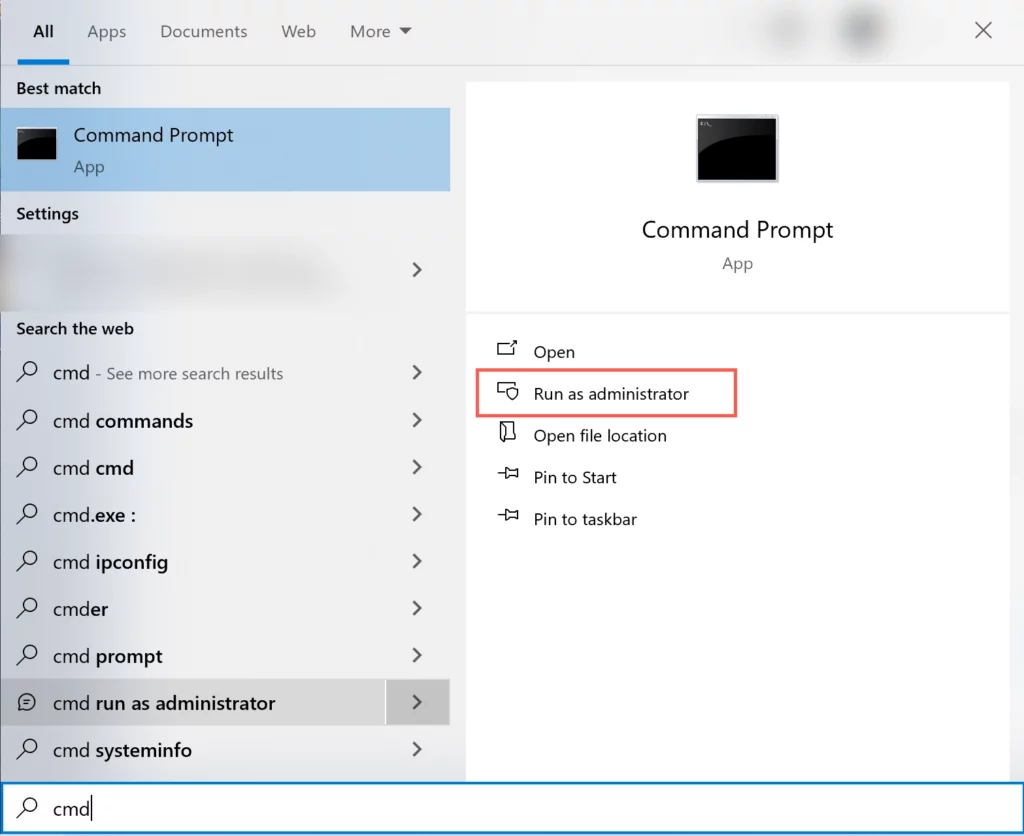
Several commands can help reveal files hidden by a shortcut virus. Run them only against the removable drive letter you verified in File Explorer.
- Open Command Prompt as administrator.
- Replace
G:with the actual USB drive letter, then reveal hidden files and folders:
attrib -h -r -s /s /d G:\*.* - Remove leftover shortcuts from the USB root after you have confirmed your real files are visible:
del G:\*.lnk - Look for suspicious USB-root files such as
autorun.inf, unknown.vbs,.js,.bat, or executable files that you did not place there. Delete only the suspicious files after backup and scan, not every executable on the drive. - Check C:\Windows, C:\Windows\System32, C:\Users\[username]\AppData, Startup folders, Run registry keys, and Task Scheduler only if shortcuts keep returning after the USB cleanup.
Be very careful when using the command line and registry editing. A wrong drive letter or broad delete command can damage clean files.
Shortcut Virus Remover
To remove Shortcut Virus, one of the most effective approaches is to use specialized antivirus software that can detect and remove complex malware. One of the recommended tools for this task is Gridinsoft Anti-Malware.
Gridinsoft Anti-Malware features fast scanning speeds and the ability to detect various types of malware, including Shortcut Virus. It also provides in-depth system and USB device scanning. This allows you to detect and remove hidden and standalone viruses that may not be noticed by standard antiviruses.
If your USB issue is not just shortcuts but an exact Defender detection, the Trojan:Win32/Sfone!pz external drive cleanup guide explains how to handle the drive bin, executable leftovers, and safe file backup.
If Defender names Trojan:Win32/WinLNK.CLL!MTB and the affected item is a recovery package such as C:\Recovery\Customizations\*.ppkg, use the WinLNK.CLL recovery-package alert guide before deleting the package or adding an exclusion.
FAQ
Why is there still a shortcut after Windows Defender removed the virus?
Defender can remove the detected Trojan while leaving behind a harmless but confusing .lnk shortcut or hidden-file attributes on the USB drive. If the shortcut reappears after deletion, scan the Windows PC because the host system may still be recreating it.
Is the attrib command safe for recovering USB files?
attrib -h -r -s /s /d G:\*.* is meant to clear hidden, read-only, and system attributes from files and folders on the selected drive. It does not remove malware by itself, so use it after scanning and only with the correct USB drive letter.
Should I format the USB drive?
Format the USB drive after you recover and scan the files you need. Formatting is a good final cleanup step for the removable drive, but it will not fix an infected Windows PC that keeps writing new shortcuts to every USB drive.
Can autorun.inf infect Windows 10 or 11 just by plugging in a USB?
Usually no. Current Windows systems do not normally execute USB autorun.inf entries automatically on insertion. Treat the drive as risky anyway: do not open shortcuts, scripts, or unknown executables, disable AutoPlay prompts if they appear, scan the PC and USB drive, and remove suspicious USB-root files only after backup.
If the shortcut infection is tied to cryptocurrency wallet theft or Defender reports Trojan:Win32/CryptoBandits.A, also check for scheduled tasks, ugate.exe, and localhost:9050 activity before trusting the cleaned USB drive.
If the suspicious item is not just a shortcut but an executable named like school notes, see our DERS NOTLARI.exe Worm.Autorun removal guide before restoring files from the USB drive.
References
- Microsoft Learn. “attrib.” Microsoft, updated September 25, 2023, accessed June 2, 2026. https://learn.microsoft.com/en-us/windows-server/administration/windows-commands/attrib
- Microsoft Support. “Antivirus and antimalware software: FAQ.” Microsoft, accessed June 2, 2026. https://support.microsoft.com/en-us/windows/antivirus-and-antimalware-software-faq
- Microsoft Support. “View hidden files and folders in Windows.” Microsoft, accessed June 2, 2026. https://support.microsoft.com/en-us/windows/view-hidden-files-and-folders-in-windows
After uninstalling the suspicious app or deleting the visible threat, use Gridinsoft Anti-Malware to check hidden files, startup entries, scheduled tasks, bundled apps, browser changes, and other persistence points that can restore malware.
Download Anti-Malware