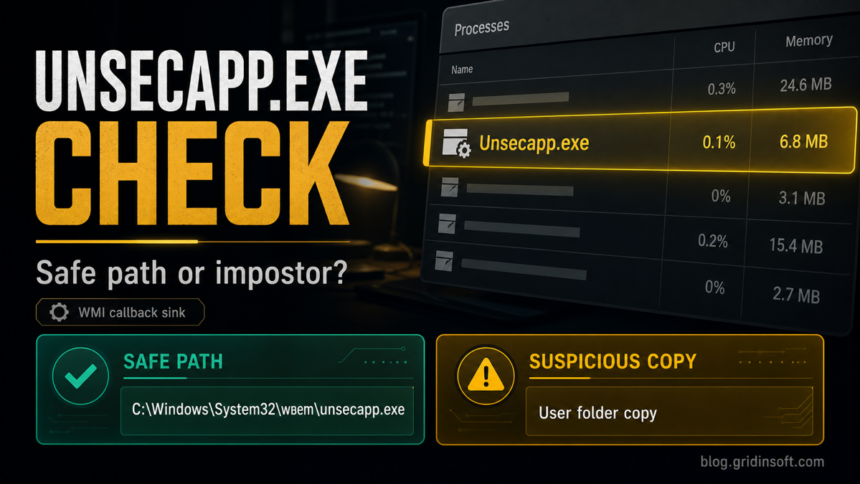
Unsecapp.exe is usually a safe Windows process, not malware. The legitimate file is the WMI callback sink located at C:\Windows\System32\wbem\unsecapp.exe. You should not delete it just because it appears in Task Manager. Treat it as suspicious when the same name runs from AppData, Temp, Downloads, a browser folder, or another user-writable location, especially if CPU usage stays high or the process comes back after you end it.
Unsecapp.exe quick verdict
| Most likely safe | The running file is in C:\Windows\System32\wbem, is Microsoft-signed, uses little CPU, and appears only while another app is querying Windows through WMI. |
| Needs investigation | The same filename runs from AppData, Temp, Downloads, Desktop, a browser profile, a crack/mod folder, or an unknown program directory. |
| Likely malicious | CPU or GPU stays high at idle, the process returns after End Task, a scheduled task/service relaunches it, or a security tool flags the file outside the Windows folder. |
| Best first action | Verify the file location and Digital Signatures tab before deleting anything. Scan suspicious copies and persistence points instead of removing the real Windows component. |
What Unsecapp.exe does in Windows
Unsecapp.exe is connected to Windows Management Instrumentation, or WMI. WMI lets Windows and installed software request system information, receive status data, and run management tasks. Unsecapp.exe works as a callback receiver for some of those WMI operations, which is why its description is often shown as Sink to receive asynchronous callbacks for WMI client application.
That name sounds strange, but the normal process is not a virus. It may appear after you install a driver, security tool, game launcher, remote support app, hardware utility, or other software that asks Windows for system data. Seeing it suddenly is not enough to call it malware; the file path, signature, and behavior matter more than the process name.
How to check if Unsecapp.exe is safe
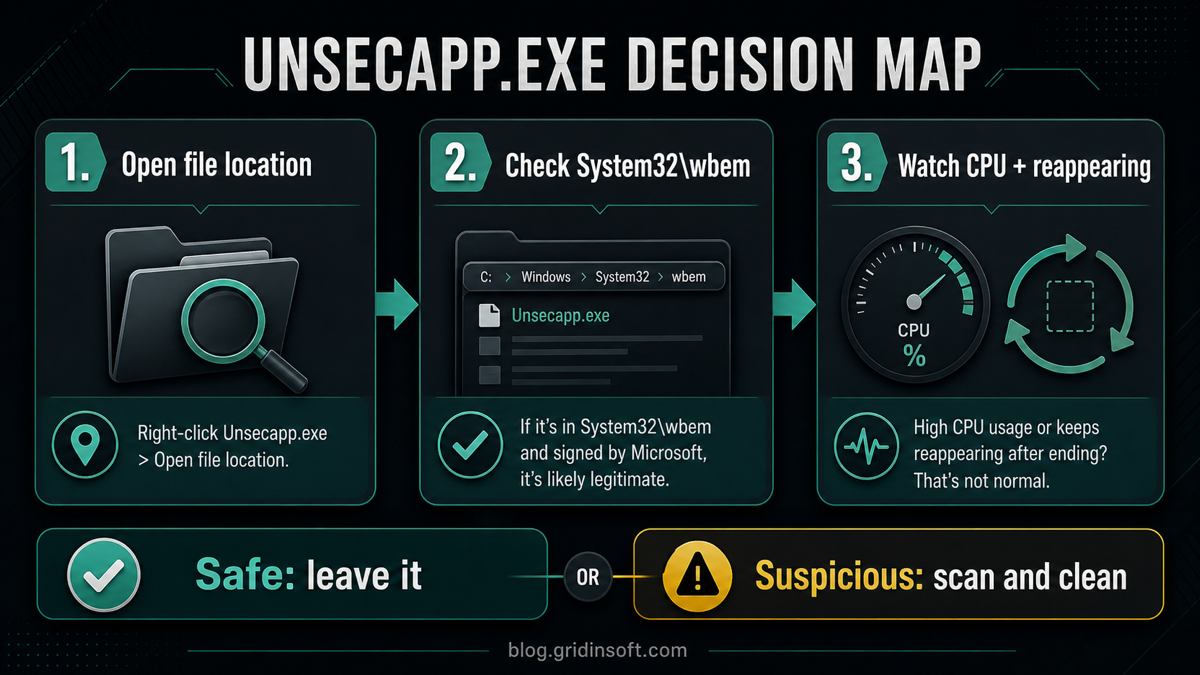
Use this order. It avoids deleting a real Windows file and still catches the common impostor pattern.
- Open Task Manager. Press Ctrl+Shift+Esc, find Unsecapp.exe, right-click it, and choose Open file location.
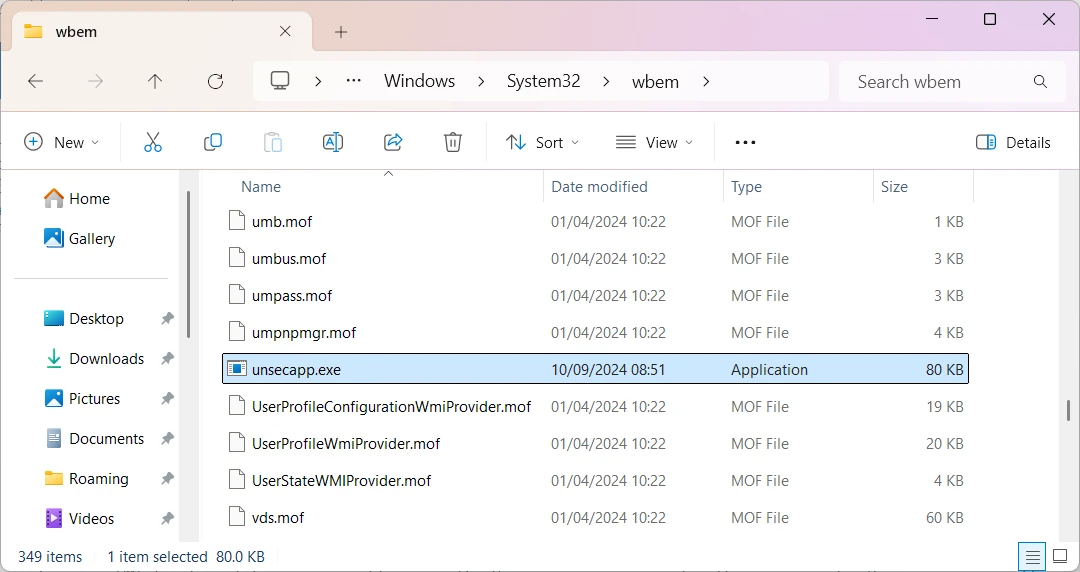
- Check the folder. The normal path is
C:\Windows\System32\wbem\unsecapp.exe. A copy in a user-writable folder should be treated as suspicious. - Check the signature. Right-click the file, open Properties, and check Digital Signatures. The legitimate file should show Microsoft Windows or Microsoft Corporation.
- Watch behavior. A low-memory, low-CPU process that appears only when software uses WMI is normal. Constant CPU/GPU load, network activity, or immediate reappearing after End Task is not normal.
- Scan the suspicious file. If the path or signature is wrong, keep the file quarantined or scan it before opening, restoring, or deleting it manually.
Is Unsecapp.exe a virus?
The real Unsecapp.exe is not a virus. The risk is a fake copy using the same name. Malware often borrows Windows-looking filenames because users are less likely to question them in Task Manager. A fake Unsecapp.exe can be tied to coin miners, trojans, loaders, or bundled unwanted apps that hide behind familiar system names.
For example, a miner may use high CPU or GPU power while the PC is idle. A loader may create a scheduled task or startup entry that brings the process back after a reboot. That is why removing only the visible EXE is often not enough.
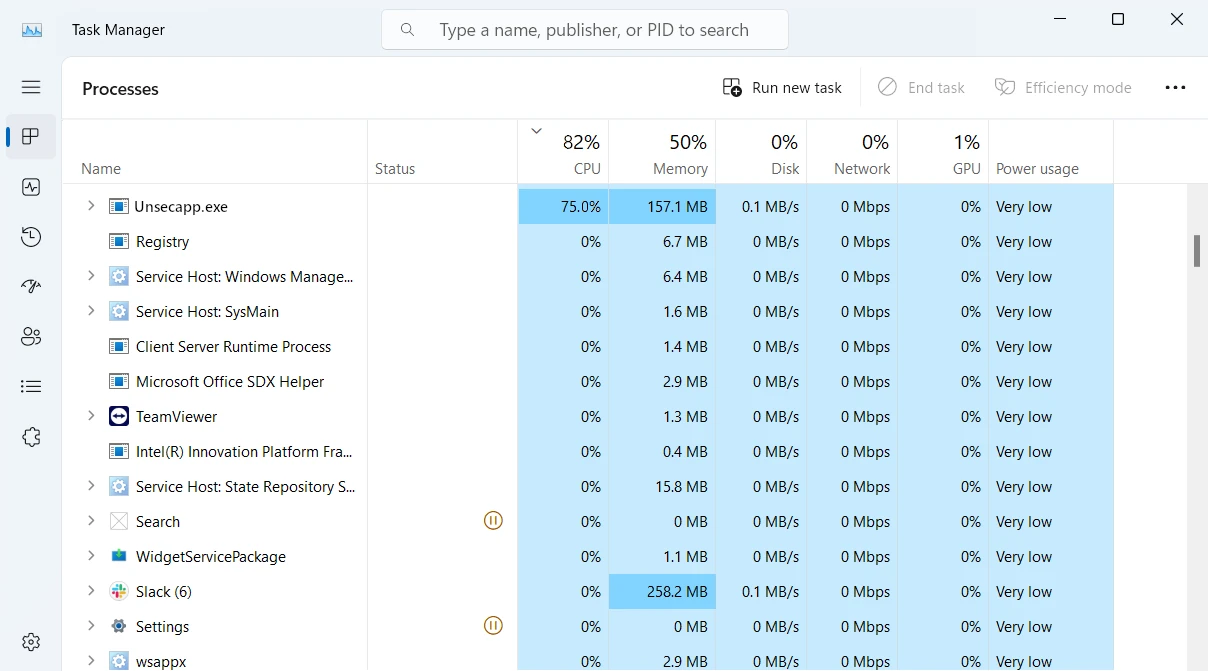
When Unsecapp.exe high CPU is suspicious
A brief CPU spike can be normal when another app uses WMI. Persistent high CPU is different. Investigate if Unsecapp.exe stays busy while the PC is idle, starts from a non-Windows folder, launches with a strange parent process, or returns immediately after you end it.
If high CPU comes with fan noise, overheating, a slow browser, unfamiliar startup entries, or unknown outbound connections, compare the symptoms with our coin miner malware removal guide. Miner infections often need persistence cleanup, not only process termination.
Should you delete Unsecapp.exe?
Do not delete the real file from C:\Windows\System32\wbem. Removing a legitimate Windows component can break WMI-dependent features and apps. If the path and signature are correct, leave it alone.
Delete or quarantine only a suspicious copy after confirming that it is not the Microsoft-signed Windows file. If the suspicious process came from a crack, fake installer, browser extension, archive, or unknown utility, remove the source package too.
How to remove a fake Unsecapp.exe
- Disconnect if the system is actively overheating or mining. This limits outbound traffic while you investigate.
- Open the file location. Save the folder path before ending the task. Suspicious locations include
%APPDATA%,%LOCALAPPDATA%,%TEMP%, Downloads, Desktop, browser profile folders, and crack/mod directories. - End the suspicious process. Do not end or delete the legitimate System32 wbem copy.
- Remove persistence. Check Startup Apps, Task Scheduler, Services, and recently installed apps. If the process returns after reboot, something is relaunching it.
- Scan and clean leftovers. Run a full scan and remove detections tied to the same folder, installer, scheduled task, service, or bundled app.
- Reboot and verify. After cleanup, check Task Manager again. The only remaining Unsecapp.exe should be the Microsoft-signed file in
C:\Windows\System32\wbem.
If a suspicious Unsecapp.exe copy already ran, a scanner should check more than the visible EXE. A loader, scheduled task, service, browser change, startup entry, or bundled component can bring the symptoms back after reboot. Use Gridinsoft Anti-Malware to scan hidden files, startup entries, scheduled tasks, services, bundled apps, browser changes, and other persistence points before you decide the system is clean.
If the process path is wrong, the name imitates a Windows component, or high CPU started after an unknown installer, scan for hidden miners, services, startup entries, and bundled components.
Scan for Unsecapp.exe impostorsFAQ
Why did Unsecapp.exe suddenly appear?
Usually because an app, driver, hardware utility, security tool, or Windows component started using WMI. Sudden appearance is normal when the file path is C:\Windows\System32\wbem and the file is Microsoft-signed.
Can I end Unsecapp.exe in Task Manager?
You can end it for troubleshooting, but Windows may start it again when WMI is needed. Ending the task is safer than deleting the file. If it returns from a suspicious folder, scan that copy and its startup entries.
Is Unsecapp.exe the same as WMI Provider Host?
No. WMI Provider Host is usually WmiPrvSE.exe. Unsecapp.exe is a related WMI callback sink. Both can appear during WMI activity, but they are different Windows components. If Task Manager shows WmiPrvSE.exe or WMI Provider Host using sustained CPU instead of Unsecapp.exe, use the WMI Provider Host high CPU guide to trace the caller before treating it as malware.
What if Unsecapp.exe is in System32 but not wbem?
Do not trust the folder name alone. The expected location is C:\Windows\System32\wbem\unsecapp.exe. If it is elsewhere, check the signature, scan the file, and review recent startup entries.
Can malware use the Unsecapp.exe name?
Yes. Malware can copy almost any Windows-looking filename. The reliable checks are file location, Microsoft signature, CPU/network behavior, and whether the process reappears from a startup task or service.
References
- Microsoft. “IWbemUnsecuredApartment::CreateSinkStub method.” Microsoft Learn, accessed June 20, 2026. https://learn.microsoft.com/en-us/windows/win32/api/wbemcli/nf-wbemcli-iwbemunsecuredapartment-createsinkstub
- Strontic xCyclopedia. “unsecapp.exe | Sink to receive asynchronous callbacks for WMI client application.” Strontic, accessed June 20, 2026. https://strontic.github.io/xcyclopedia/library/unsecapp.exe-E9EB3FAA2E95E1496F344AE84DF8144A.html