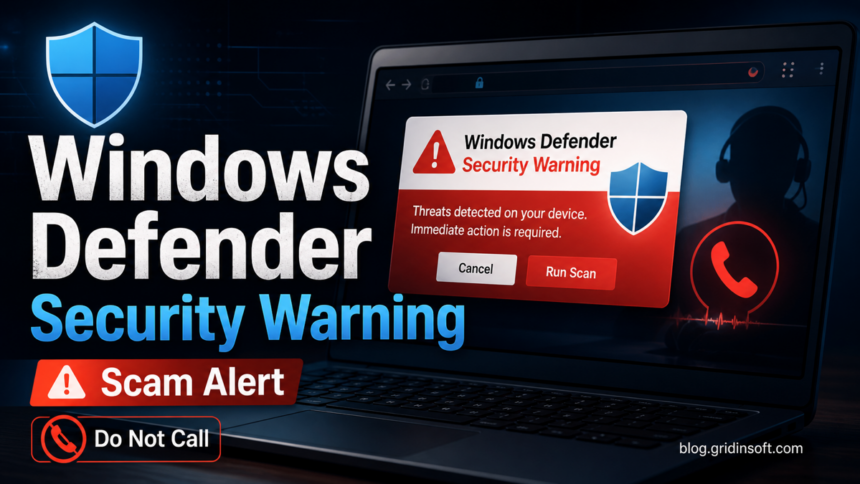
A browser pop-up titled Windows Defender Security Warning that asks you to call support is a scam. To remove the warning, close the browser with Alt + F4; if it is stuck, open Task Manager with Ctrl + Shift + Esc and end the browser task. Reopen without restoring the suspicious tab. Check a genuine alert separately by opening Windows Security from Start; do not disable Defender to silence a webpage.
- The warning is still open: use the keyboard shortcuts above, ignore the page’s buttons, and do not call or install its “support” tool. Closing the browser can discard unsaved work in other tabs.
- It comes back: follow the notification, extension, and startup-page checks below. A recurring site notification alone does not establish a PC infection.
- You called, installed, or paid: end the call. If you allowed remote control, disconnect the PC and use a clean device for account recovery. If you paid or shared card details, contact your bank through its official app or number. Follow the post-call recovery steps for your exposure.
If the fake page title specifically says Windows Defender Security Center, use the focused Windows Defender Security Center scam removal guide. This article covers the broader “Windows Defender Security Warning” pop-up that victims see after a redirect, malicious ad, hacked page, push notification, or adware infection.
For a broader browser scareware cleanup flow, use the fake virus alert removal guide. Stay on this page when the wording specifically says “Windows Defender Security Warning” or imitates Microsoft Defender.
What Is the Windows Defender Security Warning Scam?
The Windows Defender Security Warning scam is browser scareware. A malicious page imitates a Microsoft or Windows security alert and claims that spyware, trojans, or stolen credentials were found on the computer. The page may play alarm sounds, open full-screen mode, show a fake scan, or block the close button so the warning feels urgent.
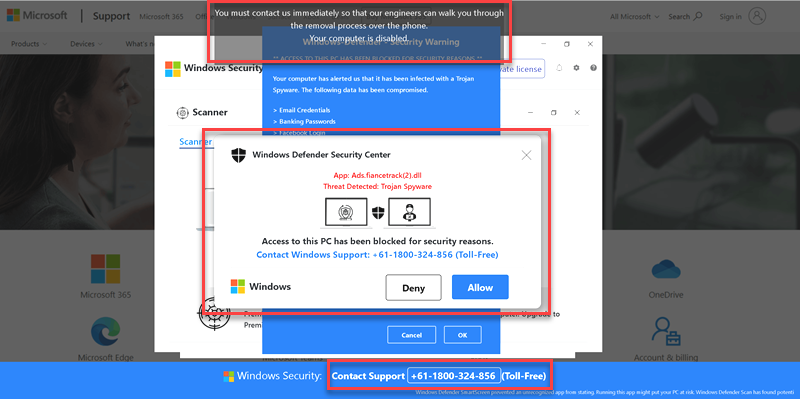
The goal is not to fix your PC. The goal is to make you call a scam number, install a remote-control tool, buy useless “support,” or download malware. Microsoft Defender does not ask you to call a phone number from a browser pop-up, and real Windows Security alerts open through the Windows Security app, not through a random web page.
Fake Warning vs Real Defender Alert
| What you see | What it usually means |
|---|---|
| A browser page says “Windows Defender Security Warning” and shows a support phone number. | Scam. Close the page and do not call. |
| The alert claims the computer is locked until you contact support. | Scareware. Use Task Manager or force quit the browser. |
| Windows Security opens from the Start menu and lists a threat under Protection history. | Likely a real Defender event. Review the detection name and quarantine status. |
| Windows Security asks you to review files it may send to Microsoft. | This is a real sample-submission workflow. Review the path and privacy risk with the Defender review-files checklist; do not call a number or disable protection. |
| The warning returns after every browser restart. | Check notification permissions, extensions, startup pages, and installed apps. |
| You called the number or allowed remote access. | Disconnect, change passwords from a clean device, and run a full malware scan. |
Why You Are Seeing It
Most victims land on this fake warning after a redirect. Common sources include malicious ads, hacked websites, typo-squatted download pages, browser notification spam, shady streaming sites, and bundled adware. If you only saw it once after clicking an ad, the PC may not be infected. If it keeps returning, something in the browser or system is likely reopening the scam page.
- Malvertising or redirects: a bad ad sends the browser to a fake Microsoft page.
- Notification spam: a site was allowed to send notifications and now pushes fake security alerts.
- Suspicious extensions: an add-on changes search, homepage, or new-tab behavior.
- Adware or PUPs: a bundled app injects ads and redirects into the browser.
- Remote-access follow-up: after a scam call, attackers may leave tools or startup items behind.
How to Close the Fake Warning Safely
Do not interact with buttons inside the warning. Treat every “Scan,” “Allow,” “Call,” “Continue,” or “Download” button as part of the scam page.
- Press Esc to exit full-screen mode if the page took over the screen.
- Try Alt + F4 on Windows or Command + Q on macOS to close the browser.
- If it will not close, open Task Manager with Ctrl + Shift + Esc, select the browser, and choose End task.
- Reopen the browser without restoring the previous session. If the browser offers to restore tabs, decline it.
- If the page reopens automatically, continue with notification, extension, and app cleanup below.
Remove Pop-Ups, Notifications, and Redirects
Resetting the browser is not always the first move. Start with the pieces that usually reopen the fake warning: notification permissions, extensions, startup pages, and suspicious installed apps.
Remove Malicious Notification Permissions
If fake alerts appear even when you are not on the scam page, a site may have notification permission. Remove unknown or suspicious sites from notification settings.
If a website keeps showing unwanted pop-ups, you likely granted it permission to send notifications. To stop them, you need to revoke that permission in your browser settings.
- Copy and paste this into the address bar:
chrome://settings/content/notifications - Scroll down to the Allowed to send notifications list.
- Find the suspicious site.
- Click the three dots (...) next to it and select Remove (or Block).
- Open Safari and go to Settings (or Preferences).
- Click the Websites tab and select Notifications on the left.
- Find the suspicious site in the list on the right.
- Select it and click Remove (or change "Allow" to "Deny").
- Copy and paste this into the address bar:
about:preferences#privacy - Scroll down to Permissions and click Settings... next to Notifications.
- Type the suspicious site in the search bar or find it in the list.
- Select the site and click Remove Website.
- Copy and paste this into the address bar:
edge://settings/content/notifications - Look under the Allow section.
- Find the suspicious site.
- Click the three dots (...) next to it and select Remove (or Block).
- Copy and paste this into the address bar:
brave://settings/content/notifications - Scroll to the Allowed to send notifications list.
- Find the suspicious site.
- Click the three dots (...) and select Remove (or Block).
- Copy and paste this into the address bar:
opera://settings/content/notifications - Check the Allowed to send notifications list.
- Find the suspicious site.
- Click the three dots next to it and select Remove.
Remove Suspicious Extensions
Disable recently installed extensions, coupon tools, search helpers, PDF converters, video downloaders, and anything you do not recognize. Then restart the browser and check whether the warning returns.
- Launch Chrome.
- Click the three dots (...) in the top right corner.
- Select Extensions > Manage Extensions.
- Click Remove next to the extension you want to delete.
Quick Access: Type chrome://extensions/ in the address bar.
- Open Safari.
- In the menu bar, click Safari and select Settings (or Preferences).
- Click on the Extensions tab.
- Select the extension and click Uninstall.
- Click the menu button, select Add-ons and themes.
- Go to the Extensions tab.
- Click the three dots (...) next to the extension and select Remove.
Quick Access: Type about:addons in the address bar.
- Launch Microsoft Edge.
- Click the three dots (...) in the top right corner.
- Select Extensions.
- Find the extension and click Remove.
Quick Access: Type edge://extensions/ in the address bar.
- Launch Brave browser.
- Click the menu icon > Extensions.
- Find the extension and click Remove.
Quick Access: Type brave://extensions/ in the address bar.
- Launch Opera.
- Click the Opera logo in the top left corner.
- Select Extensions > Extensions.
- Click the X or Remove button next to the extension.
Quick Access: Type opera://extensions/ in the address bar.
Check Installed Apps
If the warning returns across multiple browsers, check installed programs for recently added apps you did not intentionally install. Pay attention to fake cleaners, driver updaters, search tools, and download assistants.
If a removed extension comes back after every restart, check the policy and sync path in the browser extension keeps reinstalling itself guide before resetting the browser.
If you see any suspicious applications that you don't remember installing, you should remove them as well.
- Right-click the Start button and select Installed Apps (or Apps & Features).
- Scroll through the list to find suspicious app or any other unfamiliar program.
- Click the three dots (...) next to it and select Uninstall.
- Open Finder and go to the Applications folder.
- Locate suspicious app or any app you don't recognize.
- Drag it to the Trash.
- Empty the trash to remove it permanently.
- Go to Settings > Apps > See all apps.
- Find suspicious app or any suspicious app in the list.
- Tap on it and select Uninstall.
Reset the Browser if Needed
If notifications and extensions were clean but the scam page still opens, reset the affected browser. This removes custom startup pages and many unwanted settings while keeping bookmarks and saved passwords in most browsers.
- Tap on the three dots (...) in the top right corner and Choose Settings.

- Choose Reset and Clean up and Restore settings to their original defaults.

- Tap Reset settings.

Quick Access: Type chrome://settings/reset in the address bar.
- Open Safari.
- In the menu bar, click Safari > Clear History.
- Select all history and click Clear History.
- Go to Safari > Settings (or Preferences).
- Click the Privacy tab and select Manage Website Data... > Remove All.
- In the Advanced tab, check Show features for web developers.
- In the menu bar, select Develop > Empty Caches.
- Launch Brave browser.
- Click the menu icon in the top right corner and select Settings.
- Click Additional settings > Reset settings.
- Tap Restore settings to their original defaults.
- Confirm by clicking Reset settings.
Quick Access: Type brave://settings/reset in the address bar.
- In the upper right corner tap the three-line icon and Choose Help.

- Choose More Troubleshooting Information.

- Choose Refresh Firefox... then Refresh Firefox.

Quick Access: Type about:support and click Refresh Firefox.
- Tap the three dots.

- Choose Settings.

- Tap Reset Settings, then Click Restore settings to their default values.

Quick Access: Type edge://settings/reset in the address bar.
- Launch the Opera browser.
- Click the Opera menu button in the top left corner and select Settings.
- Scroll down to the Advanced section in the left sidebar and click Reset and clean up.
- Click Restore settings to their original defaults.
- Click Reset settings to confirm.
Quick Access: Type opera://settings/reset in the address bar.
What to Do if You Called the Number
If you spoke with the fake support operator, assume the risk is higher. Scammers often ask victims to install remote-access tools, reveal banking information, or pay for fake repairs.
- Disconnect from the internet if a stranger still has remote access.
- Uninstall remote-access tools you did not use before the call.
- From a clean device, change passwords for email, Microsoft, banking, PayPal, crypto, and any account opened during the call.
- Review bank and card activity. Contact the bank quickly if you paid or shared card details.
- Run a full system scan to look for adware, remote tools, and malware left behind.
If you downloaded a file from the fake warning page, uploaded personal documents, or let someone control the computer, scan the system before using it for banking or password changes.
How to report the fake Microsoft support pop-up
If the page used Microsoft branding, save the URL, phone number, screenshot, and payment details before deleting browser history. Report the impersonation through Microsoft Report Fraud. If money was lost, card data was shared, or remote access was granted, also contact your bank and the local cybercrime or consumer-protection authority for your country.
A browser reset may remove the visible pop-up, but it will not always remove a downloaded helper app, remote-access tool, startup entry, or bundled adware that brought the warning back. After the manual cleanup, run a scan focused on browser changes, hidden files, startup items, scheduled tasks, and suspicious apps.
If redirects, notifications, extensions, homepage changes, or managed policies return after browser cleanup, the source is often outside the browser: an installed app, policy, scheduled task, or startup entry.
Scan for scam pop-up leftoversMicrosoft Edge Scareware Blocker
Microsoft now documents an Edge scareware blocker designed to detect deceptive full-screen alerts and fake malware warnings. It is a helpful layer, especially for users who often land on aggressive pop-ups, but it does not replace browser cleanup or malware scanning after a suspicious download or remote-access session.
In Edge, check Settings > Privacy, search, and services > Security, then confirm that protective features such as Microsoft Defender SmartScreen and scareware blocking are enabled when available for your device. Keep Edge and Windows updated so these protections receive current detection logic.
How to Avoid This Scam Again
- Do not trust support phone numbers shown inside browser pop-ups.
- Use bookmarks or typed addresses for Microsoft, banking, and security tools.
- Block notification requests from unknown sites.
- Keep Windows, browsers, and extensions updated.
- Download software only from official sources.
- Use a reputable security tool to check suspicious files and bundled installers.
- Teach less technical family members that real support will not demand a call from a panic pop-up.
FAQ
Is Windows Defender Security Warning real?
A warning inside a browser tab that asks you to call a phone number is not a real Defender alert. Real Defender events appear in Windows Security and Protection history.
Why does the warning keep coming back?
The most common reasons are browser notification spam, a malicious extension, a startup page set by adware, or a suspicious app reopening redirects.
Should I call the phone number on the warning?
No. The number belongs to a fake support flow. Calling can lead to remote-access fraud, payment requests, or malware installation.
Can simply closing the page remove the scam?
Yes, if it was a one-time redirect from an ad. If the alert returns, clean notification permissions, extensions, startup settings, and installed apps.
Do I need to reset Windows?
Usually no. Start with browser cleanup and a malware scan. Consider Windows recovery only if remote access was allowed, malware is confirmed, or the system remains unstable after cleanup.
References
- Microsoft Support. “Protect yourself from tech support scams.” Microsoft, accessed June 7, 2026. https://support.microsoft.com/en-us/windows/protect-yourself-from-tech-support-scams-2ebf91bd-f94c-2a8a-e541-f5c800d18435
- Microsoft Support. “Prevent online scams with the scareware blocker in Microsoft Edge.” Microsoft, accessed June 7, 2026. https://support.microsoft.com/en-us/edge/prevent-online-scams-with-the-scareware-blocker-in-microsoft-edge
- Microsoft. “Report Fraud.” Microsoft, accessed July 7, 2026. https://reportfraud.microsoft.com/