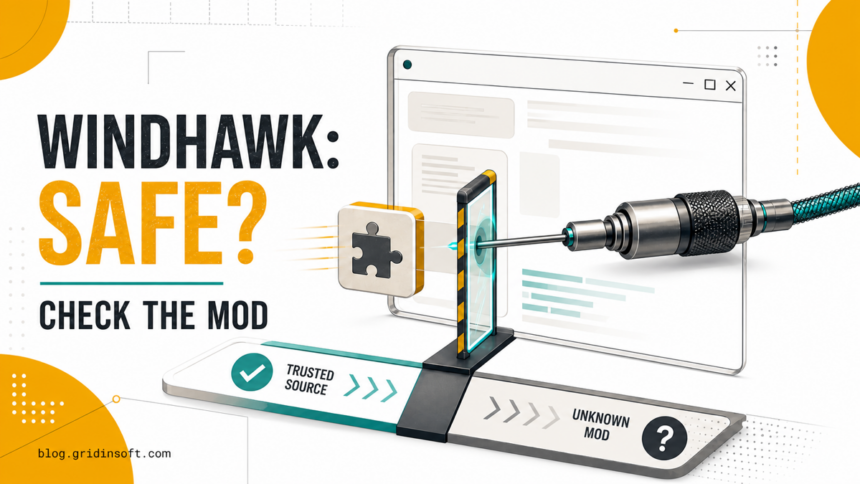
Windhawk can be safe when you get the official open-source application from windhawk.net, but that verdict does not automatically cover every download or mod. Windhawk injects code into Windows processes so its mods can change their behavior. That legitimate design can trigger antivirus or endpoint-security alerts, create compatibility problems, and amplify the impact of a poorly written mod. Verify the installer source, review each mod and its target processes, and keep a rollback path. An alert is not proof of malware, but “Windhawk uses injection” is also not proof that every detection is a false positive.
| What you have | Safest next decision |
|---|---|
| Installer reached from the official site and official GitHub project | Confirm the final download source and inspect the file before running it |
| Windhawk mod from the official collection | Read its source, author, target processes, permissions, issues, and recent changes |
| Single antivirus alert mentioning injection or hooking | Verify source and file identity; do not blanket-allow the folder or disable protection |
| Explorer, taskbar, or another app breaks after enabling a mod | Disable the newest mod, restart Windhawk, then use its safe mode if needed |
| Installer or mod came from a mirror, archive, video description, or chat link | Do not treat it as official; remove it, scan the system, and obtain a clean copy |
| Managed work PC or competitive game with anti-cheat | Do not force exclusions; follow employer or game policy and avoid injection conflicts |
Why Windhawk Triggers Security Alerts
Windhawk customizes programs while they run. Its engine is injected into processes, then it loads only the mods that target each process. The project explains that broad injection lets it intercept newly created processes early enough for some mods to work. It excludes critical system processes and known incompatible programs by default, and it gives users process inclusion and exclusion controls.
Code injection and API hooking are not automatically malicious. Debuggers, accessibility tools, overlays, security products, and customization tools can use similar techniques. Malware also uses them, so an antivirus or EDR product may react to the behavior rather than to a confirmed malicious payload. This is why the surrounding evidence matters:
- Where did the installer or mod come from?
- Does the file match the official release channel you intended to use?
- Which process does the mod target, and why does it need that scope?
- Did the alert begin after a specific update or third-party mod?
- Are there unrelated signs such as unknown startup entries, browser changes, credential prompts, or network activity?
Do not solve an injection alert by excluding C:\*, the entire Windhawk folder, or every process from antivirus inspection. A broad exclusion hides future malicious files too. If one application conflicts with Windhawk, use Windhawk’s own process exclusion list for that application or disable the relevant mod. The official documentation describes an “exclude everything, include only selected processes” configuration as a last resort because delayed injection can break some mods.
Verify the Official Windhawk Installer
A search result, familiar icon, or filename such as windhawk_setup.exe does not authenticate a download. Use this sequence before running it:
- Start at the official project. Type
windhawk.netyourself or reach it through theramensoftware/windhawkGitHub repository. Avoid lookalike domains, “download” portals, shortened links, sponsored-result copies, and repacked archives. - Check the final URL and filename. A legitimate page can redirect to its own download host or official GitHub assets, but a surprise file-sharing host is a stop signal. Do not accept a password-protected archive or extra “download manager.”
- Inspect the file. In Properties, review the Digital Signatures tab if one is present, the file description, version, and timestamps. Compare the release context with the official repository. Do not decide from the signer name alone.
- Record a hash before making an exception. This lets you compare the exact file after a vendor or project response instead of discussing only a reusable filename.
Get-FileHash "$env:USERPROFILE\Downloads\windhawk_setup.exe" -Algorithm SHA256
Get-AuthenticodeSignature "$env:USERPROFILE\Downloads\windhawk_setup.exe" | Select-Object Status, StatusMessage, SignerCertificate
A valid signature helps establish publisher and file integrity; it does not prove that an individual community mod is safe. An unsigned file is not automatically malware either, but it raises the verification burden. Use the broader executable safety checklist when the source, signature, or hash is unclear.
Are Windhawk Mods Safe?
Treat the Windhawk application and each mod as separate trust decisions. The official mod collection keeps source in the ramensoftware/windhawk-mods repository. Its current submission workflow uses an author-run AI review followed by a human-review queue, but the project explicitly warns that automated review can miss real problems or suggest bad fixes. Review reduces risk; it is not a security guarantee.
Before enabling a mod, open its Details and source and check:
- Author and repository history: confirm that the code comes from the expected author and official collection, not a pasted fork or message attachment.
- Target processes: a taskbar mod should have a clear reason to target Explorer-related processes. A wildcard target such as
*deserves extra scrutiny. - What the code does: look for network downloads, process creation, command execution, DLL loading, file writes, registry changes, and broad hooks. These are not automatically malicious, but they must match the stated purpose.
- Update and issue history: check recent changes, unresolved crash reports, supported Windows versions, and whether an update greatly expands scope.
- Settings and reversibility: know how to disable the mod and restore the original behavior before turning it on.
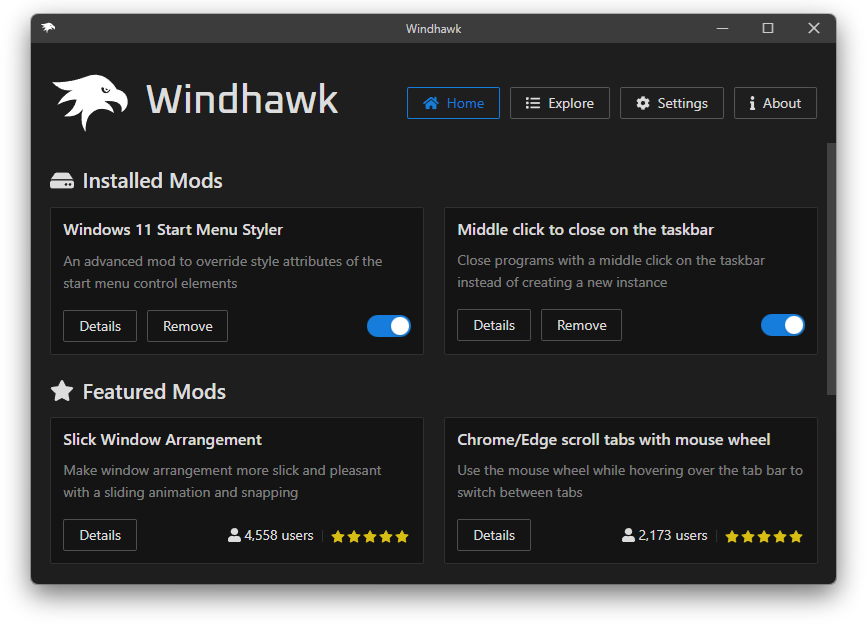
Popularity, star ratings, and open source are useful signals, not proof. Most readers cannot audit C++ thoroughly, and a trusted project can still ship a bug. Prefer a small set of well-scoped mods over enabling many overlapping taskbar, Start menu, and Explorer modifications at once.
If you are comparing a system-wide debloat and privacy utility rather than per-process interface mods, our Winhance safety guide covers administrator access, security-impacting settings, backup limits, and rollback.
What to Do About an Antivirus Detection
- Do not restore or allow the file immediately. Note the exact detection name, file path, hash, and whether the alert names the installer, Windhawk engine, a compiled mod, or an injected target process.
- Re-check the origin. If the file came from anywhere except the official path you verified, quarantine it and replace it rather than arguing that injection explains the alert.
- Separate behavior from identity. A generic injection or machine-learning label can be compatible with legitimate behavior, but multiple specific detections, an invalid identity, an unrelated path, or unexpected persistence requires a security response.
- Test the smallest change. Disable the newest mod or exclude the incompatible target inside Windhawk. Do not disable real-time protection or create a drive-wide exclusion.
- Ask the right vendor. Report a suspected false positive with the exact hash and official source to the antivirus vendor and Windhawk project. Re-evaluate after a definition or project update.
The BepInEx mod-loader safety guide shows the same important boundary: a legitimate modding framework does not authenticate every add-on or download carrying its name. If a corporate EDR blocks Windhawk, the final decision belongs to the organization that owns the device and security policy.
Recover From a Broken Windhawk Mod
If the taskbar, Start menu, Explorer, or another program breaks immediately after a mod change, treat it first as a compatibility rollback—not as evidence of malware.
- Disable the most recently enabled or updated mod and restart the affected program.
- If the interface is too unstable, press Ctrl+Win+W to open the Windhawk toolkit and restart Windhawk in safe mode. Safe mode temporarily turns off code-injection activity so you can disable or remove the problem mod.
- Check the mod’s supported Windows versions and current issues. A Windows feature update can invalidate offsets, symbols, or assumptions that previously worked.
- If only one application fails, add that application’s process to Windhawk’s exclusion list rather than weakening antivirus coverage.
- Remove overlapping mods and re-enable the remaining ones one at a time.
Uninstalling the main application is not always the best first rollback. The project has documented that installed mods may remain for a later reinstall, while safe mode exists specifically to let you remove incompatible mods. Export or record your mod settings before major Windows upgrades where the current version offers that option.
When Windhawk Should Be Treated as Suspicious
Escalate from compatibility troubleshooting to malware response when the installer or mod came from a mirror, crack bundle, video description, chat attachment, or unknown GitHub fork; the file runs from an unrelated Temp or startup folder; its identity does not match the official channel; security exclusions appeared without your action; or the incident includes browser hijacking, credential theft, remote access, new accounts, scheduled tasks, or disabled protection.
Use the post-malware Windows security audit to validate persistence, exclusions, accounts, and recovery settings. If an unofficial build already ran, disconnect sensitive sessions, quarantine the file, review startup and scheduled tasks, and run a full Gridinsoft Anti-Malware scan from the official download page. Remove confirmed detections, reboot, and scan again if the file or alert returns. A clean scan does not prove that exposed passwords or session cookies remain safe.
If the process path is wrong, the name imitates a Windows component, or high CPU started after an unknown installer, scan for hidden miners, services, startup entries, and bundled components.
Download Gridinsoft Anti-MalwareChoosing between different approaches? Compare Windows 11 debloat and customization tools by security impact and rollback before combining utilities or moving to a modified Windows installation.
FAQ
Is Windhawk malware because it injects code?
No. Code injection describes how Windhawk loads modifications into target processes; it is not a malware verdict by itself. Verify the official application, each mod, and the surrounding behavior separately.
Can Windhawk cause antivirus false positives?
Yes, injection and hooking can conflict with antivirus or EDR products. Confirm the exact file and source before calling an alert false, and avoid blanket exclusions.
Are mods from Windhawk’s official collection guaranteed safe?
No. The official collection has source and a review process, but reviews can miss bugs or security issues. Check the author, targets, code behavior, issues, and rollback path for every mod.
Can Windhawk break Windows after an update?
A mod can become incompatible with a new Windows build and break Explorer, the taskbar, Start menu, or another target. Disable the newest mod, use the Windhawk toolkit’s safe mode, and re-enable mods one at a time.
Should I use Windhawk on a work or gaming PC?
Only when the device owner and software policies allow it. Corporate EDR and anti-cheat systems may reject injection even when the tool is legitimate. Do not bypass those controls with broad exclusions.
References
- Ramen Software. Windhawk project README and architecture overview. GitHub, living project documentation. Accessed August 18, 2026.
- Ramen Software. Injection targets and critical system processes. Windhawk Wiki, updated December 5, 2025. Accessed August 18, 2026.
- Ramen Software. Mod submission review process. Windhawk Wiki, updated July 29, 2026. Accessed August 18, 2026.
- Michael Maltsev. Windhawk v1.3 beta: Safe mode. Ramen Software, March 31, 2023. Accessed August 18, 2026.