The official Raphire Win11Debloat project is not automatically malware, but that does not make every download, command, or selected tweak safe for every Windows PC. The script runs with administrator rights and can remove apps, change registry values, alter privacy and update behavior, and disable Windows features. Verify the source, review the exact changes, and create recovery outside the tool before you approve them.
The safest practical choice is to download a current release from the official Raphire/Win11Debloat repository, inspect the files locally, select only changes you understand, and apply small groups at a time. Do not assume a registry backup will reinstall applications the script removed.
Is Win11Debloat safe to use?
Win11Debloat can be a legitimate and useful Windows customization tool when the copy comes from the official Raphire repository and the selected changes match your needs. Its source is public, its releases and wiki are maintained, and the current interface shows proposed settings before applying them.[1]
Safety still depends on three separate decisions:
- Project identity: is this actually the official Raphire release rather than a similarly named site, fork, repost, or modified archive?
- Execution path: are you inspecting a local release, or asking an elevated PowerShell session to fetch and execute code at that moment?
- Configuration scope: do you understand which apps, services, policies, privacy settings, and interface features the selected profile will change?
Open source helps with inspection; it is not a universal safety certificate. A legitimate administrator tool can still break a dependency, remove an app you need, conflict with workplace policy, or make later troubleshooting harder.
Verify the official Win11Debloat release first
The official project owner is Raphire on GitHub. During this review, the latest tagged release was 2026.08.24. Treat that identity and release page as the starting point, not a search-result download button or a site that merely uses the Win11Debloat name.
- Open the official repository and follow its Releases link. Confirm that the URL remains under
github.com/Raphire/Win11Debloat. - Download the release locally. Keep the archive and extracted folder long enough to inspect what you are about to run.
- Check that the expected launcher and PowerShell files are present. Unexpected executables, password-protected archives, bundled installers, or instructions to disable security are a stop signal.
- Record the file hash before running it. A local command such as
Get-FileHash .\Win11Debloat.ps1 -Algorithm SHA256gives you evidence for the exact copy you reviewed; compare only with a hash from a trusted maintainer source or a separately verified copy. - Scan the downloaded archive or script if its origin is uncertain. Our guide to checking whether a downloaded file is safe explains the same source, signature, hash, and behavior checks.
A fork is not automatically malicious, but it is a different software supply chain. If you cannot explain who changed it and why, do not grant it administrator access.
Remote PowerShell is a separate trust decision
The official documentation offers a quick method that retrieves a script from debloat.raphi.re and executes it through PowerShell.[2] That method is convenient, but convenience changes what you are trusting: the domain, its redirect and hosting path, the response delivered at execution time, and the elevated PowerShell process.
This article deliberately does not reproduce the remote execution command. A reader who wants to inspect and preserve the exact code should use the traditional release download, review it locally, and launch the included files after verification. That creates a stable artifact you can hash, scan, archive with your recovery notes, and compare if a problem appears later.
Remote execution is not proof of malware. It is simply harder to audit than a local file. Do not paste a command from a video description, forum comment, shortened URL, advertising page, or unofficial tutorial into an elevated terminal—even if the command contains the familiar Win11Debloat name.
Review the exact changes, not just the project name
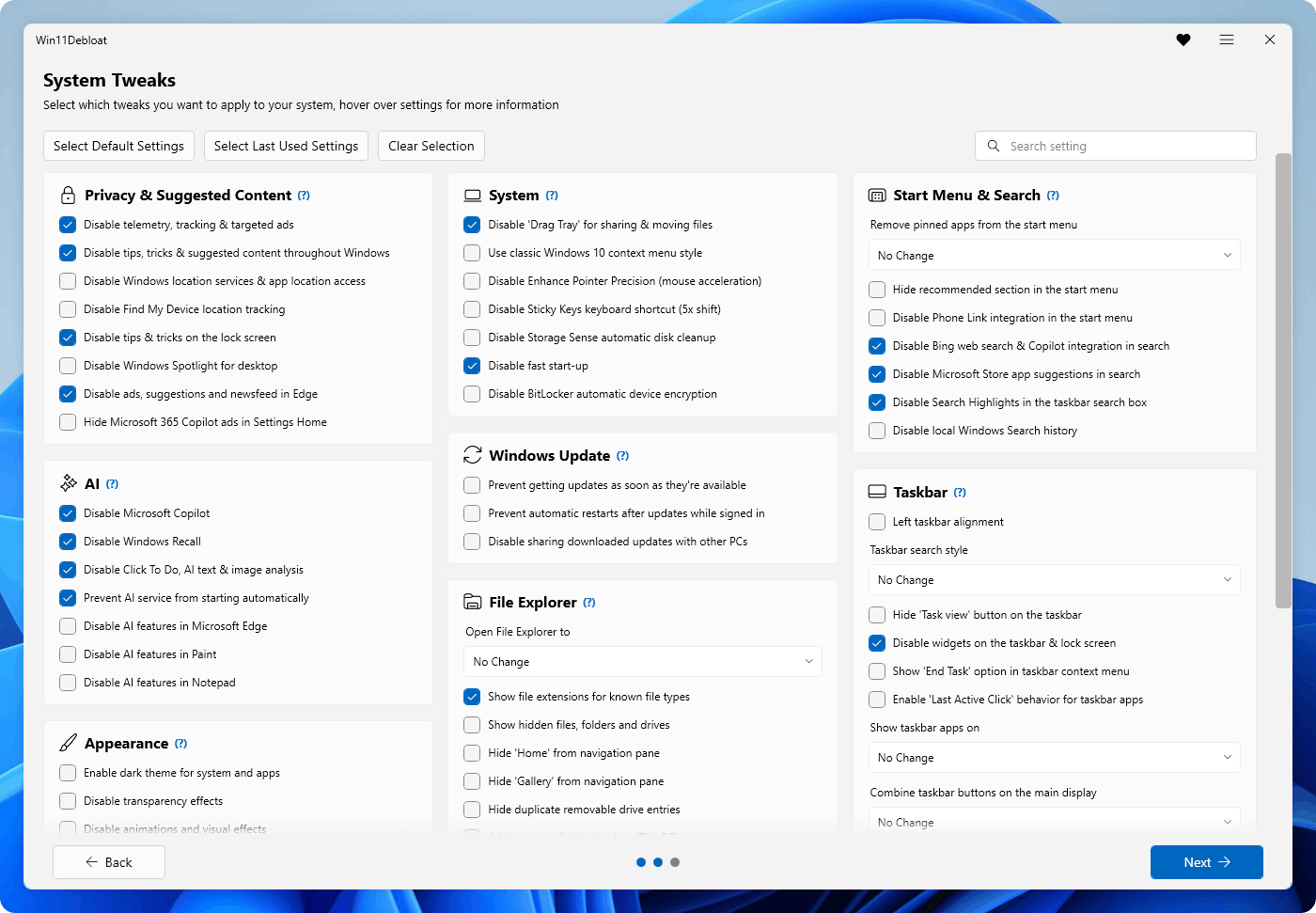
Win11Debloat covers app removal, privacy and suggested content, AI features, Windows Update behavior, Start and Search, taskbar options, File Explorer, optional Windows features, and other system choices. A default profile may be sensible for one person and disruptive for another.
| Selection | Risk and safer choice |
|---|---|
| Remove preinstalled apps | Review every selected package. Do not remove Microsoft Store, Xbox dependencies, Phone Link, Widgets components, or work applications unless you know how to reinstall them. |
| Disable telemetry, suggestions, or advertising | Usually lower risk than app removal, but organization policy and diagnostic needs may differ. Apply one group, reboot, and test. |
| Disable Windows features or integrations | Check dependencies first. Search, Widgets, Game Bar, Phone Link, OneDrive, Edge policy, and AI features can affect workflows beyond the visible toggle. |
| Change Windows Update behavior | Do not convert short-term update control into permanent security-update avoidance. Keep a clear path to normal servicing. |
| Apply to another user or through automation | Test in a disposable VM or one pilot device. A reusable configuration can repeat a mistake across every profile or PC. |
Selecting “default” is not the same as accepting Microsoft defaults. It means the Win11Debloat project’s current default choices. Read the pending-change summary and create a restore point before confirmation. On a work, school, managed, BitLocker-protected, or anti-cheat-sensitive computer, stop and check policy or support requirements first.
The same tool-versus-configuration distinction applies to graphical debloat utilities. Our Winhance safety review explains why a legitimate utility and a particular security-setting change are separate decisions.
What the Win11Debloat backup does not restore
Starting with release 2026.05.10, Win11Debloat creates a backup of system registry settings before applying changes. Its current recovery interface can restore that registry backup and a saved Start Menu layout.[3]
The important limitation is explicit: the registry backup does not restore applications that the script uninstalled. Those apps must be reinstalled separately. It also does not replace a personal-file backup, recover unsaved work, recreate every optional component, or guarantee that a restore point exists when you need it.
- Copy important documents and recovery keys to a separate disk or trusted cloud location.
- Confirm System Protection is enabled and verify that the restore point appears in Windows—not only that the tool reported success.
- Record the apps and features selected for removal.
- Save the exact release archive, hash, exported settings, and screenshots of the pending-change summary.
- On a work device, document VPN, security, printing, identity, browser, and line-of-business dependencies before changing services or policies.
If you are trying to get a stripped-down Windows installation rather than tune an existing one, compare the trust model with our Tiny11 safety guide. A modified ISO changes the installation source; Win11Debloat changes a running installation.
A safer way to run Win11Debloat
- Start from a healthy baseline. Install pending security updates, confirm Windows Security opens, and note whether Store, Search, sleep, VPN, printing, Bluetooth, and required games/apps work.
- Back up independently. Copy personal files and recovery keys, verify a restore point, and preserve a list of installed apps.
- Use a local official release. Keep the extracted folder in a predictable path and avoid an uninspectable remote fetch for the first run.
- Choose Custom mode. Review each group. Skip anything whose consequence or dependency you cannot explain.
- Apply a small group. Do not combine app removal, privacy changes, update behavior, and feature disabling into one opaque batch.
- Restart and test real workflows. Check Windows Update, Security, Store installation, Search, File Explorer, peripherals, VPN, sleep/wake, games, and work software.
- Keep recovery evidence. Save the release hash, selected settings, backup location, and the first symptom if something breaks.
Do not judge success only by lower process count or idle memory. Windows uses background services and memory for caching, security, search, synchronization, and device support. Measure the specific problem you wanted to solve and confirm that updates and protection still work.
How to revert Win11Debloat changes
Use the smallest recovery layer that matches the failure. A missing app does not require a full Windows reset, while a computer that cannot service or boot needs more than one registry toggle.
- Undo the setting in Win11Debloat. Reopen the same official release, review the current state, and revert the relevant toggle when the project provides an undo path.
- Restore the registry backup. Use the Options menu and Restore backup flow for settings recorded by the current backup. Restart and verify the affected feature.
- Reinstall removed apps. Use Microsoft Store, its Library, or WinGet. Some apps such as Xbox Game Bar may need a direct Store page; Xbox components may require the official Gaming Services repair path.
- Restore feature packages. Widgets, for example, may require Start Experiences App, Widgets Platform Runtime, and Windows Web Experience Pack—not only a registry reversal.
- Use System Restore. Choose the confirmed pre-change restore point if services, drivers, programs, or system settings remain damaged.
- Repair Windows. If core components, servicing, or boot remain broken, use Startup Repair or an in-place repair install before escalating to Reset this PC or a clean installation. Protect files and BitLocker recovery information first.
If the recovery attempt fails with a WindowsPackageManagerServer.exe application error, check App Installer and the exact faulting application before removing more Windows packages. A package-manager failure needs a different response from a missing app.
For another current repair-oriented tool decision, see the FlyOOBE safety and recovery guide. It covers an unsupported-Windows installation path rather than a post-install debloat script, so the recovery boundary is different.
If Win11Debloat looked malicious or came from the wrong source
Administrator prompts, PowerShell, registry changes, and app removal are expected behaviors for the official tool. Investigate when the copy came from a mirror or unrelated repository, launched extra executables, created unexplained startup entries or scheduled tasks, contacted unrelated domains, installed bundled software, disabled protection outside the selected options, or produced recurring security alerts after reboot.
- Stop using the questionable copy and preserve its original path, download URL, filename, and hash for investigation.
- Disconnect the PC from sensitive work if you saw credential theft, remote-control behavior, unknown accounts, or unexplained outbound traffic.
- Re-enable Windows Security, firewall, updates, and browser protections where possible.
- Run a full security scan and review detections by path and behavior. A fake copy may leave a scheduled task, service, startup entry, bundled app, or browser change after the visible script is deleted.
- Use the post-malware Windows security audit to inspect accounts, exclusions, startup, scheduled tasks, network settings, browsers, and updates.
- Change important passwords from a known-clean device if the copy accessed browsers, credentials, sessions, wallets, or remote-control tools.
If the file came from an unofficial source or its activity does not match the options you approved, Gridinsoft Anti-Malware can check for detections, hidden files, startup entries, scheduled tasks, bundled apps, browser changes, and other persistence. A clean scan does not prove that credentials were never exposed, so keep account recovery separate from PC cleanup.
If the process path is wrong, the name imitates a Windows component, or high CPU started after an unknown installer, scan for hidden miners, services, startup entries, and bundled components.
Scan an unofficial Win11Debloat copyChoosing between different approaches? Compare Windows 11 debloat and customization tools by security impact and rollback before combining utilities or moving to a modified Windows installation.
FAQ
Is Raphire Win11Debloat malware?
The official open-source Raphire project is not automatically malware. Verify the repository owner and current release, then evaluate the exact copy and selected changes. A fork, mirror, or similarly named site is a separate supply chain and should not inherit the official project’s trust.
Is the Win11Debloat PowerShell command safe?
The official quick method fetches code remotely and executes it, so it adds trust in the domain and response delivered at that moment. A local official release is easier to inspect, hash, scan, archive, and compare. Never copy the command from an unofficial page or video description.
Can Win11Debloat break Windows Update?
Settings that change update behavior, services, components, or dependencies can interfere with normal servicing. Keep security updates enabled, apply one group at a time, and test Windows Update after each relevant batch.
Does Restore backup reinstall apps removed by Win11Debloat?
No. The current registry backup can restore recorded settings, but it does not reinstall removed applications. Use Microsoft Store, WinGet, or the vendor’s official installer, and restore dependent feature packages when necessary.
What should I do if Win11Debloat broke Windows?
Undo the last setting group, restore the verified registry backup, reinstall removed apps, and use the confirmed pre-change restore point. If servicing, boot, or core components remain broken, proceed to Startup Repair or an in-place repair install before Reset or clean installation.
References
- Raphire. “Win11Debloat,” official GitHub repository and feature overview, accessed September 2, 2026. GitHub repository.
- Raphire. “How To Use,” Win11Debloat Wiki, updated May 12, 2026; accessed September 2, 2026. GitHub Wiki.
- Raphire. “Reverting Changes,” Win11Debloat Wiki, updated June 25, 2026; accessed September 2, 2026. GitHub Wiki.