
The “Apple Mobile Device Service is not started” message means Windows cannot use Apple Mobile Device Service (AMDS) to connect iTunes or Apple device software to an iPhone, iPad, or iPod. Disconnect the device, close Apple Devices and iTunes, restart AMDS in services.msc, set its startup type to Automatic, restart Windows, and reconnect with a data-capable cable. If the service is missing, do not download AppleMobileDeviceService.exe by itself—repair or reinstall Apple’s Windows software from an official source.
What Apple Mobile Device Service Does
Apple Mobile Device Service is a legitimate Windows service installed with Apple’s device-support software. It provides the local interface that lets a Windows PC recognize and communicate with an iPhone, iPad, or iPod over USB. Older workflows expose it through iTunes; Apple’s current Windows workflow uses the Apple Devices app for device management, backup, restore, updates, and synchronization.
The service and the app are related but not interchangeable. Closing iTunes or Apple Devices does not necessarily remove AMDS, and restarting AMDS will not fix every cable, USB port, trust-prompt, or device-driver problem. Start with the exact symptom instead of replacing random Apple files.
- “Apple Mobile Device Service is not started”: Restart AMDS and set Startup type to Automatic.
- AMDS is missing from Services: Repair or reinstall Apple Devices or iTunes from Apple’s official Windows path.
- AMDS starts, then stops: Update or reinstall Apple components and check for a security-software conflict.
- Service runs but iPhone is absent: Check the cable, USB port, unlocked device, Trust prompt, Apple app, and driver state.
- AppleMobileDeviceService.exe is in an unusual folder: Verify the path and Apple digital signature before allowing it.
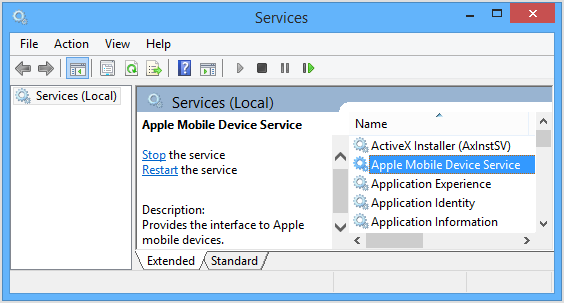
Restart Apple Mobile Device Service Safely
Apple’s supported restart order prevents the connected device or iTunes session from immediately reopening the same failed state.
- Save any work in Apple Devices or iTunes, close both apps, and disconnect the iPhone, iPad, or iPod.
- Press Windows + R, type
services.msc, and select OK. - Find Apple Mobile Device Service. Open its Properties.
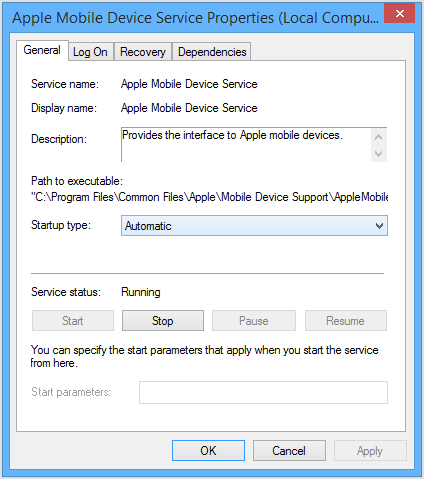
- Set Startup type to Automatic.
- Select Stop. After the service stops, select Start, then OK.
- Restart Windows. Open Apple Devices or iTunes only after sign-in, then reconnect the unlocked device.
- If the iPhone asks whether to trust the computer, confirm the prompt and enter the device passcode.
If Start is unavailable, record the Windows error instead of repeatedly clicking it. Error 1053, an access error, a missing service entry, and a service that stops immediately are different branches and may need an Apple software repair rather than another restart.
If Apple Mobile Device Service Is Missing
A missing AMDS entry usually means the Apple device-support package is absent, incomplete, damaged, or registered differently from the guide you are following. It is not a reason to download a standalone service EXE, driver bundle, DLL, or registry file from a process library.
- Open Microsoft Store > Library and install available updates for Apple Devices, Apple Music, Apple TV, and iTunes components you use.
- In Settings > Apps > Installed apps, open the options Windows provides for Apple Devices or iTunes. Use Repair first when available.
- If Repair does not restore device recognition, uninstall the affected Apple app, restart Windows, and reinstall it through Apple’s official Windows download page or its Microsoft Store link.
- Reconnect with the device unlocked and check both the Apple Devices sidebar and
services.msc.
Apple now separates device management, music, and television into dedicated Windows apps. Do not assume an old iTunes-only tutorial describes the component layout on a current PC. Install the app that matches your task rather than mixing a legacy desktop installer, Microsoft Store packages, and files copied from another computer.
If AMDS Starts and Then Stops or Shows Error 1053
A service that will not stay running can point to damaged Apple components, a dependency or permissions problem, or interference from third-party security software. Apple specifically notes that security software can prevent AMDS from starting or make it stop unexpectedly.
- Restart Windows once and repeat the supported AMDS restart sequence.
- Install pending Windows and Apple app updates.
- Check Event Viewer > Windows Logs > System for the service error recorded at the same time. Preserve the error number and service name.
- Repair or reinstall the official Apple package instead of replacing
AppleMobileDeviceService.exealone. - If a managed antivirus, VPN, firewall, or endpoint policy blocks Apple device communication, ask its administrator to review the event. Do not permanently disable protection just to make the service start.
Error 1053 only says the service did not answer Windows in time; it does not prove that the EXE is missing or malicious. The surrounding event, file path, signature, and whether a clean reinstall fixes the service are more useful than the number by itself.
If the Service Runs but Windows Still Does Not Recognize the iPhone
Once AMDS is running, move outward from the service to the physical and trust layers. Apple recommends checking the cable and connection, trying another data-capable cable, trying another USB port or computer, and confirming current Windows and iOS or iPadOS versions.
- Unlock the iPhone or iPad and keep it on the Home Screen while connecting.
- Use a cable that supports data as well as charging. A device that charges is not proof that its cable carries data correctly.
- Inspect the phone’s port for debris, then try another USB port without an unpowered hub.
- Open Apple Devices and look for the device in the sidebar. If a Trust This Computer? alert appears, choose Trust.
- Restart both the PC and Apple device, then retest.
- If another known-good computer also cannot recognize the device, contact Apple Support rather than repeatedly reinstalling Windows components.
Do not confuse Apple’s USB device stack with Microsoft Phone Link. The latter uses processes such as YourPhone.exe or PhoneExperienceHost.exe for cross-device features; our YourPhone.exe and Phone Link guide explains that separate Windows integration.
Is AppleMobileDeviceService.exe Safe?
The genuine AppleMobileDeviceService.exe is safe when it belongs to Apple’s installed device-support package, runs as the Apple Mobile Device Service, and carries a valid Apple digital signature. A common legacy location is C:\Program Files\Common Files\Apple\Mobile Device Support\AppleMobileDeviceService.exe, but installation details can vary with the package and version. Use the service properties and the file’s signature rather than trusting a filename alone.
- In
services.msc, open Apple Mobile Device Service properties and note the executable path. - Open that file’s Properties > Digital Signatures and verify an Apple signer with a valid signature.
- Check that the service name, display name, path, and installed Apple software agree.
- Do not download a “replacement” EXE from a file database or driver site. Reinstall the signed Apple package instead.
For a broader path, signer, reputation, and behavior check, use the EXE safety verification guide. A copy in %TEMP%, %LOCALAPPDATA%, Downloads, a random user folder, or an unrelated startup location deserves separate investigation even when its name looks correct.
When a Security Scan Makes Sense
A normal AMDS restart problem is not malware by itself. Scan when the executable is unsigned, runs from the wrong path, appeared after an unofficial Apple installer, creates an unknown startup entry, or returns after you remove a suspicious copy. Preserve the path and signer first, and review suspicious startup apps and persistence if the process launches from an unexpected entry.
If those conditions apply, keep the suspicious file blocked and run a full Gridinsoft Anti-Malware scan through the official download page. Remove confirmed detections, reboot, and scan again if the process or alert returns. A scan can identify malicious files and persistence, but it cannot prove that every account or device was never exposed.
If the process path is wrong, the name imitates a Windows component, or high CPU started after an unknown installer, scan for hidden miners, services, startup entries, and bundled components.
Download Gridinsoft Anti-MalwareFAQ
Can I disable Apple Mobile Device Service?
You can stop or disable it if you never connect an iPhone, iPad, or iPod to that Windows PC. Apple Devices and iTunes device detection, syncing, backup, restore, and updates may stop working until the service is enabled again.
Where can I download Apple Mobile Device Service?
Do not download AMDS or AppleMobileDeviceService.exe separately. Install or repair Apple Devices or iTunes through Apple’s official Windows download page and Microsoft Store links so the service, driver, and supporting components stay matched.
Why is Apple Mobile Device Service missing in Windows 11?
The Apple support package may be missing, incomplete, damaged, or installed in a layout that differs from an older tutorial. Update, repair, or reinstall the official Apple app instead of manually creating a service entry.
Does error 1053 mean AppleMobileDeviceService.exe is malware?
No. Error 1053 means Windows did not receive a timely response from the service. Check the System event, update or reinstall Apple components, and verify the file path and Apple signature before drawing a security conclusion.
Why does my iPhone charge but not appear in Apple Devices?
A cable can carry power without carrying data reliably. Unlock the device, use a known data-capable cable, try another USB port, accept the Trust prompt, and confirm AMDS is running before reinstalling software.
References
- Apple. “Restart the Apple Mobile Device Service (AMDS) on Windows.” Apple Support, published May 27, 2026, accessed September 2, 2026.
- Apple. “If your computer doesn’t recognize your iPhone or iPad.” Apple Support, published August 12, 2026, accessed September 2, 2026.
- Apple. “Download Apple Music, Apple TV, Apple Devices, and iTunes for Windows.” Apple Support, published August 3, 2026, accessed September 2, 2026.