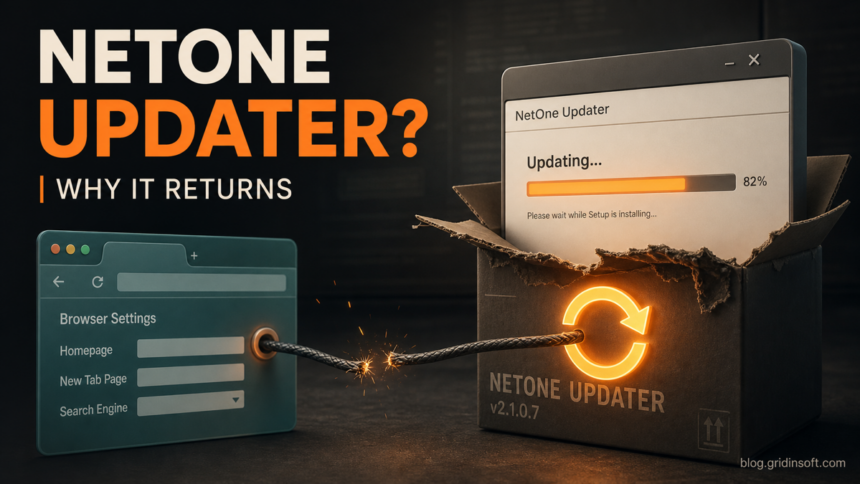
NetOneUpdater.exe should be treated as suspicious when it appears inside a numbered LocalNetSolutions or LocalNetService folder, returns after uninstall, or accompanies browser redirects and forced settings. Gridinsoft has detected specific NetOneUpdater.exe hashes as adware, but the filename alone is not a verdict. Check the file path, digital signature, hash, install date, related programs, and persistence before removing anything.
The safest response is to uninstall the matching unwanted application first, keep the file from running, scan the whole PC, and then inspect scheduled tasks and browser settings. Do not delete broad Microsoft, Google, browser-profile, Windows Installer, or registry trees because a cleanup log mentions them.
Is NetOneUpdater.exe safe?
A NetOneUpdater.exe file is not automatically malicious just because it is an updater. However, the samples relevant to this guide have a specific context: Gridinsoft ThreatInfo records associate the filename with publisher metadata such as LocalNetSolutionsFour18.4, product metadata such as LocalNetServiceFour18.4, and an Adware.Gen verdict. One observed path was %ProgramFiles%\LocalNetSolutionsFour18.4.
That evidence applies to the recorded hash, not every file that happens to use the same name. Use the following signals together:
- The hash matches a NetOneUpdater.exe ThreatInfo report: keep the file blocked or quarantined and scan the device. The matching report identifies that exact sample as adware.
- The file sits under a numbered
LocalNetSolutions/LocalNetServicefolder: treat it as a strong unwanted-software clue, especially if the app was installed without a clear choice. - Several generations such as NetOneUpdater, NetTwoUpdater, or NetFourUpdater appear together: check installed apps, scheduled tasks, startup entries, and nearby browser components before assuming one file is the whole problem.
- The file has a trusted signature, expected vendor path, and a program you deliberately installed: do not delete it on name alone. Verify the signature and product with the vendor, then scan if other symptoms remain.
- Search redirects, a changed homepage, forced extensions, or blocked security sites occur at the same time: contain the browser activity, remove the unwanted bundle, and check browser policies and extensions after the system scan.
How to verify the file before removing it
- Open the file location without running it. In Task Manager, right-click the process and choose Open file location. If the process is not running, search for the exact filename in File Explorer.
- Record the full path. A path such as
C:\Program Files (x86)\LocalNetSolutionsFour18.4\LocalNetServiceFour18.4\NetOneUpdater.exeis more meaningful than the filename by itself. - Check Properties. Review the Details and Digital Signatures tabs. A missing signature is a warning, but even a signed updater must match a product you recognize and intended to install.
- Calculate the hash. In PowerShell, run
Get-FileHash "C:\Path\NetOneUpdater.exe" -Algorithm MD5and compare the result with a reputation record. Do not upload or execute an unknown file merely to identify it. - Compare the timeline. Check the file creation date against recently installed free utilities, browser bundles, download managers, game installers, or other software that arrived around the same time.
If you are unsure how to interpret a signature, path, or hash, use the broader checklist in How to Check if an EXE File Is Safe.
How LocalNetSolutions and LocalNetService fit together
Public support evidence shows that one affected Windows system accumulated several numbered LocalNetSolutions and LocalNetService generations. Its records referenced NetOneUpdater.exe as well as NetTwoUpdater.exe and NetFourUpdater.exe. The same case also contained browser-policy restrictions and Chromnius artifacts while the user reported search redirects and a blocked security website.
This is useful co-occurrence evidence, not proof that NetOneUpdater.exe alone caused every symptom. A bundled installation can leave several components: an updater executable, an uninstall record, a scheduled task, a browser extension seed, a policy, or another unwanted application. Removing only the visible EXE may therefore leave the mechanism that restores it.
You may also see entries under HKCU\Software\Caphyon\Advanced Updater. Caphyon Advanced Updater is a legitimate component that software publishers can embed and rename for their own applications. Its presence explains how an updater can run silently or on a schedule; it does not make the LocalNetSolutions product trustworthy, and it is not a reason to delete every Caphyon key on the PC.
Symptoms and related artifacts to check
Look for a cluster of matching evidence rather than treating every updater or browser file as malicious:
- numbered folders beginning with
LocalNetSolutionsorLocalNetServiceunder Program Files, ProgramData, or the current user profile; NetOneUpdater.exe,NetTwoUpdater.exe, orNetFourUpdater.exeinside those folders;- a scheduled task or startup entry whose action points to one of those exact paths;
- recently installed applications with a matching publisher or install date;
- unexpected search-engine redirects, a changed new-tab page, or a security site that no longer resolves;
- browser policies you did not configure, or an extension that returns after removal;
- Chromnius or ExtensionSeed artifacts. Use the focused Chromnius cleanup guide when those exact browser components are present.
Do not remove legitimate Chrome, Edge, Firefox, Microsoft, or Windows Update files simply because they appear near suspicious entries in a diagnostic log. Confirm that every item you change points back to the unwanted product.
How to remove NetOneUpdater and LocalNetSolutions safely
- Stop using the affected browser for sensitive activity. If searches are redirected or security sites are blocked, do not enter passwords or payment details until the browser and PC have been checked.
- Disconnect only when activity is ongoing. If pop-ups, redirects, or downloads continue by themselves, disconnect the PC from the network while you prepare the cleanup.
- Uninstall the matching application. Open Settings → Apps → Installed apps, sort by install date, and remove entries whose name, publisher, or date matches the LocalNetSolutions/LocalNetService folders. Do not uninstall unrelated drivers or vendor utilities.
- Reboot. This releases locked files and shows whether the updater or browser change immediately returns.
- Run a full anti-malware scan. Use Gridinsoft Anti-Malware to check the visible updater plus related files, scheduled tasks, startup entries, bundled apps, browser changes, and persistence. Remove confirmed detections, reboot, and scan again if symptoms return.
- Review Task Scheduler. Open Task Scheduler Library and inspect tasks named for NetOneUpdater or whose Action points to a confirmed LocalNetSolutions/LocalNetService path. Disable or remove only the matching task after the associated program is uninstalled.
- Check startup entries. In Task Manager → Startup apps, disable an entry only when its command or file location points to the unwanted folder. Leave normal Microsoft, hardware-vendor, and security entries alone.
- Clean the browser. Review extensions, homepage, new-tab page, default search engine, site notification permissions, and proxy settings. In Chrome use
chrome://policy; in Edge useedge://policy. An unfamiliar enforced policy deserves investigation, but managed work or school PCs can have legitimate policies. - Remove confirmed leftover folders. After uninstall, scan, and reboot, delete only LocalNetSolutions/LocalNetService directories that you have confirmed belong to the removed application. If Windows says a file is still in use, find the remaining task or service instead of forcing deletion.
Scan for updater and browser-hijacker leftovers
Uninstalling the visible program may not remove a scheduled task, updater copy, forced extension, browser policy, or bundled module. If NetOneUpdater.exe, redirects, or browser changes return after reboot, scan the whole system rather than repeatedly deleting the same file.
Browser reset can remove visible symptoms, but adware may keep a desktop app, extension source, notification permission, or startup task that brings pop-ups and redirects back.
Scan for updater and adware leftoversIf the scan reports SpecialSearchOffer or a related browser-search component, follow the exact cleanup checks in the SpecialSearchOffer removal guide instead of applying random registry fixes.
What to verify after reboot
- NetOneUpdater.exe is no longer running and its confirmed unwanted path is gone.
- No matching NetOneUpdater, NetTwoUpdater, or NetFourUpdater task launches at sign-in or on a timer.
- The browser keeps the search engine, homepage, extensions, and notification permissions you selected.
chrome://policyoredge://policydoes not show an unfamiliar policy tied to the removed software.- Security and vendor websites resolve normally.
- A second scan after reboot finds no related detections or persistence.
If you entered a password on a page reached through an unexpected redirect, change that account’s password from a clean device and review active sessions. For a broader recovery check, use the Windows security audit after malware.
FAQ
Is every NetOneUpdater.exe file malware?
No. A filename can be reused. Treat the file as suspicious when its hash matches a known detection, it is installed under a numbered LocalNetSolutions/LocalNetService path, the publisher or signature is unexpected, or it appears with unwanted browser and persistence artifacts.
Can I delete NetOneUpdater.exe manually?
Deleting only the EXE is not the best first step. Uninstall the matching application, scan the system, and remove the confirmed task, startup entry, browser change, and leftover folder. Otherwise, another component may restore the file.
Are NetTwoUpdater.exe and NetFourUpdater.exe the same thing?
They have appeared as related updater names in numbered LocalNetSolutions/LocalNetService installations, but each local file still needs its own path, signature, hash, and surrounding-context check. Do not assume every similarly named updater is identical.
Should I delete the Caphyon Advanced Updater registry key?
Not broadly. Advanced Updater is a legitimate embeddable component used by different software publishers. Remove only entries that point to the confirmed unwanted LocalNetSolutions/LocalNetService installation, preferably through the uninstaller and anti-malware cleanup.
What if browser redirects continue after removal?
Check browser extensions, policies, search and new-tab settings, notification permissions, proxy settings, and scheduled tasks. Then run another full scan after reboot. Persistent redirects may come from a separate bundled component rather than NetOneUpdater.exe itself.
References
- Caphyon. “Advanced Installer Updater.” Advanced Installer documentation, accessed July 30, 2026. https://www.advancedinstaller.com/user-guide/updater.html
- Dom-1sh and BleepingComputer Malware Response Team. “All search engines are getting redirected, Malwarebytes.com is blocked.” BleepingComputer Forums, May 10–17, 2026, accessed July 30, 2026. https://www.bleepingcomputer.com/forums/t/815987/all-search-engines-are-getting-redirected-malwarebytescom-is-blocked/