cc30wk.exe is a documented CLEVO hotkey component when it belongs to the Fn hotkeys and OSD package in C:\Program Files\WindowsApps. That name and location make a legitimate explanation plausible, but they do not prove that the particular file is safe. If Dr.Web or another security tool flags it, keep the item quarantined while you verify the package, path, digital signature, and hash. Do not click Allow or delete the binary by hand based only on the filename.
A matching CLEVO package and a valid trusted signature support a false-positive review. A copy in Downloads, Temp, AppData, or an unrelated startup folder, an invalid signature, or unexplained behavior supports removal and a full system scan.
What is cc30wk.exe?
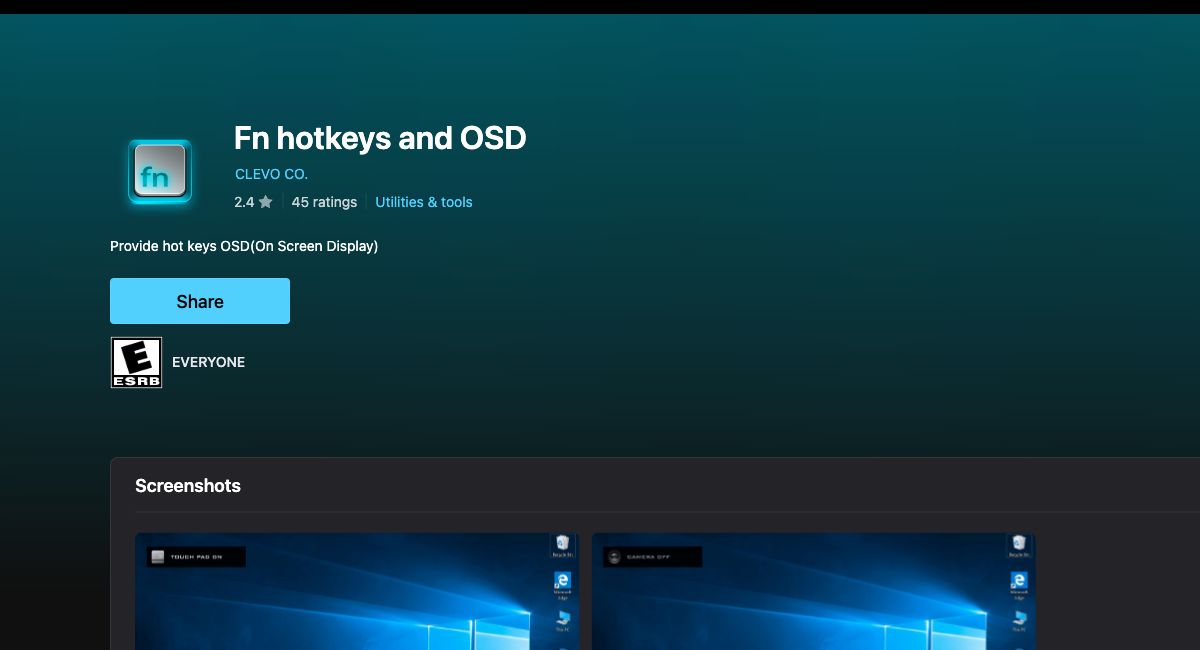
CLEVO uses cc30wk.exe in its notebook hotkey and on-screen-display software. An official CLEVO driver entry from 2021 explicitly names the file in a Hotkey package update.1 The current Microsoft Store listing identifies Fn hotkeys and OSD as an app published by CLEVO CO.; it says the app provides hotkey on-screen displays and was last updated on June 25, 2026.2
A typical current-package path follows this pattern:
C:\Program Files\WindowsApps\CLEVOCO.FnhotkeysandOSD_{version}_x64__6h6z29zh29qx0\FnKey\cc30wk.exe
The version portion changes when the Store app is updated. A matching folder name is useful context, not a standalone verdict: malware can copy trusted-looking names, and a legitimate signed file can still be flagged incorrectly or after corruption.
Is the “Malicious container” alert a false positive?
The detection label alone does not settle that question. It does not name a malware family, and it should not be treated as permission to restore the file. Use the evidence around the exact file.
| What you find | Risk and what to do |
|---|---|
| CLEVO Store package, expected WindowsApps path, valid trusted signature | A false positive or package-scanning problem is plausible. Keep the detection quarantined, record the hash, and submit the file or detection details to the security vendor before restoring it. |
| Expected path but invalid, missing, or mismatched signature | Do not allowlist it. Repair or reinstall the CLEVO package from Microsoft Store or your notebook maker, then scan again. |
| Copy in Downloads, Temp, AppData, Startup, or another unrelated folder | Treat it as suspicious. Quarantine the copy, run a full scan, and check what launches it. |
| Alert returns after reboot or new tasks, services, pop-ups, or browser changes appear | Assume the visible file may not be the only component. Scan for persistence and review recent installations. |
Do not use a random “safe” hash page as proof. A hash identifies one exact byte-for-byte file; another version of cc30wk.exe will have a different hash, and a database entry cannot validate the file on your PC.
How to verify cc30wk.exe safely
- Keep the item quarantined. Do not restore it just to test whether the Fn keys still work.
- Confirm the path. In the antivirus event details or Task Manager file properties, check whether the file is inside the CLEVOCO.FnhotkeysandOSD package under
WindowsApps. A same-named file elsewhere is a different case. - Confirm the installed package. Open PowerShell and list the package name, publisher, version, and install location:
Get-AppxPackage -Name 'CLEVOCO.FnhotkeysandOSD' |
  Select-Object Name, Publisher, Version, InstallLocation
- Check the signature without running the file. Microsoft documents
Get-AuthenticodeSignatureas the PowerShell command for reading a file’s Authenticode signature.3 Replace the example path with the exact path from the alert:
$file = 'C:\Program Files\WindowsApps\CLEVOCO.FnhotkeysandOSD_{version}_x64__6h6z29zh29qx0\FnKey\cc30wk.exe'
Get-AuthenticodeSignature -LiteralPath $file |
  Format-List Status, StatusMessage, SignerCertificate
Get-FileHash -LiteralPath $file -Algorithm SHA256
The strongest result is Status: Valid with a signer that belongs to the expected CLEVO package trust chain. A valid signature verifies signed identity and integrity; it does not override an unexpected source, a wrong path, or malicious behavior. If WindowsApps permissions prevent a manual check, use the security tool’s details and the installed-package information rather than changing folder ownership.
- Review what launched it. If the file appears as a startup item or returns from a wrong folder, use the suspicious startup app checklist to inspect the parent process, scheduled tasks, and services.
- Scan the system when evidence conflicts. Run a full Gridinsoft Anti-Malware scan if the signature is invalid, the path is wrong, the alert returns, or the PC shows new symptoms. Remove detections, reboot, and scan again before restoring anything.
For a broader file decision, the EXE safety checklist explains how source, signature, path, scan results, and behavior fit together. Do not upload confidential company files or private documents to a public scanner.
Should you remove cc30wk.exe?
Do not manually delete only cc30wk.exe from WindowsApps. The package may control Fn-key overlays, touchpad or camera indicators, keyboard lighting, fan or performance modes, depending on the notebook model. Deleting one protected component can break the package without resolving the reason for the alert.
If the file is part of the legitimate package but the app is damaged, use Settings > Apps > Installed apps > Fn hotkeys and OSD > Advanced options and try Repair, then Reset if available. If the warning persists, uninstall the app normally and reinstall it only from Microsoft Store or the support page for the exact laptop model. You may temporarily lose on-screen indicators or vendor hotkey features.
If the file is outside the package, unsigned, or tied to recurring suspicious activity, leave it quarantined. A security tool may remove the visible copy while a scheduled task, service, loader, or bundled app remains and recreates it. That is why a full system scan and a second scan after reboot matter in the suspicious-copy branch.
Is cc30wk.exe causing high RAM use?
A detection and a memory-allocation problem happening at the same time do not prove that they share a cause. The CLEVO hotkey helper should not be blamed for several gigabytes of missing memory without process-level evidence.
Open Task Manager, sort the Processes tab by Memory, and check the total under Performance > Memory. Browser tabs, games, launchers, virtual machines, cached memory, hardware-reserved memory, and a separate background process can explain the gap. If cc30wk.exe itself shows abnormal sustained memory use, repair the CLEVO package and capture its path, version, signature, and memory figure before removing it.
FAQ
Is cc30wk.exe a virus?
Not by filename alone. CLEVO documents the filename in a hotkey package, and the expected context is the CLEVO Fn hotkeys and OSD WindowsApps package. A wrong-path copy, invalid signature, or recurring suspicious behavior still requires quarantine and scanning.
Can I allow cc30wk.exe after one scanner flags it?
Do not allow it based only on the expected name or folder. Confirm the installed package, signature, exact hash, and behavior, then submit the detection to the security vendor when the evidence supports a false positive.
Will deleting cc30wk.exe break the laptop?
It can break CLEVO hotkey displays or vendor controls without properly repairing the app. Use Repair, Reset, or normal package uninstall/reinstall instead of deleting a protected WindowsApps file.
Why is cc30wk.exe inside WindowsApps?
The Fn hotkeys and OSD utility is distributed as a Microsoft Store app. Store packages install under protected WindowsApps directories with the package name and version in the path.
What should I do if the alert returns after reinstalling?
Keep the file quarantined and compare the new package path, version, signature, and hash. If the clean-source reinstall produces the same detection, send that evidence to the antivirus vendor. If the path or signer changes, or other symptoms appear, run a full system scan and investigate persistence.
References
- CLEVO CO. “CLEVO Driver Download: Hotkey v3.46 update mentioning cc30wk.exe.” CLEVO Support, August 19, 2021, accessed July 22, 2026. https://www.clevo.com.tw/e-service/download/ftpOut.asp?Lmodel=NHxxHJHKx<ype=9&submit=+GO+
- CLEVO CO. “Fn hotkeys and OSD.” Microsoft Store, updated June 25, 2026, accessed July 22, 2026. https://apps.microsoft.com/detail/9p1v7skxg6h5
- Microsoft. “Get-AuthenticodeSignature.” Microsoft Learn, accessed July 22, 2026. https://learn.microsoft.com/en-us/powershell/module/microsoft.powershell.security/get-authenticodesignature