

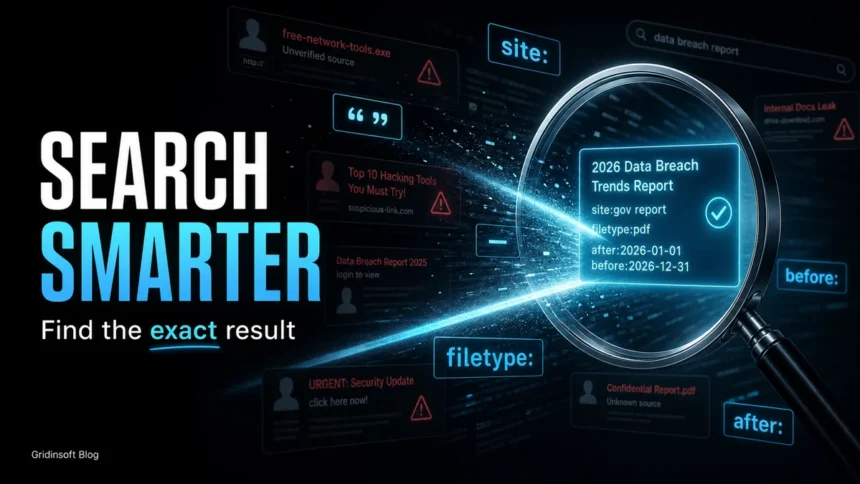
Google Search is best when your query tells it exactly what you need. If the results are full of broad articles, AI summaries, shopping pages, forums, or repeated low-quality answers, use search operators: quotes for exact phrases, the minus sign to remove noise, site: for one domain, filetype: for documents, and after:/before: for date ranges.
The point is not to memorize tricks. The point is to turn a vague search into a precise instruction. That matters when you are checking an error message, a suspicious email sender, a strange file name, a scam domain, or an official vendor notice.
Why Google Results Feel Noisy
Google often tries to understand the meaning behind a query, not only the exact words you typed. That is helpful for everyday searches, but it can be frustrating when you need a specific phrase, a file, a support article, or a clean source. Google’s own Search Help explains that a useful result may include related terms instead of every exact search term, and that filters or Advanced Search can help narrow the result set.
So, when a normal query gives you too much, switch from natural language to search instructions. Start broad, then add one operator at a time until the results stop drifting.
Start With These Google Search Tips
Use these first because they solve most search failures without making the query hard to read.
| When this happens | Search to copy |
|---|---|
| You need the exact phrase from an alert, email, or error. | "your exact error message" |
| Results keep showing the wrong meaning. | jaguar speed -car |
| You want only one website or domain. | site:microsoft.com "Defender" "Wacatac" |
| You need a PDF, manual, or report. | data breach report filetype:pdf |
| You need recent information only. | browser security update after:2026-01-01 |
| You need older results before a change happened. | software name before:2025-12-31 |
Use Quotes for Exact Phrases
Quotes are the fastest way to search for a phrase as written. This is especially useful for error messages, email subjects, file names, and malware detection names.
For example, searching "ntoskrnl.exe error fix" asks Google to look for that phrase instead of pages that merely contain some of those words. If you are checking a suspicious message, paste the unusual sentence or sender name in quotes:
"Your mailbox storage is full" "verify account"If there are no good results, shorten the phrase. Keep the rare words and remove names, dates, tracking IDs, or personal details.
Remove Bad Results With Minus
The minus sign excludes a word, phrase, or website. It is useful when one meaning dominates the search page.
java download -coffee
"invoice overdue" -template
"security alert" -site:pinterest.com
Do not add a space after the minus sign. -template works as an exclusion; - template usually does not behave the way you intended.
Search One Site With site:
Use site: when you trust a source but cannot find the exact page through its menu. Google says operators should not have spaces between the operator and the search term, so use site:microsoft.com, not site: microsoft.com.
site:microsoft.com "[email protected]"
site:blog.gridinsoft.com "fake virus alert"
site:gridinsoft.com "suspicious domain"
For security checks, this is safer than clicking random forum answers first. Start with official sources, then use independent explanations when the official page is too broad.
Find PDFs and Reports With filetype:
filetype: is useful when you need documents, advisories, academic PDFs, reports, or public notices.
phishing awareness guide filetype:pdf
"data breach" "notice of security incident" filetype:pdf
site:gov "ransomware" filetype:pdf after:2025-01-01
Be careful with downloads. A PDF or document in Google results is not automatically safe. If you are unsure about a file, download it only from the official source and scan it before opening. Gridinsoft’s Online Virus Scanner can help check suspicious files, and the Website Reputation Checker can help review a domain before you trust it.
Use Date Operators for Fresh Results
Old advice can be dangerous when you are searching for browser settings, account recovery steps, vulnerability notices, scam reports, or antivirus detections. Use after:, before:, or both together.
"Chrome extension removed" after:2026-01-01
"Microsoft account unusual sign-in activity" after:2025-01-01
"Google Search" "operators" after:2026-01-01 before:2026-12-31
You can also use Google’s Tools filter after a search, but operators are faster when you already know the time window.
Security Searches Worth Copying
Gridinsoft readers often search while something already feels wrong: a strange popup, a suspicious sender, a fake login page, or a file name they do not recognize. These searches are more useful than broad questions like “is this safe?”
| What you are checking | Better query |
|---|---|
| A suspicious email subject | "exact email subject" "scam" |
| A sender address | "[email protected]" phishing |
| A domain in a message | "example.com" scam |
| A Windows alert or detection | "exact detection name" "false positive" |
| A popup message | "exact popup text" "remove" |
| An official answer | site:vendor.com "exact product name" "error" |
After searching, compare what you find with the actual page or file in front of you. Scammers reuse the names of real companies, so a legitimate brand in the search results does not prove that the link you received is safe. If your problem is email-related, use our guide on how to spot a phishing email. If it is a browser warning or scare page, start with fake virus alert removal steps.
When Search Operators Do Not Help
If a query still gives poor results, try these fixes:
- Use fewer words. Keep the rare phrase and remove filler words.
- Switch vocabulary. Search the terms a support article would use, such as
certificate errorinstead ofwebsite says not safe. - Check the result source. Prefer official support pages, vendor advisories, known security researchers, and articles that show concrete steps.
- Use the Web filter or Tools filters. Some result layouts emphasize videos, shopping, forums, or AI answers before ordinary web pages.
- Search the exact artifact. For scams and malware, exact senders, URLs, file names, process names, and alert text are usually stronger than broad descriptions.
For everyday privacy and safer browsing habits, see our secure browsing checklist.
FAQ
What is the best Google search tip?
The most useful tip is to put exact phrases in quotes, then add one narrowing operator such as site:, -, filetype:, after:, or before:. This keeps the query readable while reducing irrelevant results.
Why do Google quotes not always give perfect results?
Quotes strongly narrow the search to the exact phrase, but pages change, snippets can be generated from different parts of a page, and Google may still show related results when exact matches are scarce. If the result is still noisy, shorten the quoted phrase or add site:.
How do I search only one website?
Use site: with no space after the colon. For example, site:blog.gridinsoft.com phishing email searches Gridinsoft Blog pages for phishing email content.
How do I find recent Google results?
Add after: with a year or date, such as after:2026-01-01. To limit the other end, add before: too.
References
- Google Search Help. “Refine Google searches.” Google, accessed June 7, 2026. https://support.google.com/websearch/answer/2466433
- Google Search Help. “Learn search tips & how results relate to your search on Google.” Google, accessed June 7, 2026. https://support.google.com/websearch/answer/134479



Here s an overview of some of the most useful Google search tricks, from basic tips to new features just recently released.