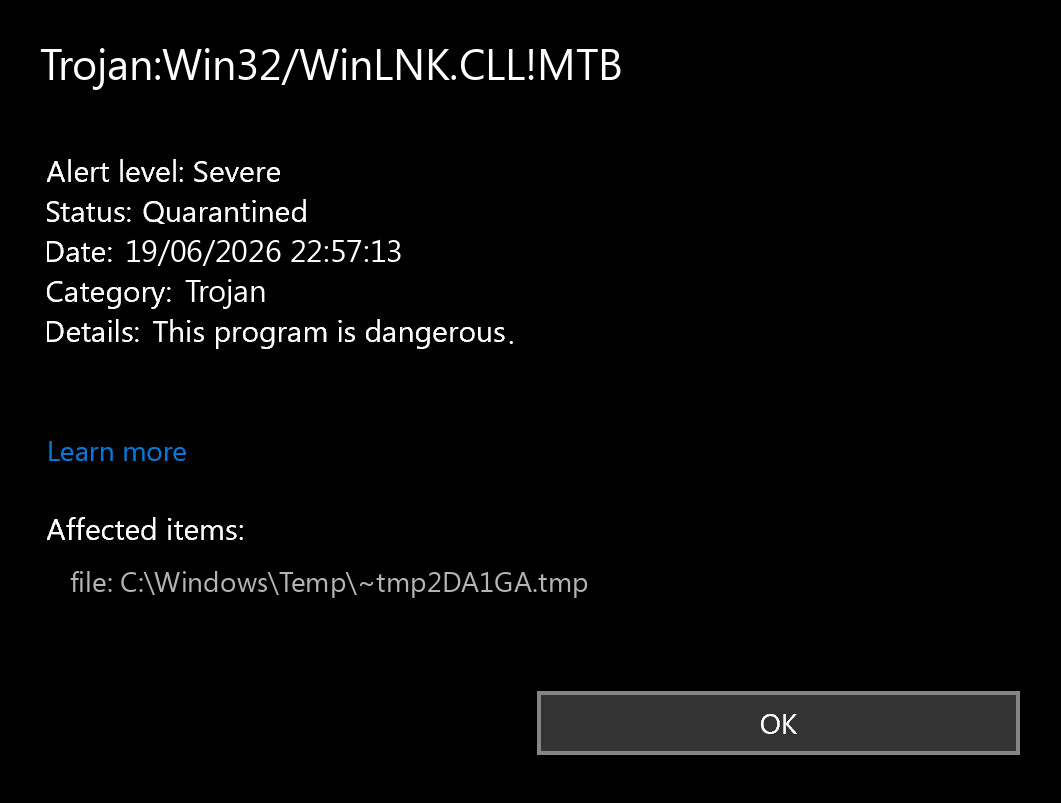
Trojan:Win32/WinLNK.CLL!MTB is a Microsoft Defender Trojan detection. If the affected item is a recovery or provisioning package such as C:\Recovery\Customizations\FactoryApps_TU.ppkg or C:\Recovery\Customizations\usmt.ppkg, do not delete the package first. Update Defender, run a full scan, save the affected path and Protection History status, and verify whether the alert is current malware, a stale remediation record, or a false positive against an OEM recovery file.
The important decision is not the label alone. WinLNK detections usually involve shortcut-style abuse, but recent user reports around WinLNK.CLL!MTB point to protected recovery-package paths where a quick deletion can damage recovery tooling. Treat user-writable locations, downloads, USB shortcuts, scripts, Startup entries, and repeated post-reboot alerts as higher risk.
What Trojan:Win32/WinLNK.CLL!MTB Means
Microsoft lists Trojan:Win32/WinLNK.CLL!MTB as a Defender Antivirus detection and says Defender can remove it automatically, but the exact CLL page does not publish behavior details. The broader Trojan:Win32/WinLNK!MTB family describes malicious Windows shortcut files that can launch trusted Windows binaries such as PowerShell or cmd.exe with hidden or obfuscated commands.
That family context matters, but it does not prove that every CLL alert in a recovery package is an active shortcut infection. A Defender label tells you what the engine matched; the affected path, source, action status, and repeat behavior tell you what to do next.
Why Recovery Package Alerts Need Care
Two fresh public support cases are useful because they show the same practical pattern users are seeing: Defender reported a WinLNK detection against recovery or customization package files under C:\Recovery\Customizations\. In that context, the safer first move is verification, not manual removal.
| Affected item | How to read it |
C:\Recovery\Customizations\FactoryApps_TU.ppkg |
Likely OEM or enterprise recovery customization content. Check whether the alert remains after Defender intelligence updates and a full scan before deleting it. |
C:\Recovery\Customizations\usmt.ppkg |
Provisioning or migration package context. If the file no longer exists but Protection History still shows an old card, you may be looking at stale history. |
%TEMP%\test10.lnk, downloads, USB shortcuts, Startup, Task Scheduler, or PowerShell commands |
Higher-risk WinLNK behavior. Keep the item quarantined and scan for persistence or follow-on payloads. |
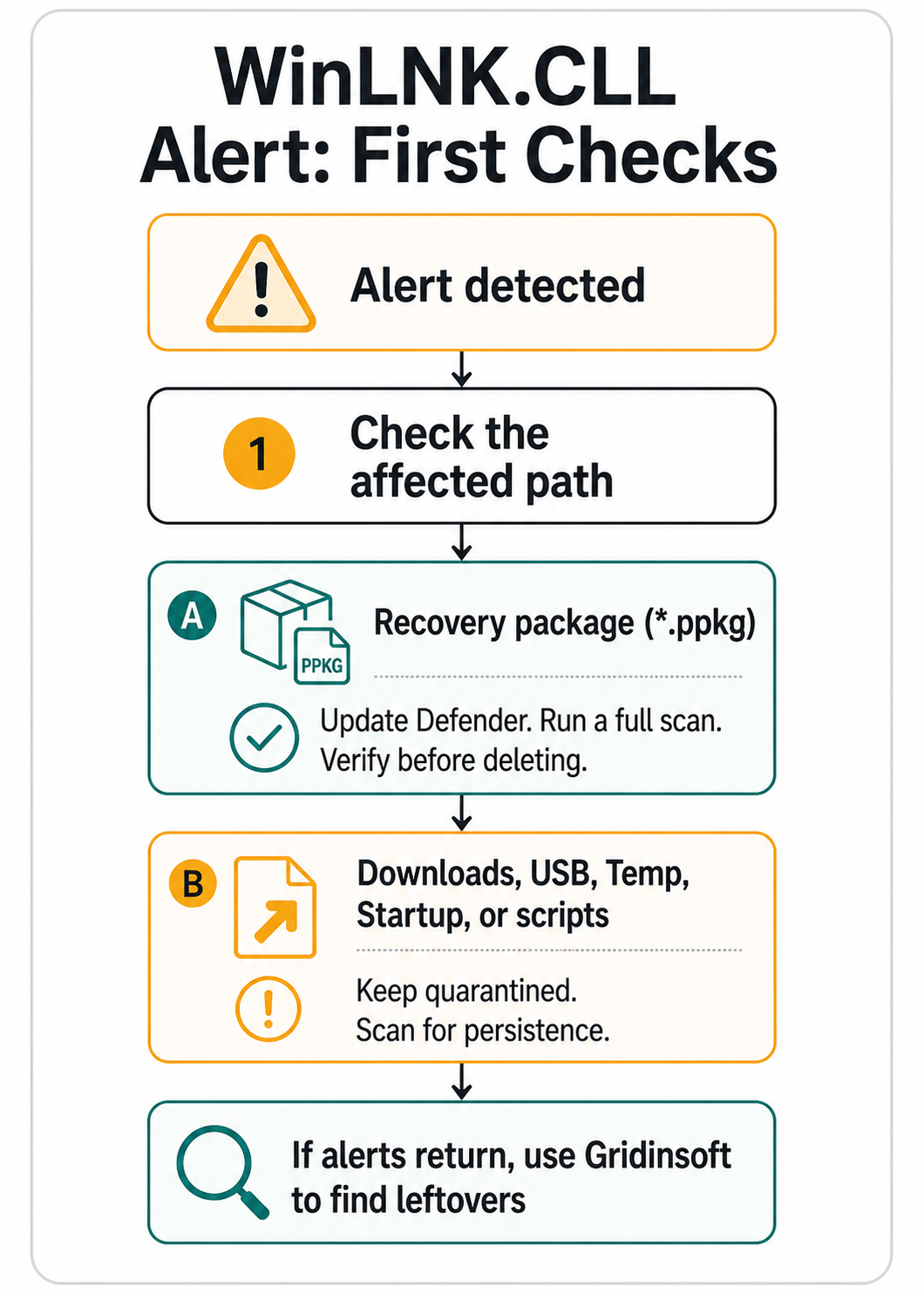
The flow below is the fast version of the same decision: protected recovery package first means verify carefully; user-writable shortcuts, scripts, USB items, or repeated alerts mean scan for persistence.
What To Do First
- Update Defender security intelligence. Open Windows Security and check for protection updates before judging a possible false positive.
- Save the evidence. Copy the exact detection name, affected item path, date, status, and whether Defender says quarantined, removed, failed, or no current threats.
- Run a full scan. If the full scan is clean and the affected recovery file no longer exists, avoid clearing Protection History until you are sure the alert does not return.
- Check the path before restoring or deleting. A protected
C:\Recovery\Customizations\*.ppkgfile is a different decision from a shortcut in Downloads, Temp, a USB drive, or a user Startup folder. - Hash or submit the sample when policy allows. For business or OEM images, use an administrator-approved workflow. Do not upload private recovery packages or company images to public multi-scanner sites without permission.
- Run Microsoft Defender Offline if the alert returns. Offline scanning is useful when you suspect persistence or cleanup from the normal Windows session is incomplete.
False Positive Or Real Malware?
Use this decision table before allowing, restoring, excluding, or deleting anything.
| Situation | Risk and next step |
| Only a protected recovery package is named, Defender is updated, and repeated scans are clean | False positive or stale remediation history is plausible. Submit the file to Microsoft if the package can be shared safely, or ask the device vendor/admin before changing recovery content. |
The alert points to .lnk, .js, .vbs, PowerShell, cmd.exe, a ZIP download, a USB drive, or a user-writable folder |
Treat it as likely malware behavior. Keep it quarantined, check startup persistence, and scan the full system. |
| The same alert returns after reboot or after Defender says it removed the item | Look for a loader, scheduled task, service, startup entry, browser change, Defender exclusion, or another file recreating the shortcut. |
| You restored or allowed the file because you thought it was safe | Undo the allow/exclusion, rescan, and check whether any executable, script, shortcut, or archive ran before quarantine. |
When To Use Gridinsoft As A Second Opinion
If the alert is confined to an OEM recovery package and the system scans clean, the next step is usually vendor or Microsoft false-positive review. If the alert came from a download, USB shortcut, script, Startup folder, or keeps coming back, scan for leftovers that Defender may not show in the visible alert card: hidden files, scheduled tasks, startup entries, bundled apps, browser changes, and persistence.
Run a full Gridinsoft Anti-Malware scan after the Defender full scan when the source path is suspicious or the warning repeats. Remove detections, reboot, then scan again if the same alert or shortcut behavior returns. A scan can help find persistence and bundled modules, but it cannot prove that no account was exposed if a malicious shortcut already ran.
A false positive is possible, but restore only after checking that the system has no companion detections, startup entries, scheduled tasks, or hidden files tied to the same source.
Scan before restoring this fileWhat Not To Do
- Do not delete
C:\Recovery\Customizations\*.ppkgfiles as the first step on a managed, OEM, or business PC. - Do not add a Defender exclusion just to silence the alert before you know the file source and path.
- Do not clear Protection History before recording the detection name, path, and status.
- Do not run unknown shortcuts from a USB drive, ZIP archive, email, or Downloads folder to see what happens.
- Do not upload private company recovery packages or personal files to public analysis services without approval.
Related Gridinsoft Guides
If you are trying to understand the naming pattern, start with our Microsoft Defender detection names guide. If the issue involves removable drives and visible shortcut files, use the USB shortcut virus cleanup guide. If the alert is a recurring PowerShell-style detection, compare it with Trojan:JS/Obfuse.NF!MTB.
FAQ
Is Trojan:Win32/WinLNK.CLL!MTB always a real infection?
No. It is a real Defender detection label, but recent recovery-package cases show that a false positive or stale remediation history is possible. Decide from the affected path, current scan result, and whether the alert returns.
Should I delete FactoryApps_TU.ppkg or usmt.ppkg?
Not as the first step. Those files can be part of recovery or provisioning content. Update Defender, scan, record the alert details, and ask the vendor, admin, or Microsoft sample submission workflow before deleting protected recovery files.
What if Defender says no current threats now?
A clean dashboard is encouraging, but keep the detection details until you know the warning does not return. If the affected file disappeared and full or offline scans stay clean, the old card may be history rather than an active infection.
When is this alert high risk?
It is higher risk when the affected item is a shortcut, script, archive, USB drive, Downloads folder, Startup entry, Task Scheduler item, PowerShell command, or anything that returns after reboot.
References
- Microsoft Security Intelligence. “Trojan:Win32/WinLNK.CLL!MTB.” Microsoft, published and updated April 15, 2026; accessed June 19, 2026. https://www.microsoft.com/en-us/wdsi/threats/malware-encyclopedia-description?Name=Trojan%3AWin32%2FWinLNK.CLL%21MTB
- Microsoft Security Intelligence. “Trojan:Win32/WinLNK!MTB.” Microsoft, updated March 8, 2026; accessed June 19, 2026. https://www.microsoft.com/en-us/wdsi/threats/malware-encyclopedia-description?Name=Trojan%3AWin32%2FWinLNK%21MTB
- Microsoft Q&A. “windows defenderでノートPCのリカバリファイルがウィルスとして検知されます.” Microsoft Learn, April 21, 2026; accessed June 19, 2026. https://learn.microsoft.com/ja-jp/answers/questions/5865755/windows-defender-pc
- HP Community. “win defender me detecta Trojan win32/winlnk.hgd! MTB.” HP Community, accessed June 19, 2026. https://h30434.www3.hp.com/t5/AI-PCs/win-defender-me-detecta-Trojan-win32-winlnk-hgd-MTB/td-p/9662330
- Microsoft Defender for Endpoint documentation. “Microsoft Defender Offline scan in Windows.” Microsoft Learn, accessed June 19, 2026. https://learn.microsoft.com/en-us/defender-endpoint/microsoft-defender-offline