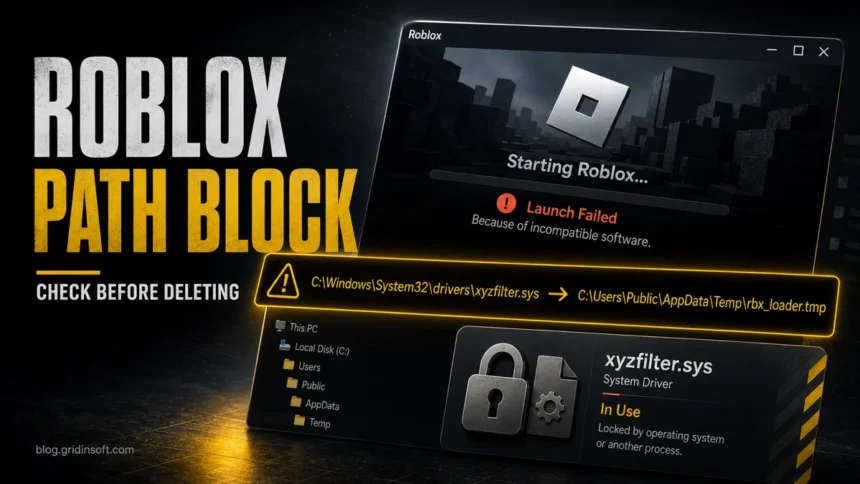
When Roblox says “Roblox crashed because of incompatible software” or “Roblox has crashed due to incompatible software” and then shows a file path, that path is the clue. It usually means a driver, DLL, security module, overlay, modified Roblox build, or suspicious tool is interacting with Roblox. Do not delete a random .dll, .sys, or .inf file just because it appears in the message. First identify what owns the path, stop or update that software, use a clean boot to isolate the conflict, and scan only when the path or recent download looks unsafe.
Roblox’s anti-cheat guidance says that when this error is followed by a path, the software in that path is causing problems with Roblox, and the fix is to prevent that software from running while Roblox is open or perform a Windows clean boot [1]. The part many guides skip is the safety decision: some paths point to legitimate security or driver software, while others point to cheat loaders, modified clients, random user-profile files, or malware persistence.
Quick answer
- If the path names a normal security product or hardware driver: update that product, close it temporarily only for testing, or contact the vendor. Do not delete its driver file by hand.
- If the path is under
C:\Windows\System32orDriverStore: treat it as a Windows/driver integrity problem first. Use official Windows repair steps, not DLL-download sites. - If the path is in
AppData,Temp,Downloads,ProgramData, a Roblox executor folder, or an unofficial launcher: stop running it and scan before logging back into Roblox. - If Roblox says third-party software is interfering: clean boot is the safest way to find the conflicting background app without guessing.
| Error detail | What it usually means |
...\System32\drivers\something.sys |
A kernel driver, security module, game anti-cheat, hardware tool, or broken driver is being blocked or loaded into Roblox. |
...\DriverStore\FileRepository\something.inf |
A Windows driver package or display/input driver file may be involved. Update or roll back the device driver instead of deleting the package. |
...\Program Files\Vendor\... |
Often security software, banking protection, overlay software, capture tools, or another game platform. Update or close the parent app. |
...\AppData\..., ...\Temp\..., or an executor/mod folder |
Higher risk. It may be a launcher, cheat tool, repack, fake updater, or malware component. Scan before trusting the PC again. |
What the incompatible-software path means
The message is not saying that Roblox itself is malware. It is saying Roblox’s anti-cheat or integrity checks saw something loaded, injected, hooked, or otherwise interacting with the client in a way Roblox does not allow. That can happen with legitimate software, but it can also happen after unsafe Roblox-related downloads.
Common categories include:
- Security and banking protection modules, such as antivirus hooks or browser-protection DLLs.
- Hardware and tuning drivers, including display, input, RGB, fan-control, or overclocking components.
- Overlay, capture, and macro tools, especially when they hook into games or capture in-game frames.
- Other games or anti-cheat systems that keep background drivers or services running.
- Modified Roblox clients, executors, FPS unlockers, script tools, shader packs, and unofficial launchers.
- Malware using a game-related name so the user is less likely to question it.
First, copy the exact path
Before changing anything, take a screenshot or copy the exact path from the Roblox error. The folder tells you what kind of fix is safe. A path under Program Files usually points to a parent app you can update or uninstall. A path under C:\Windows\System32\drivers should be handled through driver updates, Windows repair, or vendor support. A path under AppData\Local\Temp, Downloads, or a random Roblox tool folder deserves much more caution.
Right-click the file if you can reach it, choose Properties, and check:
- the folder path;
- the file description and publisher;
- whether a digital signature is present;
- the modified date around the time the Roblox problem started;
- which program or installer you added shortly before the crash began.
Safe fix order
- Restart once. This clears many locked-file and driver-load edge cases.
- Close the parent app named by the path. If the path points to an antivirus, overlay, game launcher, banking-protection tool, or another anti-cheat game, exit it fully and try Roblox again.
- Update the parent app. Use the vendor’s official updater or website. Do not install random “Roblox incompatible software fix” utilities.
- Perform a clean boot if you do not know the owner. Roblox recommends clean boot for these anti-cheat messages because it starts Windows with only essential services and helps reveal the conflicting app [1].
- Reinstall Roblox from the official route. Roblox says reinstalling can overwrite deleted or broken Roblox files, but recommends trying a restart first and closing other programs during reinstall [2].
- Repair Windows only when the path points to Windows files or Roblox reports corrupt system files. Microsoft documents System File Checker as the built-in tool for corrupted Windows system files and recommends running DISM before SFC in the classic repair flow [3].
- Scan if the path is suspicious or the file came from an unofficial download. Do this before signing back into Roblox, Discord, Steam, email, or a password manager on the same PC.
How to use clean boot without breaking Windows
Clean boot is a diagnostic step, not a permanent mode. It helps you find whether a startup app or non-Microsoft service is interfering with Roblox.
- Press Windows + R, type
msconfig, and press Enter. - Open the Services tab.
- Check Hide all Microsoft services. This is important.
- Choose Disable all for the remaining non-Microsoft services.
- Open the Startup tab and launch Task Manager.
- Disable startup items temporarily.
- Restart and test Roblox.
- If Roblox works, re-enable items in small groups until the crash returns. The last group likely contains the conflict.
After testing, restore your normal startup items. Leaving everything disabled can break update tools, peripheral apps, security features, or work software.
What to do by file path
Path points to antivirus, banking protection, or endpoint security
Examples include hook DLLs, browser-protection modules, or security-suite drivers. Do not uninstall protection just to play Roblox. Update the security product first, reboot, and check whether the vendor has a compatibility update. If you temporarily disable a feature for testing, turn it back on after the test.
Path points to a graphics, input, or hardware driver
Update the driver from Windows Update, the device maker, or the GPU vendor. If the issue started immediately after a driver update, roll back through Device Manager or install a stable vendor release. Do not delete .sys or .inf files from System32 or DriverStore.
Path points to OBS or an overlay
Roblox’s anti-cheat page separately notes that OBS in-game capture can have issues with Roblox and recommends window or desktop capture instead [1]. The same idea applies to other overlays: close them for testing, then use a less intrusive capture or overlay mode.
Path points to another game, launcher, or anti-cheat
Exit the other game completely, reboot, and test Roblox before changing files. Some game launchers and anti-cheat services keep background services running after the game closes. If the problem started after installing a new game, update that game or temporarily remove it to confirm.
Path points to a Roblox executor, mod menu, fake FPS booster, shader, or unofficial launcher
Treat this as a security case, not just a Roblox crash. Uninstall the tool, delete the installer or archive, and scan before logging back in. This is especially important if the tool came from Discord, YouTube comments, a mirror site, a password-protected archive, or a “turn off antivirus first” instruction. For broader account-risk steps after running a game mod or fake launcher, use the infostealer after downloading a game or mod checklist.
When to scan before trusting the PC
A clean boot can tell you which background item conflicts with Roblox. It does not prove the file is safe. Run a malware scan when any of these are true:
- the path is in
Downloads,Temp,AppData\Roaming,ProgramData,C:\Users\Public, or an unknown game-tool folder; - you recently installed a Roblox executor, cheat, fake shader, repack, FPS booster, or unofficial bootstrapper;
- the file has no clear publisher or signature;
- the same file returns after deletion or starts with Windows;
- Roblox, Discord, Steam, browser, or email sessions behave strangely after the file ran;
- your security tool also reports a Trojan, PUA, GameHack, or suspicious-process alert.
In those cases, run a full Gridinsoft Anti-Malware scan. It can check for detections, hidden files, startup entries, scheduled tasks, unwanted apps, browser changes, and persistence around the named path. If the suspicious file has already run, change important passwords from a clean device after cleanup, not from the possibly affected PC.
If the process path is wrong, the name imitates a Windows component, or high CPU started after an unknown installer, scan for hidden miners, services, startup entries, and bundled components.
Scan the named fileIf Roblox specifically names RobloxCrashHandler.exe, use the RobloxCrashHandler.exe safety guide to compare the expected Roblox/Bloxstrap folders with fake-copy signs. If the problem involves a third-party account utility, the Roblox Account Manager safety guide explains when GameHack or Trojan-style warnings may be false positives and when the account is at risk.
What not to do
- Do not download a replacement DLL, SYS, or INF file from a file-fixing site.
- Do not delete files from
C:\Windows\System32,C:\Windows\System32\drivers, orDriverStorebecause one forum comment says it worked. - Do not permanently disable antivirus or add a whole Roblox/executor/mod folder to exclusions.
- Do not reset Windows as the first fix. It is a last resort after backup and after clean boot, vendor updates, reinstall, and system-file repair have failed.
- Do not sign back into Roblox on the same PC if the path came from a suspicious download and you have not scanned yet.
FAQ
What does “Roblox crashed because of incompatible software” mean?
It means Roblox detected another file or program interacting with the client in a way it does not allow. The displayed path is the main clue: it may be a legitimate driver or app conflict, or it may be a suspicious tool.
Should I delete the file shown in the Roblox error?
No, not immediately. If the file is a Windows driver, security product module, or hardware driver, deleting it can break Windows or the parent program. Identify the owner, update or uninstall the parent app, and use clean boot first.
Why does Roblox show a System32 or drivers path?
Many legitimate drivers and security tools load from Windows system folders. Roblox may block them if they hook into the game process or conflict with anti-cheat checks. Handle them through official driver, Windows, or vendor repair steps.
Is this always caused by malware?
No. Antivirus modules, banking protection, GPU tools, overlays, OBS capture mode, and other anti-cheat services can cause similar messages. Malware becomes more likely when the path is in a user-profile/temp folder, a cheat/executor folder, or appears after an unofficial download.
Can I just reinstall Roblox?
Reinstalling Roblox can fix missing or broken Roblox files, but it will not remove a conflicting third-party driver, overlay, security module, or malware component. If the same path returns after reinstall, focus on the named software.
Do I need to change my Roblox password?
Change it from a clean device if the incompatible-software path came from an executor, fake launcher, mod menu, suspicious archive, or unofficial download, or if you noticed account/session changes after running the file.
References
- Roblox Support. “Anti-cheat Messages.” Roblox, accessed July 3, 2026. https://en.help.roblox.com/hc/en-us/articles/24275616578708-Anti-cheat-Messages.
- Roblox Support. “How Do I Reinstall the Roblox Software?” Roblox, accessed July 3, 2026. https://en.help.roblox.com/hc/en-us/articles/203312910-How-Do-I-Reinstall-the-Roblox-Software.
- Microsoft Support. “Use the System File Checker tool to repair missing or corrupted system files.” Microsoft, accessed July 3, 2026. https://support.microsoft.com/en-us/windows/experience/backup-recovery/using-system-file-checker-in-windows.