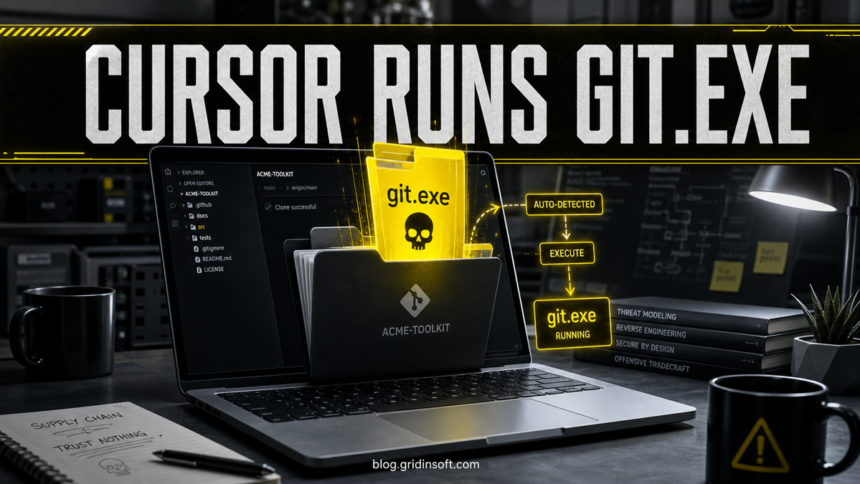
Mindgard disclosed a Windows Cursor IDE flaw on July 14 in which opening a repository can cause a git.exe file from that repository’s root to run without another prompt. The researchers say Cursor invokes the file repeatedly while checking Git state. Their public evidence was last verified on April 30, 2026, with Cursor 3.2.16[1]; Cursor had not published a matching advisory or affected-version range when this article was prepared.
The risk is narrow but serious: an attacker must first get you to download or clone a repository and open it in Cursor on Windows. If the repository contains an unexpected executable named git.exe, treat opening the project as possible code execution, not as passive source review.
What Mindgard confirmed — and what remains unknown
| Finding | Practical meaning |
|---|---|
| Tested platform | Windows with Cursor 3.2.16, last verified April 30, 2026. The disclosure does not establish the same behavior on macOS or Linux. |
| Trigger | A repository-local git.exe sits in the project root and the user opens that project in Cursor. |
| Observed behavior | Cursor ran the file with Git arguments and repeated the launch while the project remained open. |
| Patch status | Mindgard said it had no remediation update when it disclosed the issue. Cursor’s public security page and changelog did not name this specific report as of July 15.[2] |
| Known attacks | The public report demonstrates a proof of concept. It does not document an active malware campaign exploiting this path. |
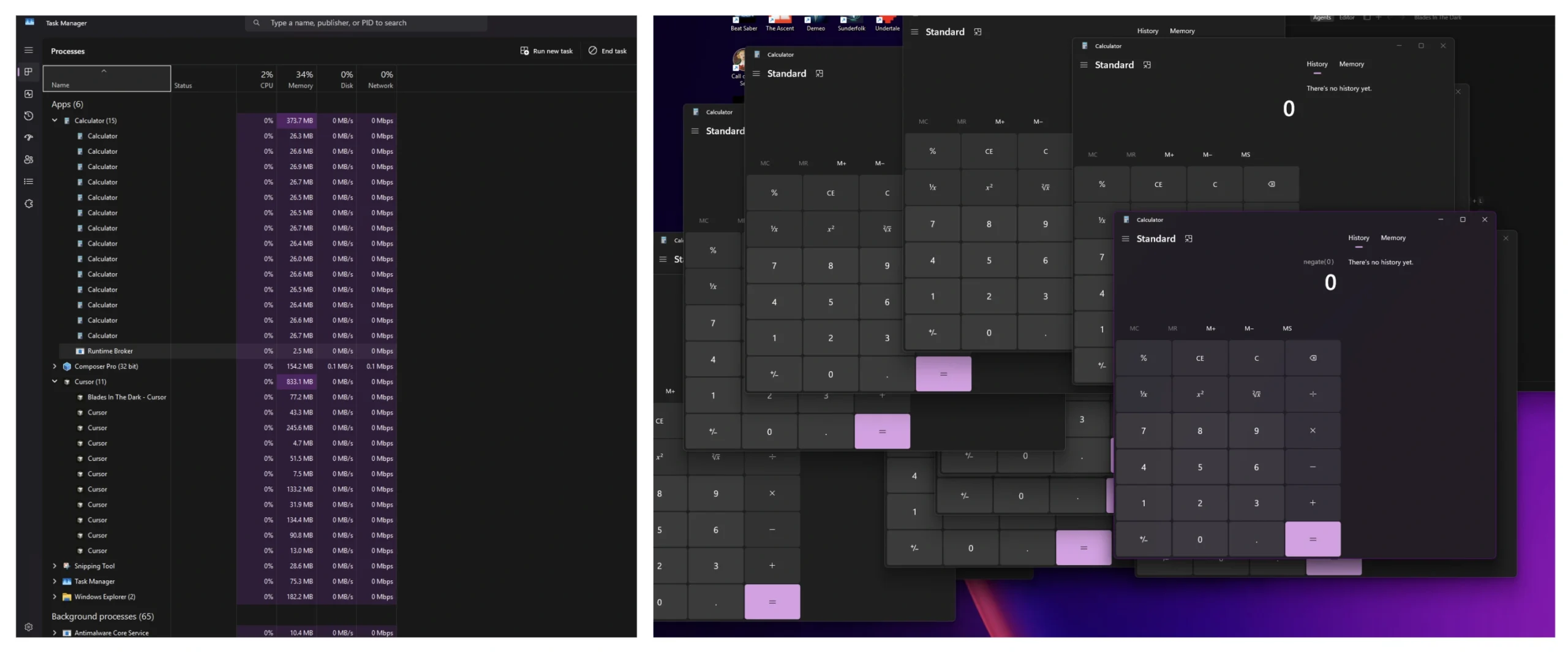
For the harmless proof of concept, the researchers renamed Windows Calculator to git.exe. Opening the repository produced multiple Calculator processes. A malicious file could instead act as a stealer, backdoor, or loader with the same permissions as the person running Cursor.
Check a cloned repository before opening it in Cursor
- Keep Cursor closed. Inspect an unfamiliar project in File Explorer, a text-only viewer, or an isolated virtual machine before trusting the workspace.
- Look at the repository root. A project normally does not need to ship its own Windows Git client. An unexpected
git.exebesideREADME.md,package.json, or source folders is a stop signal. - Do not double-click the file. Record its filename, path, repository URL, and commit before deleting or quarantining anything. If the code is proprietary, do not upload the whole repository to a public scanner.
- Verify the executable separately. Check its digital signature, properties, and hash. Our EXE safety checklist explains which paths, signatures, and scan results matter before a file is allowed to run.
- Use isolation for untrusted projects. Windows Sandbox or a disposable VM keeps repository review away from browser sessions, SSH keys, cloud credentials, and ordinary developer files.[3]
Managed teams can also test AppLocker or App Control for Business rules that prevent executables from running inside developer workspace directories. Mindgard recommends path-scoped controls because an attacker can change the file hash. Broad rules can break legitimate toolchains, so deploy them in audit mode and test compatibility before enforcement.
What to do if you already opened the repository
- Close Cursor and stop using the project. Do not run more Git, package-manager, build, or IDE commands while you investigate.
- Disconnect if anything unexpected happened. New terminal windows, security alerts, outbound connections, unknown processes, or repeated launches justify taking the PC offline.
- Preserve the evidence. Save the repository URL, commit hash, download time, and the full path and hash of the unexpected
git.exe. Do not rerun it to confirm the behavior. - Run a full security scan. A security tool may remove the visible executable while a loader, scheduled task, service, browser change, or startup entry remains. Remove detections, reboot, and scan again if alerts or activity return.
- Review developer secrets from a clean device. Rotate GitHub/GitLab tokens, npm or PyPI publishing tokens, SSH keys, cloud API keys, signing credentials, and work SSO sessions that were accessible to the Windows account.
- Audit persistence and account activity. Check startup apps, Task Scheduler, services, browser extensions, remote-access tools, recent sign-ins, new OAuth apps, and CI/CD changes. Use the broader post-malware Windows audit when the payload is unknown.
- Replace the working copy. After containment, obtain a clean repository from a verified source and review it in isolation before reopening it in the IDE.
If the process path is wrong, the name imitates a Windows component, or high CPU started after an unknown installer, scan for hidden miners, services, startup entries, and bundled components.
Scan for malware and persistenceThis response is similar to a fake coding-test incident: the repository is part of the executable delivery path. Our developer-tool malware cleanup guide covers credential rotation and recovery when a recruiter or coding task led to the download. If the repository history itself was replaced, follow the malware-modified Git commit recovery steps before restoring a clean working copy.
References
- Portnoy, Aaron / Mindgard. “Cursor 0day: When Full Disclosure Becomes the Only Protection Left.” Mindgard, published July 14, 2026, accessed July 15, 2026. Primary vulnerability disclosure.
- Cursor. “Security.” Cursor, last updated April 24, 2026, accessed July 15, 2026. Official security and disclosure page.
- Microsoft. “Install Windows Sandbox.” Microsoft Learn, updated March 29, 2026, accessed July 15, 2026. Windows Sandbox setup guidance.