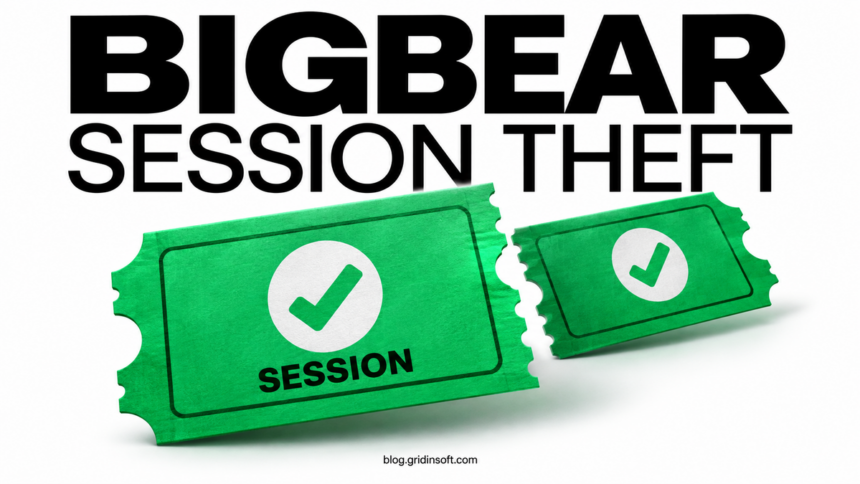
BigBear 2.0 targets Microsoft 365 sessions, so approving MFA does not necessarily end the phishing risk. CloudSEK’s September 7 investigation describes an Evilginx2-based service that relays sign-ins and captures the resulting cookies. If you entered your work password or completed a login after an unexpected message, report that sequence to IT now—even if the page eventually opened a genuine Microsoft service. [1]
The important detail is the login you completed
A password reset addresses the password. An already authorized session needs its own containment. Think of the session as an admission ticket: checking the ticket holder once does not help if somebody else receives a usable copy afterward.
CloudSEK also describes steering users away from FIDO2/WebAuthn toward weaker fallback methods. This is a change of authentication route, not evidence that the cryptography of a security key was broken. The report’s passwords, cookies, records and IP addresses measure different things; they should not be added together as a victim total. [1]
Example: a document link changes into a work login
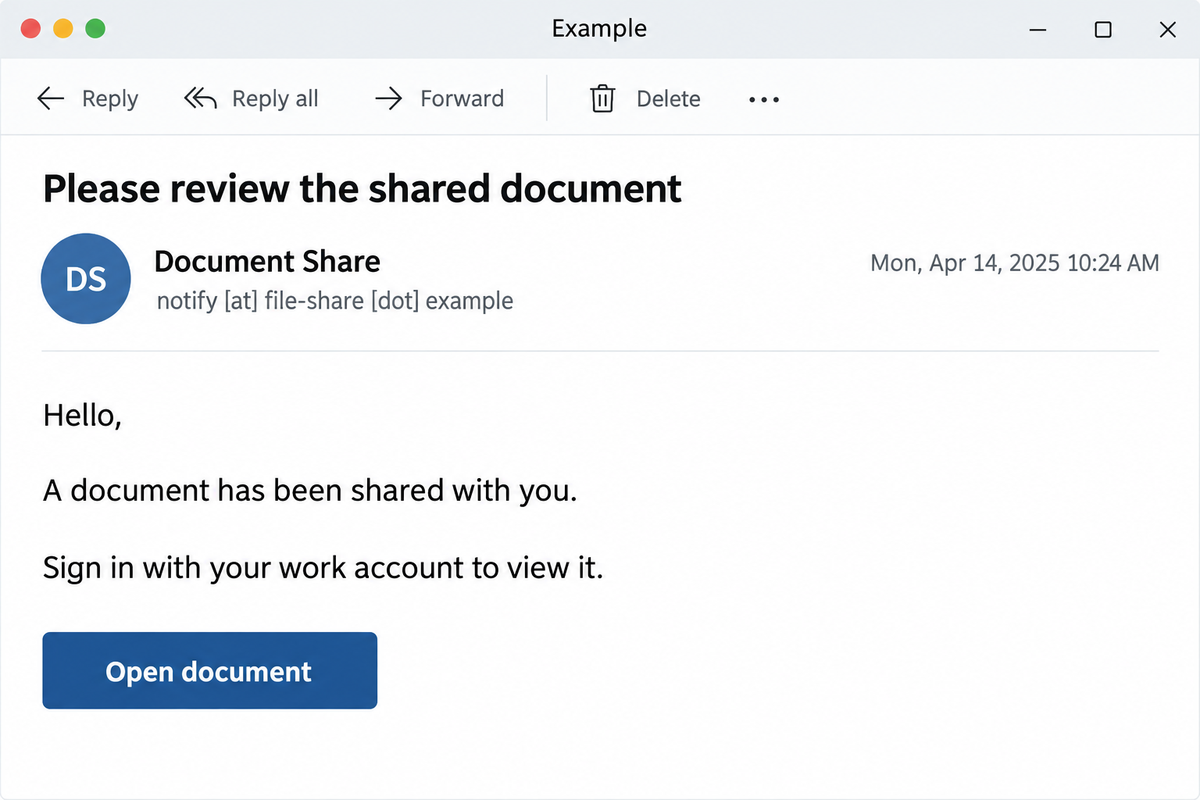
Imagine that a colleague appears to send a shared document. The message looks ordinary, and the link leads to a familiar-looking sign-in page. The following wording is an illustrative example, not a reproduced BigBear campaign email.
Example
Subject: Please review the shared document
From: Document Share — notify [at] file-share [dot] example
Hello,
A document has been shared with you.
Sign in with your work account to view it.
Button: Open document
There is no spelling error or dramatic deadline to rescue you here. The useful test is whether you expected this document and whether the route to it makes sense. Open the document service from your bookmark or usual work portal, then ask the sender through a channel you already trust. A recognizable logo and HTTPS do not answer those questions.
- You saw the sign-in page and closed it: report the message and preserve the destination address. If you entered nothing, approved no login and ran no file, do not jump straight to “my computer is infected.” If the link silently signed you in or you are unsure what happened, tell IT that too.
- You entered a password: contact IT through the normal support route and change the exposed password from the genuine account page on a trusted device. Include any reused-password accounts in your recovery plan. Do not return to the message’s link to “fix” the password.
- You approved a prompt or entered a verification code: explicitly report that authentication completed. Do not describe this merely as a suspicious email; the administrator needs to consider session access as well as the password.
- You downloaded and ran something: add the filename and time to the report and stop using that device for recovery. A phishing login and a malware installation are separate exposure paths; both can require attention.
What to send IT, and what the administrator must verify
A useful report is short: “At approximately [time and time zone], I followed this message’s link. I [entered my password / approved MFA / only opened the page]. The page then [asked for another method / showed an error / opened a document].” Include the original message and destination through your organization’s reporting process. Never send the password, one-time code or session cookie.
For administrators, Microsoft’s emergency process includes blocking new sign-ins when warranted and revoking sessions. Application sessions require separate attention: Entra cannot directly invalidate every cookie issued by an application, and loss of access can take time. Verify containment with the relevant application owner rather than treating a successful revocation action as proof that every access path ended. [2]
Keep a small incident checklist: affected account, reported time, observed sign-ins, containment actions, applications checked, and who will confirm recovery. Review unexpected mailbox rules, forwarding, connected applications and account changes against your normal baseline. A quiet sign-in history after the report is useful evidence, but it does not undo actions taken earlier.
Keep a stronger method from becoming an optional method
If a page says your security key or passkey is unavailable and asks for an SMS code or another method, pause and reach the service independently. Do not disable your usual protection to satisfy an unexpected document link.
Administrators can use Conditional Access authentication strengths to require phishing-resistant methods for the relevant resources; merely enrolling a strong method leaves a different question about what methods a policy still accepts. Microsoft documents the combinations and licensing requirements. Test the intended policy and legitimate recovery route before rollout. [3]
For wider context, compare the ReliaQuest case where device trust blocked application access after MFA. That was a different incident: it helps explain why “MFA approved” and “application accessed” are separate checkpoints. A Gridinsoft domain reputation check can add context to a suspicious destination, but it cannot revoke a stolen session or prove an account is safe.
References
- Gagan Aggarwal. “Tracking BigBear 2.0 Evilginx2 Phishing Campaign.” CloudSEK, September 7, 2026. Campaign investigation.
- Microsoft. “Revoke user access in Microsoft Entra ID.” Microsoft Learn, updated June 19, 2026; accessed September 9, 2026. Emergency access revocation.
- Microsoft. “Conditional Access authentication strengths.” Microsoft Learn, accessed September 9, 2026. Allowed authentication methods.