Malware detected in C:\Windows.old means your antivirus found a suspicious file in the previous installation’s files. The path alone does not show that the file is running—or that your current Windows installation is clean. Keep the item quarantined, check the alert’s full path and action, and scan the current system. Before deleting the old installation, save the personal files you still need and decide whether you need its rollback option.
The useful question after a reinstall is not simply “Did a virus survive?” It is “Did the scanner find an old copy, a newly active threat, or an unfinished cleanup?” Those situations call for different next steps.
Why malware can be found in Windows.old after reinstalling
Windows.old can retain files from an earlier Windows installation. A scan of those files can detect an old installer, script, archive, or program even when that copy is not executing. Keeping an old file and running that file are different events. Conversely, a program could be launched from an unusual location or copied back into use; the folder name is not a security boundary.
What you mean by “reinstall” also matters. Microsoft documents temporary file recovery from Windows.old after certain upgrades, and says Reset this PC does not create this folder. Do not assume a reset, an upgrade, and a clean installation erased the same data.1 Our factory reset versus malware recovery guide explains how the recovery choices differ.
For example, an alert for C:\Windows.old\Users\Alex\Downloads\setup.exe points to an old user’s download. It is not the same location as C:\Users\Alex\Downloads\setup.exe. Here, Alex and setup.exe are illustrative names, not a diagnosis of a particular file. Read the entire path: a short result label can hide the distinction.
Read the path, time, and action before changing anything
Open the detecting antivirus itself and expand the event. Record the threat name, complete affected-item path, detection time, and action result. The detection time tells you when the scanner reported the item; it does not establish when the file first arrived or ran. A historical event still listed in the log is not automatically a fresh detection.
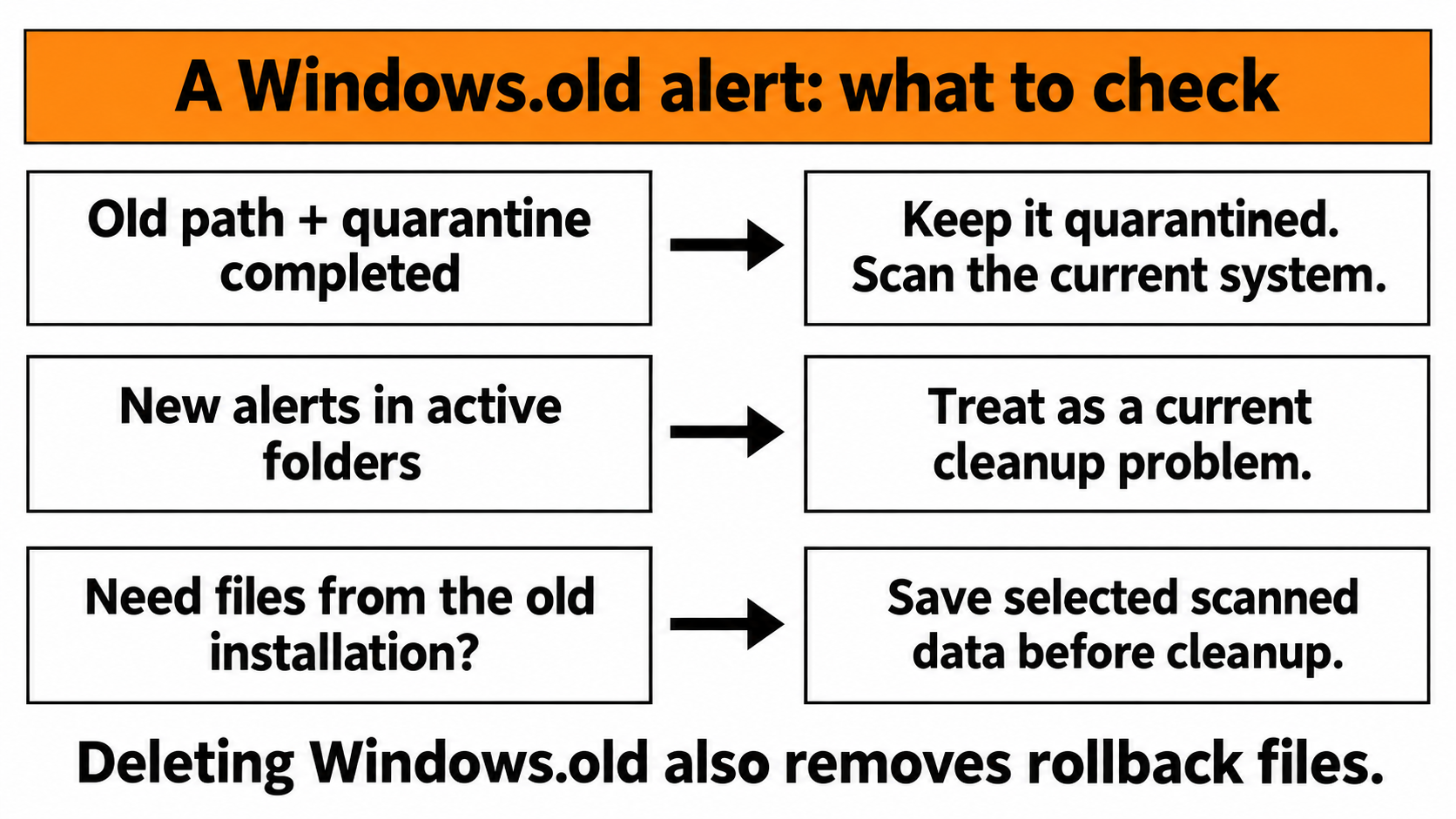
- Only an old-installation path; quarantine or removal completed. Leave the item contained. Check the current system, then decide which old data to preserve and whether to remove the previous installation.
- Action needed, cleanup failed, or remediation incomplete. Follow the scanner’s requested action and check its result. A detection without a completed action is not a finished cleanup.
- A new detection in the current
C:\Windows,C:\Users, or another active location. Handle it as a current-system problem. DeletingWindows.oldalone does not address that separate file or activity. - An old program, installer, script, or browser profile was restored and used. Include the restored location in your investigation. If suspicious software ran, consider the accounts and sessions used on the PC as well as local cleanup.
In Microsoft Defender, Protection history distinguishes quarantined, blocked, action-needed, and incomplete-remediation events. Quarantine keeps the detected item contained; Restore returns it to the device. If you are unsure whether it is safe, keep it quarantined rather than choosing Allow on device. Other antivirus products use their own labels.2
A possible false positive deserves a file-specific review, not an exclusion for the entire old installation. Keep the item contained while checking its origin and the detecting vendor’s assessment. If it is software you still need, obtain a fresh installer from its official publisher; our EXE safety checklist explains source, signature, and behavior checks.
Scan the current system before bringing old files back
Start with the alert details and containment above. Then use Gridinsoft Anti-Malware to check the current installation and detected leftovers. If fresh alerts return after restart or after restoring old software, another component—such as a loader, startup task, service, or browser change—may be involved. That is a reason to check beyond the single file, not a conclusion that every old-file detection has persistence behind it.
- Download and install Gridinsoft Anti-Malware through the official download below.
- Update its detection database and run a Full Scan.
- Review the results and affected paths, then apply cleanup to detected threats. Keep unresolved suspicious items quarantined.
- Restart when requested and check whether there is a new alert, including its timestamp and path. Rescan if detections or symptoms return.
Run a Full Scan, review the affected paths, and clean up detected threats before restoring old software or files.
Download Gridinsoft Anti-MalwareYou do not need to manually hunt through registry keys and scheduled tasks as an extra mandatory step. If the scanner cannot run, cleanup remains incomplete, or current-system detections keep returning, move to the recovery branch below. A scan cannot reconstruct every past execution or undo stolen account access.
Save needed personal files without restoring the old environment
After addressing detections, inspect the old user folder under C:\Windows.old\Users and select only the personal data you need. Microsoft describes copying files from the relevant user’s Documents, Pictures, or Desktop folders. Its upgrade recovery window is normally ten days; another installation or reset can also remove the previous contents. Do not treat Windows.old as a durable backup.1
Scan the selected files before opening them and keep the recovered copy separate until you have reviewed it. Avoid restoring the old Program Files tree, whole browser profiles, scripts, unknown installers, or suspicious archives wholesale. Download applications afresh from their official sources. Documents can also contain active content, so a familiar filename is not a reason to enable macros or bypass an alert.
If an important document itself is detected, leave it quarantined and seek a vendor review or a known-good backup. Do not restore a suspected threat just to rescue the surrounding folder. Check that the personal files you need were actually copied before removing the old installation.
Remove Windows.old through Windows Storage settings
Deleting the previous installation removes the files used to return to that Windows version. Make this decision only after preserving needed data and deciding that you do not need rollback. Rolling back to a previously infected environment is not a malware-recovery strategy.
- Open Settings → System → Storage → Temporary files.
- Look for Previous version of Windows or Previous Windows installation(s), depending on the interface.
- Review the selected categories; do not include Downloads or other personal data automatically.
- Select Remove files when you are ready to give up the old installation and its rollback files.
This is Microsoft’s supported removal route and requires administrator privileges.3 If the category is absent or removal fails, do not start deleting protected folders or taking ownership of the whole Windows directory. Recheck the exact folder and the remaining antivirus action; use Windows support for a persistent storage-cleanup failure.
Deleting Windows.old clears those old files. It does not clean a threat elsewhere, remove an already copied installer, or revoke a stolen login session.
When another reinstall—or account recovery—is warranted
A single contained finding in an old folder is not, by itself, a reason to erase the PC again. Escalate when you have new detections in active locations, unauthorized software that returns, failed remediation, or evidence that the current installation cannot be trusted. Use the clean Windows installation USB workflow for that situation, including how to prepare recovery media on a trusted device and restore data selectively.
If suspicious software ran or accounts show unauthorized access, handle account recovery separately from disk cleanup. Follow the post-malware security audit for passwords, sessions, and recovery settings. The practical finish line is a completed cleanup, no fresh recurrence in the paths you checked, and needed files recovered without bringing the old software environment back.
References
- Microsoft. “Retrieve files from the Windows.old folder after a Windows upgrade.” Microsoft Support, accessed October 27, 2026. Windows.old file recovery.
- Microsoft. “Protection History in the Windows Security App.” Microsoft Support, accessed October 27, 2026. Protection history actions.
- Microsoft. “Delete your previous version of Windows.” Microsoft Support, accessed October 27, 2026. Previous-installation removal.