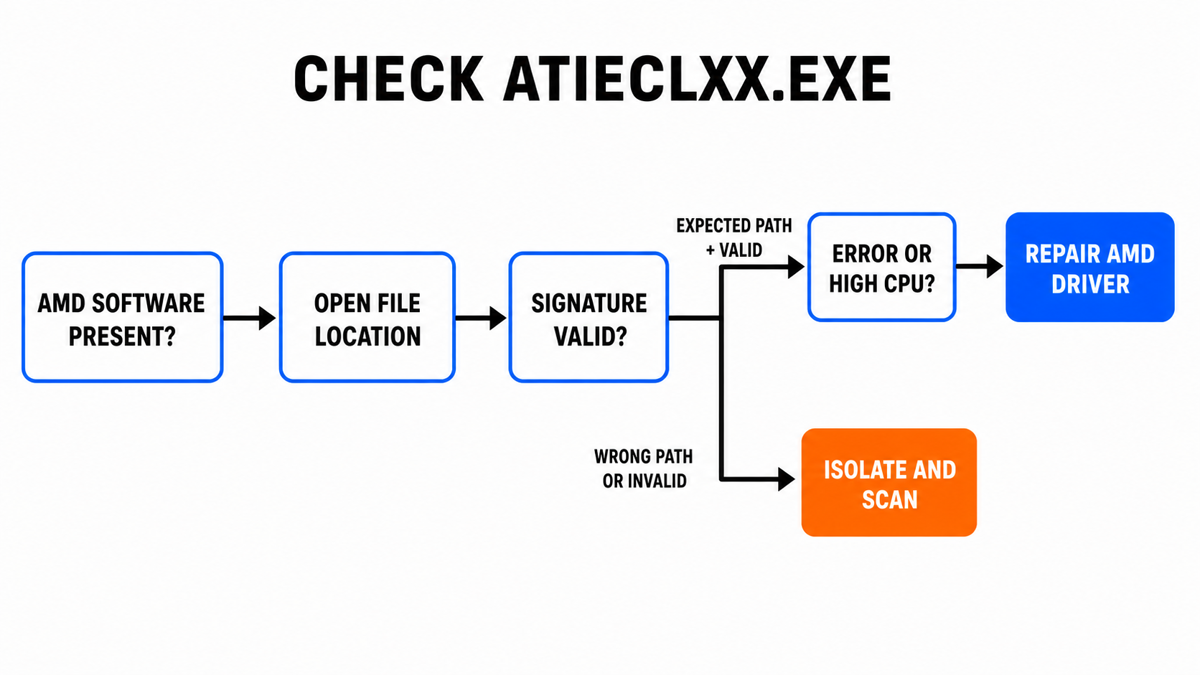
Atieclxx.exe is usually the AMD External Events Client Module installed with Radeon or older ATI graphics drivers. A signed copy in the expected Windows driver location can be normal, even when no AMD window is open. Do not delete it just because the name is unfamiliar. Check the running file’s location and digital signature first; repair the AMD package if it crashes or keeps using CPU, and investigate separately if the copy is unsigned or starts from an unrelated folder.
| What you see | What it means and what to do |
|---|---|
| Atieclxx.exe is idle in Task Manager | Usually normal on a PC with AMD graphics software. Leave it alone if the path and signer are expected. |
| A brief CPU spike after sign-in or a display change | Watch the same PID for a minute. A short event-processing burst does not need removal. |
| CPU stays high while the desktop is idle | Record the trigger, restart the AMD event service once, then update or reinstall the official AMD package. |
| “Atieclxx.exe stopped working” or an application error repeats | Check Reliability Monitor and Event Viewer, note the exception and driver version, then repair the display-driver package. |
| Wrong folder, invalid signer, or unknown startup launcher | Do not assume it is the AMD module. Isolate the copy and scan the computer. |
What is Atieclxx.exe?
The filename belongs to the AMD External Events Client Module, a background component delivered with AMD/ATI display software. It works with the AMD External Events Utility service and the Radeon driver stack to respond to display-related events and settings. Driver generations and PC makers can package the component differently, so the filename alone is not enough to decide whether a particular copy is safe.
Atieclxx.exe is not a core Windows executable. It can still be legitimate in C:\Windows\System32 because AMD’s signed display package installs it there. It may also be associated with files stored in Windows DriverStore. A PC can have AMD integrated graphics, an OEM-provided AMD driver, or leftover Radeon software even when the user does not remember installing a separate AMD application.
Do not confuse it with atiesrxx.exe, the related service module, or AMDRSServ.exe, which supports Radeon Software recording, replay, and streaming features. If a performance overlay is the busy component, the PresentMon_x64.exe owner check follows a different path.
Check whether Atieclxx.exe is safe
- Open Task Manager → Details, right-click atieclxx.exe, and choose Open file location.
- Open the file’s Properties → Details. The description should identify an AMD/ATI External Events client component.
- Open Digital Signatures. Look for a valid signature from Advanced Micro Devices or the expected ATI publisher for an older driver package.
- Check Settings → Apps → Installed apps and Device Manager → Display adapters for the AMD package or hardware that explains the file.
PowerShell can read the path and signature without changing the file:
$process = Get-Process -Name atieclxx -ErrorAction Stop
$process.Path
Get-AuthenticodeSignature -LiteralPath $process.Path |
  Format-List Status, StatusMessage, SignerCertificate
Microsoft’s Get-AuthenticodeSignature command reports the Authenticode status and signer information.[3] A valid AMD/ATI signature plus an expected driver location strongly supports the legitimate-process decision. A valid signature does not explain every crash, but it changes the next action from malware removal to driver troubleshooting.
Why Atieclxx.exe uses high CPU
One short spike is not a fault. The AMD event client can wake around sign-in, a monitor connection, a display-mode change, graphics settings, or another driver event. Investigate when the same process stays busy for several minutes while the desktop is idle, repeatedly restarts, or coincides with stutter, black screens, a monitor that will not sleep, or application-error dialogs.
- Confirm the exact PID. Sort Task Manager’s Details tab by CPU and make sure the load belongs to atieclxx.exe rather than Desktop Window Manager, Radeon Settings, a game, or an overlay.
- Record the trigger. Test sign-in, window movement, monitor reconnect, sleep/wake, game launch, and closing AMD Software separately. Change one thing at a time.
- End it once. Save work, end the legitimate atieclxx.exe process, and watch whether the CPU load stops and whether the AMD service starts it again. This is a diagnostic test, not a permanent fix.
- Restart the AMD event service once. Open Services, find AMD External Events Utility, and choose Restart. Recheck the same trigger.
If ending the process or restarting the service clears the symptom only until the next reboot or display event, the driver package or a dependent feature still needs repair. Do not solve recurrence by deleting C:\Windows\System32\atieclxx.exe.
Fix Atieclxx.exe application errors and crashes
1. Record the fault before changing drivers
Open Reliability Monitor with perfmon /rel and select the Atieclxx.exe failure. Then check Event Viewer → Windows Logs → Application at the same time. Record the faulting module, exception code, Atieclxx.exe version, Windows build, and current AMD driver version.
An Atieclxx.exe event close to a game or display crash does not automatically prove it caused the whole failure. The faulting module and timing help separate a damaged AMD package from an overlay conflict, unstable graphics settings, hardware instability, or another application that happened to fail nearby.
2. Install the correct AMD driver package
Use AMD’s official Drivers and Support site or the support page for your laptop/desktop model. OEM laptops with switchable graphics may require the manufacturer’s package. AMD’s current installer can detect compatible Radeon hardware and offers Default, Minimal, or Driver Only installation choices; it also includes a Factory Reset option for supported repairs.[1]
- Save work and note the current driver version.
- Install the current supported package for the exact GPU and Windows version.
- Restart Windows even if the installer does not make the restart look urgent.
- Reproduce the same display or application action and check Reliability Monitor again.
Avoid generic driver-updater applications and loose Atieclxx.exe downloads. Replacing one executable outside the package can create a version mismatch and removes the signature, service, and dependency checks provided by the official installer.
3. Use AMD Cleanup Utility only for a broken reinstall
If a normal update or reinstall fails, AMD provides Cleanup Utility to remove previously installed AMD graphics and audio driver software before a fresh installation. AMD recommends Safe Mode for best results, warns that the display may flicker or go blank during cleanup, and creates a restore point for recovery.[2]
This is an escalation step. Do not run it for one harmless Task Manager entry. Download it only from AMD, let Windows Update finish first, reboot after cleanup, and then install the correct AMD or OEM driver package.
Can you disable AMD External Events Utility?
Stopping or disabling the service is a reversible test when Atieclxx.exe is clearly tied to a recurring CPU loop, black-screen event, monitor-wake problem, or crash. The basic display driver may keep working, but display-event features, hotkeys, FreeSync behavior in some modes, or automatic responses to monitor changes can differ by driver and hardware.
- Record the service’s original startup type.
- Stop AMD External Events Utility and reproduce the exact symptom.
- If the symptom remains, restore the original setting; the service was not the proven owner.
- If the symptom stops, update or reinstall AMD Software before deciding whether to leave the service disabled.
Do not use a permanent disable as the first fix on a laptop with switchable graphics, a multi-monitor setup, or a system that depends on Radeon display features. A clean repair preserves features that a blanket disable can silently remove.
Is Atieclxx.exe a virus?
The legitimate AMD-signed copy is not malware. The filename becomes suspicious when it runs from Downloads, Temp, AppData, a crack or game-mod folder, an unrelated program directory, or an unfamiliar startup location; has no valid AMD/ATI signature; runs on a PC with no AMD graphics or driver package; or is launched by an unknown task, service, or Run entry.
Preserve the exact path and launcher before deleting anything. Check Startup Apps, Task Scheduler, Services, and Run entries that point to the wrong-path copy. The suspicious startup-app checklist explains how to disable an entry first and trace what recreates it.
If the suspicious copy already ran, removing one visible EXE may leave a loader, scheduled task, service, bundled application, or other persistence behind. Gridinsoft Anti-Malware can scan the file and those related startup points; remove confirmed detections, reboot, and scan again if the process or warning returns. For a second manual check, use the EXE file safety workflow.
If the process path is wrong, the name imitates a Windows component, or high CPU started after an unknown installer, scan for hidden miners, services, startup entries, and bundled components.
Scan a suspicious Atieclxx.exe copyFAQ
Is Atieclxx.exe safe?
Usually yes when it belongs to an installed AMD/ATI graphics package, runs from the expected Windows driver location, and has a valid AMD or ATI signature. A same-name file in an unrelated folder needs separate investigation.
Why is Atieclxx.exe running when I do not have an AMD app open?
It is a background driver helper, not just the visible Radeon application. AMD integrated graphics, an OEM graphics package, or an installed driver service can explain it even when no AMD window is open.
Can I end Atieclxx.exe in Task Manager?
Ending the legitimate process once is a reversible diagnostic test. The AMD External Events service may start it again, and some display-event features may pause until it returns. Repeatedly ending it does not repair the package.
What does “Atieclxx.exe stopped working” mean?
It means the AMD event client crashed, but not necessarily that it caused every nearby graphics failure. Use Reliability Monitor and Event Viewer to record the faulting module, exception code, and driver version before updating or reinstalling AMD Software.
Should I disable AMD External Events Utility?
Use disablement only as a reversible test after recording the original startup type. It can help prove the service owns a recurring symptom, but it may affect display-event features on some systems. Repairing the official AMD package is the better lasting fix.
References
- Advanced Micro Devices, Inc. “Install AMD Software: Adrenalin Edition.” AMD Support, updated February 9, 2026; accessed August 28, 2026. amd.com
- Advanced Micro Devices, Inc. “AMD Cleanup Utility.” AMD Support, updated September 29, 2025; accessed August 28, 2026. amd.com
- Microsoft. “Get-AuthenticodeSignature.” Microsoft Learn, PowerShell module reference; accessed August 28, 2026. learn.microsoft.com