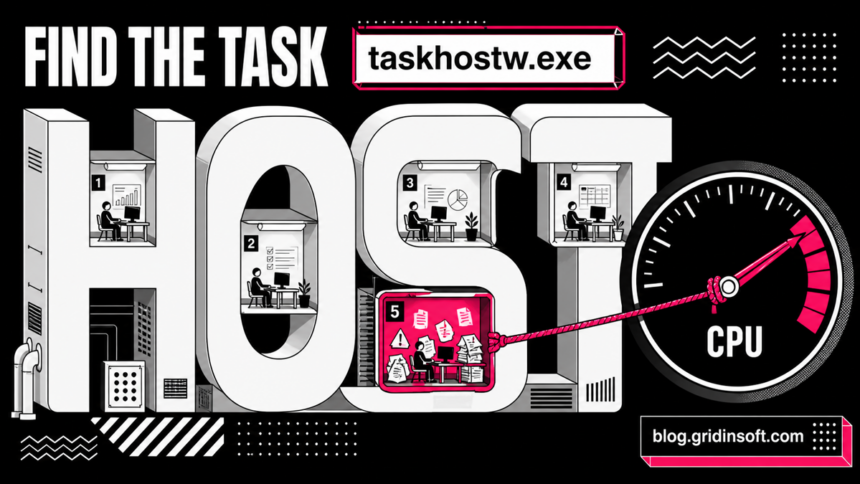
taskhostw.exe is normally a legitimate Windows process called Host Process for Windows Tasks. The running Windows copy should point to C:\Windows\System32\taskhostw.exe and have a valid Microsoft signature. Windows can run several instances because different DLL-based tasks may need separate hosts. If one copy keeps using CPU or memory, identify the work inside that PID; do not delete taskhostw.exe or disable every scheduled task.
A brief spike after sign-in, an update, sleep, or maintenance can be normal. Sustained load while the PC is idle, a shutdown warning that appears every time, or a copy running from ProgramData, AppData, or Temp needs a closer look.
Quick checks
- Expected location:
C:\Windows\System32\taskhostw.exe. - Expected signer: Microsoft Windows or Microsoft Corporation with a valid signature.
- Several low-usage copies: usually normal; compare the exact PID, path, and activity.
- One busy copy: trace the loaded DLL, recent scheduled task, or triggering app before changing anything.
- Wrong path or AutoIt error: treat it as a separate security branch, especially under
C:\ProgramData\RealtekHD.
What does taskhostw.exe do?
Some Windows tasks are implemented in DLLs rather than as independent executable programs. taskhostw.exe provides a process in which that background work can run. Its file description, Host Process for Windows Tasks, is a better clue than the generic process name: the host may be visible in Task Manager while the actual app, DLL, or scheduled task causing the activity is less obvious.
This is why ending taskhostw.exe alone is rarely a lasting fix. Windows or the responsible component can start a new host when the task runs again. The useful question is not “How do I remove taskhostw.exe?” but “Which task is this PID hosting, and what triggered it?”
| What you see | Likely meaning and first move |
|---|---|
| Two or more signed System32 copies with little activity | Usually normal task isolation. Do not judge safety by the process count. |
| A short spike after sign-in, wake, or Windows Update | A background task may be completing. Wait a few minutes and check whether the same PID settles. |
| One PID stays busy while the PC is idle | A hosted task, app component, or DLL may be looping. Record that PID and follow the diagnostic flow below. |
| Task Host Window delays every shutdown | Windows is waiting for unfinished background work. Save the task name shown, close the owning app, and inspect recent tasks. |
| The file runs outside Windows or lacks a Microsoft signature | Treat it as a suspicious lookalike. Preserve the path and scan that copy; do not delete the genuine System32 host. |
Why are multiple taskhostw.exe instances running?
Multiple instances are not a malware verdict. Windows may start separate hosts for different tasks, users, or background components. The number can change during sign-in, maintenance, app updates, and device activity. Compare the process IDs and resource use instead of assuming every extra copy is a duplicate threat.
Open Task Manager, choose Details, and add the Command line and PID columns if they are not visible. A normal group of copies often has the same System32 path but different PIDs and little sustained load. Focus on the one instance that remains busy, grows in memory, or appears at the exact time a symptom starts.
Find the task behind high CPU or memory
The safest diagnosis moves from the busy PID to the host’s identity and then to the work it loaded. It avoids blanket Task Scheduler changes and keeps the normal Windows file intact.
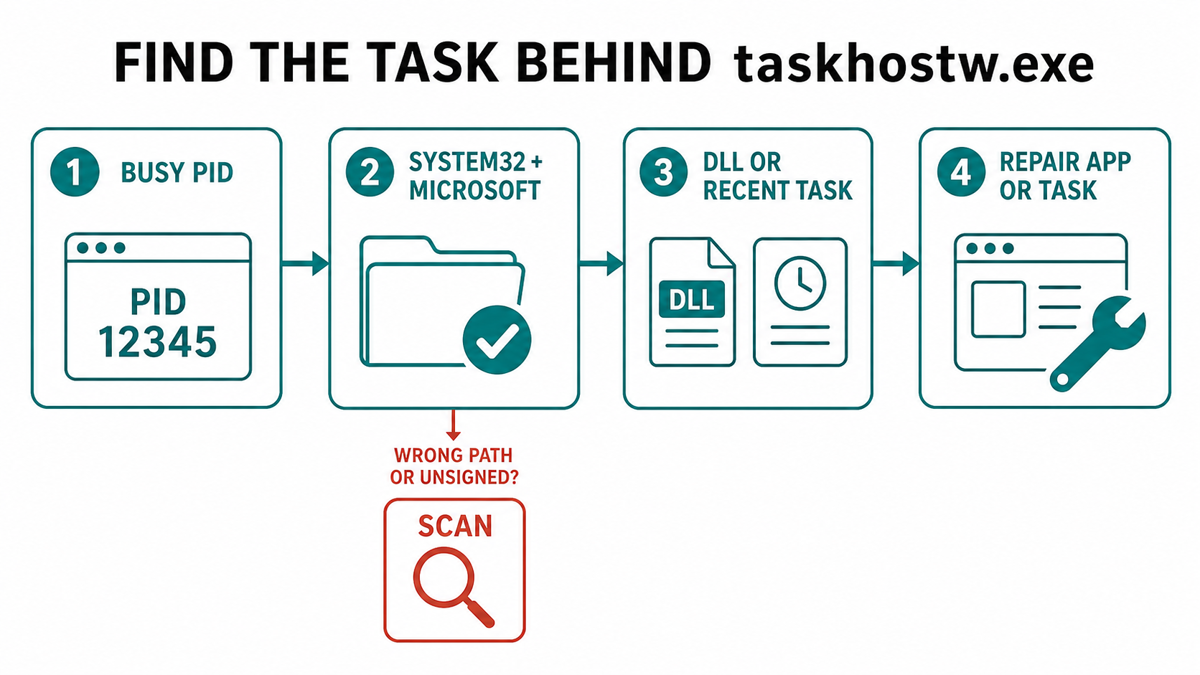
- Record the busy PID and trigger. Sort Task Manager by CPU or Memory and note the taskhostw.exe PID that stays active. Record what happened immediately before the spike: sign-in, wake, Windows Update, a new app, a driver install, an app close, or shutdown.
- Verify the running image. Right-click that exact row, open its file location, and check Properties > Digital Signatures. The expected running image is the Microsoft-signed file in
C:\Windows\System32. Do not rely on the filename alone. - Inspect the command line and loaded DLLs. Task Manager may expose a useful command line. For deeper inspection, run Microsoft Process Explorer as administrator, select the same PID, enable the lower pane, and switch it to DLL view. A third-party DLL, vendor folder, or recently updated component can identify the owner.
- Match the time to Task Scheduler. Open Task Scheduler and inspect tasks whose Last Run Time matches the spike. The command
schtasks /query /fo LIST /vcan also list task names, actions, last run times, and results. Correlation matters: do not disable a Microsoft task just because it ran once. - Test the owner, not the host. Close or update the identified app, disconnect the related nonessential device, or temporarily disable only a confirmed third-party task. Reproduce the trigger once and watch whether the same PID settles.
- Keep evidence before removal. If the path, signer, or task action is suspicious, save the path, task name, signer status, and hash. Then move to the security branch below instead of experimenting with random scheduled tasks.
You can collect the PID, path, command line, and signature status with PowerShell. Run it as an administrator and investigate the output rather than deleting a file from the results.
Get-CimInstance Win32_Process -Filter "Name='taskhostw.exe'" |
  Select-Object ProcessId, ExecutablePath, CommandLine

Get-AuthenticodeSignature "$env:windir\System32\taskhostw.exe" |
  Format-List Status, SignerCertificate
Fix taskhostw.exe high CPU or memory safely
Apply the narrowest fix supported by what you found. A broad repair may hide the trigger without fixing the app or task that will start it again.
- Let one-time maintenance finish. If the spike follows an update, sign-in, or wake, keep the PC powered and idle for several minutes. Restart once after Windows Update reports completion.
- Repair or update the owning app. When Process Explorer or the task action points to a vendor application, update it from the vendor’s built-in updater or official support page. If the problem began immediately after an update, use the app’s repair option or reinstall that app.
- Check the related driver or device. A task can be triggered by a companion app or device service. Update or roll back only the identified driver. If the busy process is actually Windows Driver Foundation, follow the WUDFHost.exe high CPU guide to map it to a device stack.
- Disable only a proven third-party task for a test. Export or record the task first. If the symptom stops, repair or remove the parent application rather than leaving a broken updater or service disabled indefinitely.
- Install pending Windows updates. Restart normally and check the same PID again. Avoid “driver updater” sites and scripts that disable many Windows tasks at once.
- Use DISM and SFC when Windows itself looks damaged. This step fits missing signatures on the genuine protected copy, repeated component errors, or several unrelated Windows features failing. Run
DISM.exe /Online /Cleanup-image /Restorehealth, thensfc /scannow. It is not the first fix for one vendor task.
If the computer remains generally slow after taskhostw.exe settles, use the broader slow Windows PC diagnosis to separate CPU, disk, memory, startup, and thermal bottlenecks.
What if Task Host Window prevents shutdown?
The visible Task Host Window is stopping background tasks message means Windows is waiting for work to finish. It does not by itself prove malware, and the dialog may not identify the same task every time. Save open work and wait briefly once. If shutdown continues, note any task or path shown before choosing Shut down anyway.
- Close the app you used immediately before shutdown, especially a newly updated sync, media, backup, device, or account application.
- Install pending Windows updates and restart from the Start menu rather than forcing power off.
- Check Task Scheduler Last Run Time and History around the failed shutdown. Repair the app that owns a repeating third-party task.
- If the warning began after a driver or utility update, roll back or reinstall that specific component.
- If no owner is visible and Windows components also fail, use the DISM/SFC step above.
Do not use registry changes or forced-shutdown commands as a routine cure. They can suppress the warning while an app is still saving data or a task remains broken.
Can you end or delete taskhostw.exe?
You can end one busy instance once as a diagnostic test after saving work, but the hosted operation may stop and Windows may recreate the process. That result can confirm a relationship; it does not identify the underlying task by itself.
Do not delete, rename, replace, or take ownership of C:\Windows\System32\taskhostw.exe. Do not disable the Task Scheduler service or every task under the Microsoft folders. Those actions can break updates, maintenance, sign-in work, and application features while leaving the original trigger unresolved.
Is taskhostw.exe a virus?
The legitimate System32 file is a Windows component, but malware can copy a trusted filename. Check path, signer, parent context, command line, task action, and behavior together. The EXE safety checklist explains why a familiar name or one clean signal is not enough.
Investigate a taskhostw.exe copy that runs from AppData, Temp, Downloads, ProgramData, a random application folder, or an unexpected Windows subfolder; lacks a valid Microsoft signature; began after an unknown installer; opens unusual network connections; or returns through an unfamiliar startup item, service, or task.
A specific lookalike already has its own cleanup lane. If you see an AutoIt error or C:\ProgramData\RealtekHD\taskhostw.exe, use the RealtekHD taskhostw.exe malware cleanup guide. That ProgramData pattern is not the same as the signed Windows host covered here.
If the wrong-path copy ran or returns after reboot, a visible file may not be the only component. Scan for associated detections, hidden files, startup entries, scheduled tasks, services, bundled apps, browser changes, and security exclusions. Gridinsoft Anti-Malware can check those locations; it does not repair a legitimate Windows task or prove that no compromise occurred.
If the process path is wrong, the name imitates a Windows component, or high CPU started after an unknown installer, scan for hidden miners, services, startup entries, and bundled components.
Scan a suspicious taskhostw.exe copyConfirm the fix after a restart
- The same PID no longer stays busy at idle, or the identified task completes normally.
- Task Host Window no longer delays every shutdown.
- The running image still points to System32 and has a valid Microsoft signature.
- A disabled test task has been repaired, removed with its parent app, or restored; it was not simply forgotten.
- A wrong-path copy and its launcher do not return after reboot and a follow-up scan.
FAQ
Why does taskhostw.exe keep coming back?
Windows starts a host whenever a task needs it. Ending the process without repairing the hosted task can cause another instance to appear at the next trigger.
Are two or three taskhostw.exe processes normal?
They can be. Compare their paths, signatures, PIDs, command lines, and sustained resource use. Several signed System32 copies with little activity are not suspicious by count alone.
Is Task Host Window the same as taskhostw.exe?
They are related to Windows background-task hosting, but the shutdown dialog is a generic warning that work is unfinished. The dialog does not automatically identify the specific DLL, app, or scheduled task causing the delay.
Should I disable the task that uses taskhostw.exe?
Only after a repeatable time, command, or app relationship identifies a nonessential third-party task. Record or export it first, test briefly, and repair or remove the parent app instead of disabling broad Microsoft task folders.
Does high CPU mean taskhostw.exe is malware?
No. A legitimate hosted task can loop or become stuck. Malware suspicion is stronger when the running image has a wrong path, invalid signature, unknown task action, unusual network behavior, or persistence after an untrusted install.
References
- Mark Russinovich. “Process Explorer v17.13.” Microsoft Sysinternals, published August 12, 2026; accessed August 28, 2026. Microsoft Learn.
- Microsoft. “schtasks commands.” Microsoft Learn, updated February 3, 2023; accessed August 28, 2026. Microsoft Learn.
- Microsoft Support. “Use the System File Checker tool to repair missing or corrupted system files.” Microsoft Support, accessed August 28, 2026. Microsoft Support.