
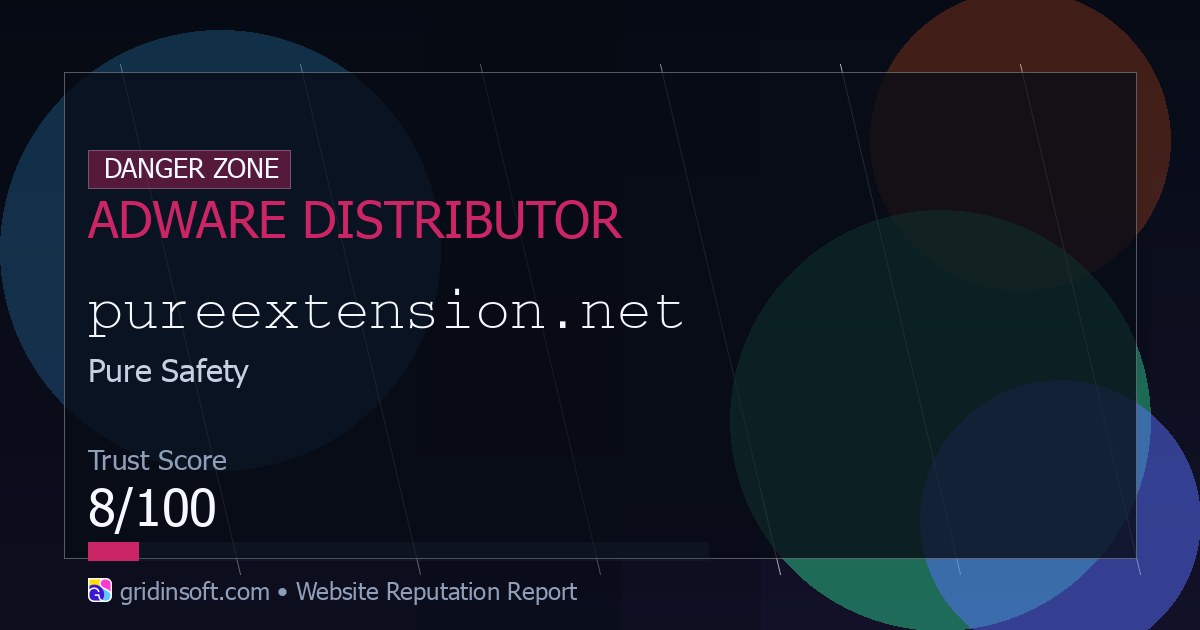
Pureextension.net redirect is a browser-hijacker symptom tied to the Pure Safety extension name and related search-provider changes. If Chrome, Edge, or Firefox starts sending searches, home-page opens, or new tabs through pureextension.net, remove the extension first, then check browser policies, search settings, notification permissions, shortcuts, and Windows adware leftovers before signing browser sync back in.
The important point is order. A browser reset may look successful for a few minutes, but the redirect can return when an extension, managed-browser policy, helper app, or synced setting restores the unwanted provider. Use the steps below before entering passwords or payment details on pages reached through the redirect.
What Is Pureextension.net?
Pureextension.net is a search and redirect domain associated with unwanted browser-extension behavior. The visible symptom is usually not a standalone virus window. Instead, the browser quietly changes the address-bar search provider, homepage, or new-tab destination so searches pass through the unwanted domain before the final result page appears.
On its own, seeing a domain in the address bar once does not prove that Windows is infected. The risk rises when the redirect appears repeatedly, comes back after a reset, is paired with a recently installed extension, or prevents you from keeping your preferred search engine.
Common Symptoms
- Searches from the address bar briefly pass through
pureextension.net. - The homepage, new-tab page, or default search engine changes without clear consent.
- A Pure Safety or similarly named extension appears in the browser.
- The browser says it is managed by an organization even though this is a personal PC.
- Search settings return after you remove them or after browser sync runs.
- Extra pop-ups, notification prompts, or sponsored search pages appear after installing a free tool.
Remove Pureextension.net Redirect
- Disconnect the browser from sync temporarily. In Chrome or Edge, pause sync while cleaning so the unwanted search provider is not restored from another profile.
- Remove suspicious extensions. Open the extensions page and remove Pure Safety or any extension you do not clearly remember installing. In Chrome use
chrome://extensions/; in Edge useedge://extensions/; in Firefox useabout:addons. - Restore search, homepage, and new-tab settings. Set your preferred search engine and startup page again. If the browser blocks the change, continue with the managed-browser checks below.
- Clear notification permissions. Remove unknown domains from the browser notification allow list, especially if pop-ups started at the same time as the redirect.
- Check shortcuts and installed apps. Right-click browser shortcuts and make sure the target ends with the browser executable, not an added URL. Then uninstall recently added free utilities, search helpers, coupon tools, or PDF/video converters you do not trust.
- Reset the affected browser only after the source is removed. A reset is useful at the end, but doing it first can hide the symptom while the extension or policy remains active.
If The Browser Says It Is Managed
Browser hijackers sometimes use enterprise policy keys to lock a search engine or extension. On a personal PC, a new managed by your organization message is a red flag unless your employer or school actually manages the device.
- In Chrome, open
chrome://policy/and look for forced extension, homepage, or search-provider rules. - In Edge, open
edge://policy/and check the same policy types. - If you find unknown policy entries, remove the related extension/app first, then scan Windows before editing system policy or registry values.
Scan Windows For Leftovers
If Pureextension.net returns after reboot or after browser sync is paused, treat the redirect as a PUA/adware cleanup problem rather than a simple settings mistake. A helper app, startup task, browser policy, or bundled installer may still be restoring the change.
Run a full scan with Gridinsoft Anti-Malware, remove detected PUA/adware items, reboot, and check the browser again before turning sync back on. This scan can help find bundled apps, hidden files, startup entries, browser changes, and persistence that a browser reset does not remove.
If redirects, notifications, extensions, homepage changes, or managed policies return after browser cleanup, the source is often outside the browser: an installed app, policy, scheduled task, or startup entry.
Scan browser hijacker leftoversHow To Keep It From Coming Back
- Install extensions only from a browser’s official extension store and review the developer, permissions, and recent reviews.
- Avoid installers that bundle search helpers, coupon extensions, video downloaders, or fake browser protection tools.
- Do not click Allow on notification prompts from unfamiliar sites.
- Keep one clean browser profile for important accounts and do not test unknown extensions there.
- If the redirect appears after signing in, clean synced extensions and settings on every device using the same browser profile.
Related Cleanup Guides
- Browser hijacker removal guide for broader policy, proxy, DNS, and notification checks.
- What is adware? for symptoms, examples, and why bundled apps change browser behavior.
- Remove Yahoo Search from Chrome when the hijacker routes searches through Yahoo-style sponsored results.
FAQ
Is Pureextension.net a virus?
Pureextension.net is best handled as a browser-hijacker or adware redirect symptom. The domain itself is not the same thing as a Windows file virus, but the extension or bundled app that keeps restoring it should be removed.
Can I fix it by resetting Chrome or Edge?
Resetting the browser can help, but only after the source is removed. If an extension, policy, or helper app is still present, the redirect can return after the reset.
Why does Pureextension.net come back after I remove it?
The usual causes are browser sync, a forced policy, a still-installed extension, or a bundled Windows app that restores the search provider. Pause sync, remove suspicious extensions, check policies, and scan the PC.
Should I enter passwords after seeing the redirect?
Avoid signing in on pages reached through the redirect until the browser is clean. After cleanup, change passwords for important accounts if you entered them while the redirect or suspicious extension was active.
References
- Gridinsoft. “Pureextension.net Scam Check: Adware (8/100 Trust Score).” Gridinsoft Website Reputation Checker, accessed June 22, 2026. https://gridinsoft.com/online-virus-scanner/url/pureextension-net
For a Defender-labeled browser modifier rather than a single redirect domain, compare the behavior with MediaArena fake converter cleanup: remove the app, undo search-engine changes, and scan for startup or extension leftovers.