Edgecution is a malicious Microsoft Edge extension backdoor delivered through social engineering, not a normal Edge add-on. Zscaler ThreatLabz reported that the campaign impersonates IT support in Microsoft Teams and sends victims to a fake Outlook update page. If you installed anything from an “Outlook Updates Management Console,” remove the extension and native host, check scheduled tasks and Microsoft account activity, then scan the PC for backdoor leftovers.
The important distinction is that Edgecution is not only a browser problem. The malicious extension is paired with a local native messaging host, which lets browser-side code talk to a Windows-side process. That is why simply deleting a visible Edge extension may not be enough if the installer already created files, registry values, or a scheduled task.
What happened in the Edgecution campaign?
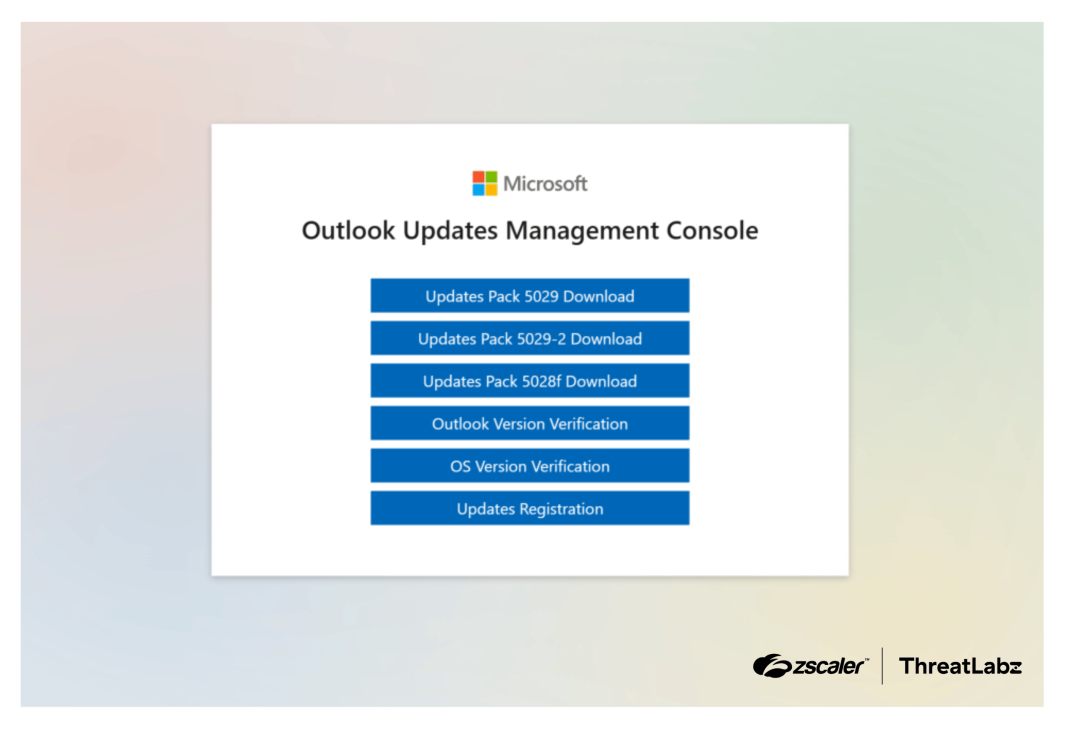
According to Zscaler, the attackers start with Microsoft Teams messages that pretend to come from internal IT staff. The lure tells the target that a spam-filter or Outlook update is required, then points to a fake Microsoft-branded portal. The page offers several “update” or “verification” buttons that can lead to AutoHotKey, batch, PowerShell, and archive-based deployment paths.
Once run, the setup chain can create a directory under %LOCALAPPDATA%\Microsoft\Edge\User Data\test1, unpack an embedded Python runtime, place an extension folder and a native folder, and create native_host.bat. Zscaler also describes a registry value under HKCU\SOFTWARE\Microsoft\Edge named AppKey, plus a scheduled task that starts Microsoft Edge in headless mode with a dedicated user data directory and a side-loaded extension.
The extension may appear as Edge Monitoring Agent. The name sounds administrative, but in this case it is part of the backdoor chain. Edgecution uses the native host bridge to run host-side actions that a normal browser extension should not be able to perform by itself.
Why Native Messaging makes this more serious
Microsoft Edge supports Native Messaging so legitimate extensions can communicate with a native Win32 application installed on the device. Microsoft documents that the browser does not install or manage the native app host itself; a separate installer must place the host manifest and related files. That legitimate design is useful for enterprise and developer tools, but it is risky when a fake update installer silently creates the host for a malicious extension.
For cleanup, this means you should look beyond edge://extensions. Check whether a native messaging host manifest points to a batch file, Python runtime, script interpreter, or user-writable path. On Windows, suspicious Edge Native Messaging host registration can involve paths under HKCU\Software\Microsoft\Edge\NativeMessagingHosts or related Chrome/Chromium fallback locations.
How to check a Windows PC for Edgecution signs
Use this checklist if you clicked a Teams link, ran an Outlook update package, pasted a command from a “verification” page, or found an unexpected Edge extension after a fake IT-support message.
- Disconnect first if the machine is still behaving strangely. If PowerShell windows, unknown Edge processes, or account prompts continue, disconnect from the network before collecting evidence.
- Open
edge://extensions. Look for Edge Monitoring Agent, recently installed developer-mode extensions, or any extension you did not install. Note the extension ID before removing it. - Check scheduled tasks. Look for tasks that launch
msedge.exewith flags such as--headless,--load-extension,--disable-sync,--no-first-run, or a custom--user-data-dir. - Inspect Edge user data folders. Review suspicious directories under
%LOCALAPPDATA%\Microsoft\Edge\User Data\, especially newly created folders that containextension,native, Python files, archives, or batch scripts. - Review native messaging host locations. Check
HKCU\Software\Microsoft\Edge\NativeMessagingHostsand any manifest file it references. Treat a manifest that points tonative_host.bat, Python, PowerShell, or a user profile directory as suspicious unless your IT team confirms it. - Review Microsoft account and Microsoft 365 activity. Revoke suspicious sessions, check recent sign-ins, and rotate passwords from a clean device if you entered credentials into the fake portal or ran the installer.
If a browser extension keeps returning after you remove it, use our guide to extensions that reinstall themselves. If the issue started with a fake software-update prompt rather than Teams, compare the behavior with our SocGholish fake update cleanup guide. For session and password risk after malware, follow the account-first steps in Microsoft account hacked after malware.
How to remove Edgecution safely
Do not try to keep the extension, restore the fake update files, or re-run the downloaded package to “finish” the update. Treat the system as exposed until the extension, native host, scheduled task, and account-session risk have all been handled.
- Remove the malicious extension from Edge. Disable it first if removal is blocked, then remove it from
edge://extensions. If it was side-loaded from a local folder, delete that folder only after you record its path. - Delete the scheduled task that starts hidden Edge. In Task Scheduler, remove only the task that clearly launches the suspicious Edge profile or extension path. Export or screenshot the task first if this is a managed company device.
- Remove the native messaging host entry. Delete the suspicious Edge Native Messaging registry entry and the referenced manifest only when you are sure it is not a legitimate business tool.
- Delete the staging directory. Remove suspicious
extension,native, Python, archive, and batch files under the custom Edge user data path. Empty temporary folders only after the active process is stopped. - Run a full malware scan. A fake update chain can leave a loader, scheduled task, script, browser profile change, or additional payload even after the visible extension is gone.
- Reboot and re-check. After reboot, confirm that Edge no longer starts headless, the extension does not reappear, and no native host manifest points to the removed path.
Because Edgecution bridges the browser and the local host, a full scan is not just a second opinion on the extension file. Gridinsoft Anti-Malware can help check for hidden files, startup entries, scheduled tasks, suspicious scripts, bundled components, and persistence that may recreate the browser-side symptom after reboot.
If the process path is wrong, the name imitates a Windows component, or high CPU started after an unknown installer, scan for hidden miners, services, startup entries, and bundled components.
Scan this PC for backdoor leftoversWhat not to do after a fake Outlook update
- Do not paste commands from a “verification” page into Run, PowerShell, Terminal, or Command Prompt.
- Do not sign in again on the fake page to “unlock” Outlook or Microsoft 365.
- Do not assume that deleting the extension fixes the native host or scheduled task.
- Do not keep a side-loaded extension because it has a Microsoft-looking name or icon.
- Do not restore quarantined files unless your IT team or a trusted malware analyst confirms the package is legitimate.
FAQ
Is Edgecution a Microsoft Edge vulnerability?
No public reporting describes Edgecution as an Edge vulnerability. The campaign abuses social engineering, a fake update page, side-loaded extension behavior, and a native host bridge. The user is tricked into running the setup chain.
What is Edge Monitoring Agent?
In this campaign, Edge Monitoring Agent is the disguise used by the malicious Edge extension. A legitimate organization may have its own managed browser tools, so confirm with IT before deleting enterprise software on a work device.
Can removing the Edge extension alone stop Edgecution?
Not reliably. Remove the extension, but also check the native messaging host manifest, scheduled task, custom Edge user data folder, Python/native files, and Microsoft account sessions.
Should home users worry about Edgecution?
The reported campaign is more enterprise-oriented because it uses Microsoft Teams impersonation and IT-support pretexts. Home users should still recognize the pattern: fake Microsoft update pages and pasted verification commands are unsafe.
References
- Zscaler ThreatLabz. “Payouts King Ransomware Initial Access Broker Deploys New Edgecution Malware.” Zscaler, published June 23, 2026, modified June 26, 2026, accessed June 30, 2026. https://www.zscaler.com/blogs/security-research/payouts-king-ransomware-initial-access-broker-deploys-new-edgecution
- Microsoft Learn. “Native messaging.” Microsoft Edge Developer documentation, last modified June 12, 2026, accessed June 30, 2026. https://learn.microsoft.com/en-us/microsoft-edge/extensions/developer-guide/native-messaging