MRT.exe is normally safe when it is the Microsoft-signed file at %windir%\System32\mrt.exe. Windows commonly runs it after the monthly Malicious Software Removal Tool update, so temporary CPU or disk activity can be expected. Investigate when the process is outside System32, lacks a valid Microsoft signature, keeps returning or never finishes, or appears with other suspicious activity. Do not delete the genuine file just because it started automatically.
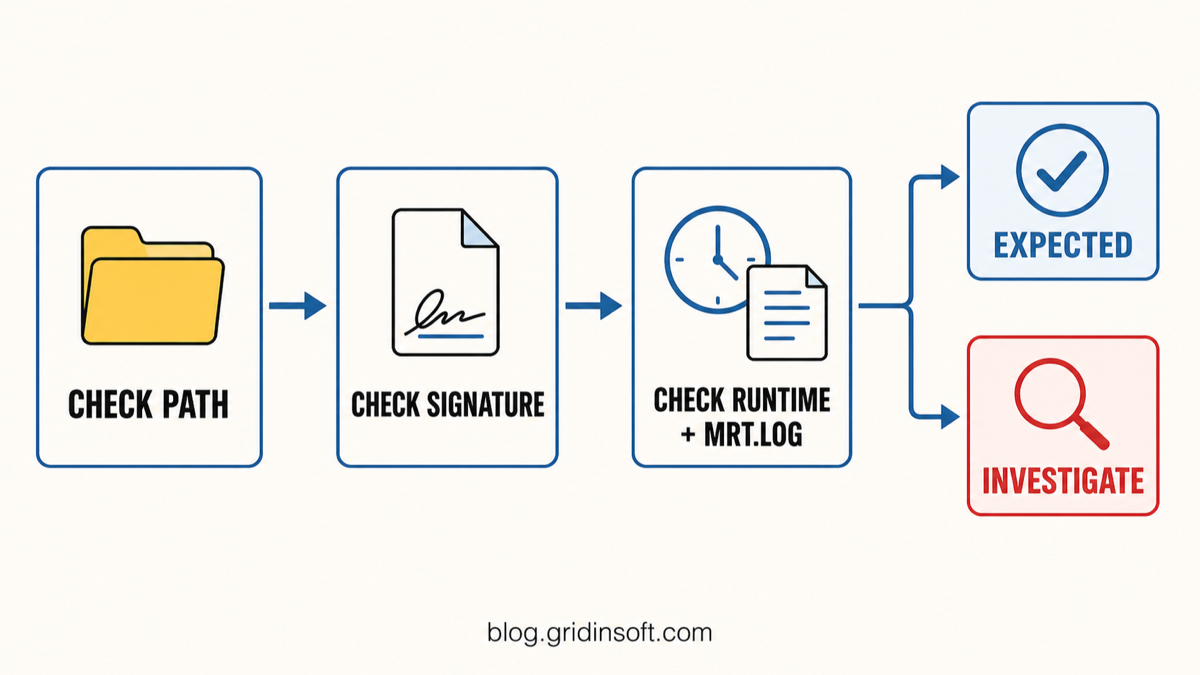
The filename alone is not proof either way. A legitimate Microsoft component and a malicious copy can use the same name. The reliable decision comes from checking the path, digital signature, runtime pattern, and MRT log together.
What is MRT.exe?
MRT.exe runs the Windows Malicious Software Removal Tool, usually shortened to MSRT or MRT. Microsoft distributes updated versions through Windows Update and releases a new version on the second Tuesday of each month as needed. The tool checks Windows for specific, prevalent malware families and attempts to reverse changes made by those threats.
That scope matters: MRT is an on-demand cleanup tool, not a full-time antivirus. It does not continuously monitor downloads, browser activity, email, or every program that starts. Microsoft explicitly recommends using current antimalware software even when MSRT is present.
Why is MRT.exe running and using CPU or disk?
Windows can start MRT.exe after the monthly tool update is installed. During its scan, the process reads files and compares them with the threats covered by that release. This can temporarily raise CPU or disk use, especially on a system with many files or slower storage.
There is no universal “safe” number of minutes. A one-time run that completes and releases its resources is different from a process that restarts repeatedly, remains busy indefinitely, or appears every time you sign in without an update or deliberate scan.
| Condition | What to do |
|---|---|
Microsoft-signed file in %windir%\System32, running once after Windows Update |
Usually expected. Let it finish and check the log if you want confirmation. |
| Temporary CPU or disk activity that falls after the scan completes | Usually expected; avoid ending the task only because it is busy. |
| File in Downloads, AppData, Temp, Startup, or an unrelated program folder | Investigate the copy. Do not run it to “test” it. |
| Invalid or missing Microsoft signature | Treat it as suspicious until a trusted scanner and persistence check explain it. |
| Continuous or repeated activity, unknown startup trigger, child processes, or network behavior | Check persistence, scan the system, and review the surrounding activity. |
How to verify MRT.exe
1. Open the file location
In Task Manager, find Microsoft Windows Malicious Software Removal Tool or MRT.exe, right-click it, and choose Open file location. The standard copy should resolve to:
C:\Windows\System32\mrt.exe%windir% usually means C:\Windows, but checking the environment variable is safer than assuming the system drive. A familiar icon or the filename “MRT.exe” is not enough. Malware can copy both.
If you are checking a different executable, use the broader EXE file safety checklist for hashes, signatures, reputation, and behavior.
2. Check the Microsoft digital signature
Right-click the file, open Properties, and look at Digital Signatures. The signer should identify Microsoft, and Windows should report that the signature is valid. A valid signature confirms that the signed file has not been altered since signing; it does not excuse unexpected persistence or other malicious behavior around the process.
PowerShell users can inspect the standard copy without launching it:
Get-AuthenticodeSignature "$env:windir\System32\mrt.exe" | Format-List Status,StatusMessage,SignerCertificateLook for Status : Valid and a Microsoft signer in the certificate details. NotSigned, HashMismatch, an unknown signer, or a command pointed at a different path needs investigation. Microsoft documents Get-AuthenticodeSignature as the PowerShell command for obtaining Authenticode signature information from a file.
3. Check the runtime pattern and MRT.log
Open this file in Notepad:
%windir%\debug\mrt.logThe log records MSRT execution details and scan results. Compare its timestamps with the process activity you observed. A recent completed run after Windows Update supports the normal explanation. Repeated starts with no clear completion, recurring errors, or activity that does not line up with the log deserves a closer look.
If the scan displayed an infected-file count but the final result said no threats were found, do not infer an active infection from the preliminary number alone. The separate guide to Microsoft scanner result mismatches and log interpretation covers that intent in detail.
What is Mrtstub.exe in a random temporary folder?
MSRT updates can extract through Mrtstub.exe in a randomly named temporary folder, sometimes at the root of a drive with sufficient free space. Microsoft describes this as part of the tool’s deployment behavior. A random folder alone therefore does not prove malware.
Use the same verification method: check that the activity coincides with a Windows/MSRT update, inspect the file’s Microsoft signature, and confirm that the temporary files disappear after the update finishes. A leftover unsigned stub, a recurring startup entry, or unrelated network and child-process activity is a different situation.
MRT, Microsoft Safety Scanner, or Defender?
| Tool | Best use |
|---|---|
| MRT / MSRT | Monthly check and cleanup for a limited set of specific prevalent threats. It can run through Windows Update but does not provide continuous protection. |
| Microsoft Safety Scanner | A separately downloaded on-demand scanner for a manual second check. The download expires after a short period and must be downloaded again for current definitions. |
| Microsoft Defender Antivirus | Built-in, ongoing real-time protection, scheduled scans, and broader everyday malware detection when enabled and up to date. |
These tools can complement one another, but MRT should not replace Defender or another maintained real-time antivirus. Likewise, downloading a file named MRT.exe from an executable-download site is not a repair method. Obtain the tool only through Windows Update or an official Microsoft download.
What to do if MRT.exe is outside System32, unsigned, or keeps returning
- Do not launch the suspicious copy. Record its full path, signer status, creation time, and any parent process shown by your security or process-monitoring tools.
- Check persistence. Review Startup Apps, Task Scheduler, services, and Run keys for an entry that points to that exact path. Do not remove unrelated entries based on a similar name.
- Run a trusted full scan. A wrong-path or unsigned copy may be only one component; scan for the loader, scheduled task, dropped files, and other remnants.
- Isolate the system if there are compromise signs. Unexpected outbound connections, credential prompts, new accounts, disabled security controls, or repeated re-creation justify disconnecting the device from the network while you investigate.
- Keep the genuine System32 copy. If only the standard Microsoft-signed file remains and its activity matches an update or deliberate scan, deleting it is unnecessary.
If the process path is wrong, the name imitates a Windows component, or high CPU started after an unknown installer, scan for hidden miners, services, startup entries, and bundled components.
Scan a suspicious MRT.exe copyFAQ
Can I delete MRT.exe?
Do not delete the genuine Microsoft-signed copy in %windir%\System32. Windows Update can deliver it again, and removal does not fix the cause of high CPU or a malicious same-name copy. Investigate the exact path and signature instead.
Does MRT.exe run automatically?
Yes. Windows can execute the tool after its monthly Windows Update delivery. A one-time automatic run is normal; unexplained repeated launches or continuous activity should be checked.
Does MRT.exe find every virus?
No. MSRT targets specific prevalent malware and reverses certain changes made by those threats. It is not a comprehensive real-time antivirus and cannot guarantee that a system is clean.
Is MRT.exe outside System32 always malware?
An unrelated copy outside System32 is suspicious, but location is one signal, not a verdict. MSRT deployment can also involve Microsoft-signed Mrtstub.exe in a randomly named temporary folder. Verify the exact filename, signature, update context, persistence, and behavior before acting.
References
- Microsoft Support. “Remove specific prevalent malware with Windows Malicious Software Removal Tool (KB890830).” Microsoft, accessed July 20, 2026. support.microsoft.com.
- Microsoft Learn. “Get-AuthenticodeSignature (Microsoft.PowerShell.Security).” PowerShell 7.5 documentation, updated June 15, 2026; accessed July 20, 2026. learn.microsoft.com.
- Microsoft Download Center. “Windows Malicious Software Removal Tool 64-bit.” Version 5.143, published July 14, 2026; accessed July 20, 2026. microsoft.com.