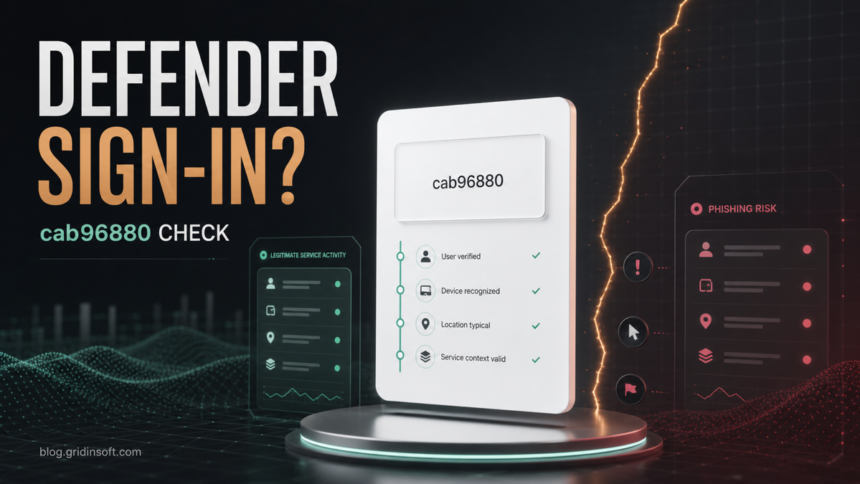
If a Windows or browser sign-in prompt names Microsoft Defender Platform and shows the application ID cab96880-db5b-4e15-90a7-f3f1d62ffe39, do not treat the app ID alone as proof of a scam. This ID is publicly associated with Microsoft Defender Platform in current Microsoft community and Entra sign-in discussions, and Microsoft documents a way to verify Microsoft-owned service principals in Entra sign-in reports. The safe answer is still conditional: verify the prompt in your tenant, device, and browser context before entering credentials or approving access.
The prompt is most relevant on work or school devices that use Microsoft Entra ID, Microsoft Defender for Endpoint, Conditional Access, device registration, or managed browser sign-in. Home users who see it after a random download, fake update page, support pop-up, or unknown browser redirect should be more cautious.
What Is Microsoft Defender Platform cab96880?
cab96880-db5b-4e15-90a7-f3f1d62ffe39 is an application ID that appears with the display name Microsoft Defender Platform in public Microsoft Defender XDR and Entra-related discussions. A recent Microsoft Tech Community thread describes Windows 11 and Windows Server 2025 devices onboarded to Microsoft Defender for Endpoint prompting users to sign in to that application after Windows login [1].
That does not mean every screen that says “Microsoft Defender Platform” is safe. It means the app name and ID are plausible Microsoft identity artifacts. Microsoft Learn recommends checking whether an app in sign-in reports is a Microsoft application by filtering Enterprise applications to Microsoft Applications, searching by display name or application ID, and reviewing the app properties [2]. Microsoft also documents Microsoft service principal sign-in logs as a way to understand service-to-service authentication events in a tenant [3].
When This Prompt Can Be Normal
The prompt is more likely to be legitimate when several of these conditions are true:
- The device is managed by your organization or signed in with a work or school account.
- The computer is onboarded to Microsoft Defender for Endpoint or recently changed Defender/Intune/Entra policies.
- The sign-in page opens on a Microsoft identity domain such as
login.microsoftonline.comor another expected Microsoft sign-in host. - The prompt appears during Windows login, after a device registration change, after Conditional Access enforcement, or after security platform changes from IT.
- Your Entra sign-in logs show the same app name, app ID, user, device, IP, and Conditional Access result.
If this is a company device, the best first move is not to bypass the prompt. Ask the IT or security admin to check the sign-in event and Conditional Access result. A legitimate prompt may still fail if the device is not compliant, is missing registration state, or is outside an allowed network.
Safe Checks Before You Approve It
- Check the exact app ID. The ID should be
cab96880-db5b-4e15-90a7-f3f1d62ffe39, not a lookalike string copied into a phishing page. - Verify the sign-in host. Type the Microsoft or company portal address yourself instead of following an email or chat link.
- Use Entra sign-in logs. In Microsoft Entra admin center, inspect the user sign-in event, application name, application ID, device, IP, browser, and Conditional Access status.
- Filter Microsoft applications. In Enterprise applications, filter the application type to Microsoft Applications and search by the app ID or display name when your tenant exposes the service principal.
- Check the device state. In Windows, confirm the correct work or school account is connected under Settings > Accounts > Access work or school, and confirm Windows Security is healthy.
- Ask before granting new consent. A routine sign-in challenge is different from granting broad OAuth permissions to an unfamiliar app. Do not approve unexpected permission screens just because the page uses Microsoft wording; if you already approved one, follow the OAuth consent phishing cleanup steps before resetting sessions.
When To Treat It As Suspicious
Stop and verify out of band when the prompt appears after a fake update page, cracked software installer, browser notification, remote-support pop-up, email attachment, QR code, Discord message, or unfamiliar “security scan” page. Also be cautious if the page asks you to install an extension, run a support tool, approve device code sign-in, or grant mailbox/files permissions that do not match the task.
For phishing-style Microsoft prompts, compare the situation with Gridinsoft’s guides on device code phishing, fake Windows Defender Security Center alerts, and Microsoft account compromise after malware. Those pages cover cases where the login page or warning is part of a broader credential-theft flow.
What Admins Should Check
Admins should capture the request ID, correlation ID, timestamp, user, device ID, IP address, browser, app display name, app ID, resource, and Conditional Access result. Then compare the event with recent Defender for Endpoint onboarding, streamlined connectivity changes, Intune policy edits, device compliance changes, and Primary Refresh Token or work-account registration issues.
If multiple devices started seeing the prompt at the same time, look for a tenant-side policy or service change before treating every endpoint as infected. If only one device sees it after suspicious browsing or a downloaded installer, handle that endpoint separately and check for browser extensions, proxy/DNS changes, scheduled tasks, startup entries, and recent downloads.
If You Entered Credentials On A Suspicious Prompt
From a clean device, change the affected Microsoft account password, revoke active sessions where your organization allows it, review recent sign-ins, and report the event to IT. If you installed anything, ran a support tool, or saw the prompt after a fake update or suspicious download, run Windows Security and then a Gridinsoft Anti-Malware scan to look for hidden files, startup entries, browser changes, and bundled components that may have triggered the credential prompt. You can also check suspicious links with the Gridinsoft website reputation checker before opening them again.
What Not To Do
- Do not disable Conditional Access just to make the prompt disappear.
- Do not grant broad OAuth consent to an app you cannot verify.
- Do not approve a prompt opened from an email, QR code, or chat link without checking the host and tenant logs.
- Do not assume every Microsoft-branded prompt is malware. Managed devices can show real Microsoft identity challenges.
- Do not restore or ignore security alerts if the prompt followed a suspicious installer or browser redirect.
FAQ
Is cab96880-db5b-4e15-90a7-f3f1d62ffe39 a Microsoft app ID?
It is publicly associated with Microsoft Defender Platform in Microsoft community and Entra-related sign-in discussions. Still, verify the app in your Entra tenant or sign-in logs instead of trusting copied text on a web page.
Should I approve the Microsoft Defender Platform prompt?
Approve it only after confirming the sign-in host, app ID, device, tenant, and Conditional Access context. On managed work devices, ask IT to validate the sign-in event if you are unsure.
Can this be phishing?
Yes. A phishing page can copy a real app name or ID. The warning signs are the surrounding flow: email or chat link, fake update page, browser pop-up, QR-code login, extension install, or unexpected consent request.
Why does it appear after Windows login?
On managed devices, identity prompts can appear after Defender for Endpoint, Entra registration, Primary Refresh Token, Conditional Access, or device compliance changes. Admin logs are the right place to confirm the exact reason.
Do home users need to worry about this prompt?
Most home users will not normally manage Defender for Endpoint or Entra device policies. If a similar prompt appears after a suspicious download, fake support page, or browser redirect, treat it as suspicious and scan the device before using the account again.
References
- Microsoft Tech Community. “Prompted to sign in to Microsoft Defender Platform on W11/W2025 using Entra.” Microsoft Defender XDR community discussion, accessed June 14, 2026. https://techcommunity.microsoft.com/discussions/microsoftthreatprotection/prompted-to-sign-in-to-microsoft-defender-platform-on-w11w2025-using-entra/4525520
- Microsoft Learn. “Verify first-party Microsoft applications in sign-in reports.” Microsoft, updated March 19, 2026, accessed June 14, 2026. https://learn.microsoft.com/en-us/troubleshoot/entra/entra-id/governance/verify-first-party-apps-sign-in
- Microsoft Learn. “Microsoft service principal sign-in logs table.” Microsoft Entra ID documentation, accessed June 14, 2026. https://learn.microsoft.com/en-us/entra/identity/monitoring-health/reference-service-principal-table