
WaaSMedicAgent.exe is normally a legitimate Windows Update repair component, and a short disk or CPU spike is expected while Windows checks or repairs update components. Do not delete the file or permanently disable Windows Update Medic Service. Treat it as a repair problem when the load returns after a restart, Windows Update repeats the same error, or progress does not change. Treat it as a security problem only when the process runs from the wrong folder, lacks a valid Microsoft signature, or appeared after an untrusted installer.
| What you see | Best next step |
|---|---|
| Windows Update is downloading, installing, repairing, or waiting for a restart | Let it finish, save your work, and restart when Windows asks. |
| Disk or CPU stays high after restart and Update history shows a repeated failure | Run the Windows Update troubleshooter, then DISM and SFC if the failure continues. |
| WaaSMedicAgent.exe is outside System32 or is not Microsoft-signed | Record the path and launcher, stop sensitive activity, and scan the system. |
What WaaSMedicAgent.exe does
WaaSMedicAgent.exe works with Windows Update Medic Service, whose service name is WaaSMedicSvc. Windows starts this remediation component when the update stack needs diagnosis or repair. Microsoft’s current system-service guidance lists WaaSMedicSvc as a manual service and marks it Don’t disable.
The process is part of the same update ecosystem as other names that may appear in Task Manager, but the roles are different. MoUsoCoreWorker.exe coordinates update sessions, including scans and restart handling. TiWorker.exe services Windows components. WaaSMedicAgent.exe is the repair lane: it becomes visible when Windows is checking or remediating update components.
This is why ending the process can feel successful for a few minutes but does not solve the problem. If the update state is still broken, Windows may start the repair work again. The durable fix is to identify what Windows Update is waiting for or which component repair keeps failing.
Why WaaSMedicAgent.exe uses high disk or CPU
High usage usually means the Medic component is reading update state, validating files, repairing the component store, or retrying after an interrupted update. On a hard disk, many small reads and writes can show as 100% active time even when Task Manager reports only a few megabytes per second. On an SSD, CPU may be more noticeable while files are verified or decompressed.
Common triggers include:
- a cumulative or feature update that has not finished;
- a restart that Windows Update is waiting for;
- a failed update that keeps retrying;
- very low free space on the system drive;
- corrupted update components or protected system files;
- an interrupted repair, shutdown, or power loss during servicing.
The percentage alone does not tell you whether the process is stuck. Open Settings → Windows Update and watch whether the download, installation, or repair state changes. Also open Update history and note any repeated KB number or error code. Changing progress is a reason to wait; the same failure after a restart is a reason to repair.
How to fix WaaSMedicAgent.exe high disk or CPU
1. Finish the current update state
- Open Settings → Windows Update.
- Look for downloading, installing, retrying, paused, or Restart required.
- Save your work and restart if Windows requests it.
- After sign-in, wait for the update page to settle before judging Task Manager again.
Do not repeatedly end WaaSMedicAgent.exe while progress is changing. That can interrupt the current attempt and leave Windows to repeat the same repair on the next boot.
2. Check Update history and free space
In Windows Update → Update history, record the exact update and error code that repeats. Then open Settings → System → Storage. A nearly full system drive may not have enough working space to download, expand, stage, and roll back an update.
Use Windows Storage cleanup recommendations for files you recognize. Do not manually delete WinSxS, servicing, or update database files, and do not download a replacement WaaSMedicAgent.exe from a file site.
3. Use Pause updates as a reversible measurement
If the computer is unusable during an important task, use the supported Pause updates control in Windows Update, save your work, and restart. This is a temporary measurement, not a permanent fix. If resource use settles after the restart but returns as soon as updates resume, the evidence points to the update stack rather than to an unrelated background app.
Resume updates after the measurement and continue with the repair steps. Do not replace this reversible test with a registry block, service ACL takeover, or third-party update blocker.
4. Run the Windows Update troubleshooter
On Windows 11, Microsoft currently directs users to the automated Windows Update troubleshooter in the Get Help app. You can also open Settings → System → Troubleshoot → Other troubleshooters and run Windows Update. Restart when it finishes, then check for updates again.
The troubleshooter is the safer first repair because it can diagnose update configuration without teaching a one-size-fits-all registry reset. If it reports a specific failure, keep that result with the error from Update history.
5. Repair the component store, then system files
If Windows Update still fails, open Terminal (Admin) or Command Prompt (Admin). Run DISM first so Windows can repair the component source used by System File Checker. Run SFC only after DISM completes.
DISM.exe /Online /Cleanup-Image /RestoreHealth
sfc /scannow
Do not close the window while either command is running. Restart after both commands finish and check Windows Update again. If Task Manager shows dismhost.exe during this stage, the DISM Host Servicing Process guide explains how to distinguish active repair work from a wrong-path copy.
6. Use Windows 11 repair reinstall when the loop persists
Windows 11 can offer Settings → System → Recovery → Fix problems using Windows Update → Reinstall now. Microsoft says this downloads a repair version of the current Windows installation, repairs system files and components, and preserves apps, files, and settings. Back up important files, keep the PC connected to power and the internet, and use this only after the simpler checks fail.
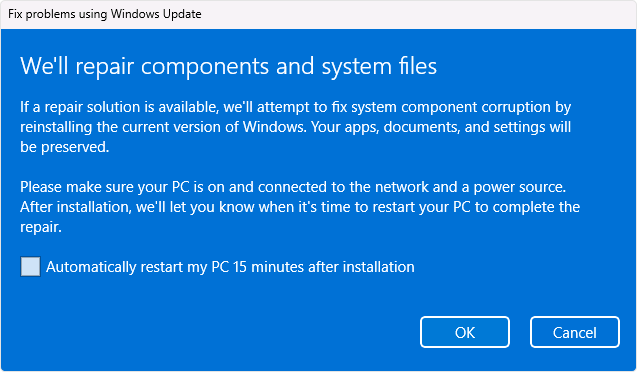
The option may be unavailable on managed devices or older Windows builds. If it is missing, do not substitute an unofficial “WaaSMedic fix” package. Use Microsoft recovery guidance or administrator-approved installation media.
How to check whether WaaSMedicAgent.exe is safe
A familiar Windows filename is not proof by itself. The legitimate executable is typically C:\Windows\System32\WaaSMedicAgent.exe, represented more generally as %SYSTEMROOT%\System32\WaaSMedicAgent.exe, and should have a valid Microsoft signature. A same-name file in Downloads, Desktop, %APPDATA%, %LOCALAPPDATA%, %TEMP%, Startup, or an unrelated application folder needs investigation.
- Open Task Manager and switch to Details.
- Right-click WaaSMedicAgent.exe and choose Open file location.
- Open Properties → Digital Signatures and verify a valid Microsoft signer.
- Check Windows Update for current repair or installation activity.
- If the path or signer is wrong, record the parent process and the startup entry that launched it.
While the process is active, an administrator PowerShell window can show its path and signature:
$path = (Get-Process -Name WaaSMedicAgent -ErrorAction Stop).Path
$path
Get-AuthenticodeSignature -LiteralPath $path |
    Format-List Status,Path,SignerCertificate
The process may finish before you inspect it; that is not suspicious by itself. Wait for the next genuine update or repair session instead of downloading another copy. For the broader source, path, signature, parent-process, and scan decision, use the EXE safety checklist.
When WaaSMedicAgent.exe may be suspicious
Investigate a same-name process when several signals agree: it runs outside System32, lacks a valid Microsoft signature, starts from an unfamiliar scheduled task or Run entry, appeared after a fake update or unknown installer, connects to unrelated destinations, or remains active when Windows Update shows no servicing or repair work.
Do not delete the file first. Record its full path, signer, parent process, command line, and startup source. If the copy is outside the expected Windows folder or the signature is invalid, stop using sensitive accounts on that PC and run a full Gridinsoft Anti-Malware scan. A scan can check the suspicious executable plus services, scheduled tasks, startup entries, bundled files, and other persistence; it cannot prove that no information was exposed before cleanup.
Fixes to avoid
- Do not delete or replace WaaSMedicAgent.exe. A copied EXE from a download site is not a Windows repair.
- Do not permanently disable WaaSMedicSvc. Microsoft marks the service as one that should not be disabled.
- Do not change the service Start value or take permissions on
HKLM\SYSTEM\CurrentControlSet\Services\WaaSMedicSvc. That can break update remediation and make later failures harder to diagnose. - Do not repeatedly end the task while update progress is changing. Save your work and use a normal restart when Windows is ready.
- Do not clear update databases or WinSxS as the first fix. Use the troubleshooter, then DISM and SFC.
- Do not assume 100% disk means malware or a failed drive. Check progress, update errors, path, signature, and broader disk health separately.
FAQ
Can I end WaaSMedicAgent.exe in Task Manager?
Ending it may stop the current repair attempt, but Windows can start it again because the underlying update state has not changed. If the PC is unusable, save your work and restart normally. Then check Update history and follow the repair ladder if the load returns.
Why does Windows deny access when I try to disable Windows Update Medic Service?
The service is protected because Windows uses it to repair update components. Access denied is not proof of malware. Do not bypass the protection with registry ownership or ACL changes; diagnose the failed update instead.
Is WaaSMedicAgent.exe a virus?
The Microsoft-signed copy in System32 is normally legitimate. A same-name file in a user-writable folder, with an invalid signature or unknown persistence, should be treated as a possible masquerade and scanned.
Does 100% disk activity mean the drive is failing?
Not by itself. Windows servicing can create high active time with many small file operations, especially on an HDD. Check whether update progress changes and whether the activity falls after restart. Investigate drive health separately if you also see I/O errors, disappearing files, freezes outside updates, or SMART warnings.
What if WaaSMedicAgent.exe is missing?
Do not download a standalone replacement. Run the Windows Update troubleshooter, then DISM and SFC. If Windows components remain damaged, use the supported Windows 11 repair-reinstall or Microsoft recovery path.
References
- Microsoft. “Guidance on configuring system services.” Windows IoT Enterprise, updated June 2026, accessed September 2, 2026. learn.microsoft.com.
- Microsoft. “Windows Update Troubleshooter.” Microsoft Support, accessed September 2, 2026. support.microsoft.com.
- Microsoft. “Use the System File Checker tool to repair missing or corrupted system files.” Microsoft Support, accessed September 2, 2026. support.microsoft.com.
- Microsoft. “Fix issues by reinstalling the current version of Windows.” Microsoft Support, accessed September 2, 2026. support.microsoft.com.