
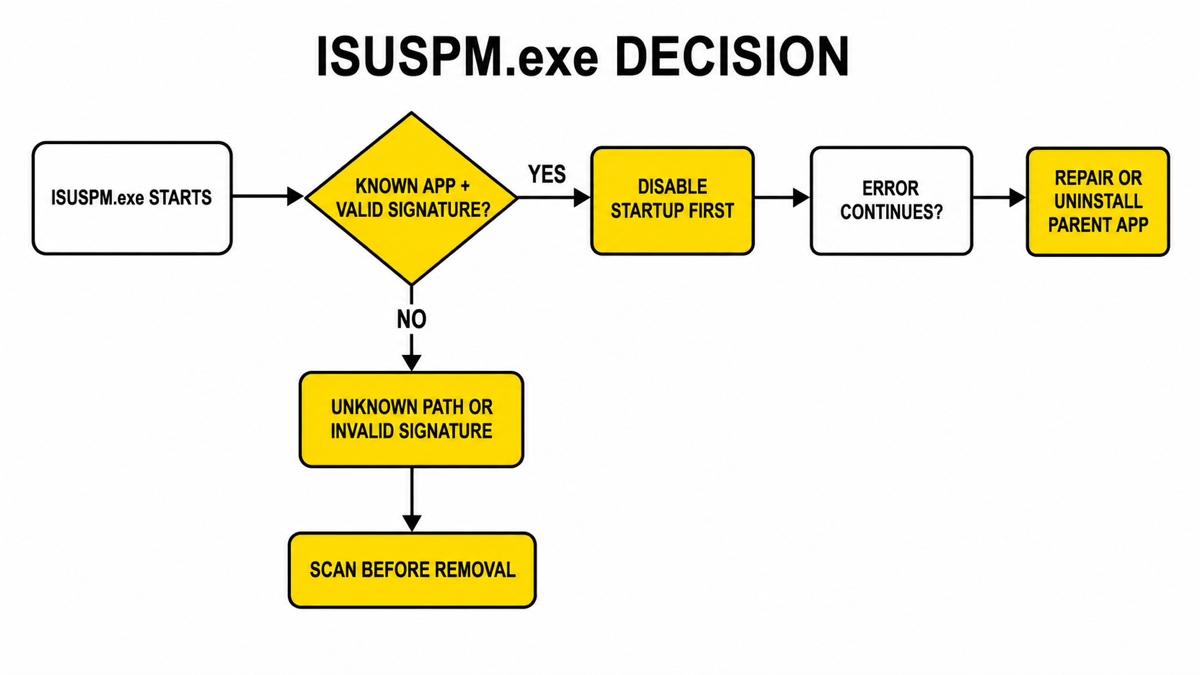
ISUSPM.exe is normally a legacy InstallShield/FlexNet Software Manager component that checks for updates to third-party programs; it is not a Windows system file. If the file belongs to software you recognize and its digital signature is valid, disabling its startup entry is usually the safest first test. If an error remains, repair or uninstall the parent application. A copy in an unexplained folder or with an invalid signature needs a security check instead of manual deletion.
Keep, disable, repair, uninstall, or scan?
| What you find | Risk and what to do |
|---|---|
| A recognized application explains the file, the path is under its Program Files/Common Files tree, and the signature is valid. | Usually legitimate. Keep it, or disable only its startup entry if you do not need automatic update checks at sign-in. |
| The signed file shows an Application Error while you still use the parent software. | Repair, update, or reinstall that application from its official source. Do not download a loose replacement EXE. |
| The parent application was removed, but Windows still tries to start ISUSPM.exe or reports that the file cannot be found. | Usually a stale startup value. Disable the verified entry, restart, and remove the leftover only after confirming its owner. |
| The copy runs from AppData, Temp, Downloads, a browser folder, or another unexplained location; the signature is missing, invalid, or unrelated. | Treat it as suspicious. Record its launcher, disable that launcher, and scan before removing files. |
What is ISUSPM.exe?
ISUSPM.exe is associated with older InstallShield/FlexNet Connect Software Manager installations. Software vendors used that updater framework to check whether an installed application had a newer release. It may appear in Task Manager or Startup apps as InstallShield Update Service Scheduler, Software Manager, or Common Software Manager.
The updater is third-party application software, not a component Windows needs to boot or sign in. That distinction makes startup disablement a reasonable diagnostic step. It does not mean every copy is unwanted or malicious: an older business, media, device, or utility application may still explain why the component is present.
Do not confuse this legacy Software Manager with FlexNet Publisher license-server administration. They share vendor history and naming, but the reader problem here is the local Windows updater/startup executable.
How to verify the file and its parent app
- Open the file location. In Task Manager, right-click
ISUSPM.exeand choose Open file location. A folder under Program Files or Common Files that contains matching updater and application files is plausible. A copy under%APPDATA%,%LOCALAPPDATA%,%TEMP%, Downloads, or a random public folder needs more scrutiny. - Check the signature. Open Properties → Digital Signatures. Windows should report a valid signature, and the signer should make sense for the updater generation or installed parent software. Vendor names changed over this product’s history, so combine the signer with the path and parent app instead of relying on one exact company string.
- Find the owner. Open Settings → Apps → Installed apps and compare installation dates, folder names, neighboring files, and product publishers. The app that installed the updater—not the filename alone—determines whether repair or uninstall is appropriate.
- Inspect the startup command. In Task Manager → Startup apps, view the entry’s publisher and file location. If the simple list does not explain it, use the suspicious startup-app checklist to inspect Run values, Startup folders, scheduled tasks, and services without mass-deleting entries.
- Compare behavior. A quiet updater that runs briefly at sign-in differs from a process that returns after disablement, launches scripts, opens unrelated sites, or appeared after an unknown installer.
An administrator PowerShell window can show the executable path for a running instance and inspect its Authenticode signature without launching the file again:
$isuspm = (Get-CimInstance Win32_Process -Filter "Name='ISUSPM.exe'").ExecutablePath
$isuspm
Get-AuthenticodeSignature -LiteralPath $isuspm |
  Format-List Status, StatusMessage, SignerCertificate
If no process is running, use Task Manager’s Startup apps entry or File Explorer to locate the installed copy. A different path does not prove malware by itself, and a valid signature does not prove that you still need the updater. The broader EXE safety checklist shows how to combine source, path, signer, parent, and behavior.
Can I disable ISUSPM.exe at startup?
Usually yes, after you verify the owner. Disabling the startup entry prevents the scheduler from launching automatically when you sign in. It does not remove the parent application and does not disable a Windows service. The tradeoff is that an older application may stop checking for updates automatically, so open that app and check updates manually when needed.
- Open Settings → Apps → Startup or Task Manager → Startup apps.
- Find ISUSPM, InstallShield Update Service Scheduler, Software Manager, or Common Software Manager.
- Record the displayed publisher and file location, then select Disable.
- Restart Windows once and confirm that the popup, error, or unwanted background process is gone.
- Open the parent application and test its normal functions. Leave the startup item disabled if the app works; re-enable it if a required function clearly depends on it.
Microsoft documents startup disablement as a normal Windows configuration action, and Flexera’s own Software Manager guidance also lists Task Manager disablement. This reversible test is safer than deleting the executable or editing the Registry first.
Fix an ISUSPM.exe Application Error or file-not-found popup
The error usually falls into one of two states: the parent software still exists but its updater files are damaged, or the software is gone while a startup command still points to the old executable.
If you still use the parent application
- Save work and close the parent application and Software Manager.
- Disable the ISUSPM startup entry temporarily so the error does not repeat at every sign-in.
- Use the application’s own update or repair option. If none exists, download its current installer only from the official vendor and reinstall the complete package.
- Restart Windows and verify both the application and its update behavior.
Do not download ISUSPM.exe from an EXE library. A loose executable can be the wrong version, architecture, or vendor build, and it does not repair the package registration or companion files behind the error.
If you no longer use the parent application
- Open Settings → Apps → Installed apps and uninstall the recognized parent application or its Software Manager component.
- Restart Windows before judging the result.
- If the popup remains, inspect the exact ISUSPM startup command and disable that verified non-Microsoft entry.
- Remove the stale launcher only after confirming that the parent software is gone and the command points to an obsolete or missing file.
This leftover pattern is similar to older application helpers such as WSHelper.exe: uninstalling the main program and cleaning its startup launcher are related but separate steps.
How to remove ISUSPM.exe safely
Choose the least-destructive action that matches the evidence. If you only want to stop it at sign-in, disable startup and keep the files. If you want the component gone, uninstall the parent software or recognized Software Manager package through Windows or the vendor’s supported uninstaller.
Flexera’s published Software Manager procedure describes multiple disablement paths and notes that its standalone uninstaller removes the startup Registry entries but does not remove every file. That is why “the process no longer starts” and “all updater files are gone” are not the same result.
After removal, restart and confirm that Windows no longer launches the entry. Do not delete shared Common Files folders blindly: another installed application may still use the updater framework. If ownership remains unclear, leave the files in place and keep the startup entry disabled until the parent application is identified.
When ISUSPM.exe looks suspicious
Investigate rather than trust the familiar name when the executable is in a user-writable or random folder, lacks a valid relevant signature, has no plausible installed parent app, arrived after a crack/fake update/unknown installer, or returns through an unfamiliar task, service, script, or startup value.
- The path is under AppData, Temp, Downloads, a browser profile, or an unrelated application folder.
- The publisher is missing, invalid, or unrelated to the installed software.
- The process returns after its startup entry is disabled or after the visible file is removed.
- The same time window includes redirects, new extensions, blocked outbound traffic, security warnings, or other unknown startup items.
Do not remove only the visible EXE in that state. A launcher, scheduled task, service, bundled application, browser change, or another hidden file may recreate it. Record the path and trigger, disable the suspicious launcher, run a full Gridinsoft Anti-Malware scan, remove confirmed detections, reboot, and scan again if the process or warning returns.
If the process path is wrong, the name imitates a Windows component, or high CPU started after an unknown installer, scan for hidden miners, services, startup entries, and bundled components.
Scan a suspicious ISUSPM.exe copyIf the suspicious copy already ran, use the post-malware Windows security audit to review persistence, browser changes, accounts, and recovery settings. A scan can find detections and startup mechanisms; it cannot prove that no exposure occurred.
What not to do
- Do not call every ISUSPM.exe copy malware; the legitimate legacy updater is third-party application software.
- Do not delete the executable before identifying its parent application and startup command.
- Do not download a replacement EXE or DLL from a file library.
- Do not remove every FlexNet, InstallShield, or Common Files folder without checking which installed applications share it.
- Do not use a Registry cleaner as the first fix for one verified startup entry.
- Do not allow a wrong-path copy merely because its filename matches a known updater.
FAQ
Is ISUSPM.exe a virus?
Not by name alone. It is normally associated with the legacy InstallShield/FlexNet Software Manager. A wrong path, invalid signer, unexplained parent, or suspicious launcher is stronger evidence that a same-name copy needs investigation.
Does Windows need ISUSPM.exe?
No. It is not a Windows system file. It belongs to third-party application update software, so Windows can start without it.
Is it safe to disable ISUSPM.exe in Startup apps?
Usually yes after you verify the owner. Disabling the entry is reversible and may only stop automatic update checks. Test the parent application and check for updates manually when needed.
Why does ISUSPM.exe appear after I uninstalled an application?
A separate Software Manager component or stale Run value may remain after the main application is removed. Disable and verify the exact startup command before removing the leftover.
Should I delete ISUSPM.exe to fix an application error?
No. If you still use the parent app, repair or reinstall its complete official package. If you no longer use it, uninstall the recognized parent/updater component and then clear only the verified stale startup entry.
References
- Flexera. “How Do I Install or Uninstall the Software Manager?” Flexera Community, accessed August 28, 2026. Flexera Software Manager guidance.
- Microsoft. “Configure Startup Applications in Windows.” Microsoft Support, accessed August 28, 2026. Microsoft startup-app guidance.
- Microsoft. “Get-AuthenticodeSignature.” Microsoft Learn, accessed August 28, 2026. PowerShell signature documentation.