igfxCUIService.exe is an Intel graphics background component, often shown as “igfxCUIService Module.” A crash usually calls for checking the installed graphics package, not deleting the executable. The filename alone cannot identify your copy: researchers also documented a SysJoker backdoor using the same name. Start with the running file’s location, digital signature and matching Intel/OEM driver package. A verified driver component with a repeatable crash belongs on the repair path; an unexplained copy with suspicious startup activity belongs on the security-investigation path.
Identify the running copy before changing anything
Intel support has confirmed that this module can appear on a system using Intel graphics. Its presence alone is not an infection warning. Equally, seeing “Intel Corporation” in a file’s description is not the same as verifying its digital signature. [1]
- Find the actual process. Open Task Manager, locate igfxCUIService.exe in Details, right-click it and choose Open file location. If there are multiple copies, record each location. If it already crashed, use the application path in the corresponding Windows error report instead of opening a similarly named search result.
- Inspect the file properties. Record the full path and version. If a Digital Signatures tab is available, open the signature’s details and check the signer and validation result. An Intel-looking description on the Details tab can be copied. A missing tab or validation error needs further checking; it does not identify a malware family by itself.
- Match it to the installed package. In Device Manager, expand Display adapters and record the Intel adapter and Driver tab details. Compare the package with the driver offered for your exact PC model and Windows version by the computer manufacturer. Do not install a package simply because its version number is larger.
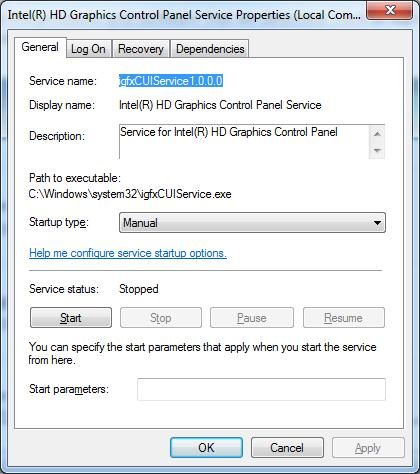
Older installations can use C:\Windows\System32\igfxCUIService.exe; driver-package directories may also be involved. There is no single folder, file size or version number that authenticates every Intel installation. Use the path to locate the package, then assess the signer and behavior together. Our EXE safety checklist explains the broader file-verification process.
Choose the branch that matches your evidence
- Recognized Intel/OEM package, plausible signature, repeatable crash: record the crash and work through driver troubleshooting.
- Unexplained copy, security warning or unrelated startup command: keep any quarantine in place and follow the suspicious-copy checks. Do not run the file to see what it does.
- Identity remains unclear: collect the path, version, signature result and error details for your PC maker or IT team. Avoid deleting files or changing security exclusions while you investigate.
Fix igfxCUIService.exe crashes without guessing
Connect the error to a specific change
Search Windows for View reliability history, select a failure at the time of the symptom, and open its technical details. Alternatively, use Event Viewer’s Windows Logs → Application. Record the faulting application, faulting module, exception code, application path and timestamp. Compare these with the driver update date and the action that triggers the failure: opening a game, waking the display, docking or signing in.
A report naming igfxCUIService.exe shows that the application failed. It does not, on its own, prove that it caused a whole-PC freeze or blue screen. If the computer also restarts, keep that event’s timing and stop code separate. Changing several drivers and services together destroys the comparison you need.
Repair or roll back the matching graphics package
- Save your work and record the current configuration. Note the driver version and any display settings you depend on, including external monitors and custom color settings. Have the correct manufacturer installer available before removing a driver.
- If the failures began immediately after a driver update, check rollback first. Open the Intel adapter’s Properties → Driver in Device Manager. If Roll Back Driver is available and you have a clear before/after relationship, reverting that change is a useful comparison. If it is unavailable, ask the PC maker for the supported previous package rather than downloading a loose EXE.
- Otherwise, repair or reinstall the supported package. Start with your PC manufacturer’s driver for the exact model. Intel recommends checking with the manufacturer because OEM packages may contain customizations. If the appropriate installer offers a clean installation, understand that it removes old driver components and resets Intel settings. Follow that package’s instructions rather than a guide written for a different GPU generation. [2]
- Restart and repeat the same trigger. Check the original symptom and the new error timestamp. Test brightness, resolution, sleep/wake and any external displays you use. A new driver version without a successful repeat test is not yet a confirmed fix.
If the same crash remains, give support the before/after versions and error details. For sustained CPU usage, also note whether the load stops when the triggering application closes. Avoid treating every brief CPU spike as a fault, or applying an arbitrary “normal percentage” to all systems.
Do not use registry cleaners or download igfxCUIService.exe separately. If a “driver repair” advertisement led you to an unfamiliar installer, use the fake driver updater cleanup guide before trying more repair utilities.
The historical SysJoker lookalike: what changes the decision
In January 2022, Intezer described a Windows SysJoker sample that copied itself to C:\ProgramData\SystemData\igfxCUIService.exe. It also created a user Run entry named igfxCUIService pointing to that copy and stored collected machine information in a file named microsoft_windows.dll. This is a historical impersonation example, not a claim of a new campaign or a vulnerability in Intel’s driver. [3]
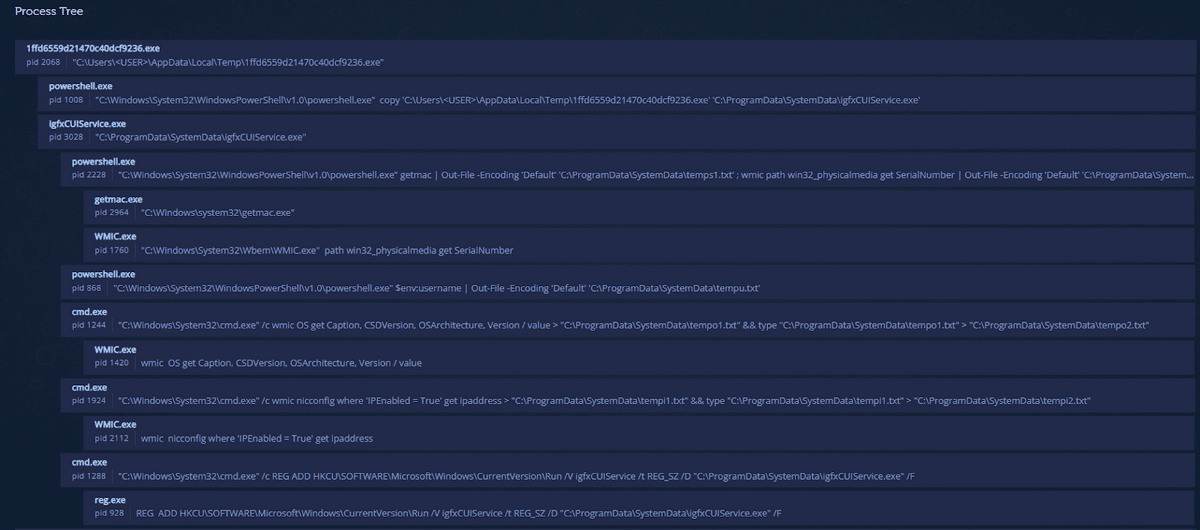
The useful distinction is the combination: a lookalike executable, an unexplained package origin and startup behavior that launches it. A matching filename or folder deserves investigation, but cannot by itself confirm SysJoker.
- Preserve the evidence. Record the full path and security-tool finding. Keep a quarantined file quarantined. On a work device, contact IT before removing files or startup entries; disconnect it from the network if active compromise is suspected.
- Identify what launches the copy. Review the full executable path in Startup apps, Services and Task Scheduler. The historical example used
HKCU\Software\Microsoft\Windows\CurrentVersion\Run, but do not delete that whole key or every Intel-looking entry. The Startup apps guide provides a broader check. - Scan when the copy or behavior is suspicious. Run a full Gridinsoft Anti-Malware scan, review the results and quarantine confirmed detections. Reboot and scan again if the process or warning returns.
Deleting the visible EXE can leave the component that recreates it. A scheduled task, service, bundled application or another startup item may remain. That is the reason to check the file’s launch source and scan the system, rather than repeatedly ending the process. A scan can help find malicious files and persistence; it does not establish that accounts or data were never exposed.
If the process path is wrong, the name imitates a Windows component, or high CPU started after an unknown installer, scan for hidden miners, services, startup entries, and bundled components.
Check the file and its startup sourceIf investigation confirms remote access or credential theft, use a separate trusted device to revoke exposed sessions and change affected passwords. On a managed computer, follow the incident-response team’s instructions before attempting cleanup.
Should you stop or disable the service?
Do not delete a verified Intel driver component to silence an error. Ending it is also a weak diagnostic test: Windows or the graphics package may start it again. A return from the same verified package has a different meaning from an unknown task recreating a suspicious copy.
If support recommends testing the service, first record its exact executable path and original startup setting. Make the change reversible and check the display controls you use afterward. Restore the original setting if features stop working. Do not disable the display adapter itself as a substitute for testing a helper service, and do not treat suppression of the error as proof the underlying problem is fixed.
When an error says the file cannot be found, check whether a driver change removed that component while leaving an old service entry. Repair the matching package or have support identify the stale entry. Downloading a replacement file by name can introduce a different version or an unsafe copy.
Check the exact Intel filename
igfxtray.exe is the older tray helper, while igfxEM.exe has its own display-configuration and error checks. Newer packages may use IntelGraphicsSoftware.Service.exe. Advice for those executables should not automatically be applied to igfxCUIService.exe.
References
- Intel Customer Support. “I have a question about the process ‘igfxCUIService Module.’” Intel Community, employee response June 23, 2023; accessed September 7, 2026. Intel module identification discussion.
- Intel Corporation. “Clean Installation of Intel Graphics Drivers in Windows.” Intel Support, article 000057389; accessed September 7, 2026. Intel graphics installation guidance.
- Mechtinger, A.; Fishbein, N.; Robinson, R. “New SysJoker Backdoor Targets Windows, Linux, and macOS.” Intezer Research, January 11, 2022; accessed September 7, 2026. Original SysJoker analysis.
- Intel Community. “igfxCUIService1.0.0.0 chrashes during shutdown on PC.” Service screenshots posted November 3, 2019; accessed September 7, 2026. Intel service properties discussion.