LogiOptionsMgr.exe belongs to the older Logitech Options software. If it crashes, your mouse may still move and perform ordinary clicks while custom buttons, gestures, or other Options features stop responding. Start by confirming which Logitech app is installed and whether its manager stops at the same time as the missing function. Then preserve your settings before repairing the app or moving a supported device to Logi Options+.
A failed side button does not automatically mean the mouse is broken—or that the executable is malware. The useful distinction is whether you have a connection problem, an application crash, a single-app profile problem, or an unexpected copy of the file.
Identify LogiOptionsMgr.exe and your Options version
Open Task Manager with Ctrl + Shift + Esc, find LogiOptionsMgr.exe under Details, and choose Open file location. If the process has already disappeared, open Logitech Options from Start and check again. Do not download a replacement EXE from a process-information website.
A historical crash report in Logitech’s Craft SDK repository records this manager inside C:\ProgramData\Logishrd\LogiOptions, in its Software\Current subfolder. That is a reference location for legacy Options, not a rule that makes every file there trustworthy. [1]
Right-click the file, open Properties, and compare the product/version information with the app shown in Settings → Apps → Installed apps. On Windows 10, look under Apps & features. Check the Digital Signatures tab, when available, and inspect the signature details for a valid Logitech publisher. A matching name alone is insufficient; an absent or invalid signature deserves further investigation rather than an automatic malware verdict.
- Logitech Options: the legacy app associated with this manager. Record its installed version before changing anything.
- Logi Options+: a different application generation. If your crash report names an Options+ agent instead, use the matching Options+ troubleshooting instructions.
- G HUB: do not apply its repair steps simply because the mouse carries the Logitech brand. Confirm which software actually manages your device.
For migration, check your exact mouse or keyboard model and required features through the supported devices section on Logitech’s current Options+ page. Do not assume every device supported by older Options has identical support in the newer app. [2]
Choose the branch that matches the failure
Pointer and ordinary clicks also fail.
Check power, the selected device channel, receiver/Bluetooth connection, and basic device detection first. An Options crash may be incidental. The Windows Plug and Play driver guide explains the underlying driver side.
Pointer works, but custom controls disappear when the manager closes.
Follow the application restart and crash-log steps below. A repeatable timing match makes the Options branch the useful starting point.
Only one application loses its custom actions; the manager keeps running.
Inspect that application’s profile and assigned button in Options. Compare it with the default profile before reinstalling everything.
The file appeared after an unknown installer, has an unexpected publisher, or accompanies recurring security warnings.
Use the suspicious-copy checks below before launching it again or granting it permissions.
Restore controls with the least disruptive steps
- Save your work and note the failing action. Test an ordinary click, the custom button on the desktop, and the same button in the application where it fails. This separates basic input from an app-specific binding.
- Close and reopen the installed Logitech application once. If it is stuck or its background state is unclear, restart Windows and launch the app normally. Reconnect the mouse if needed. Logitech’s gesture guidance recommends checking mappings and restarting or reinstalling the relevant Options application. [3]
- Retest before making another change. If the action returns, reopen the application that previously triggered the failure. A temporary recovery is useful evidence; it does not establish that the underlying crash is fixed.
- If the issue is limited to one app, inspect its profile. Select the device and that app’s configuration, confirm the intended mapping, then test a simple action. Record the old assignment before changing it. If default bindings work, focus on the profile or conflicting shortcut.
- If it fails only after signing in, inspect Startup apps. Check whether the relevant Logitech entry is disabled. Re-enable it only after confirming the installed app and file identity. Do not create a second startup task while the app already supplies one.
Avoid turning off antivirus or the firewall as a blanket fix. Likewise, do not make every Logitech process run as administrator on every boot. If an organizational policy prevents an installation or startup change, give IT the app version and crash details instead of working around the policy.
Back up settings before reinstalling or migrating
If Options still opens, record your button mappings and app-specific profiles. Use its available backup controls before uninstalling it. Logitech’s documented migration order is to enable backup in Options, install and sign in to Options+, restore the device’s settings there, and remove the old Options app after the backup has been restored. First verify that your device is supported. [4]
If the old app will not stay open long enough to back up, do not assume uninstalling it will preserve recoverable customizations. Check whether a usable backup already exists; otherwise record what you can and be prepared to recreate the mappings. Avoid deleting whole Logitech data folders as your first troubleshooting step.
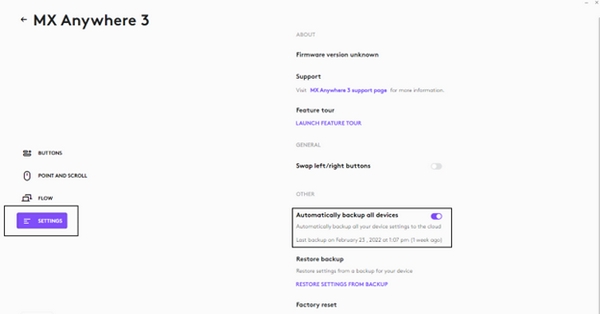
Logitech’s backup documentation lists button/key assignments, pointer and scrolling settings, and application-specific device settings among the backed-up items. It excludes Flow settings and Options+ app settings. Check those separately after recovery. The location and appearance of backup controls can differ by app version. [5]
When LogiOptionsMgr.exe keeps crashing
Open Event Viewer → Windows Logs → Application and find the error at the time the buttons stopped working. Save the following details for comparison or a Logitech support request:
- Faulting application name and version.
- Faulting module name and version.
- Exception code and faulting application path.
- The timestamp, Windows version, device model, and action that triggered the problem.
Check that the event is new and names LogiOptionsMgr.exe, rather than treating an old entry as the cause of today’s failure. The SDK report includes 0xc0000409, but that historical example does not identify the cause of every current crash. A matching error code alone is not a reason to rename your Windows account, replace a DLL, or reinstall Windows. [1]
Once settings are protected, obtain the appropriate installer through Logitech’s official software or device-support page. If the installed package offers Repair or Modify, use that option; otherwise uninstall and reinstall the correct parent application. For a supported migration, follow the backup-and-restore order above. Do not mix a legacy manager EXE with Options+ files or use an old forum download as a presumed fix.
If the same failure returns, compare what changed: application version, Windows update, a particular foreground app, or a custom profile. Change one variable at a time and retain the before/after result. This is a diagnostic sequence, not a claim that one universal repair has been tested for every Logitech device.
If custom buttons work but Flow alone fails, examine the Flow configuration on both computers and use the guidance for the installed app generation. That is a different branch from a crashing manager. macOS certificate workarounds and changes to the system date do not belong in this Windows procedure.
When the file needs a security check
If you did not install Logitech software, the publisher does not match, or this file arrived with an unknown download, stop running the suspect copy. Keep any security-tool detection quarantined while you check the file’s origin. Do not allow it just to make the buttons work.
An unknown installer can add more than the visible executable. If warnings or unexplained copies return after reboot, check for bundled software and startup entries as well as the file itself. Run a full Gridinsoft Anti-Malware scan to look for malicious components and persistence, review the findings, and restart after cleanup when requested. A scan addresses that security branch; it does not repair Logitech profiles or guarantee that no compromise occurred.
If the process path is wrong, the name imitates a Windows component, or high CPU started after an unknown installer, scan for hidden miners, services, startup entries, and bundled components.
Check this PC for malwareIf you ran a command or installer from a fake verification prompt, use the ClickFix command-exposure checklist as well. A deceptive Logitech-looking folder has appeared in that separate attack context; it is not evidence that the genuine Options manager is malicious.
Confirm the result
After recovery, restart Windows, open the previously troublesome application, and test the original button assignments. Check that the relevant Logitech app stays available and that no new matching crash event appears during the test. Verify application profiles and Flow separately. If you still need support, the exact device, app version, trigger, timestamp, and faulting module are more useful than a screenshot saying only “Application error.”
FAQ
Can I delete LogiOptionsMgr.exe?
For a genuine installation, uninstall the parent Logitech Options application instead of deleting a single program file. You may lose software-dependent custom controls. If you are moving to Options+, verify device support and restore the settings first.
Does “UNICODE” in the process description mean it is malware?
No. That label by itself is not a threat verdict. Check the executable’s location, publisher signature, installed application, and how it arrived, just as you would for a copy without that description.
References
- nixx77. “Sample causing LogitechOptions to crash,” issue #14. Logitech Craft SDK repository, September 30, 2018; accessed September 7, 2026. Historical crash report.
- Logitech. “Logi Options+.” Software, downloads, and supported-device resources; accessed September 7, 2026. Official Options+ page.
- Logitech. “Mouse gestures with Logitech: boost productivity.” Configuration and troubleshooting guidance; accessed September 7, 2026. Gesture setup and troubleshooting.
- Logitech Support. “Can I keep my Options settings when I install Logi Options+?” Updated July 27, 2026; accessed September 7, 2026. Settings migration procedure.
- Logitech Support. “Backup device settings to the cloud in Logitech Options+.” Includes the illustrated backup controls; accessed September 7, 2026. Backup scope and controls.