

The “Folder in Use” error in Windows 11 or Windows 10 means a running process has the folder, or something inside it, open in a way that prevents your operation. Save your work, close the related app, and try again. If nothing appears open, use Resource Monitor → CPU → Associated Handles to find the program holding the folder. You can then close the right app instead of guessing. A folder lock alone does not mean your computer has malware.
The same problem can block deleting, moving, or renaming a folder. Windows commonly displays: “The action can’t be completed because the folder or a file in it is open in another program.” Follow the steps below in order, and retry your original action after each one. Once it works, stop troubleshooting.
1. Close the apps and windows using the folder
Start with the contents of the folder. A video player may still have a movie open; an editor may hold a document; an archive tool may be reading a ZIP; a game launcher may be updating files. Closing a window can also leave its app running in the notification area.
- Save and close documents, photos, videos, and projects stored inside the folder.
- Finish or cancel active copies, extractions, downloads, and exports through the app performing them.
- Close other File Explorer tabs and windows displaying that folder or its subfolders.
- Close Command Prompt, PowerShell, or Windows Terminal tabs whose current directory is inside it. Save or stop any running work first.
- If an app stays in the notification area, use its own Exit or Quit command.
Try renaming, moving, or deleting the folder again. If you are removing an installed program, use Settings → Apps and its uninstall option instead of deleting its installation directory.
2. Turn off Preview pane, then restart File Explorer
File Explorer can be involved even when you have not deliberately opened a file. Preview handlers and thumbnail processing may access the selected item while you browse.
- Open File Explorer with Win + E.
- Turn off Preview pane. In Windows 11, look under View → Show → Preview pane; in Windows 10, use View → Preview pane. Alt + P toggles it in either version, so check that the pane is hidden.
- Go to the folder’s parent directory, select the folder, and retry the operation.
If it remains locked, wait for any File Explorer copy or move to finish. Press Ctrl + Shift + Esc, open Processes in Task Manager, select Windows Explorer, and choose Restart. On Windows 10, click More details first if Task Manager is in compact view. The taskbar and desktop may briefly disappear while Explorer restarts.
If this releases the folder but the error returns whenever you select a particular PDF, photo, or video, that pattern points toward its preview handler or associated app. Update or repair that app before making system-wide thumbnail or registry changes.
3. Find which program is using the folder
When closing visible windows does not help, identify the process before ending tasks. Windows includes Resource Monitor; you do not need to install an unlocker.
- Press Win + R, type
resmon, and press Enter. - Open the CPU tab and expand Associated Handles.
- In Search Handles, enter a distinctive part of the folder name. If necessary, search for a filename inside it.
- Read the Image, PID, and Handle Name columns. Match the complete path to your folder.
- Save work in the matching app, close it normally, and retry your original action.
Microsoft documents this method for identifying processes using a file or folder.[1] A matching handle is a useful lead: closing that app and successfully repeating the operation confirms that it was involved.
A search result example
Suppose you cannot rename C:\Work\Summer Photos. Searching for Summer Photos shows an image editor with a handle to C:\Work\Summer Photos\cover.jpg. Save and close that image, exit the editor if necessary, and try the rename again. You do not need to delete cover.jpg to release it.
Check the path because another folder can have the same name. If several apps reference the correct folder, close the relevant ones one at a time. For an unresponsive app you recognize, Task Manager’s End task is a fallback after saving what you can; unsaved changes can be lost. Do not terminate System, security software, or an unfamiliar Windows service just because it appears in the results.
4. Use File Locksmith when the owner is still unclear
Microsoft PowerToys includes File Locksmith, which can inspect a selected folder and its contents. Open the Microsoft documentation in reference [2] for the official installation route.
- Open PowerToys and enable File Locksmith.
- Right-click the affected folder in File Explorer and choose Unlock with File Locksmith. On Windows 11, you may need Show more options.
- Review the processes listed. If the list is empty or incomplete, select Restart as administrator to include processes the unelevated scan could not access.
- Close an identified app normally, then retry the folder operation. Reserve End task for a known app that will not close.
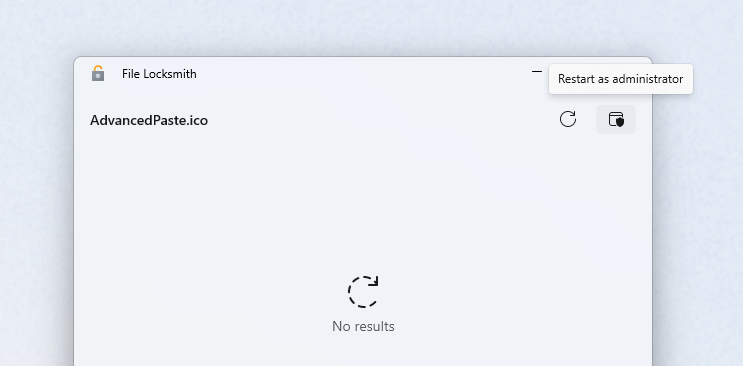
No results does not mean no lock exists. The process may have changed between checks, the search may have missed a child filename, or another computer may hold a file on a shared drive. Reproduce the error and check again while it is happening. Avoid using a tool’s force-close-handle option as a routine fix; the app may still expect that resource to be available.
5. Check OneDrive, backup jobs, and network shares
- Inside OneDrive or another sync folder. Let transfers finish, then temporarily pause syncing from the client’s notification-area menu. If the client still appears as the holder, quit it normally and retry. Reopen it and resume sync afterward.
- Being backed up, scanned, or indexed. Let the operation complete. If the same job repeatedly blocks the folder, check that app’s activity and settings. Avoid killing an active backup or disabling antivirus protection to force a deletion.
- On a network drive or NAS. Ask other users to close files in the folder. The server or NAS administrator may need to inspect open files or SMB sessions; a local process search cannot show every remote user’s open file.
- On a USB drive. Close apps and transfers that use it. Do not pull the drive out to break a lock. After work has finished, use the normal eject procedure if you need to reconnect it.
Pausing cloud sync is a temporary diagnostic step. A deletion inside a synchronized folder can still propagate to the cloud and other devices when syncing resumes. Keep a separate copy of anything you want to retain.
For a shared folder, tell the administrator the full shared path and when the error occurred. They can identify the user or session holding it before disconnecting anything that might contain unsaved work.
6. Restart Windows; use Safe Mode if the lock returns
Save your work and choose Start → Power → Restart. After signing back in, try the folder operation before reopening your usual apps. If it works now but fails after one particular app starts, you have a more useful clue than repeatedly restarting the whole PC.
If an ordinary local folder remains blocked, Safe Mode can help distinguish interference from nonessential startup software. Have your BitLocker recovery key available if device encryption is enabled; the recovery environment may request it.
- Hold Shift while selecting Restart from the Start menu’s power options.
- Select Troubleshoot → Advanced options → Startup Settings → Restart.
- Press 4 or F4 for Safe Mode.
- Retry the intended operation on the personal folder you identified, then restart normally.
Safe Mode starts Windows with a limited set of files and drivers.[3] If the operation works there, investigate the app, service, or extension that starts in normal mode. This result does not identify which component is responsible or determine whether it is malicious.
When to scan with Gridinsoft Anti-Malware
A locked photo folder or a document left open in Word does not need malware removal. A scan becomes appropriate when the locking process is unfamiliar and you also see security warnings, browser redirects, an untrusted installer that recently ran, or a suspicious file repeatedly recreated after cleanup.
In that situation, we recommend Gridinsoft Anti-Malware. Update its detection database, run a Full Scan, review the detections, and quarantine confirmed threats. Restart if the cleanup requests it, then check the folder again. A scan can help identify malware or unwanted software behind the activity; it is not a general-purpose folder unlocker.
If a malicious component is involved, removing its visible file may leave a startup task, service, or bundled component that launches it again. Our guide to suspicious files that are open in another program covers that cleanup branch in more detail.
If the folder still cannot be changed
Read the current error carefully. “Access denied,” “You need permission,” “The directory is not empty,” and “Could not find this item” can require different troubleshooting. If the message changes after you close the owning app, the original lock may be resolved. For an access or path error, use our Windows cannot access the specified device, path, or file guide.
A command such as rmdir /s /q does not reliably bypass an active file lock. It recursively deletes a folder without a confirmation prompt and bypasses the Recycle Bin, making a mistaken path much more costly. Changing ownership, deleting thumbnail caches, or running registry cleaners also does not identify the program holding your folder.
For a problem that persists after a restart and Safe Mode, record the exact error, full folder path, whether the location is local or shared, and any process shown by Resource Monitor. Use that evidence with the app vendor or your IT administrator before changing permissions or removing system files.
FAQ
Why does an empty folder say it is in use?
A process can hold the directory itself open, even if there are no visible files inside it. A terminal working in that directory is one example. Hidden items can also be involved. Search for the folder name in Resource Monitor rather than assuming that an empty view rules out a lock.
Can I fix Folder in Use without restarting my PC?
Yes, if you can identify and close the app holding the folder. Turning off the Preview pane, closing the owning document, quitting a sync client, or restarting Windows Explorer may release it without a full Windows restart.
Will running File Explorer as administrator fix it?
Administrator rights do not automatically override an active file lock. Elevating a diagnostic tool can reveal more processes, but you still need to release the relevant resource. Treat a permissions error separately from a Folder in Use error.
Should I delete thumbs.db to fix this error?
Only investigate thumbnail caching when the evidence points there, such as a matching handle or a repeatable preview-related problem. Deleting a cache file is not a universal fix, and older advice about thumbnail policies should not be applied to every Windows 11/10 folder error.
References
- Thomas, Orin. “Identify Which Process Is Blocking a File in Windows.” Microsoft ITOps Talk Blog, updated July 14, 2025; accessed November 4, 2026. Microsoft process-identification guidance.
- Microsoft. “File Locksmith utility.” Microsoft Learn, updated October 21, 2026; accessed November 4, 2026. File Locksmith documentation and installation.
- Microsoft. “Windows startup settings.” Microsoft Support, accessed November 4, 2026. Windows startup and Safe Mode instructions.