Myvideolibrary.info redirect is usually caused by a video-search browser extension changing the default search engine, new-tab page, or search shortcut. If searches started passing through myvideolibrary.info, remove Video Search Extension, Video Library Search, or any similarly named extension first, then restore browser search settings and scan Windows for the installer or unwanted app that added it.
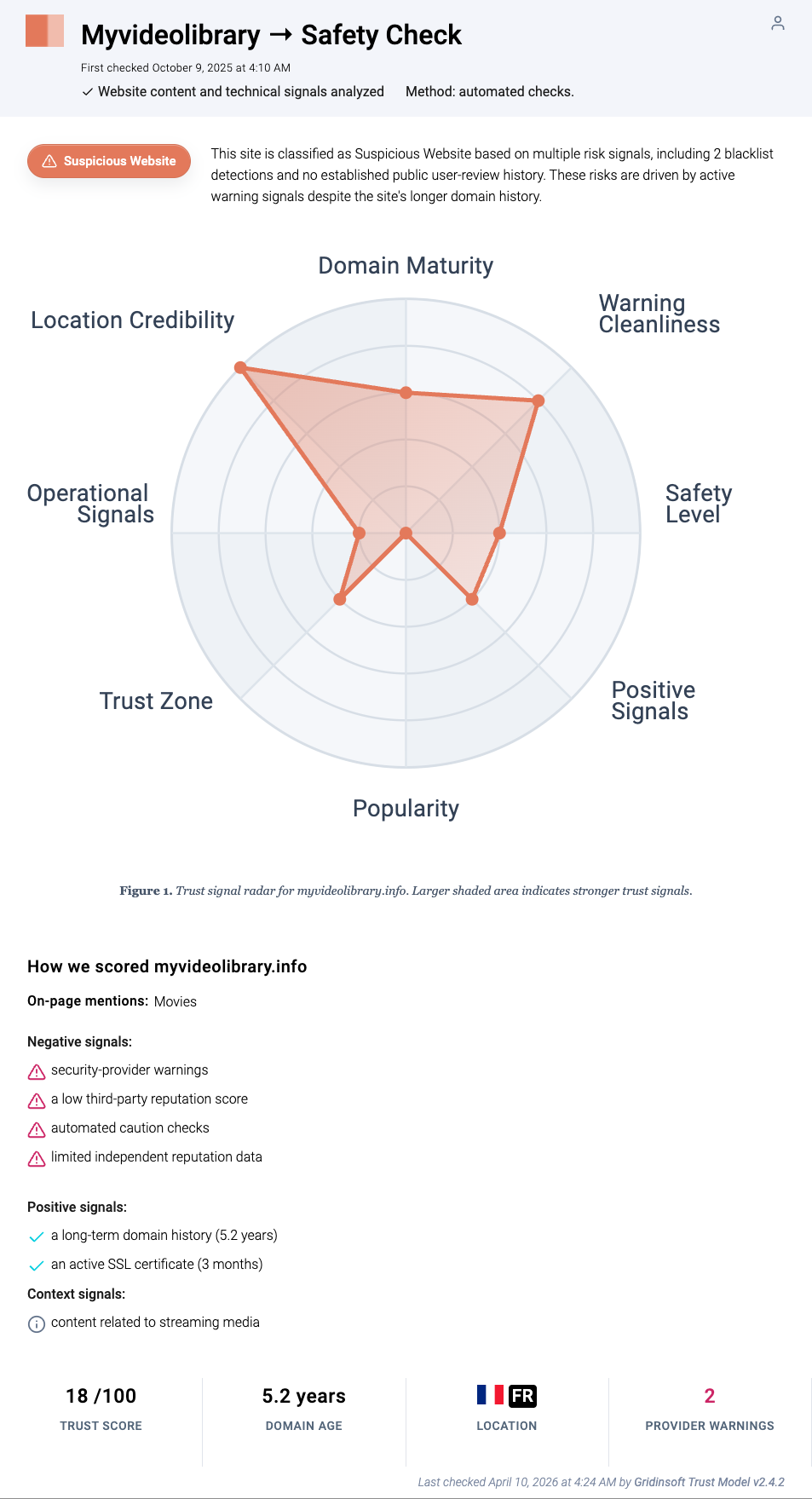
Gridinsoft Website Reputation Checker currently gives Myvideolibrary.info an 18/100 trust score and classifies it as a Suspicious Website. That does not prove every visitor has malware installed, but it is enough reason to stop using the redirect, avoid signing in through pages it opens, and clean the browser profile.
Technical snapshot
- Promoted domain:
myvideolibrary.info - Related extension names: Video Search Extension, Video Library Search, and close video-search recommendation variants
- Typical browser changes: default search engine, new-tab URL, address-bar search template, and extension site access
- Common lure: easier video discovery, long-form video search, or cleaner video recommendations
- Main risk: unwanted search routing, tracking, sponsored results, and exposure to low-trust redirect destinations.
Why Myvideolibrary.info appears in search
Browser hijackers rarely need a complicated infection chain. A user installs a video helper, search enhancer, media downloader, or bundled freeware package. The extension then gets permission to read and change browser data, set a search provider, or control the new-tab page. After that, typing in the address bar can send the query through myvideolibrary.info/search.php?q=... before results appear.
The visible result may still look like a normal search page, which is why the redirect is easy to miss. The problem is control: the extension can decide where searches go, what sponsored pages appear, and whether another extension or browser policy should put the setting back after you change it.
Common symptoms
- Address-bar searches briefly show
myvideolibrary.infobefore reaching results. - The browser tab, home page, or search page says Video Search, Video Search Extension, or Video Library Search.
- Search engine settings revert after restart or after browser sync runs.
- The extension list contains a video search, recommendation, media helper, or unknown extension you did not intentionally install.
- Chrome or Edge says an extension controls search, new tab, or site permissions.
- Security tools warn about a suspicious website, adware behavior, or unwanted browser modification.
Remove the extension first
Start with the extension, because resetting the search engine while the extension remains active often fails.
- Open the affected browser and go to its extensions page:
chrome://extensions,edge://extensions, or Firefoxabout:addons. - Remove Video Search Extension, Video Library Search, and any unknown extension installed around the same time.
- Open extension details before removing if you need to note the extension ID, permissions, or install source.
- Disable browser sync temporarily if the same extension returns on another device.
- Restart the browser and confirm the extension no longer appears.
- Launch Chrome.
- Click the three dots (...) in the top right corner.
- Select Extensions > Manage Extensions.
- Click Remove next to the extension you want to delete.
Quick Access: Type chrome://extensions/ in the address bar.
- Open Safari.
- In the menu bar, click Safari and select Settings (or Preferences).
- Click on the Extensions tab.
- Select the extension and click Uninstall.
- Click the menu button, select Add-ons and themes.
- Go to the Extensions tab.
- Click the three dots (...) next to the extension and select Remove.
Quick Access: Type about:addons in the address bar.
- Launch Microsoft Edge.
- Click the three dots (...) in the top right corner.
- Select Extensions.
- Find the extension and click Remove.
Quick Access: Type edge://extensions/ in the address bar.
- Launch Brave browser.
- Click the menu icon > Extensions.
- Find the extension and click Remove.
Quick Access: Type brave://extensions/ in the address bar.
- Launch Opera.
- Click the Opera logo in the top left corner.
- Select Extensions > Extensions.
- Click the X or Remove button next to the extension.
Quick Access: Type opera://extensions/ in the address bar.
Open Extensions/Add-ons again and remove any entry linked to myvideolibrary.info or clearly out of place.
Restore search and new-tab settings
After the extension is gone, clean the settings it controlled.
- Open search settings and set your preferred default search engine directly.
- Delete search shortcuts or site-search entries that point to
myvideolibrary.info. - Check startup, home page, and new-tab settings for the same domain or a related video-search URL.
- In Chrome or Edge, visit
chrome://policyoredge://policy. If search settings are managed by a policy on a personal PC, treat that as a persistence warning. - In Firefox, check
about:addons, Search settings, andabout:policiesif the browser says an organization controls settings.
- Tap on the three dots (...) in the top right corner and Choose Settings.

- Choose Reset and Clean up and Restore settings to their original defaults.

- Tap Reset settings.

Quick Access: Type chrome://settings/reset in the address bar.
- Open Safari.
- In the menu bar, click Safari > Clear History.
- Select all history and click Clear History.
- Go to Safari > Settings (or Preferences).
- Click the Privacy tab and select Manage Website Data... > Remove All.
- In the Advanced tab, check Show features for web developers.
- In the menu bar, select Develop > Empty Caches.
- Launch Brave browser.
- Click the menu icon in the top right corner and select Settings.
- Click Additional settings > Reset settings.
- Tap Restore settings to their original defaults.
- Confirm by clicking Reset settings.
Quick Access: Type brave://settings/reset in the address bar.
- In the upper right corner tap the three-line icon and Choose Help.

- Choose More Troubleshooting Information.

- Choose Refresh Firefox... then Refresh Firefox.

Quick Access: Type about:support and click Refresh Firefox.
- Tap the three dots.

- Choose Settings.

- Tap Reset Settings, then Click Restore settings to their default values.

Quick Access: Type edge://settings/reset in the address bar.
- Launch the Opera browser.
- Click the Opera menu button in the top left corner and select Settings.
- Scroll down to the Advanced section in the left sidebar and click Reset and clean up.
- Click Restore settings to their original defaults.
- Click Reset settings to confirm.
Quick Access: Type opera://settings/reset in the address bar.
After reset, verify that myvideolibrary.info is no longer set as your default search engine or homepage.
Check Windows for the installer behind it
If the redirect came back after extension removal, look outside the browser. Browser hijackers are often reinstalled by a desktop app, scheduled task, startup entry, or bundled installer.
- Open Settings > Apps > Installed apps and sort by install date.
- Remove recent video downloaders, search tools, coupon extensions, media converters, or unknown apps you did not request.
- Check browser shortcuts for added URLs after
chrome.exe,msedge.exe, orfirefox.exe. - Inspect Task Scheduler and Startup Apps for unfamiliar launchers created the same day.
- Run a full scan if you installed the extension from a pop-up, cracked download, fake update, or software bundle.
Gridinsoft Anti-Malware can help find adware leftovers, unwanted installers, and startup items that keep browser settings from staying clean. Use the scan results as confirmation; do not delete legitimate browser profile files blindly unless they are clearly tied to the redirect.
After uninstalling the suspicious app or deleting the visible threat, use Gridinsoft Anti-Malware to check hidden files, startup entries, scheduled tasks, bundled apps, browser changes, and other persistence points that can restore malware.
Download Anti-MalwareWhen a browser profile reset is worth it
A full browser reset is reasonable when the redirect survives extension removal, when search policies remain on a personal computer, or when several settings changed at once. Export bookmarks first if needed. After the reset, reinstall only extensions you recognize and restore sync after confirming the clean profile does not redirect.
If the same redirect appears in multiple browsers, prioritize the Windows app and startup checks. Multiple-browser symptoms usually mean the problem is not only one extension inside one profile.
How to avoid repeat redirects
- Install extensions only from sources you trust and review the permissions before clicking Add.
- Be careful with extensions that promise faster search, video discovery, download conversion, coupons, or shortcut pages.
- Keep browser sync on only after you remove unwanted extensions from every signed-in device.
- Do not install browser helpers offered by fake video players, streaming pages, or download mirrors.
- Run a scan after removing bundled software so the same installer cannot restore the hijacker.
FAQ
Is Myvideolibrary.info a virus?
The domain itself is a suspicious redirect/search site, not a classic file virus. The practical issue is usually a browser hijacker extension or unwanted app that changed browser settings.
Why does Myvideolibrary.info come back after I change search settings?
An extension, browser policy, sync profile, or desktop app may be restoring the setting. Remove the extension first, then check policies, sync, installed apps, startup entries, and scheduled tasks.
Should I delete my whole browser profile?
Not as the first step. Remove the extension and search entries first. Reset the profile only if the redirect keeps returning or if several controlled settings remain after cleanup.
Can I keep Video Search Extension if I like the video search page?
It is safer to remove it. A search extension that routes queries through a low-trust redirect domain has more control over browsing than a simple bookmark or normal search page.
References
- Google Chrome Web Store Help. “Install and manage extensions.” Google, accessed June 12, 2026. https://support.google.com/chrome_webstore/answer/2664769?hl=en
- Microsoft Support. “Add, turn off, or remove extensions in Microsoft Edge.” Microsoft, accessed June 12, 2026. https://support.microsoft.com/en-us/edge/add-turn-off-or-remove-extensions-in-microsoft-edge
- Mozilla Support. “Disable or remove Add-ons.” Mozilla, accessed June 12, 2026. https://support.mozilla.org/en-US/kb/disable-or-remove-add-ons