A lock icon on a drive in Windows 11 usually indicates BitLocker or Device Encryption, not a virus. Windows Home can use Device Encryption on supported PCs, so a padlock does not mean someone secretly installed an encryption program. First check whether the drive opens. An accessible drive, a drive requesting a recovery key, and a padlock with a warning triangle need different responses. Do not turn off encryption or format the disk just to remove the icon. Identify the state first, then protect your access to the files.
What does the lock on your drive mean?
Look at the icon beside the drive under File Explorer → This PC, then try opening the drive normally. Microsoft distinguishes an open padlock, a closed padlock, and an open padlock with a warning. Use the actual access result and encryption status to confirm what the small icon suggests.[1]
Open padlock; files open normally
The drive can be encrypted while unlocked for your Windows session. Check its protection status and make sure you can locate the recovery key. Removing the icon is not a necessary repair.
Closed padlock; Windows asks for a password or recovery key
The volume is locked. Use its configured unlock method or locate the matching recovery key. Stop before formatting, resetting, or deleting partitions if you need the data.
Padlock plus yellow warning triangle
Check for suspended protection or a setup awaiting activation. Read the specific status before changing anything; an encrypted drive is not always actively protected.
Changed files, a ransom message, or unexpected security changes as well
Investigate those symptoms separately. A familiar Windows padlock cannot establish who changed the settings or explain every inaccessible file.
A lock on an individual file or folder is a different troubleshooting problem. Likewise, a USB that opens but refuses writes needs the write-protected USB checks, not an assumption that every restriction is BitLocker.
Why did this appear on Windows Home?
Windows Home does not include the same BitLocker management feature set as Pro, but eligible Home devices can use Device Encryption. Microsoft documents automatic activation when a supported device is set up with a Microsoft, work, or school account; its recovery key is associated with that account. Local-account setup does not automatically enable it under that documented behavior. Fixed data drives can be covered as well as the system drive.[2]
That makes “I never turned on BitLocker” an incomplete diagnosis. A newly noticed icon may reflect an existing setup choice. It also does not tell you when the drive was encrypted. Check the setting rather than buying a Windows upgrade, installing an unlock utility, or changing firmware settings to make the padlock disappear.
On Windows 11, open Settings → Privacy & security → Device encryption and inspect the current setting. If that page is missing, the device may not support it, or you may be using a standard account. A missing page alone does not prove that the drive is unencrypted.
Check access and protection separately
Where available, search Start for Manage BitLocker and inspect the correct drive letter. Microsoft lists states including On, Off, Suspended, and Waiting for Activation. Suspended protection and activation still pending need attention even when the files remain accessible.[3]
For a more detailed read-only check, an administrator can open Terminal or Command Prompt as administrator and run manage-bde -status. Find the relevant volume and distinguish Conversion Status, Protection Status, and Lock Status. “Encrypted,” “Protection On,” and “Unlocked” describe different things; they can coexist.
For example, if your D: drive opens and its protection is on, the open padlock is consistent with normal access. If protection is suspended, record that state and check whether maintenance or your organization’s administrator suspended it. Before resuming protection or finishing activation, confirm that you have a recovery-key backup. On a managed PC, ask IT to resolve the state instead of overriding policy.
Keep the current encryption setting while investigating. Hiding the overlay changes what you see; it does not repair protection or recover access. Clearing the TPM, experimenting with Secure Boot, or following an unrelated “remove lock” command can turn a cosmetic concern into a recovery problem.
If Windows asks for a 48-digit recovery key
The recovery key is different from your Windows sign-in PIN. Note the key ID shown in the prompt and use it to match the correct backup, especially if several drives or devices appear in your account.[4]
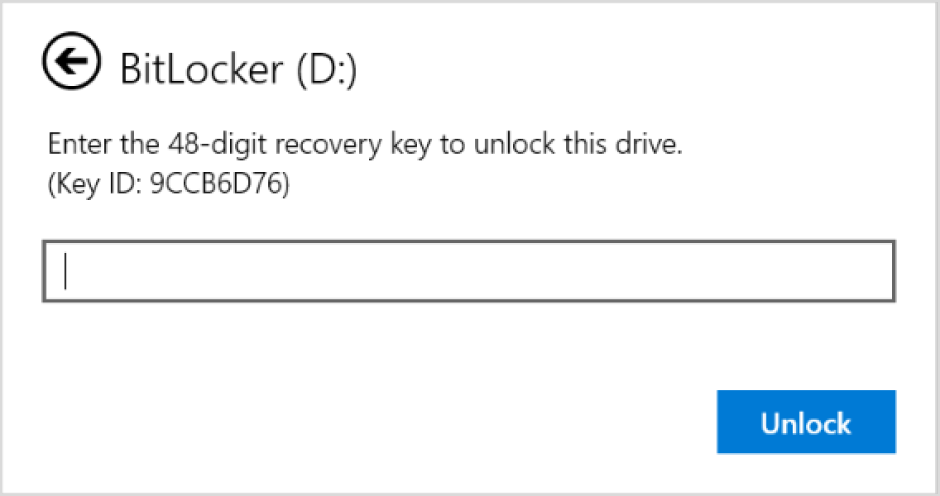
- Check the account used during setup. On another trusted device, follow Microsoft’s recovery-key instructions in Reference 4. If someone else set up the PC, the backup may be in their account.
- Check work or school ownership. Contact the organization’s IT team if it managed the device or encryption.
- Look for an existing backup. Check a printout or a USB/text-file backup kept when encryption was enabled.
Keep the full key private; do not paste it into comments or a supposed unlock service. If the matching key cannot be found, Microsoft cannot recreate it. Resetting or formatting is a data-loss decision, not key recovery. If the files matter, stop and assess backups and recovery options before accepting an erase operation.
When other symptoms justify a malware check
The useful question is what changed besides the icon. Did ordinary documents suddenly stop opening? Did filenames change together? Is there a ransom message, an unknown remote-access tool, or a security setting you did not change? Absence of a ransom note does not settle the question either. Record the exact message and sequence of events rather than treating the padlock as a malware verdict.
If files are actively changing or an intrusion is suspected, disconnect the PC from the network and keep backup drives detached. On an organization-owned device, contact IT before cleanup. Preserve the messages and affected files; do not test random decryptors against your only copy.
When Windows remains usable and you are ready to clean suspected malware, Gridinsoft Anti-Malware can check for malicious files and persistence that may remain after the visible symptom. Obtain its installer from the official site using a clean device if necessary, install it, update the detection database when safe, run a Full Scan, review and apply the findings, then restart and check for recurrence. A scan does not recover a BitLocker key or decrypt ransomware-damaged files. If the drive is simply encrypted and working normally, this cleanup branch is unnecessary.
Once access and protection are understood, keep a separate backup and a secure recovery-key copy. For protecting an unattended session, use the separate Windows computer-locking guide; a login lock and drive encryption protect different situations.
FAQ
Will deleting files or uninstalling an app unlock the drive?
No. Those actions do not supply the key needed by an encrypted volume. If Windows asks for a recovery key, resolve that request before attempting unrelated repairs.
Does the open padlock mean anyone on the internet can read the drive?
No. It describes the drive’s local unlock state, not a public network share. Check sharing permissions separately if that is your concern.
Should I turn encryption off to get rid of the icon?
Only make that decision for a specific storage or recovery requirement after understanding the tradeoff and backing up your data. A harmless status icon is not itself a reason to remove protection.
References
- Chen, Raymond. “What do these hard drive icons mean?” Microsoft, The Old New Thing, May 23, 2017; accessed October 25, 2026. Drive icon meanings.
- Microsoft. “Device Encryption in Windows.” Microsoft Support, accessed October 25, 2026. Device Encryption availability and setup.
- Microsoft. “BitLocker operations guide.” Microsoft Learn, accessed October 25, 2026. BitLocker status and management.
- Microsoft. “Find your BitLocker recovery key.” Microsoft Support, accessed October 25, 2026. Recovery-key instructions.