Popcorn Time is not safe to trust by name alone. The label has been used by multiple projects, forks, websites, and installers, so a familiar name or working player does not prove that the exact build on your device is authentic. Judge the source, file signature, hash, and behavior separately. Also distinguish installer risk from the app’s BitTorrent traffic: peer exposure can exist even when a file contains no malware.
Your next step depends on what happened. Merely viewing a page is different from downloading an unopened file, running an installer, streaming through a peer-to-peer client, or exposing a signed-in browser session. Use the matching path below instead of applying one broad “safe” or “virus” label.
Why There Is No Single Popcorn Time Verdict
Popcorn Time describes an interface and idea, not a permanent chain of custody. Projects using the name have changed, stopped, or been forked, and lookalike sites can copy the wording and artwork. A repository, domain, and Windows installer that share a name may still come from different operators. That is why an old review of “Popcorn Time” cannot authenticate a file downloaded today.
Ask four specific questions: Which exact site or repository supplied the file? Does that source identify the release and publisher? Does Windows show a valid expected signer? Does the SHA-256 hash match a digest published through a trusted channel? If the chain breaks, do not compensate by trusting the filename, icon, comments, or the fact that the interface opens.
What the Popcorn-time.site Report Proves
The current Gridinsoft report for popcorn-time.site recorded a Malware Distributor classification and a 1/100 score. It was last checked on March 14, 2026 and showed two external-provider warnings. That is useful evidence for people who reached that exact hostname.
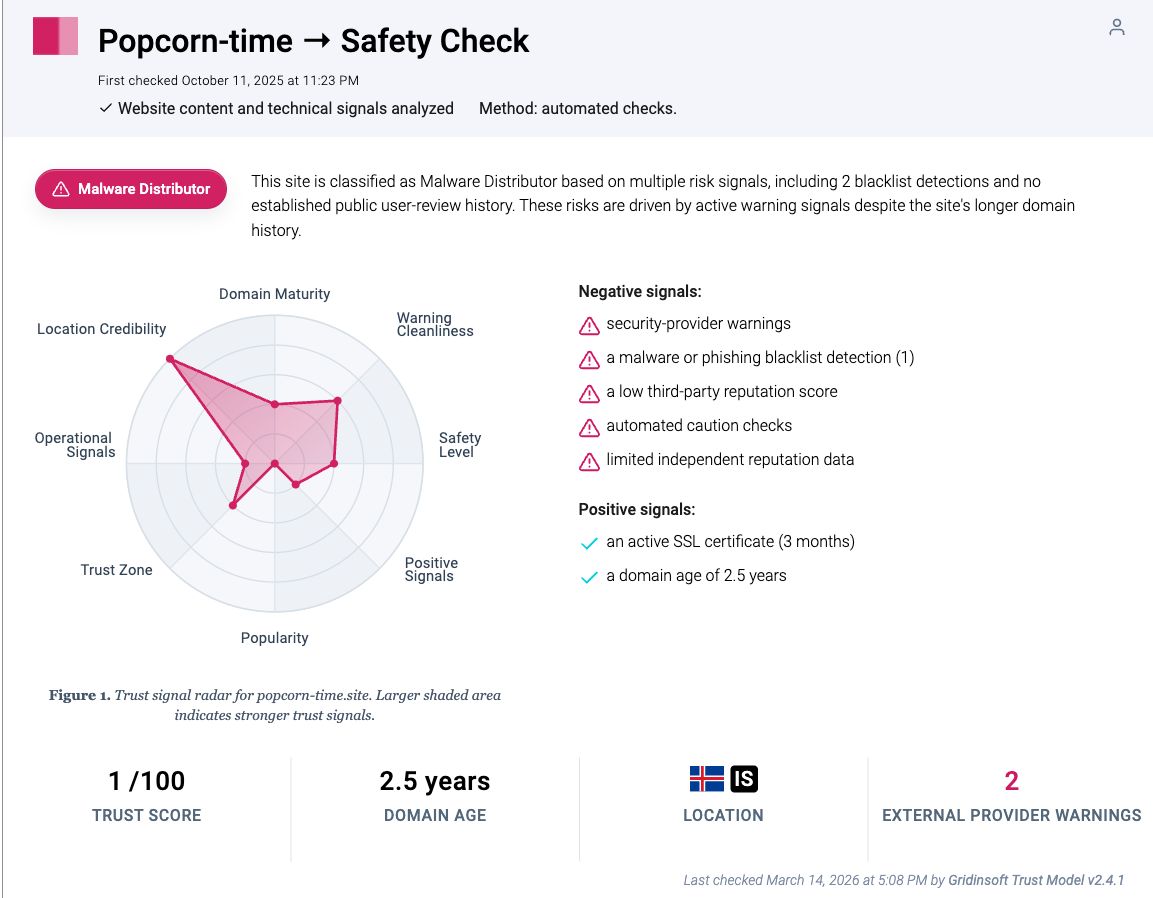
The boundary matters: this result applies to popcorn-time.site at that check time. It does not prove that every Popcorn Time-named domain, repository, fork, or file is malicious. The reverse is also true—a clean result for another host would not authenticate an installer served later, a third-party redirect, or code downloaded from elsewhere. Check the exact URL and file you encountered.
Choose the Response That Matches What Happened
| What happened | Risk and next action |
|---|---|
| You only viewed a website | Close unexpected tabs, review the browser Downloads list and site permissions, and remove any notification permission you did not intend to grant. |
| You downloaded a file but did not open it | Keep it closed. Check its source, signature, and hash; delete it if provenance is unclear. Use the unopened suspicious download checklist. |
| You launched or installed it | Uninstall unexpected software, inspect startup and scheduled activity, run a full security scan, reboot, and scan again if symptoms return. |
| You used it to stream | Treat P2P exposure separately from malware. Review the build itself, then consider what peers, the network, and the content source could observe. |
| You were signed in or entered credentials | Clean the device first. Then use a trusted device to change exposed passwords, revoke sessions, check recovery settings, and enable multi-factor authentication. |
P2P Risk Is Not the Same as Malware Risk
Popcorn Time-style clients use BitTorrent to retrieve media pieces from peers and can upload pieces to other peers. That means participants in the same swarm can ordinarily observe the network addresses with which they exchange data. It also means the content and legal questions depend on what is shared and the reader’s jurisdiction; the torrenting safety and legality guide explains those separate issues without treating all BitTorrent use as one case.
A VPN can change the network address visible to peers, but it cannot make a malicious installer benign, verify a publisher, remove bundled software, or guarantee that an activity is legal. Conversely, an authentic and malware-free client can still create P2P privacy or copyright exposure. Keep the code-safety and network/content decisions separate.
How to Verify an Installer Before Running It
Start with provenance. Avoid ads, mirror lists, shortened links, unsolicited messages, “required codec” prompts, and pages that ask you to disable SmartScreen or antivirus. A download page should connect clearly to a maintained project and an identifiable release. Even then, verify the file rather than assuming the page controls everything delivered through its hosting chain.
On Windows, inspect the Authenticode signature in PowerShell:
Get-AuthenticodeSignature -LiteralPath "$env:USERPROFILE\Downloads\Popcorn-Time.exe" | Format-List Status, StatusMessage, SignerCertificate
A valid signature helps show that the file has not changed since the named signer signed it. It does not prove that the program is desirable or risk-free. An unsigned file is not automatically malware, but it removes a useful identity and integrity check. An invalid, unexpected, or mismatched signer is a stronger stop signal. The EXE safety checklist covers the other static and behavioral checks.
You can also calculate a SHA-256 hash:
Get-FileHash -LiteralPath "$env:USERPROFILE\Downloads\Popcorn-Time.exe" -Algorithm SHA256
A hash is useful only when compared with a digest published through a trusted, independent project channel. Matching a hash copied from the same suspicious download page proves little because an attacker can replace both. A hash lookup with no authoritative comparison may reveal prior detections, but absence of a result is not a clean bill of health.
What If Antivirus Blocks the File?
Do not disable protection simply because a forum post calls the alert a false positive. Record the detection name, file path, signer, hash, and source URL. Check whether the alert describes a potentially unwanted application, suspicious behavior, credential theft, or a confirmed malware family. Those categories carry different meanings, but each deserves investigation before execution.
If the source was an advertisement, clone, redirect, or surprise download, discard the file. If you believe a reputable project produced it, compare the signature and hash with information from an independent trusted channel and submit the exact file to the security vendor for review. Do not use repeated renaming, exclusions, or disabled defenses as a way to force it to run.
If You Downloaded It but Did Not Open It
Keep the file closed and cancel any browser prompt asking to run it. Note the source URL, filename, size, and download time; those details help distinguish the file from other copies. Scan the file, inspect its signature, and delete it from Downloads and the recycle bin if its provenance cannot be established. Also review the browser for notification permissions or extensions added around the same time.
Downloading a file is generally a lower-risk state than executing it, but do not double-click it merely to see whether it works. A clean-looking interface after launch would not undo the execution or reveal every background action.
If You Ran or Installed It
Stop sensitive activity on the device while you investigate. Uninstall the unexpected app from Windows Settings, then inspect Startup apps, Task Scheduler, services, browser extensions, notification permissions, and recently installed programs. Deleting the original installer is not enough after execution because a setup program can place files elsewhere or create persistence.
- Launch Chrome.
- Click the three dots (...) in the top right corner.
- Select Extensions > Manage Extensions.
- Click Remove next to the extension you want to delete.
Quick Access: Type chrome://extensions/ in the address bar.
- Open Safari.
- In the menu bar, click Safari and select Settings (or Preferences).
- Click on the Extensions tab.
- Select the extension and click Uninstall.
- Click the menu button, select Add-ons and themes.
- Go to the Extensions tab.
- Click the three dots (...) next to the extension and select Remove.
Quick Access: Type about:addons in the address bar.
- Launch Microsoft Edge.
- Click the three dots (...) in the top right corner.
- Select Extensions.
- Find the extension and click Remove.
Quick Access: Type edge://extensions/ in the address bar.
- Launch Brave browser.
- Click the menu icon > Extensions.
- Find the extension and click Remove.
Quick Access: Type brave://extensions/ in the address bar.
- Launch Opera.
- Click the Opera logo in the top left corner.
- Select Extensions > Extensions.
- Click the X or Remove button next to the extension.
Quick Access: Type opera://extensions/ in the address bar.
Open Extensions/Add-ons again and remove any entry linked to popcorn-time or clearly out of place.
If you see popcorn-time or other suspicious applications that you don't remember installing, you should remove them as well.
- Right-click the Start button and select Installed Apps (or Apps & Features).
- Scroll through the list to find popcorn-time or any other unfamiliar program.
- Click the three dots (...) next to it and select Uninstall.
- Open Finder and go to the Applications folder.
- Locate popcorn-time or any app you don't recognize.
- Drag it to the Trash.
- Empty the trash to remove it permanently.
- Go to Settings > Apps > See all apps.
- Find popcorn-time or any suspicious app in the list.
- Tap on it and select Uninstall.
Run a full Gridinsoft Anti-Malware scan, remove confirmed detections, reboot, and scan again if the app, redirects, or alerts return. The Windows post-malware security audit covers startup, scheduled-task, service, browser, and account checks in more depth.
If the page or email made you download an invoice, coupon, tracking app, browser extension, or support tool, scan the PC before opening it again or logging into sensitive accounts.
Scan after a suspicious Popcorn Time installerIf a suspicious program ran while you were signed in, assume browser sessions or stored credentials may have been exposed even after the file is removed. From a clean device, change important passwords, revoke active sessions, review email forwarding and recovery details, and enable multi-factor authentication. Preserve the source URL, hash, alerts, and timestamps if a workplace or financial account was involved.
How to Reduce the Risk Next Time
- Do not use rotating mirror lists or search ads as proof of an official source.
- Verify the exact project, release, signer, and hash before execution.
- Keep SmartScreen, antivirus, the browser, and Windows updated.
- Reject demands to install a codec, extension, update, or certificate to make a stream work.
- Treat P2P privacy and content legality as separate from malware detection.
- Use the torrent-index safety guide to recognize fake buttons, bundled installers, and archive lures around peer-to-peer downloads.
FAQ
Is Popcorn Time itself a virus?
Popcorn Time is a name used by apps, forks, sites, and files, not one malware verdict. A particular installer can be malicious or bundled, while a different build may not be. Verify the exact source, signature, hash, and behavior.
Does a VPN make Popcorn Time safe?
No. A VPN can change network routing and the address peers see, but it cannot authenticate an installer, neutralize malicious code, remove bundled software, or guarantee that the content or activity is legal.
Is an unsigned Popcorn Time installer always malware?
No, but an unsigned file lacks a useful publisher and integrity signal. That increases the burden on source provenance, reproducible release information, hash comparison, scanning, and behavior checks. Do not bypass a warning just because unsigned software can sometimes be legitimate.
What should I do if antivirus blocks it?
Leave the block in place. Record the detection, signer, hash, and source, then investigate through independent trusted channels. Delete a surprise, advertising, clone-site, or redirect download; do not create an exclusion merely to make it run.
Is “Popcorn Time ransomware” the same as the streaming app?
No. Search results also refer to a separate historical ransomware family that used the Popcorn Time name. That name collision does not mean every streaming client is that ransomware, and it does not make an unverified client safe. Identify the exact file and detection rather than reasoning from the shared label.
References
- Cohen, Bram. “The BitTorrent Protocol Specification.” BitTorrent.org, accessed August 19, 2026. BitTorrent protocol specification.
- Microsoft. “Get-AuthenticodeSignature.” Microsoft Learn, accessed August 19, 2026. Authenticode signature documentation.
- Google. “Remove unwanted ads, pop-ups and malware.” Chrome Help, accessed August 19, 2026. Chrome unwanted-software cleanup guidance.