A page promising a quick setup for a “macOS toolkit” instead installed AMOS, a data-stealing malware family, when Unit 42 researchers followed its instructions. The revealing part came after the pasted Terminal command: the Mac asked for a password, then presented requests to reach files and control other applications. The installer’s story made those interruptions look like steps toward finishing a useful setup.
Unit 42 published the analysis on September 16, 2026, from an infection it generated in a laboratory on August 5. It is a documented example of the workflow, not evidence that the listed infrastructure is still active or that a new mass attack began today. [1]
The setup instruction was the delivery mechanism
The lure at getmacouscloud[.]com told the researchers to copy text into Terminal. That text downloaded a Zsh shell script, which unpacked an encoded, compressed second script. The next stage retrieved a native Mac executable saved as /tmp/helper. A visitor expecting a toolkit had started a chain of programs chosen by the page operator.
The report distinguishes this from the narrower ClickFix pattern: there was no fake CAPTCHA demanding a verification command. The pretext was installation. For the person at the keyboard, however, the trust decision was similar—turning instructions from a website into commands with local access. A legitimate Terminal window does not establish that the command running inside it is legitimate.
Terminal asked for access to the reader’s files
In the test, the infection proceeded after the researchers entered the administrative user’s password. Terminal then requested control of Finder, access to Desktop and Documents, and control of Notes. Those are the locations and applications where ordinary working files and personal information can live.
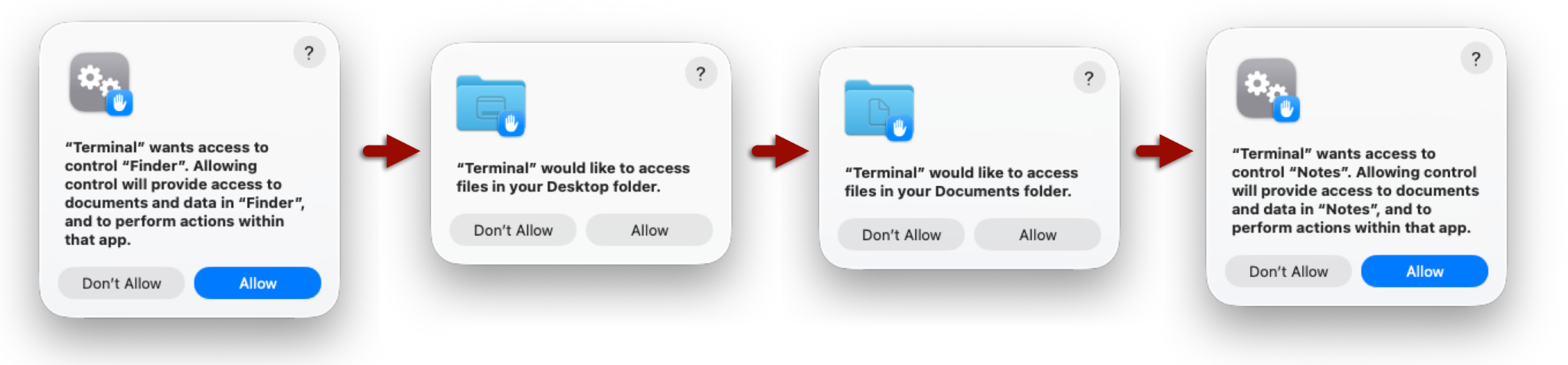
Notice the application name in the prompts: Terminal. The dialogs do not introduce an app called “AMOS” and ask whether it may steal anything. They present permissions for the program already carrying out the setup. That makes the purpose of the command—not just the familiar name on the dialog—the crucial thing to understand before allowing access.
Apple documents controls for this access under System Settings → Privacy & Security → Files & Folders; its Automation settings govern control of other apps. [2] [3] Reviewing permissions can identify access you no longer want. Turning a permission off does not remove a payload that has already run or recover copied data.
Apple-like filenames concealed the next stages
Unit 42 found executable components in hidden-looking directories beneath the user’s Library/Application Support, including .com.apple.accountsd and .com.apple.metadata.mds. Names such as AccountsHelper and mdworker_shared made the files resemble system housekeeping. The precise path and surrounding activity matter; a familiar-looking name alone is no reason to trust—or delete—a file.
The malware staged collected information in an archive called out.zip. Its directory structure referenced wallets, Telegram data, cloud-tool configuration and shell history. This was a clean laboratory Mac without additional applications, so the archive structure shows what the stealer looked for; it does not prove every named application supplied real credentials.
The researchers also observed outbound POST requests with stages corresponding to credentials, browsers, wallets and local data. Comparing a nearby July test showed that infrastructure changed quickly. Unit 42 explicitly cautions that the published indicators are a historical snapshot. Failing to find one listed address or filename is therefore a weak basis for declaring a Mac unaffected.
A separate September 22 investigation, Macfinger, follows a different route: compromised websites display fake browser verification before asking Mac users to run a command. It illustrates why a visit or checkbox click must be distinguished from actual execution.
The useful warning comes before the last permission
A toolkit that suddenly needs personal folders or control of Notes deserves a pause. Verify the installation instructions through the software publisher’s own site before running them. If an untrusted command has already executed, stop following the page, disconnect the affected Mac while investigating, and secure exposed accounts from another trusted device. On a work Mac, preserve the command and timing for the security team rather than deleting files by name.
The broader consequence is account access: as our coverage of stolen Claude sessions explains, removing an infostealer does not by itself invalidate a copied session. This case’s most useful clue is the mismatch between the promised toolkit and the personal access it requests.
References
- Bradley Duncan. “Atomic macOS (AMOS) Stealer Activity.” Unit 42, September 16, 2026. Research report.
- Apple. “Control access to files and folders on Mac.” Apple Support, accessed September 16, 2026. Files and folders controls.
- Apple. “Change Privacy & Security settings on Mac.” Apple Support, accessed September 16, 2026. Automation and privacy settings.