
A Cyberpunk 2077 setup.exe warning is not enough to declare the installer safe—or to prove that the game itself is infected. If Microsoft Defender reports Trojan:Win32/Yomal!rfn, keep the file quarantined while you check which installer it detected. If you already ran it, use Gridinsoft Anti-Malware to scan the whole PC: checking the download alone does not check everything that may have been installed.
An installer can leave components outside the game folder. If it carried malware, quarantining setup.exe afterward may leave a loader, unwanted app, or startup task behind. Gridinsoft Anti-Malware helps find and clean detected threats across Windows, so you do not have to guess which files or tasks to delete.
Why “it’s a FitGirl false positive” is not a file verdict
A recent Cyberpunk 2077 discussion illustrates the problem: a user reported a Yomal alert and said they had used a magnet link with qBittorrent. Replies called it safe, but that reassurance did not establish what the detected file contained. We have not analyzed that user’s executable and cannot confirm either malware or a false positive in it.
The useful distinction is between the source someone remembers visiting and the exact bytes Windows detected. Two downloads can both be named setup.exe and display “Cyberpunk 2077 Setup,” yet contain different programs. An installer description is supplied by whoever built the file. It is not certification from CD PROJEKT RED.
Likewise, a torrent recheck or a repack’s checksum check can show that files match the package’s expected contents. It does not independently establish that the package is safe. For the broader source and mirror question, see our FitGirl repack safety guide.
Start with the affected file and whether it ran
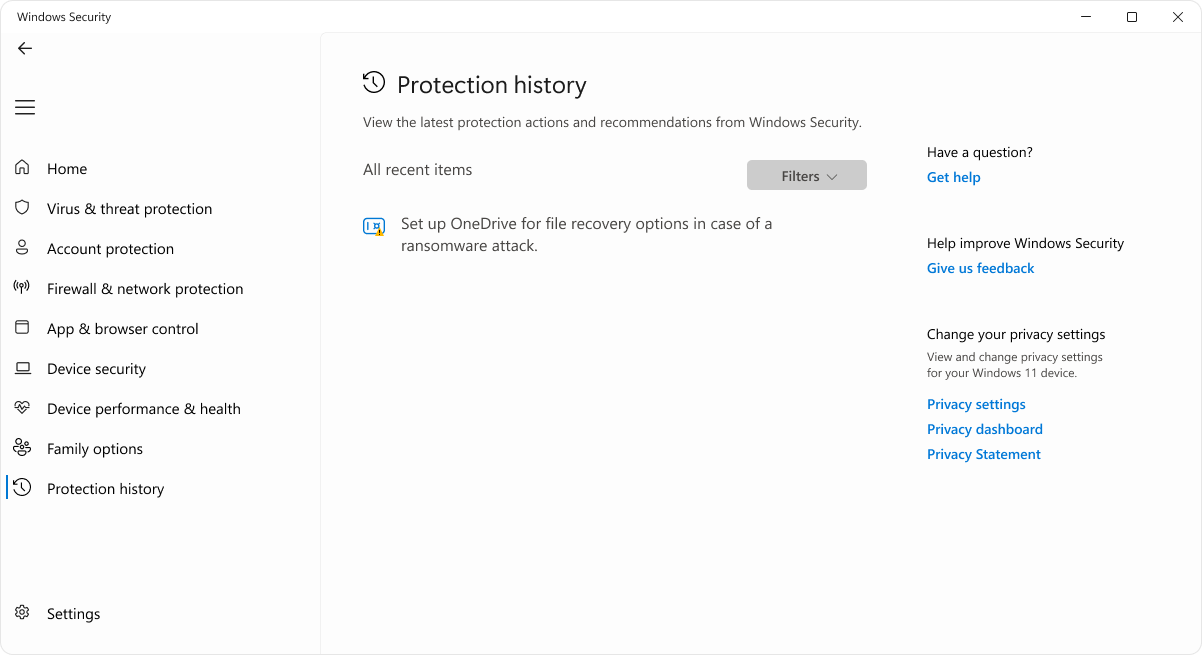
Open Windows Security → Protection history, expand the relevant event, and record the detection, affected path, time, and action. A quarantined item has been blocked and isolated; “Remediation incomplete” means cleanup did not finish. If you cannot establish that a file is safe, leave it quarantined. [1]
- Setup was blocked before you opened it: keep it quarantined. Review its source and exact identity; do not restore it just to finish installing.
- You opened setup, then saw the alert: stop using the installer and run the full-system cleanup below. A later quarantine does not tell you what happened before detection.
- You cannot remember, or alerts return: treat execution as possible and scan Windows. Keep the alert details to compare after cleanup.
Trojan:Win32/Yomal!rfn is the detection label, not a unique fingerprint of one Cyberpunk installer. Do not infer a specific payload or stolen data from that name alone. Our Yomal detection guide covers the broader alert. A “Windows protected your PC” screen is a different decision; see the SmartScreen warning explanation.
If setup.exe ran, scan beyond the installer
Use Gridinsoft Anti-Malware as the main cleanup path. It checks the system for detected malware and unwanted components rather than limiting the investigation to the Cyberpunk download folder.
- Stop the installer and do not reopen it. If you see ongoing suspicious activity or repeated alerts, disconnect the affected PC from the network. Use a clean device to obtain the scanner if necessary, reconnecting only as needed for installation and updates.
- Download and install Gridinsoft Anti-Malware using the button above, then update its threat database.
- Run a Full Scan. Review the detections and their paths, then apply the cleanup actions for identified threats. Keep uncertain files quarantined while they are reviewed.
- Restart Windows and check the original symptom. If alerts or unwanted processes return, scan again and get help with the findings. Manual task, service, and browser checks are targeted follow-up, not a required hunt before scanning.
If you disabled protection or allowed the installer, re-enable protection and undo the allowance or exclusion. If normal scanning cannot run, Microsoft Defender Offline can provide a recovery fallback; return to an updated system scan once access is restored.
A scan cannot revoke stolen sessions or recover exposed passwords. If a stealer is detected, unfamiliar logins appear, or the installer shows convincing signs of compromise, secure important accounts from a clean device alongside cleanup. Follow our game-download account recovery guide. Downloading a file that never ran is a different exposure from executing it.
How to compare your setup.exe with a scan report
If the file is still accessible, you can calculate its SHA-256 without running it. In PowerShell, use the following example, replacing the path with the actual location of your installer. The command reads the file to calculate a fingerprint; it does not launch it. Do not restore a quarantined file just to obtain this value. [2]
Get-FileHash -LiteralPath `
  "C:\Downloads\setup.exe" `
  -Algorithm SHA256
Compare the entire SHA-256 with the report you are reading. A different hash means the report describes different file contents. A matching hash ties the report to that file, but the report still needs interpretation: look at the analysis date, detection names, and any documented behavior. Neither “only one engine flagged it” nor “someone else’s installation worked” is a reliable clearance rule.
Example: your installer and a friend’s installer have the same filename and description but different SHA-256 values. Your friend’s clean report cannot clear yours. If both hashes match, you have resolved the identity question—not automatically the safety question. Similarly, a report about the installer does not assess every separate archive, updater, or component it might use.
For a suspected Defender false positive, Microsoft accepts submissions of incorrectly detected files. Include the exact detection and source details, and wait for a determination that applies to the same file. Do not use a protection exclusion as a substitute for review. [3]
Missing setup.exe is different from a broken official game
If setup.exe disappeared, check Protection history before downloading a replacement. Do not fetch a loose executable from a comment, video description, or “missing setup” website. You would be introducing another program whose relationship to your download is unknown.
If you own Cyberpunk 2077 through an official store and the installed game fails to launch, use that store’s repair workflow. CD PROJEKT RED documents Steam’s Properties → Installed Files → Verify integrity, GOG GALAXY’s Manage installation → Verify/Repair, and Epic’s Manage → Verify. [4] These repair game files; they do not validate an unrelated repack installer or clean Windows after it ran.
The decision is practical: keep an uncertain installer blocked, identify the exact file before accepting a false-positive claim, and scan the system if it executed. A clean scan is useful evidence about what was detected; it does not certify an unofficial download or prove that no earlier compromise occurred.
References
- Microsoft Support. “Protection History in the Windows Security App.” Microsoft, accessed November 4, 2026. Protection History documentation.
- Microsoft Learn. “Get-FileHash.” Microsoft, accessed November 4, 2026. PowerShell file-hash reference.
- Microsoft Security Intelligence. “Submit a file for malware analysis.” Microsoft, accessed November 4, 2026. File analysis submission.
- CD PROJEKT RED. “Verify integrity of game files.” Cyberpunk 2077 Technical Support, accessed November 4, 2026. Store verification instructions.