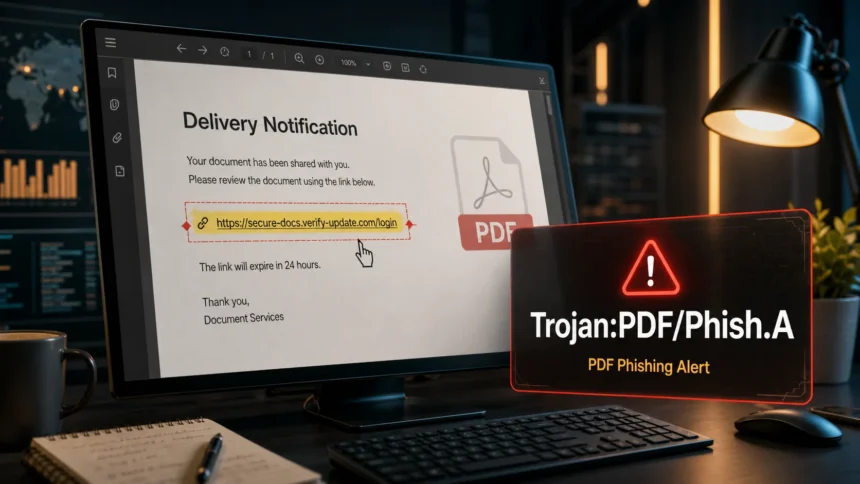
Trojan:PDF/Phish.A is a Microsoft Defender detection for a PDF that contains a phishing or malicious link. The PDF is usually the lure, not the final payload: it tries to make you click a link, sign in on a fake page, or download another file. If Defender quarantined the PDF, do not restore it just to check the link. Delete or quarantine the file, remove the original message or attachment source, and run a full scan if you clicked the link, opened a downloaded file, or the alert keeps coming back.
What is Trojan:PDF/Phish.A?
Trojan:PDF/Phish.A is a Microsoft Defender name for a suspicious PDF file. In this family, the document commonly contains a hyperlink to a phishing page, a fake sign-in portal, or a page that starts another download. Microsoft describes the broader Trojan:PDF/Phish family as PDF files with malformed hyperlinks to phishing or malicious sites, often arriving as spam email attachments.
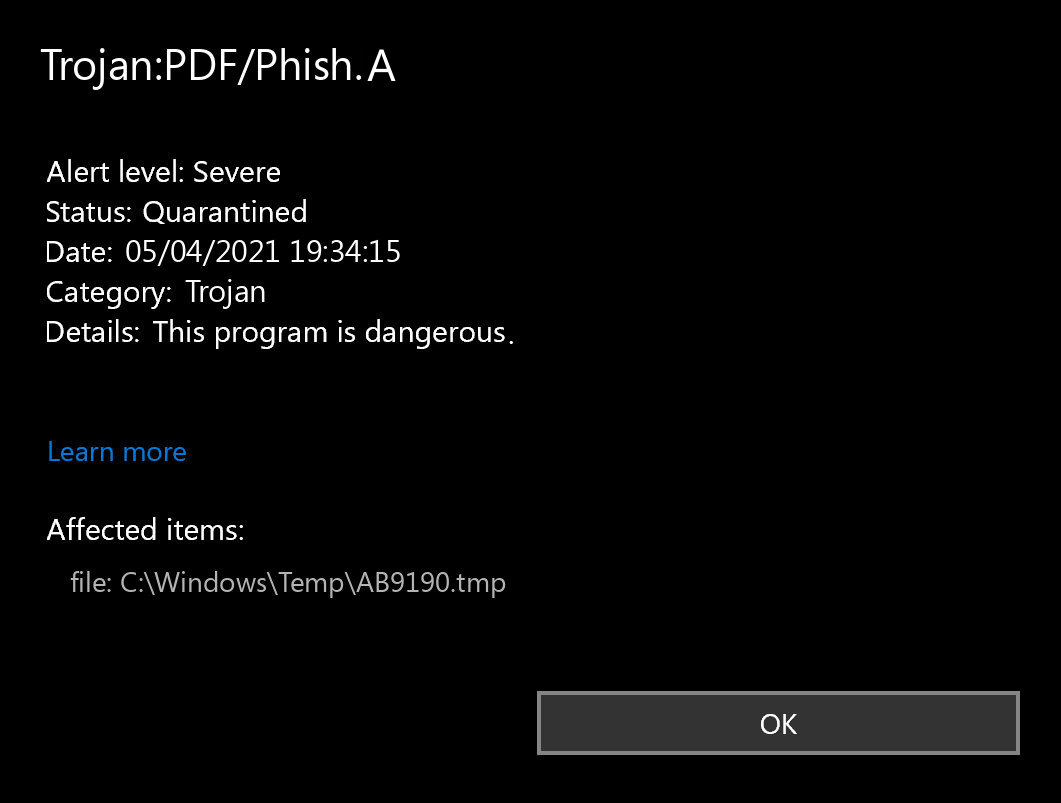
A PDF detection does not always mean a full Windows infection has already happened. The risk depends on what you did with the file. Saving the PDF is different from clicking the link inside it, entering a password, allowing a download, or running a file that the link delivered.
What to do first
Use the detection as a decision point. Your next action should match the exposure, not just the detection name.
| Situation | Risk and safe action |
|---|---|
| Defender found the PDF before you opened it | Keep it quarantined or delete it. Remove the original email attachment or downloaded copy so it is not restored later. |
| You opened the PDF but did not click any link | Close the PDF, delete it, and scan the file location. Watch for a repeat alert from Downloads, email cache, OneDrive, or a browser cache. |
| You clicked the link but did not enter data | Close the page, clear the download if one started, and scan Windows for dropped files or browser changes. |
| You entered a password, MFA code, card data, or document portal login | Change that password from a clean tab or device, revoke active sessions where possible, enable MFA, and check the account for forwarding rules or unfamiliar activity. |
| The alert returns after removal | Look for the original email or cloud-synced attachment being downloaded again, then run a full scan for leftovers and persistence. |
How Trojan:PDF/Phish.A usually reaches Windows
Most users see this detection after an email attachment, fake invoice, delivery notice, shared document, resume, scan, or business document is saved locally. The PDF may look routine and use a simple message such as “review document,” “download secure copy,” or “open invoice.” The dangerous part is the link or embedded action that sends the reader outside the PDF.
This is why the detection often overlaps with phishing email red flags and malicious PDF safety checks. A PDF can be a carrier for a link, a script, a fake login page, or a second-stage download. The right response is to treat the file, the link, and the account exposure separately.
Is Trojan:PDF/Phish.A a false positive?
It can be a false positive, but do not allow or restore the PDF until you have checked why it was flagged. A legitimate PDF may be detected if it contains a compromised link, a shortened URL, a user-generated-content host, a suspicious redirect, or an old link that now points somewhere risky. The opposite is also possible: a real phishing PDF may look clean because it contains only a link and persuasive text.
If the PDF came from a trusted workflow, verify it through a separate channel. Ask the sender to confirm the document name and delivery method, not the link inside the message. You can also check the destination domain with the Gridinsoft Website Reputation Checker before opening it. If you believe Microsoft Defender is wrong, submit the exact file to Microsoft for analysis instead of creating a permanent allow rule.
How to remove Trojan:PDF/Phish.A
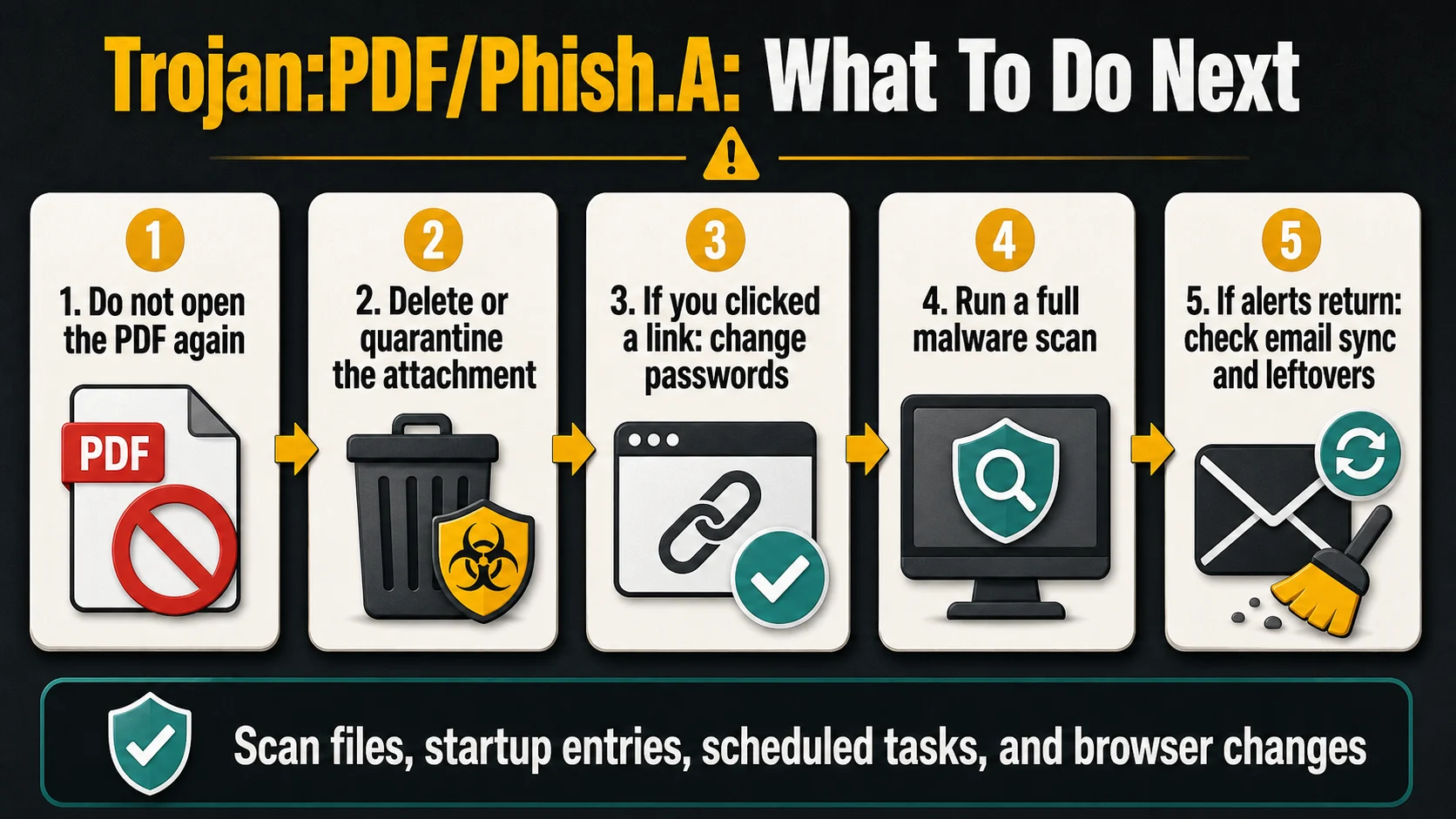
Start with the PDF and then check whether anything else was downloaded or changed. This keeps the cleanup realistic: a PDF phishing lure can be harmless if never used, but it can lead to stolen credentials or a malware download if the link was followed.
- Keep the Defender action in place. Choose Remove or Quarantine. Do not restore the file just to inspect the link.
- Delete the original source. Remove the email attachment, message, downloaded file, cloud copy, or archive that keeps recreating the same PDF.
- Check common re-download locations. Look in Downloads, Desktop, email client attachments, OneDrive or other sync folders, browser cache, and any ZIP/RAR archive that contained the PDF.
- If you clicked the link, secure the account first. Change the affected password, sign out of other sessions, check recovery email and phone settings, and review inbox forwarding rules if it was a mail account.
- Run a full malware scan. Use Gridinsoft Anti-Malware to check the system for downloaded payloads, hidden files, startup entries, scheduled tasks, bundled apps, browser changes, and persistence that Defender may not connect to the original PDF.
- Reboot and scan again if the alert returns. A repeat detection often means the attachment is being synced back from email/cloud storage or a second file is still present.
If the PDF link downloaded an installer, archive, script, or “secure document viewer,” scan before opening anything else. A phishing document can hand off to stealers, remote-access tools, or adware, and the visible PDF may only be the first step.
If the page or email made you download an invoice, coupon, tracking app, browser extension, or support tool, scan the PC before opening it again or logging into sensitive accounts.
Scan after a suspicious PDFWhy the alert keeps coming back
Recurring Trojan:PDF/Phish.A alerts are often caused by the same file being restored, not by an indestructible infection. Check these sources before assuming the cleanup failed:
- an Outlook, Mail, Thunderbird, or webmail attachment cache;
- a message still present in Inbox, Junk, Archive, or Deleted Items;
- OneDrive, Google Drive, Dropbox, or another sync folder;
- a ZIP/RAR/ISO archive that Defender scans again;
- browser cache or a repeated download from the same phishing page;
- a second-stage file that was downloaded after the PDF link was clicked.
If you remove the PDF locally but leave the original message in a synced mailbox, Windows may download the attachment again during a later scan. Delete the original message or attachment from the server-side mailbox, then empty Deleted Items and run another full scan.
How to prevent PDF phishing alerts
- Do not click document links inside unexpected PDFs. Visit the real service directly from your bookmarks or typed address.
- Be suspicious of urgent invoices, delivery notices, payroll files, tax forms, scanned documents, and “shared secure document” messages.
- Check the sender domain and the link destination before opening the attachment. A familiar display name is not enough.
- Keep Windows, browsers, PDF readers, and Microsoft Defender definitions updated.
- Use separate passwords and MFA so one fake PDF login page cannot unlock several accounts.
- For suspicious files, use a dedicated scanner instead of opening the document to “see what happens.”
FAQ
Is Trojan:PDF/Phish.A always a virus?
No. It is a Defender detection for a suspicious PDF, usually because the PDF contains a phishing or malicious link. The file is dangerous enough to remove, but the severity depends on whether you clicked the link, entered data, or ran a downloaded file.
Can a PDF infect my PC if I only saved it?
Usually the bigger risk starts when you open the PDF, click its link, or run a file it downloads. Still, keep the detection quarantined and scan the file location, because some PDFs can contain scripts or exploit content.
Should I change passwords after Trojan:PDF/Phish.A?
Change passwords if you clicked the link and entered a login, MFA code, card number, or recovery information. Change the password from a clean browser tab or another device, then review active sessions and account recovery settings.
Why does Defender detect Trojan:PDF/Phish.A again after I removed it?
The original email, cloud sync folder, archive, or browser cache may be restoring the same PDF. Delete the source copy, empty Deleted Items or Trash where relevant, and scan again.
Can I restore the PDF if I think it is a false positive?
Only restore it after verifying the sender and link destination through a separate channel. If the file is important, submit it to Microsoft for analysis and scan it with another trusted tool before allowing it.
References
- Microsoft Security Intelligence. “Trojan:PDF/Phish threat description.” Microsoft, accessed June 20, 2026. https://www.microsoft.com/en-us/wdsi/threats/malware-encyclopedia-description?Name=Trojan%3APDF%2FPhish
- Microsoft Security Intelligence. “Submit a file for malware analysis.” Microsoft, accessed June 20, 2026. https://www.microsoft.com/en-us/wdsi/filesubmission