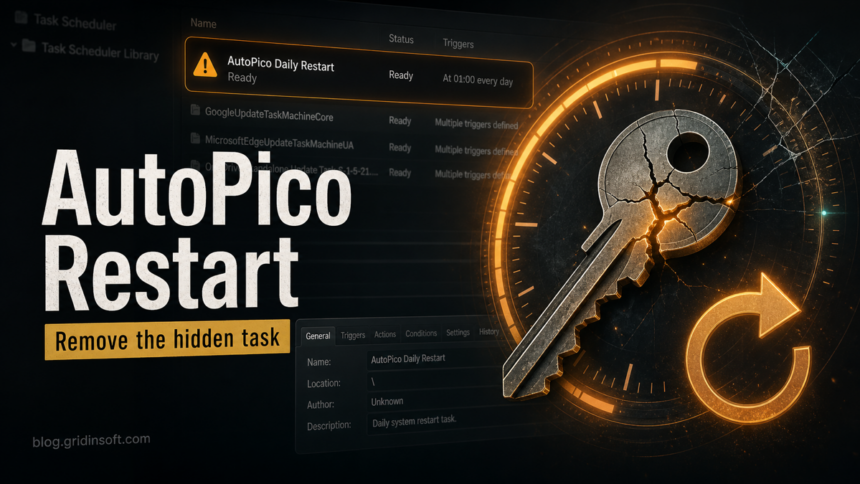
AutoPico Daily Restart is a scheduled task normally tied to KMSpico or AutoPico activation tools, not to Windows itself. If you see it in Task Scheduler, Autoruns, a security-tool log, or a crash/restart investigation, treat it as a KMS activator persistence item: remove the activator, delete the scheduled task, check the related service and firewall rules, then scan the PC for bundled malware or leftover startup entries. Do not install another KMS tool to “fix” activation.
What Is AutoPico Daily Restart?
AutoPico Daily Restart is a Windows Task Scheduler entry used by some KMSpico/AutoPico packages to relaunch the activator on a schedule. Public malware-removal logs and sandbox reports commonly associate it with paths such as:
C:\Windows\System32\Tasks\AutoPico Daily RestartC:\Program Files\KMSpico\AutoPico.exeC:\Program Files\KMSpico\Service_KMS.exeHKLM\SYSTEM\CurrentControlSet\Services\Service KMSELDI
The task is usually part of an unofficial KMS activator flow. Microsoft’s legitimate Key Management Services model is for volume activation on an organization’s network, where clients contact a real KMS host. AutoPico-style tools try to imitate that activation environment locally, which is why security products often classify them as hacktools, potentially unwanted apps, or bundled-malware risk rather than normal Windows components.
Why It May Appear During Restart or Blue-Screen Troubleshooting
People often notice AutoPico Daily Restart after a PC reboots unexpectedly, after a blue screen, or after a helper asks for Task Scheduler, Autoruns, or Speccy/MiniToolBox output. That does not prove AutoPico caused the crash. It means the system inventory exposed a persistent activator task that should not be ignored.
A public Microsoft Learn Q&A case shows the same cleanup context: the inventory included Service KMSELDI, C:\WINDOWS\System32\Tasks\AutoPico Daily Restart, KMSpico uninstall traces, and related AutoPico files. Use the same cautious approach: remove the risky activator artifacts, but still check Event Viewer, Reliability Monitor, drivers, hardware, and Windows Update history if the PC is crashing.
Quick Risk Check
| What you see | What it usually means |
|---|---|
AutoPico Daily Restart in Task Scheduler |
A scheduled relaunch task for AutoPico/KMSpico. It is not a normal Windows maintenance task. |
AutoPico.exe /silent under C:\Program Files\KMSpico |
The activator is configured to run quietly, often with elevated or SYSTEM context. |
Service KMSELDI or Service_KMS.exe |
A KMS emulator/service component associated with KMSpico-style activation tools. |
| Security tool finds AutoKMS, but another tool does not | Hacktool and PUA policies differ. Do not treat “not detected by one scanner” as safe. |
| Restart, BSOD, or network issues plus this task | Investigate the crash separately, but remove the activator persistence because it increases cleanup uncertainty. |
How to Remove AutoPico Daily Restart Safely
Use this order so you remove the visible task and the supporting components without damaging normal Windows services. If this is a work or school computer, stop and ask the device owner or IT admin before changing activation or services.
- Create a restore point and back up important files. This does not make a KMS activator safe, but it gives you a recovery point before service and task cleanup.
- Uninstall KMSpico, AutoPico, or any activation tool from Settings. Open Settings → Apps → Installed apps and remove entries that clearly belong to KMSpico, AutoPico, KMS activators, Office activators, or unknown “activation” packages.
- Open Task Scheduler as administrator. Press Win + R, type
taskschd.msc, and check Task Scheduler Library. IfAutoPico Daily Restartpoints toAutoPico.exe, disable it first, then delete it. - Check the task from an elevated command prompt. This confirms whether the task is still registered:
schtasks /Query /TN "AutoPico Daily Restart" /V /FO LISTIf you already confirmed the task belongs to AutoPico/KMSpico, remove it:
schtasks /Delete /TN "AutoPico Daily Restart" /F - Check the related service. Open
services.mscand look forService KMSELDI,Service_KMS, or a service pointing intoC:\Program Files\KMSpico. If the activator has been uninstalled but the service remains, remove it only after confirming the path:sc query "Service KMSELDI" sc delete "Service KMSELDI" - Remove leftover folders only after tasks and services are stopped. Check
C:\Program Files\KMSpico,C:\ProgramData\Microsoft\Windows\Start Menu\Programs\KMSpico, and any obvious activator folders. Do not delete random Windows folders just because they contain “kms” in a filename. - Review firewall rules and security exclusions. In Windows Defender Firewall, remove allow rules that point to
AutoPico.exe,Service_KMS.exe,KMSELDI.exe, or old KMSpico folders. In Windows Security, review protection history and exclusions for suspicious activator paths. - Restart and verify that the task does not return. Reopen Task Scheduler and Autoruns after reboot. If AutoPico Daily Restart comes back, another startup entry, service, installer, or bundled component is recreating it.
Scan for Bundled Malware and Persistence
KMS activators are high-risk because users often get them from cracks, repacks, torrents, or fake download pages. The activator itself may be detected as a hacktool, and the same bundle can also add loaders, miners, adware, browser changes, firewall rules, or Defender exclusions. A manual task deletion does not prove the whole system is clean.
After removing the visible task and service, run a full Gridinsoft Anti-Malware scan and remove detections before you trust the PC again. This is especially important if AutoPico returned after reboot, ran from a nonstandard folder, appeared with unknown startup entries, or arrived with other cracked software.
Check Windows Activation Legitimately
After removing AutoPico, Windows or Office activation may change. Do not solve that by downloading another activator. Use official activation paths: a genuine retail license, a Microsoft account-linked digital license, a valid organization volume-license setup, or your workplace/school IT team.
You can check the current Windows licensing channel from an elevated command prompt:
slmgr.vbs /dlvLook for whether the system is Retail, OEM, or Volume. If the machine should be a personal retail/OEM PC but shows unexpected volume/KMS activation details, that is another reason to remove the activator and restore a legitimate license.
If Restarts or Blue Screens Continue
AutoPico Daily Restart is worth removing, but it may not be the crash root cause. If the PC still restarts or blue-screens after cleanup, check:
- Reliability Monitor: search Start for Reliability History and look for hardware errors, driver crashes, and Windows failures around the reboot time.
- Event Viewer: check Windows Logs → System for Kernel-Power, bugcheck, disk, display driver, and update events.
- Drivers and BIOS: update chipset, storage, GPU, and BIOS/UEFI firmware from the PC or motherboard vendor, not from driver-bundle ads.
- Memory and storage: run Windows Memory Diagnostic and check SMART/health data for the system drive.
- Overclocking tools: temporarily remove or disable overclocking/tuning utilities while troubleshooting.
If the crash started after installing a cracked Office/Windows activator, game crack, repack, or fake updater, prioritize malware cleanup and account safety before spending time on normal performance tuning.
What Not to Do
- Do not whitelist
AutoPico.exe,Service_KMS.exe, orKMSELDI.exejust to keep activation working. - Do not download a “fixed” AutoPico build, KMS cleaner, or another activator from forums or video descriptions.
- Do not delete random Windows services or scheduled tasks without checking the file path and publisher.
- Do not assume a blue screen is solved only because the AutoPico task was removed.
- Do not keep using passwords entered on the PC if the activator came from a crack bundle and other malware signs appeared.
Related Gridinsoft Guides
If the alert or installed tool uses a broader KMS or hacktool name, these related guides can help you route the case correctly:
- KMSPico Virus Removal Guide
- HackTool:Win32/AutoKMS Removal: KMS Activator Risks
- HackTool:Win32/Crack: Safe or Malware?
- HackTool:Win32/Keygen
- Are Cracked Games Safe?
FAQ
Is AutoPico Daily Restart a Windows task?
No. It is not part of a clean Windows installation. It is usually tied to KMSpico/AutoPico activator persistence.
Does AutoPico Daily Restart cause blue screens?
Not necessarily. It can be discovered during blue-screen troubleshooting, but BSODs also come from drivers, hardware, firmware, disk issues, and Windows updates. Remove the activator task, then continue normal crash diagnosis if restarts continue.
Why did one antivirus detect AutoPico while another did not?
Security vendors classify hacktools and potentially unwanted apps differently. A KMS activator may be blocked by one product and ignored by another, but that does not make it trustworthy.
Can I just disable the task instead of deleting it?
Disabling is useful for a first test, but deletion is the better cleanup step once you confirm it points to AutoPico/KMSpico. Also remove the service, firewall rules, leftover files, and scan for bundled malware.
Will removing AutoPico break Windows activation?
It may reveal that Windows or Office was not legitimately activated. Use a genuine retail/OEM license, Microsoft account-linked digital license, or your organization’s official volume activation instead of installing another activator.
References
- Microsoft Learn Q&A. “Eu posso permitir este item? Qual o problema se o fizesse.” Microsoft Learn, accessed July 6, 2026. https://learn.microsoft.com/pt-br/answers/questions/2730285/eu-posso-permitir-este-item-qual-o-problema-se-o-f
- Microsoft Learn. “Key Management Services (KMS) activation planning.” Microsoft, accessed July 6, 2026. https://learn.microsoft.com/en-us/windows-server/get-started/kms-activation-planning
- MITRE ATT&CK. “Scheduled Task/Job: Scheduled Task (T1053.005).” MITRE, last modified May 12, 2026, accessed July 6, 2026. https://attack.mitre.org/techniques/T1053/005/
- Microsoft Learn. “Autoruns for Windows.” Microsoft Sysinternals, accessed July 6, 2026. https://learn.microsoft.com/en-us/sysinternals/downloads/autoruns