
Stock Windows 11 is the safer default, but the current official AtlasOS project is not automatically malware. Atlas is an open-source playbook that changes a Windows installation for performance, privacy, and usability. Its safety depends on the copy you use and the protections you keep. A current official playbook with Defender, updates, UAC, firewall, CPU mitigations, and Core Isolation reviewed is a different risk from an old Atlas release or a prebuilt ISO downloaded from a mirror.
For a daily PC, use AtlasOS only if you can audit those choices and are prepared to reinstall stock Windows if the result is unstable. Do not trade away protections for an unmeasured FPS promise, and never treat an unofficial “AtlasOS ISO” as equivalent to the project’s published playbook.
Is AtlasOS safe to use?
AtlasOS can be used with a defensible security baseline when it comes from the official project and its security options match your threat model. The current project supports Windows Defender, Windows Update, UAC, Core Isolation, and other Windows protections. Its own documentation says unmodified Windows remains the most trusted and secure Windows baseline.[1]
The verdict changes when any of these conditions apply:
- Legacy Atlas: Atlas versions from the older pre-v0.3 era removed or disabled protections that current versions support. Do not apply an old review’s defaults to a current installation, but do not keep an unsupported legacy install either.
- Unofficial prebuilt ISO: a finished “AtlasOS” image from a mirror has a separate and often unverifiable build chain.
- Aggressive choices: the current playbook can still let a user disable Defender, automatic updates, CPU mitigations, UAC, firewall, and Core Isolation. Configurable does not mean harmless.
- No recovery plan: Atlas makes deep system changes, and returning to stock Windows normally means reinstalling Windows rather than toggling one setting.
Open source improves transparency; it is not a universal safety certificate. The official playbook can be inspected, but the AME Wizard interface, the exact release, the options selected, and the Windows installation underneath it are all part of the trust decision.
AtlasOS is a playbook, not a downloadable custom Windows edition
AtlasOS is a set of modifications applied to Windows through AME Wizard. The project publishes its playbook and scripts, while the Windows installation media should come from Microsoft. Atlas also has an experimental ISO-injection workflow, but that still starts with official Windows media and the Atlas playbook rather than a mystery image from a file host.
This distinction is the first safety gate. An unofficial prebuilt ISO may contain the real Atlas changes, an outdated fork, an activator, bundled software, altered policies, or something unrelated. A familiar wallpaper, file name, or boot screen cannot prove how it was built. The same provenance boundary appears in our Tiny11 builder-versus-prebuilt-ISO safety guide.
- Start at
atlasos.netand confirm that repository links lead to theAtlas-OSorganization on GitHub. - Use a supported, stable Windows 11 build and obtain the Windows media from Microsoft.
- Download the Atlas playbook and AME Wizard only through the project’s current instructions.
- Read every installation choice. Do not use a preset name as a substitute for understanding the settings it changes.
- Stop if the package includes an activator, unrelated executables, password-protected bundles, or instructions copied from a mirror or video description.
A remote or automated setup is not automatically malicious, but a local release is easier to preserve, inspect, scan, and compare. If you prefer script-based customization on a running Windows installation, the Win11Debloat safety guide explains the same source-versus-configuration boundary.
Security settings that decide whether AtlasOS is safe
The current Atlas documentation exposes security choices instead of pretending that one configuration is right for everyone.[2] That freedom is also the central risk. Review these controls separately:
- Microsoft Defender and SmartScreen: keep active protection unless a trusted replacement is installed and verified. Atlas itself warns that disabling Defender increases infection risk and is not required when another trustworthy antivirus registers with Windows.
- Windows Update: security and servicing updates should remain available. “I can update manually” is not a plan unless you actually check, install, restart, and verify updates on a schedule.
- CPU mitigations: older processors can lose performance from some mitigations, but disabling them removes defenses against real vulnerability classes. Use the Windows default unless a measured problem and a specific workload justify a change.
- User Account Control: current Atlas enables UAC by default. Leave it enabled; turning it off lets applications run with administrative rights without the normal consent prompt.
- Windows Firewall: current Atlas keeps it enabled by default. Do not disable all profiles to fix one game, launcher, or port issue; create the narrowest required rule.
- Core Isolation and Memory Integrity: these virtualization-based protections isolate important Windows processes and help block vulnerable or malicious kernel code. Atlas offers a disable choice and argues that the performance cost can outweigh the benefit for some users. That is a trade-off, not a universal recommendation.
On a work, finance, development, shared, or account-heavy PC, the safer choice is to keep the Windows security baseline unless you can name the exact compatibility problem. A gaming desktop is still exposed to browser downloads, account theft, mod installers, cheats, phishing, and vulnerable drivers.
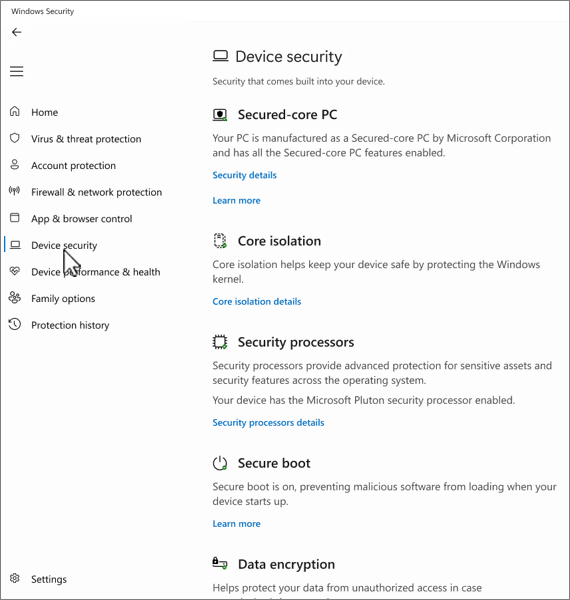
Windows Security’s Device security page is the practical place to check Core Isolation, Secure Boot, the security processor, and related hardware-backed protections.[4] If a control is missing, do not assume Atlas disabled it: hardware support, firmware settings, drivers, Windows edition, and the selected playbook options can all affect what appears.
The same “legitimate tool, risky setting” distinction applies to graphical optimizers. Our Winhance safety review covers Memory Integrity, VBS, updates, backups, and rollback decisions in that interface.
Does AtlasOS improve gaming performance?
AtlasOS can reduce background processes, memory use, telemetry, and interruptions. That may improve responsiveness, frame-time consistency, or CPU-limited performance on some systems. It does not guarantee a meaningful FPS increase on every PC, game, or graphics setting.
Judge the result by the problem you wanted to solve:
- Measure the same game, scene, driver, power plan, resolution, and background workload before changing Windows.
- Record average FPS, 1% lows, frame-time spikes, input latency when measurable, idle memory, and the exact security controls enabled.
- Test anti-cheat, launchers, Microsoft Store, Game Bar, recording, Bluetooth, audio, sleep/wake, VPN, printing, and work software after each security or service change.
- Restore the Windows default when a gain is inside run-to-run variance or the change creates a security, compatibility, or servicing problem.
Do not compare “stock Windows with every background app running” against a freshly installed Atlas system and call the difference an operating-system proof. Clean stock Windows, current drivers, startup cleanup, and game-specific settings can remove much of the noise without changing the security model.
A safer way to install AtlasOS
- Back up outside the PC. Copy personal files, BitLocker recovery information, browser exports you genuinely need, and application/license details to separate trusted storage.
- Create stock recovery media first. Use a trusted computer and Microsoft’s current Windows media so your exit path does not depend on the modified installation.
- Confirm the supported Atlas version. Current support changes over time. Match the Atlas release to the Windows build listed in the project’s documentation instead of following an old video.
- Use the official playbook path. Avoid prebuilt images, repacks, activators, and “gaming ISO” mirrors.
- Keep the security baseline. Leave Defender or a verified replacement, Windows Update, UAC, firewall, CPU mitigations, Secure Boot, and Core Isolation enabled unless a specific tested problem justifies a reversible exception.
- Change one group at a time. Reboot and test before combining security, services, app removal, driver, and privacy changes.
- Preserve evidence. Save the exact playbook release, selected options, baseline screenshots, and the first symptom if something breaks.
A restore point is useful but not enough. It does not replace a personal-file backup, trusted installation media, or a list of removed components. Deep servicing changes can outlive one reversed registry value.
How to audit an existing AtlasOS PC
- Identify the install. Confirm the Atlas version, Windows build, project source, and whether the system came from an official playbook workflow or a prebuilt image.
- Update Windows. Open Settings → Windows Update, resume updates if paused, install security and servicing updates, restart, then check again.
- Verify protection. Open Windows Security and confirm that Virus & threat protection shows the expected provider and that real-time protection is active.
- Check network protection. Confirm Microsoft Defender Firewall is on for domain, private, and public profiles unless a managed replacement controls those profiles.
- Review Device security. Check Secure Boot, the security processor, Core Isolation, and Memory Integrity. Record any feature you intentionally disabled and the compatibility reason.
- Restore Windows defaults where uncertain. Use the current Atlas security scripts to return CPU mitigations or other controls to the Windows default, then reboot and retest.
- Test normal servicing and use. Install an update, update Store apps, launch protected games, connect peripherals, and verify sleep, VPN, browser, and work workflows.
If the system has unexplained administrator accounts, Defender exclusions, scheduled tasks, startup entries, proxy or DNS changes, disabled recovery, or persistent security warnings, use the Windows security audit checklist. Treat those findings as evidence to investigate, not as proof that Atlas itself caused them.
When reinstalling stock Windows is the safer choice
Atlas’s current recovery guidance says returning fully to stock Windows requires reinstalling Windows; the built-in Reset this PC path is not the supported way to remove Atlas.[3] Prepare for that boundary before installing, not after something breaks.
Choose a clean stock-Windows reinstall when:
- the Atlas version is legacy, unsupported, or cannot be upgraded safely;
- the system came from an unofficial prebuilt ISO or an unknown mirror;
- Defender, Windows Update, recovery, servicing, or core security settings cannot be restored reliably;
- you cannot explain the selected playbook options or the changes made after installation;
- anti-cheat, drivers, work software, encryption, or normal Windows features remain broken after returning relevant settings to their defaults;
- the PC handled valuable accounts or data while showing possible compromise symptoms.
Use Microsoft installation media created on a trusted computer, back up non-executable personal data, and avoid carrying over cracks, repacks, unknown scripts, installers, or archives. The clean Windows USB recovery guide covers the safer reinstall sequence.
If AtlasOS came from a mirror or behaved unexpectedly
Expected optimization changes include services, policies, apps, privacy settings, and security controls that you explicitly selected. Investigate when the copy came from an unrelated site, included an activator or extra installer, created unknown accounts or startup entries, disabled protection outside your choices, changed browser or network settings, or produced recurring security alerts.
- Stop using the questionable source and preserve its URL, file name, hash, and original archive for investigation.
- Disconnect the PC from sensitive work and accounts if you saw credential theft, remote-control behavior, unknown administrators, or unexplained outbound traffic.
- Re-enable Windows Security, firewall, updates, and browser protections where possible.
- Run a full security scan and review detections, startup entries, scheduled tasks, services, bundled applications, and browser changes.
- Change important passwords from a known-clean device if the questionable install accessed browsers, password managers, sessions, email, finance, gaming, or developer accounts.
- Reinstall stock Windows from trusted Microsoft media if the operating-system image or build chain cannot be trusted.
Gridinsoft Anti-Malware can help find known threats and persistence on a running system, but no scanner can reconstruct or certify an unknown prebuilt Windows image. A clean result does not prove that credentials were never exposed or that every system policy is safe.
If the process path is wrong, the name imitates a Windows component, or high CPU started after an unknown installer, scan for hidden miners, services, startup entries, and bundled components.
Scan this Windows installationChoosing between different approaches? Compare Windows 11 debloat and customization tools by security impact and rollback before combining utilities or moving to a modified Windows installation.
FAQ
Is AtlasOS malware?
The official open-source Atlas playbook is not automatically malware. Verify the project source, exact release, AME Wizard path, and every selected option. A prebuilt ISO, mirror, fork, or repack is a separate supply chain and should not inherit the official project’s trust.
Does AtlasOS disable Microsoft Defender?
Current Atlas supports Defender and does not recommend running without protection. It also provides a component-level toggle, so the answer depends on the choices made during and after installation. Open Windows Security and verify the active provider instead of relying on a preset name or old review.
Does AtlasOS receive Windows security updates?
Current Atlas supports Windows Update and lets users control automatic updates. Support still depends on the Atlas release and Windows build. Keep updates enabled, install them promptly, restart, and confirm that the update history is clean.
Should I disable Core Isolation for gaming?
Not by default. Core Isolation and Memory Integrity protect important Windows processes and kernel code. Disable them only for a documented compatibility or measured performance problem, record the change, and restore them when the reason no longer applies.
Can I uninstall AtlasOS without reinstalling Windows?
The current Atlas recovery guidance says a full return to stock Windows requires reinstalling Windows, and Reset this PC is not the supported removal path. Back up important data and create trusted stock installation media before applying Atlas.
References
- AtlasOS. “Atlas and Security.” Atlas Documentation, accessed September 2, 2026. Atlas security overview.
- AtlasOS. “Security.” Atlas Documentation, current post-install configuration guidance, accessed September 2, 2026. Atlas security settings.
- AtlasOS. “Reverting Atlas.” Atlas Documentation, accessed September 2, 2026. Atlas recovery guidance.
- Microsoft. “Device Security in the Windows Security App.” Microsoft Support, accessed September 2, 2026. Windows Device security guidance.