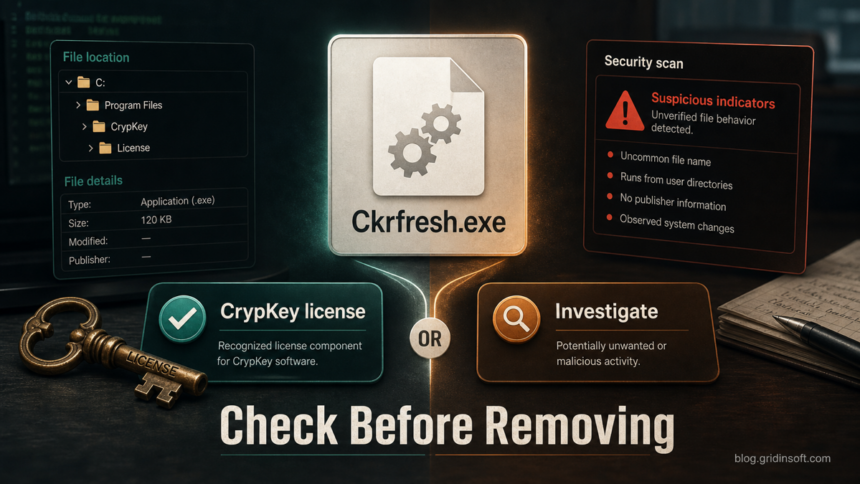
Ckrfresh.exe is not automatically a virus. When it sits in C:\Windows beside files such as Crypserv.exe, Ckldrv.sys, Ckconfig.exe, Setup_ck.exe, Setup_ck.dll, and Crypkey.ini, it is often part of the older CrypKey software-licensing stack used by some engineering, industrial, accounting, and niche desktop programs. Treat it as suspicious when you do not recognize any CrypKey-protected application, the file appeared recently, a security tool flags it, or the same file set is recreated after cleanup.
The important point is context. A legacy licensing component can look odd because it may be unsigned, old, and installed under the Windows directory. Malware can also copy the same names, so the path alone is not enough to call it safe.
What Ckrfresh.exe Usually Belongs To
CrypKey is a commercial licensing system. Some older protected programs install a background license service and driver files so the application can validate a license without asking for a key every time it starts. In that setup, Ckrfresh.exe is one of several support files rather than the main application the user opens.
Look for a matching parent program first. Recently installed CAD, measurement, shop-floor, accounting, or specialized business software is a more useful clue than the file name alone. If the machine has no such software, or the software was removed years ago, the service may be a stale leftover or a suspicious masquerade.
Safe-Looking And Suspicious Signs
| Situation | Risk and what to check |
|---|---|
Ckrfresh.exe is in C:\Windows with other CrypKey files and a known licensed program still works. |
Likely licensing support. Confirm the parent application, file dates, and service name before deleting anything. |
| The file has no publisher or company metadata. | Not proof of malware by itself. Legacy licensing files can have sparse metadata, but the lack of metadata raises the need for a broader check. |
A security tool flags Ckrfresh.exe or a related file. |
Investigate the hash, creation time, related service, and parent app. Do not restore or allow it only because the name looks familiar. |
| The file appeared after a random installer, crack, support tool, or fake update. | High-risk context. Disconnect from suspicious activity, scan the system, and review startup/service persistence. |
| The CrypKey service remains after the licensed product was removed. | Potential stale service. Remove or update through the vendor/uninstaller path when possible instead of deleting random files by hand. |
How To Check Ckrfresh.exe Before Removing It
- Confirm the exact path. Open the file location. A legacy CrypKey component is commonly reported under
C:\Windows\Ckrfresh.exe. A copy under%TEMP%, a user profile, Downloads, or a random application folder deserves more suspicion. - Find the parent application. Check Settings, Control Panel, Program Files, and the install date of specialized software that may use CrypKey licensing. If no business or technical application explains it, continue as suspicious.
- Check related files. Look for
Crypserv.exe,Ckldrv.sys,Ckconfig.exe,Setup_ck.exe,Setup_ck.dll,Crypkey.ini, or license repair logs in the same time window. - Review services and startup. In Services or Autoruns, look for CrypKey/Crypserv entries and any driver entry pointing at
ckldrv.sys. A service that returns after removal, starts from an odd location, or has no known parent program should be treated as persistence. - Check the hash and detection history. If your alert names a specific detection or shows a hash, record it before cleanup. The locally observed suspicious samples for this topic used MD5
126E5346C4D718E7A38F93BB7DB599CFand412AC2D8705218E62DD45B137A215198; do not generalize those hashes to every CrypKey install. - Scan before allowing or deleting. A file that belongs to a licensing stack should not be randomly removed, because the protected program may stop working. A file with no parent application, recent suspicious timestamps, or repeated alerts should be scanned and cleaned with the rest of the persistence chain.
When Ckrfresh.exe Looks Malicious
Escalate the case from “legacy licensing file” to “possible malware or unwanted persistence” when several of these signs appear together:
- you cannot identify any installed program that uses CrypKey;
- the file was created recently after a questionable installer, support session, crack, or fake update;
Ckrfresh.exeor related files are recreated after deletion or quarantine;- the service starts from a user-writable path such as
%TEMP%,%APPDATA%, or Downloads; - there are unexpected network connections, new scheduled tasks, or unknown drivers around the same timestamp;
- your antivirus reports ransomware, injector, loader, or heuristic behavior instead of a simple “unknown file” warning.
Dr.Web has documented malware that creates %WINDIR%\Ckrfresh.exe and related CrypKey-looking files. That does not mean every CrypKey install is malicious; it means a familiar file name cannot replace a real investigation.
What To Do If You Need To Remove It
If the file belongs to a known application, start with that application’s repair, update, or uninstall option. Removing CrypKey components directly can break licensing and make a legitimate program fail to launch. If the vendor still supports the software, update the parent application and its licensing component first.
If there is no known parent application, or the alert keeps returning, handle the case like suspicious process persistence: keep the detection quarantined, remove unknown startup and service entries, uninstall the suspicious parent app if present, reboot, and scan again. Gridinsoft Anti-Malware can help check hidden files, startup entries, scheduled tasks, bundled components, browser changes, and other persistence points that may recreate the file.
If the process path is wrong, the name imitates a Windows component, or high CPU started after an unknown installer, scan for hidden miners, services, startup entries, and bundled components.
Scan this PC for Ckrfresh.exe leftoversFAQ
Is Ckrfresh.exe safe?
It can be safe when it clearly belongs to a CrypKey-protected application that you recognize. It is not safe to assume that from the name alone, especially if the file is new, flagged, unsigned with no parent app, or recreated after cleanup.
Why is Ckrfresh.exe in C:\Windows?
Older licensing systems often installed support files in the Windows directory. That location is common for legacy CrypKey components, but malware can also place files there, so you still need to check the parent program and service context.
Should I delete Ckrfresh.exe manually?
Do not delete it first if a legitimate licensed program depends on CrypKey. Identify or uninstall the parent application, then remove leftovers only if the software is gone or the file is part of suspicious persistence.
Can antivirus detections on Ckrfresh.exe be false positives?
Yes, a legacy licensing file can trigger heuristic suspicion. Before restoring it, compare the hash, path, timestamp, related files, and installed software. If those details do not line up, keep it quarantined and scan the system.
References
- CrypKey. “CrypKey Compatibility.” CrypKey, accessed June 24, 2026. https://www.crypkey.com/group/compatibility/
- Danlaw MicroMax MxServe. “Troubleshooting Licenses.” Danlaw, accessed June 24, 2026. https://mxhelp.danlawinc.com/troubleshooting_licenses.htm?printWindow=&toc=0
- Doctor Web. “Trojan.Inject3.9463.” Dr.Web Virus Library, accessed June 24, 2026. https://vms.drweb.com/virus/?i=17171436
- Trustwave SpiderLabs. “CrypKey License Service Allows Privilege Escalation.” LevelBlue, 2021, accessed June 24, 2026. https://www.levelblue.com/blogs/spiderlabs-blog/crypkey-license-service-allows-privilege-escalation