
Web Genius Solutions should be removed when you find its folder together with UniversalUpdater.exe, a universalupdater scheduled task, or a PowerShell reinstall script. That combination is associated with an unwanted browser bundle and a persistent updater chain, not a Windows component. The filename alone is not enough to identify it: unrelated legitimate tools also use names such as Universal Updater. Check the path, signer, task Action, and nearby browser changes before deleting anything.
This guide focuses on the Web Genius copy, especially the path C:\Program Files (x86)\Web Genius Solutions\Web Genius\. It shows how to inspect the persistence safely, remove the bundle in the right order, and confirm that it does not return after reboot.
How to identify the Web Genius UniversalUpdater
Current security research places UniversalUpdater.exe under the Web Genius Solutions directory in a wider family of signed potentially unwanted software. The same research found updater configurations and persistence capable of silently delivering additional packages with elevated privileges.[1] A digital signature may identify the publisher, but it does not approve the task, script, browser modification, or update behavior around the file.
| What you find | What it means and what to do |
|---|---|
C:\Program Files (x86)\Web Genius Solutions\Web Genius\UniversalUpdater.exe |
This is the exact Web Genius lane covered here. Inspect its signature and task, then remove the parent bundle. |
A task named universalupdater or a similar Web Genius task |
Open its Action. A launch of UniversalUpdater, PowerShell, reinstall.ps1, or another script explains why the folder may return. |
| A valid signature from Dragon Boss Solutions LLC | The signer matches the researched campaign, but a valid signature does not make its update and persistence behavior desirable. |
UniversalUpdater.exe in another vendor’s documented product folder |
Do not remove it by name alone. Verify the product, signer, installation record, and task before deciding. |
| WorldWideWeb, OneChecker, Chromnius, or unfamiliar browser policies nearby | Treat this as a bundle. Removing only Web Genius may leave another component able to restore browser changes or scheduled activity. |
Inspect the task, file, and script without running them
Do not double-click UniversalUpdater.exe or open a suspicious PowerShell script to “see what it does.” First save the names and paths you see. In Task Scheduler, select the suspected task and read the Actions tab. The useful evidence is the program, its arguments, and the script or working directory it references.
Microsoft documents schtasks /query /fo LIST /v as a detailed task inventory command.[2] Run PowerShell as administrator and use these read-only checks:
schtasks /query /fo LIST /v | findstr /i "Web Genius UniversalUpdater PowerShell .ps1"

Get-AuthenticodeSignature -LiteralPath 'C:\Program Files (x86)\Web Genius Solutions\Web Genius\UniversalUpdater.exe' |
  Format-List Status, StatusMessage, SignerCertificate
Get-AuthenticodeSignature reports the signature status and certificate information for a file.[3] Record the result, but judge the whole chain. A signed updater that launches from the Web Genius folder, runs through a scheduled task, or recreates unwanted browser components still needs removal.
If the task Action points to powershell.exe, pwsh.exe, reinstall.ps1, or a random .ps1 under AppData, ProgramData, Temp, or the Web Genius directory, do not paste its contents into an online service. Note the full path and let the security scan inspect the file locally.
Remove Web Genius Solutions in the right order
- Close browsers and save work. Disconnect from the internet if the updater is actively opening windows, launching command prompts, or downloading files. Do not sign in to important accounts from the affected PC until the cleanup is complete.
- Uninstall the parent application. Open Settings → Apps → Installed apps. Remove Web Genius, Web Genius Solutions, or an obviously related unfamiliar app installed at the same time. Do not uninstall an unrelated product solely because it contains the word “Updater.”
- Disable the matching scheduled task. In Task Scheduler Library, open the suspected task and confirm that its Action points to the Web Genius folder, UniversalUpdater, or the recorded script. Disable that exact task, then end its running instance if one is shown. Leave Microsoft, hardware-vendor, and known application tasks alone.
- Stop the matching process. In Task Manager, right-click the confirmed
UniversalUpdater.exeprocess and choose Open file location. End it only if the path matches the unwanted Web Genius installation. - Remove the persistence files. After the task and process are stopped, delete the Web Genius application folder and the exact script path recorded from the task. Do not delete the whole PowerShell directory, Task Scheduler library, ProgramData tree, or registry branches.
- Check installed browsers. Remove unfamiliar extensions, restore the homepage and search engine, and inspect whether Chrome or Edge says it is “managed by your organization” on a personal PC. Also check browser shortcuts for an added URL after the closing quote of the executable path.
- Scan the full system. A visible updater may be gone while a scheduled task, script, browser policy, bundled app, or second updater remains. Run a full Gridinsoft Anti-Malware scan, remove confirmed detections, reboot, and scan again if the task or folder returns.
Browser reset can remove visible symptoms, but adware may keep a desktop app, extension source, notification permission, or startup task that brings pop-ups and redirects back.
Scan for Web Genius leftoversWhat to do if the Web Genius folder says Access denied
An Access denied message usually means that the updater is still running, a task is launching it again, or a service has a handle open. It is not a reason to take ownership of broad Windows folders or apply recursive permission changes.
- Recheck the task Action and disable the exact matching task.
- End the confirmed Web Genius process in Task Manager.
- Reboot and try the removal before opening browsers.
- If the process starts immediately, run the security scan and let it quarantine the persistence component.
- Use Safe Mode only if the confirmed unwanted files remain locked after the task and process are disabled.
If Windows reports that a file belongs to a different known vendor or the path does not match this guide, stop. Capture the file path and signature details and investigate that product separately.
Why UniversalUpdater or Web Genius keeps coming back
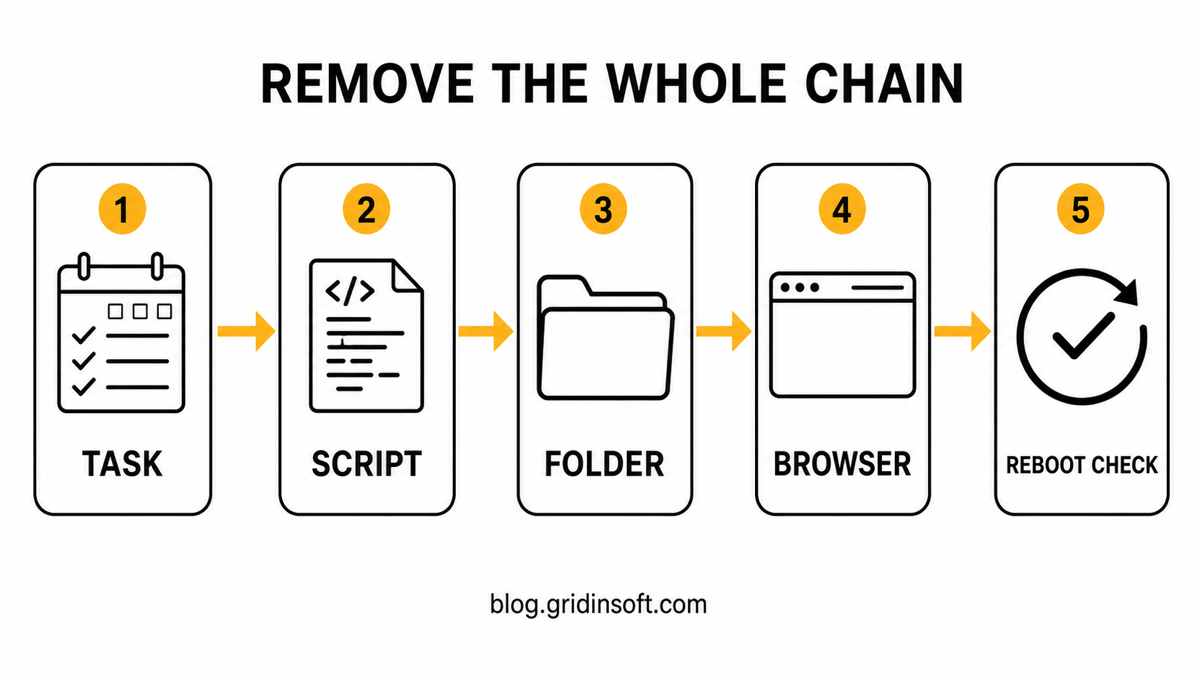
Deleting the executable first leaves the mechanism that launches or reinstalls it. The usual recurrence chain is a scheduled task that starts the updater or PowerShell, a script that restores the folder, an MSI/update record that repairs the package, or a sibling bundled application that downloads it again.
After reboot, check all of the following:
- the original task is absent or disabled and has no recent run;
- the Web Genius folder has not been recreated;
- no new PowerShell or command window flashes at sign-in;
- Chrome and Edge no longer show an unexplained management policy;
- the homepage, search engine, new-tab page, and extensions remain unchanged;
- the security scan is clean or every remaining detection has a clear review decision.
If one item returns, do not repeat file deletion indefinitely. Reopen the task Action, look for a second task or sibling app, and compare the new path with the one you recorded before cleanup.
Check the related browser bundle
Web Genius can appear alongside other unwanted components. If you also find a hidden PowerShell task, follow the OneChecker scheduled-task cleanup. A WorldWideWeb.exe process under World Wide Solutions has its own WorldWideWeb removal guide. Modified Chromium installations, ExtensionSeed folders, or persistent browser policies belong in the Chromnius cleanup workflow.
After removing the bundle, use the post-malware Windows security audit to review exclusions, startup entries, services, and account safety. For hash and file-metadata context rather than cleanup steps, the Web Genius ThreatInfo report is the complementary Gridinsoft source.
FAQ
Is UniversalUpdater.exe always malware?
No. The name is generic and unrelated legitimate software can use it. The unwanted case in this guide is identified by the Web Genius Solutions path, task Action, signer, script, browser changes, or related bundle components.
Is Web Genius safe because UniversalUpdater.exe is digitally signed?
No. A valid signature helps identify who signed the file and whether it changed after signing. It does not certify that the updater’s installation, persistence, browser changes, or downloaded packages are useful or wanted.
Can I delete the universalupdater task?
Disable it first and verify that its Action points to Web Genius, UniversalUpdater, or the suspicious script. After the parent app and persistence files are removed, delete that confirmed task. Do not remove unrelated Windows or vendor update tasks.
Should I run reinstall.ps1 to uninstall Web Genius?
No. A script named reinstall.ps1 is more likely to restore software than remove it. Record its path, stop the task that launches it, and let the security scan inspect and quarantine it.
How do I know the cleanup worked?
Reboot twice if practical, then confirm that the task, process, folder, script, browser policy, and extension do not return. Repeat the scan if any artifact reappears.
References
- Huntress. “When PUPs Grow Fangs: Dragon Boss Solutions’ $10 Supply Chain Risk.” Huntress research blog, April 14, 2026; accessed August 28, 2026. Research report.
- Microsoft. “schtasks query.” Microsoft Learn, updated February 16, 2024; accessed August 28, 2026. Command documentation.
- Microsoft. “Get-AuthenticodeSignature.” PowerShell documentation, accessed August 28, 2026. Cmdlet documentation.