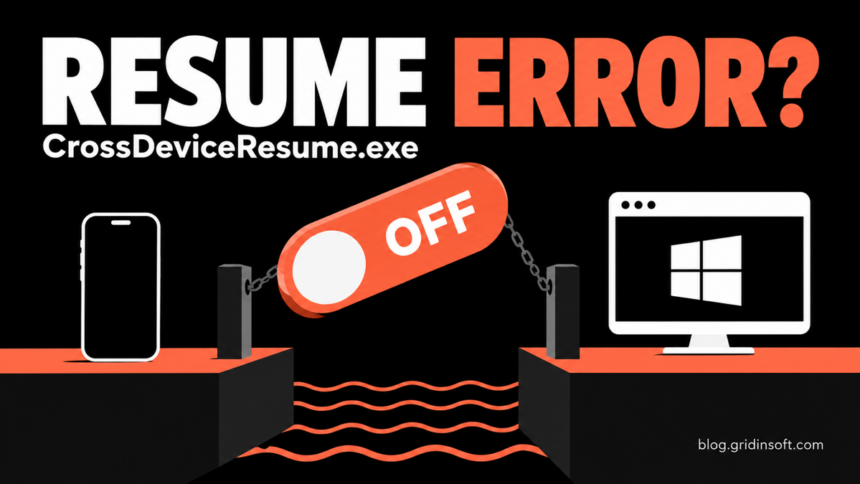
CrossDeviceResume.exe is associated with Windows 11’s cross-device Resume experience, which lets you continue supported phone activities on your PC. Seeing it in the background is different from receiving a Bad Image, Interface not registered, or application-provisioning error. If you simply do not want Resume, use its Windows settings switch. If Start, Settings, Paint, or other apps also fail, investigate Windows components instead of deleting CrossDeviceResume.exe. The filename in an error tells you which program failed to launch; it does not establish the cause.
Which CrossDeviceResume.exe problem do you have?
- The process runs, but Windows works normally. Check its location and Microsoft signature. Its presence alone does not require repair or malware removal.
- You do not use phone-to-PC Resume. Turn off Resume in Settings. This changes the feature preference; it does not uninstall a Windows component.
- An error appears at sign-in, but other apps work. Record the full message, named DLL or package, and Windows build. Update and restart, then test whether the error returns.
- Start, the taskbar, or Settings also fails. Use Task Manager to reach diagnostic tools. A Resume toggle is unlikely to explain or repair the whole symptom.
- Several packaged apps report the same error. Follow the Windows repair branch. Keep the app names and exact error together when requesting support.
- A copy runs from Downloads or another unexpected location. Check the file’s publisher and origin. Scan a suspicious copy; do not delete the legitimate system file by name.
What Resume does—and how to turn it off
Microsoft describes Resume as a taskbar handoff between a linked Android device and a Windows PC. Supported activities depend on the app and device setup. Its current documentation lists Windows 11 or later, Android 10 or later, an internet connection, Link to Windows, and a phone listed under Mobile devices as prerequisites.[1]
- Open Settings > Apps > Resume.
- Turn Resume off, or turn off only the supported apps you do not want to hand off.
- Sign out and back in or restart, then check your original symptom.
This is the supported feature control. It is not a promise that every related background process disappears on every Windows build. If Resume is already off and the process still appears without an error, that observation alone is not a reason to remove system files. If you want to unlink the phone itself, use the separate Phone Link startup and unlinking guide.
Do not confuse CrossDeviceResume.exe with CrossDeviceService.exe or PhoneExperienceHost.exe. Copy the exact name from your own error before following a fix aimed at another component.
If the busy process is CrossDeviceService.exe rather than a Resume launch error, use the Cross Device Service memory and CPU checks to test phone-file browsing and compare the result before removing cross-device components.
Record the error before changing Windows
Keep the full error text, any DLL or package path, the time it appears, and what still works. Run winver to record the Windows version and build. Note whether the problem began after an update, a cleanup utility, manual package removal, or an unfamiliar installation. Timing can guide investigation without proving which change caused it.
A Bad Image dialog may name a DLL in addition to the executable. Interface not registered and The application has not been provisioned describe different failure states. Replacing the EXE with a download from a file repository does not address those distinctions and can introduce an unsafe or incompatible file.
For an isolated error, install available Windows updates, allow any pending restart to complete, and retest. Avoid repeated forced shutdowns during an update. If the same error remains, use the repair steps below and retain their results for support.
If Start or Settings will not open
Press Ctrl + Shift + Esc to open Task Manager. Select Run new task; older layouts may place it under File. You can launch winver there without relying on Start search. If the shortcut fails, try Ctrl + Alt + Delete > Task Manager.
For the repair commands, enter cmd and select the option to create the task with administrative privileges. Approve the normal Windows elevation prompt. On a managed work or school PC, involve your administrator if you lack that access. If Task Manager and the desktop are both unusable, get Windows recovery assistance; deleting a system application from another environment is not a substitute for diagnosing the failure.
Repair Windows components when errors persist
Microsoft’s System File Checker instructions run DISM first, then SFC after DISM succeeds.[2] In the administrator Command Prompt, run DISM.exe /Online /Cleanup-Image /RestoreHealth. Let it finish. After successful completion, run sfc /scannow and wait for verification to complete. Restart and test the same apps again.
Save any error code if a repair fails. Repeating the commands indefinitely or downloading the named DLL is not a diagnosis. For servicing that remains busy or fails to settle, see the DISM troubleshooting guide.
If several packaged apps fail together, treat that pattern as a broader problem. A July 2026 Microsoft Q&A report described the same registration error across Paint, Notepad, Outlook, and CrossDeviceResume. The original poster later reported that reinstalling the current Windows version fixed their affected machines. That is a useful case report, not proof of a single cause or a guaranteed fix for every PC.[4]
When ordinary repairs do not resolve the problem and Settings still opens, Microsoft’s Settings > System > Recovery > Fix problems using Windows Update > Reinstall now option reinstalls the current version and repairs components while preserving apps, files, and settings.[3] Back up important files first and keep the PC connected to power and the internet.
Choose that specific repair option, not Reset this PC. It may be unavailable on older installations or devices whose updates are managed by an organization. If it is missing, or Settings will not open, ask Microsoft support or your IT administrator for the appropriate repair-install route. Do not bypass company update policies to reveal it.
Check a suspicious copy without damaging Windows
In Task Manager, right-click the process and use Open file location, then inspect the file’s Properties and digital-signature details. Reports of the Windows component commonly identify a location beneath C:\Windows\SystemApps\. Treat the full package path and a valid Microsoft signature as evidence to check together, rather than relying on a familiar filename or folder alone.
A copy downloaded separately, launched from an unrelated user folder, or carrying an unexpected publisher deserves investigation. An error or CPU spike by itself does not establish malware. If an untrusted installer preceded the suspicious process, other bundled files or startup entries may also need checking.
For that suspicious-copy branch, download and install Gridinsoft Anti-Malware from the official site, update it, and run a Full Scan. Review detections, apply the recommended cleanup to confirmed threats, restart, and check whether the unwanted activity returns. A malware scan does not repair Windows package registration and cannot prove that no account information was exposed.
If the process path is wrong, the name imitates a Windows component, or high CPU started after an unknown installer, scan for hidden miners, services, startup entries, and bundled components.
Scan suspicious filesKeep the repair reversible
Do not take ownership of SystemApps, rename its executable, disable security protection, or run a blanket package-removal or re-registration script just to silence this message. Use the Resume setting for an unwanted feature, Windows repair for a repeatable system failure, and a malware check for evidence of an unexpected file. That distinction keeps a small preference change from becoming a damaged Windows installation.
References
- Microsoft. “Cross-device Resume Feature.” Microsoft Support, accessed September 18, 2026.
- Microsoft. “Using System File Checker in Windows.” Microsoft Support, accessed September 18, 2026.
- Microsoft. “Fix issues by reinstalling the current version of Windows.” Microsoft Support, accessed September 18, 2026.
- Andy Cannon and Microsoft Q&A contributors. “Interface not registered error on Paint, Notepad, Outlook and crossdeviceresume.exe.” Microsoft Q&A, July 23–August 6, 2026; accessed September 18, 2026.