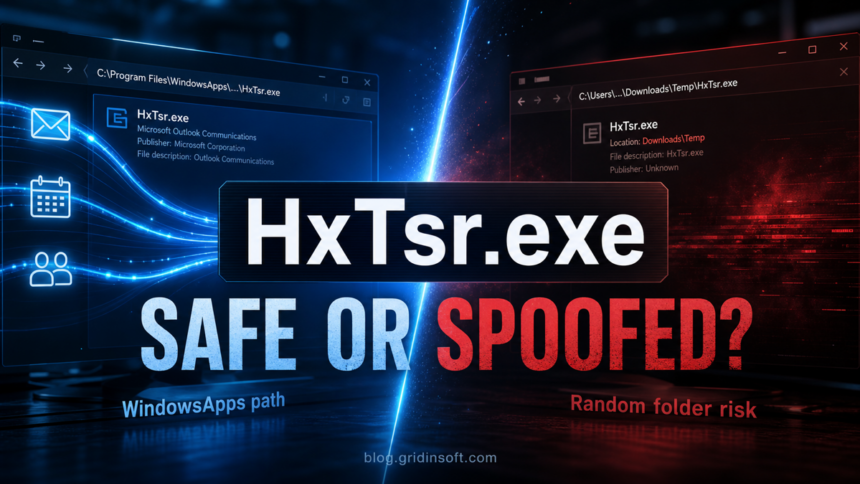
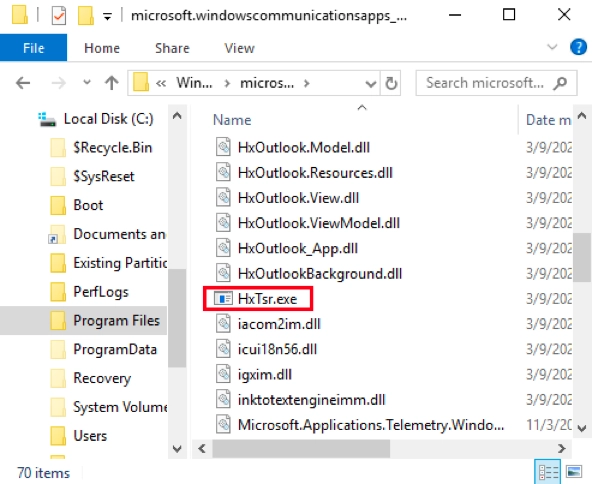
HxTsr.exe is usually a legitimate Microsoft communications process left by the Windows Mail and Calendar app package. It can appear in Task Manager while an account syncs, but it is not a core Windows service and should not be confused with the executable for the new Outlook app. Trust it only after checking the file location: the expected copy is inside a protected C:\Program Files\WindowsApps\microsoft.windowscommunicationsapps_* package. A same-named file in Downloads, Temp, Startup, or another writable folder needs a malware check.
Use the symptom to choose the fix: a genuine copy with a one-time firewall prompt can usually be allowed; a genuine copy with persistent high CPU or an application error should be repaired or migrated away from the retired Mail and Calendar apps; a copy outside WindowsApps should be blocked and scanned.
What is HxTsr.exe?
HxTsr.exe is associated with the microsoft.windowscommunicationsapps package that provided the built-in Windows Mail, Calendar, and People apps. The process handled communication with mail and calendar services, so brief network activity was normal when those apps synchronized an account.
Microsoft ended support for Windows Mail, Calendar, and People on December 31, 2024 and recommends moving accounts to the new Outlook for Windows or Outlook.com. That does not make every remaining HxTsr.exe file malicious. A PC can still retain the older app package, its data, or an incomplete migration. It does mean that repeatedly reinstalling the retired Mail app is no longer the best long-term fix.
Is HxTsr.exe part of Windows 11 or new Outlook?
HxTsr.exe can remain on Windows 10 or Windows 11 when the legacy communications-app package is still installed. It is not a Windows kernel component, and seeing it does not prove that the new Outlook app is using it. Check Settings > Apps > Installed apps to identify which Mail, Calendar, or Outlook package is present before repairing or removing anything.
How to tell if HxTsr.exe is safe
| What you find | Risk and next step |
|---|---|
File is inside C:\Program Files\WindowsApps\microsoft.windowscommunicationsapps_* and appears only during mail or calendar activity |
Usually legitimate. A brief sync or HTTPS connection is expected. |
| Expected package path, but repeated crashes, high CPU, disk use, or firewall prompts | More likely a damaged or obsolete app package than malware. Repair, reset, or migrate the account. |
| File is in Downloads, Temp, Desktop, Startup, a browser cache, or an unrelated program folder | Suspicious lookalike. Block network access, scan the file, and check persistence. |
| Path cannot be opened or the process immediately returns after removal | Do not keep deleting copies. Run a full scan and inspect startup entries or scheduled persistence. |
Check the path and publisher
Open Task Manager, right-click HxTsr.exe, and choose Open file location. The package name and protected WindowsApps location are the strongest quick checks. You can also open Properties > Digital Signatures or the Details tab and compare the publisher information with Microsoft when those fields are available. A familiar filename by itself is not evidence of safety.
If you need a broader checklist for a downloaded or unfamiliar executable, use our guide to checking whether an EXE file is safe. Do not upload a private work document or proprietary executable to a public scanner without permission.
Why does HxTsr.exe connect to the Internet?
The legitimate process may connect to Microsoft mail or calendar services while the older communications app checks an account. A firewall alert is less concerning when the executable comes from the expected WindowsApps package and the timing matches mail activity. It is more concerning when a same-named file connects from a writable folder, contacts unrelated destinations, or keeps returning when no Microsoft mail app is open.
Do not permanently allow a connection based only on the filename. Verify the path first. If the path is legitimate but the alert repeats, repair the app package instead of creating a growing set of firewall exceptions.
How to fix an HxTsr.exe application error or high CPU
- Confirm the path before troubleshooting. If the file is not in the Microsoft communications-app package, skip app repair and scan it as a suspicious executable.
- End the task once and reopen the related app. A genuine process can restart when an account syncs. If CPU or disk use settles, no removal is needed.
- Install pending Windows and Microsoft Store updates. Restart the PC afterward so an older package is not kept in a half-updated state.
- Repair the installed app. Open Settings > Apps > Installed apps, select the relevant Mail, Calendar, or Outlook entry, choose Advanced options, and use Repair when available. Use Reset only after confirming that account data and settings can be restored.
- Move away from retired Mail and Calendar. If the error belongs to the old Windows communications package, export any local data you still need and move the account to new Outlook or Outlook.com instead of repeatedly reinstalling an unsupported app.
- Scan when the behavior does not match the package. Sustained high resource use, a wrong path, unknown outbound traffic, or a process that returns from Startup or a scheduled task justifies a full malware scan.
If the issue is actually classic Outlook rather than the Windows communications package, use Outlook-specific profile or Office repair steps. HxTsr.exe is not the same as OUTLOOK.EXE, so deleting it will not repair a damaged PST/OST file or Outlook profile.
Should HxTsr.exe run at startup?
HxTsr.exe is normally launched by its app package when mail or calendar work is needed; it is not a conventional Windows service that everyone must keep running. Do not delete the executable to stop it. If you no longer use the retired Mail and Calendar apps, first migrate any local data, confirm that new Outlook works, and then remove the obsolete app through Windows settings if the option is available.
If Windows shows a separate HxTsr.exe entry in a user-writable Startup folder, treat that as suspicious. Our suspicious startup apps checklist explains how to verify the file and disable the entry without deleting evidence too early.
Is HxTsr.exe a virus?
The genuine Microsoft-package copy is not a virus, but malware can reuse the name. The safe decision depends on the path, package, publisher information, and behavior—not on whether an antivirus product recognizes the filename. A security alert can be a false positive when it points to the protected Microsoft package, but do not restore or allow a file from Temp, Downloads, a crack/repack folder, or an unknown startup location.
Open the HxTsr.exe file location
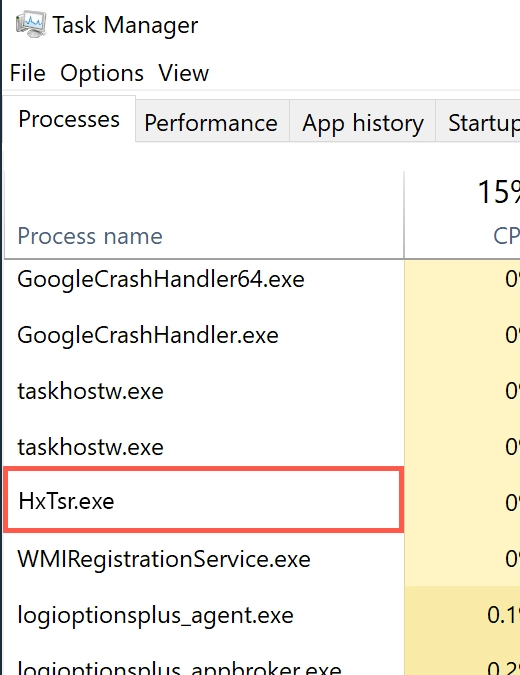
In Task Manager, select the HxTsr.exe process and open its context menu.
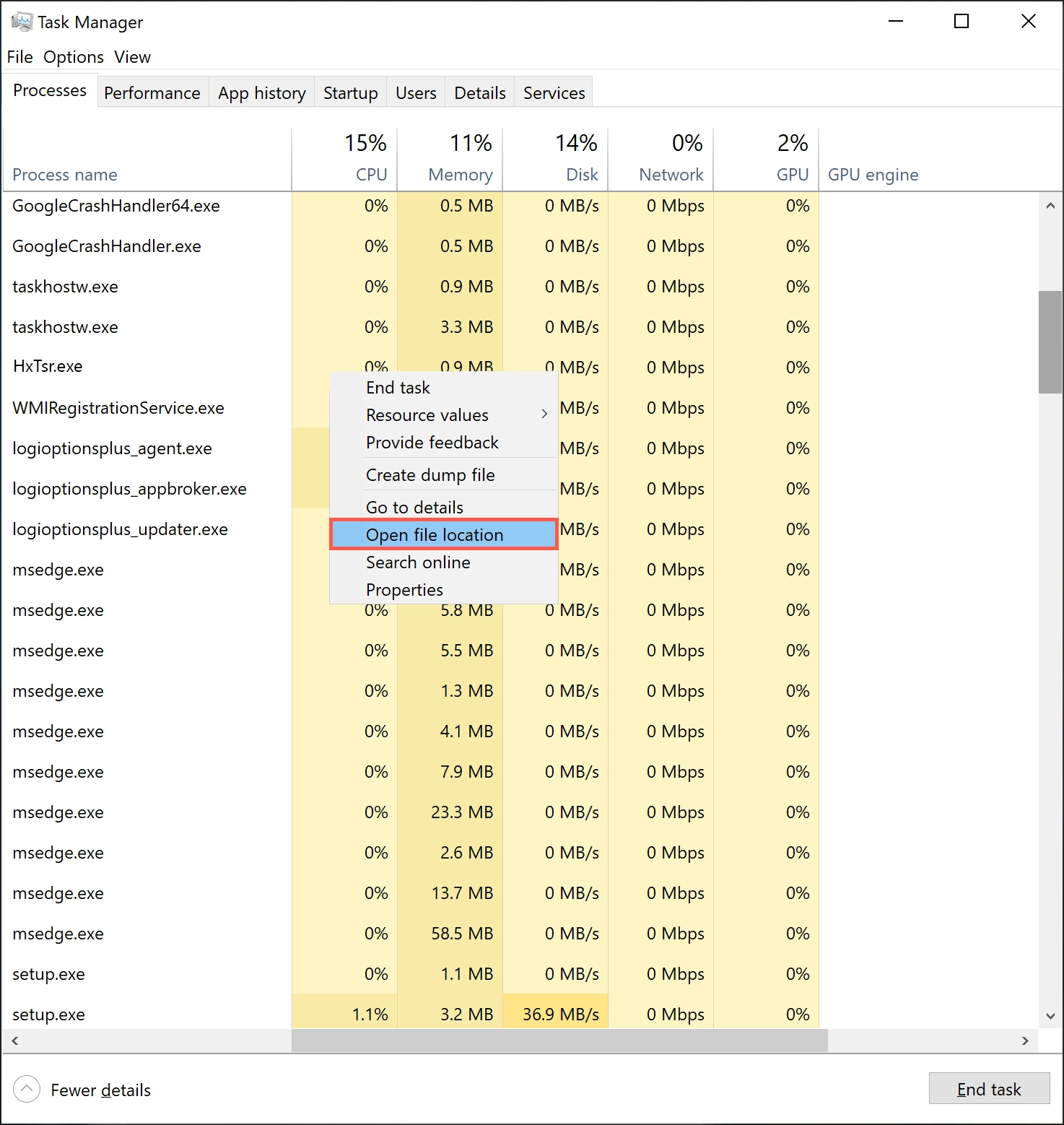
The expected executable is inside the protected Microsoft communications-app package. A similarly named file elsewhere should not inherit that trust.
What to do with a suspicious copy
- Block the unexpected network request and note the full file path.
- Do not sign in to mail or other accounts from the PC until the file is checked.
- Run a full Gridinsoft Anti-Malware scan to check the executable, startup entries, scheduled tasks, and related files.
- Remove confirmed detections, restart Windows, and scan again if the process returns.
- Change important passwords from a clean device only if the suspicious file ran or account activity is unexplained.
A public file scanner can help with a non-private sample, but a full device scan is more useful when the process returns because the visible executable may not be the component that launches it.
If the process path is wrong, the name imitates a Windows component, or high CPU started after an unknown installer, scan for hidden miners, services, startup entries, and bundled components.
Scan the suspicious processReferences
- Microsoft Support. “Outlook for Windows: The Future of Mail, Calendar, and People on Windows 11.” Microsoft, accessed July 24, 2026. https://support.microsoft.com/en-US/Outlook/outlook-for-windows-the-future-of-mail-calendar-and-people-on-windows-11
- Microsoft Support. “Repair apps and programs in Windows.” Microsoft, accessed July 24, 2026. https://support.microsoft.com/en-us/windows/apps/repair-apps-and-programs-in-windows