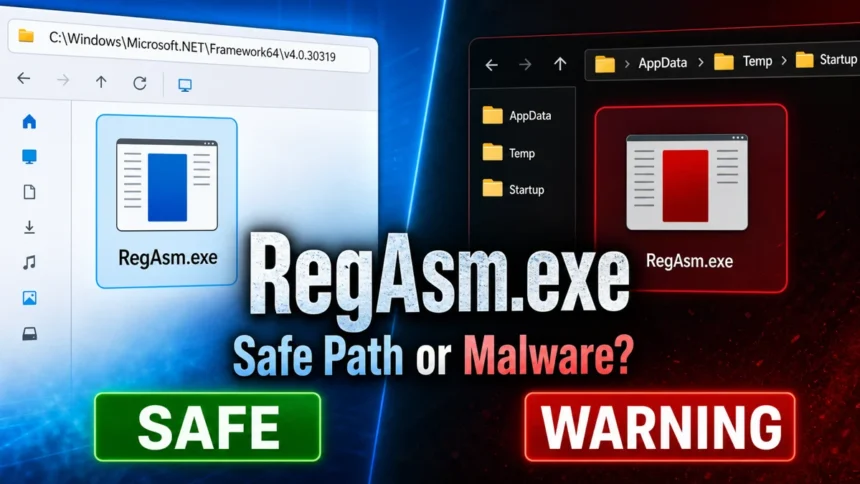
RegAsm.exe is Microsoft’s .NET Assembly Registration Tool, not a virus by itself. It is normally safe when it runs from C:\Windows\Microsoft.NET\Framework or C:\Windows\Microsoft.NET\Framework64 and carries a Microsoft digital signature. Treat it as suspicious when a file with the same name appears in AppData, Temp, Downloads, Startup, or keeps launching from an unknown scheduled task.
RegAsm.exe quick checks
- Safe path:
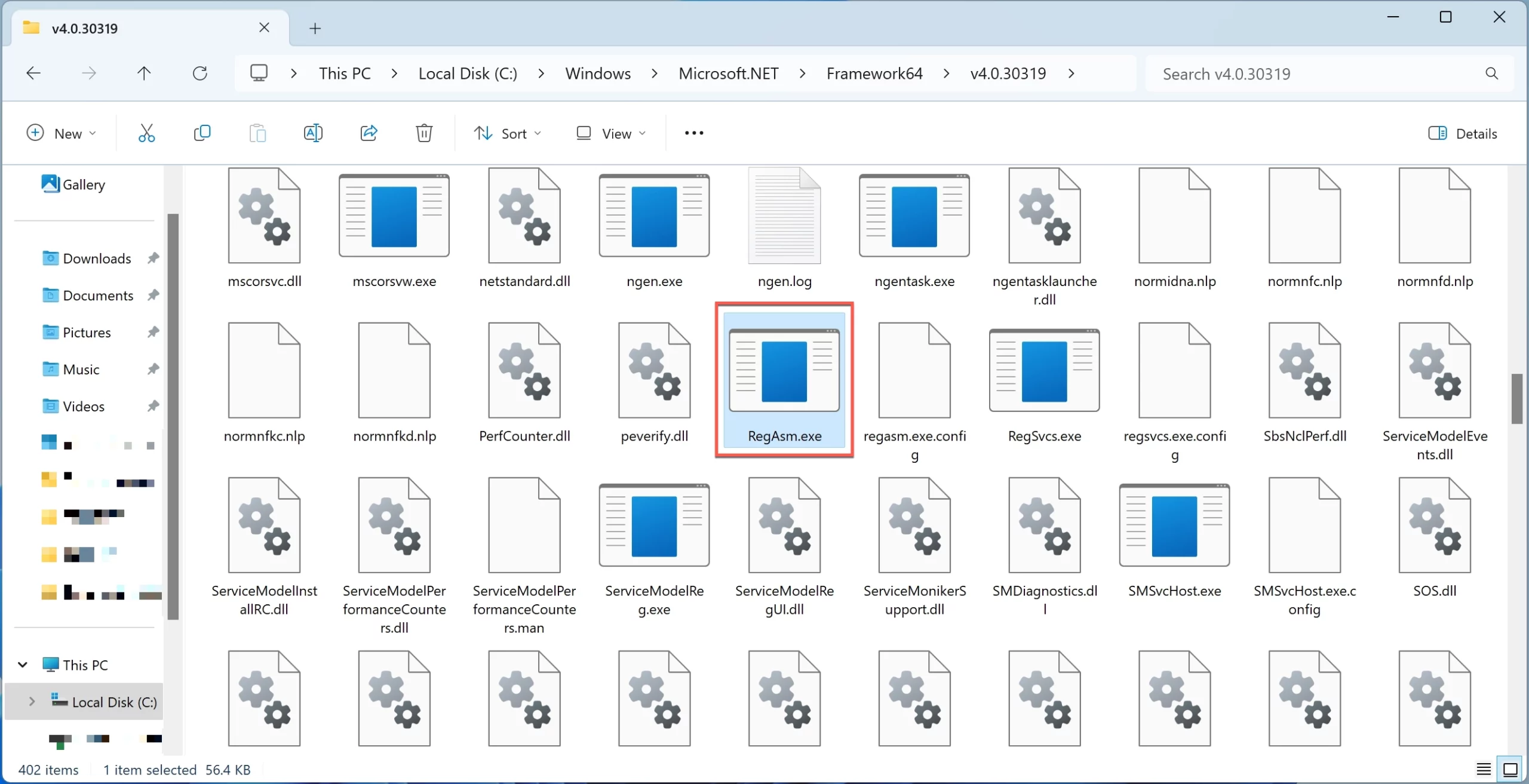
C:\Windows\Microsoft.NET\Framework[version]\RegAsm.exeorFramework64. - Safe publisher: Microsoft Corporation on the Digital Signatures tab.
- Suspicious paths:
AppData,Temp,Downloads, browser cache folders, or a random user profile folder. - Suspicious behavior: recurring command-prompt popups, blocked outbound connections, startup persistence, or a strange parent process.
- Do not download replacement copies from random EXE sites. Repair .NET Framework or install official Microsoft developer/runtime components instead.
| File | RegAsm.exe |
| Full name | .NET Assembly Registration Tool |
| Normal role | Registers .NET assemblies so COM clients can use them. |
| Normal locations | C:\Windows\Microsoft.NET\Framework[version] and Framework64[version] |
| Risk signal | Wrong path, missing Microsoft signature, unknown startup entry, suspicious command line, or network activity. |
What RegAsm.exe does in Windows
Microsoft documents RegAsm.exe as the .NET Framework Assembly Registration Tool. Its job is to read metadata from a .NET assembly and add the registry entries that let older COM-aware software create .NET classes transparently [1]. Developers, installers, and some legacy business applications may call it during setup, repair, or uninstall actions.
Most home users never need to run RegAsm.exe manually. A short run during a trusted software installation can be normal. A window that flashes every few minutes, a command line that points to a user folder, or a copy outside the Windows .NET Framework tree is a different situation and needs investigation.
Why malware abuses or imitates RegAsm.exe
Attackers like trusted Windows and .NET utilities because they blend into normal system activity. MITRE groups this pattern under System Binary Proxy Execution, where a trusted binary is used to execute or proxy attacker-controlled code [2]. LOLBAS also tracks RegAsm.exe as a Windows binary that can be abused in application whitelisting bypass and execution scenarios [3].
That does not mean every RegAsm.exe alert is malware. It means the filename alone is not enough. The useful questions are: where is the file, who signed it, what launched it, what command line did it use, and did it create persistence or network traffic?
When RegAsm.exe is suspicious
| Likely normal | Runs briefly from a Windows .NET Framework folder while installing or updating trusted software. |
| Suspicious path | C:\Users\...\AppData, Temp, Downloads, browser cache, or a random folder with a generated name. |
| Suspicious launcher | Unknown script, scheduled task, startup entry, fake updater, cracked software installer, or Office macro. |
| Suspicious symptom | Repeated command prompt popup, recurring security-tool block, unexpected outbound connection, or RegAsm.exe reappearing after deletion. |
| Best next check | Open file location, verify signature, inspect command line and parent process, then scan the file and autostart entries. |
How to check RegAsm.exe safely
- In Task Manager, right-click
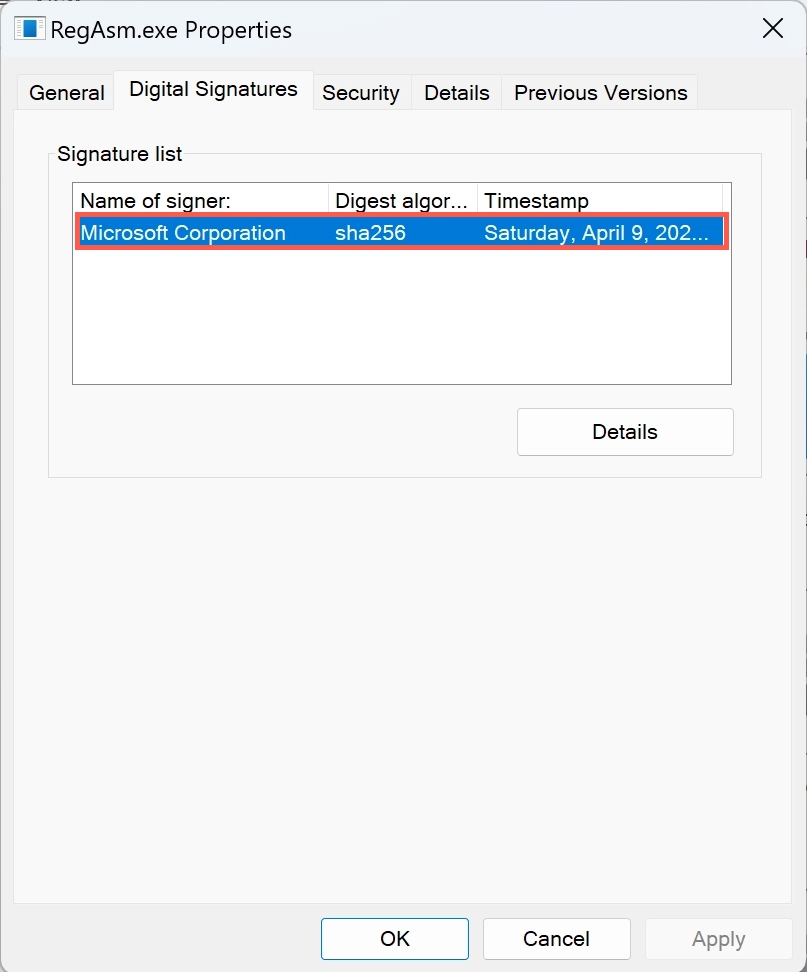
RegAsm.exeand choose Open file location. A Microsoft .NET Framework path is expected; a user profile folder is not. - Right-click the file, open Properties, and check Digital Signatures. The legitimate Windows copy should be signed by Microsoft Corporation.
- Use Task Manager Details, Process Explorer, or another trusted process viewer to inspect the command line and parent process. Process Explorer is useful because Microsoft provides it through Sysinternals [4].
- Check Task Scheduler, Startup Apps, the Startup folder, and recently installed software for anything launching RegAsm.exe from a strange location.
- If a security tool reports a blocked connection, write down the domain/IP, the exact file path, and the parent process before removing anything.
- Scan the suspicious file and the full system. If the path is wrong or the signature is missing, do not simply delete the EXE first; remove the launcher that keeps restoring or calling it.
How to remove a suspicious RegAsm.exe copy
- Disconnect from risky networks if the alert mentions outbound traffic or a malicious domain.
- Take a screenshot or note the suspicious file path, command line, scheduled task name, and security-tool detection.
- Disable the related startup entry or scheduled task first. This prevents the same command from returning after reboot.
- Scan the suspicious file and the whole system with a reputable anti-malware tool. Gridinsoft Anti-Malware can help check whether the RegAsm.exe copy is only a decoy or part of a broader infection.
- Remove the detected malware, reboot, and confirm that RegAsm.exe no longer launches from the user folder.
- If the legitimate Microsoft copy was damaged, repair Windows/.NET components instead of downloading RegAsm.exe from file-download sites.
After uninstalling the suspicious app or deleting the visible threat, use Gridinsoft Anti-Malware to check hidden files, startup entries, scheduled tasks, bundled apps, browser changes, and other persistence points that can restore malware.
Download Anti-MalwareIf you are comparing RegAsm.exe with other Windows utilities that malware can abuse, the mshta.exe malware removal guide explains the same launcher-versus-legitimate-binary problem. For unknown standalone EXE files, use the Tin.exe safety checklist to weigh path, signature, persistence, and scan results before deleting files.
If Windows Error Reporting keeps appearing during a crash loop, use the WerFault.exe application error guide to identify the crashing app before deleting system files.
Should you download RegAsm.exe?
No. A missing or broken RegAsm.exe should be repaired through official Microsoft components, Visual Studio tooling, Windows repair, or .NET Framework repair steps. Random “download RegAsm.exe” pages can give you the exact risk you were trying to avoid: an unsigned file with a trusted Windows name.
FAQ
Can I delete RegAsm.exe?
Do not delete the Microsoft-signed copy from the .NET Framework folder. If you find a second RegAsm.exe in AppData, Temp, Downloads, or Startup, scan it and remove the startup mechanism or program that dropped it.
Why is RegAsm.exe running?
It can run while software registers .NET assemblies for COM interop. Repeated popups, startup launches, or blocked network connections usually mean another process is calling it and should be investigated.
What is the normal RegAsm.exe location?
Common legitimate locations are under C:\Windows\Microsoft.NET\Framework and C:\Windows\Microsoft.NET\Framework64, usually inside a version folder such as v4.0.30319.
Is RegAsm.exe in AppData malware?
It is suspicious. A Microsoft-signed Windows copy should not normally live in AppData. Check its signature, parent process, startup entries, and scan results before deciding whether it is malware.
Why does my security tool block RegAsm.exe from connecting to a domain?
The Microsoft tool is not normally something a home user expects to see making repeated outbound connections. Record the blocked domain/IP, check the command line and parent process, then scan for scripts or scheduled tasks that may be abusing RegAsm.exe.
References
- Microsoft. “Regasm.exe (Assembly Registration Tool).” Microsoft Learn, accessed June 1, 2026. https://learn.microsoft.com/en-us/dotnet/framework/tools/regasm-exe-assembly-registration-tool
- MITRE ATT&CK. “System Binary Proxy Execution (T1218).” MITRE, accessed June 1, 2026. https://attack.mitre.org/techniques/T1218/
- LOLBAS Project. “Regasm.” LOLBAS, accessed June 1, 2026. https://lolbas-project.github.io/lolbas/Binaries/Regasm/
- Microsoft. “Process Explorer.” Microsoft Learn Sysinternals, accessed June 1, 2026. https://learn.microsoft.com/en-us/sysinternals/downloads/process-explorer