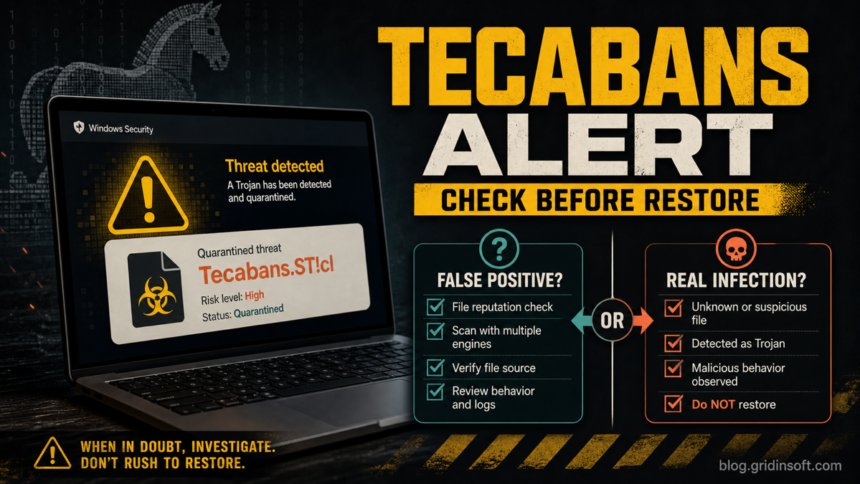
Trojan:Win32/Tecabans.ST!cl is a Microsoft Defender detection. Keep the flagged file quarantined. If you already ran the file or the alert returns after reboot, check the rest of the PC: quarantining one file may not remove other components installed with it.
Start with a Gridinsoft Anti-Malware system scan to look for related malware and unwanted programs, review what it finds, and clean detected items. You do not need to identify scheduled tasks or edit the registry before starting the scan. If Defender blocked an unopened download and there are no further symptoms, keep it blocked and verify its source using the checks below.
Use Gridinsoft Anti-Malware to scan your Windows PC for related threats and remove detected items. Review the results before cleanup, then restart and check whether the alert returns.
Free 6-day full trial for eligible new users, including cleanup. Email activation; no credit card required.
Download Gridinsoft Anti-Malware for Windows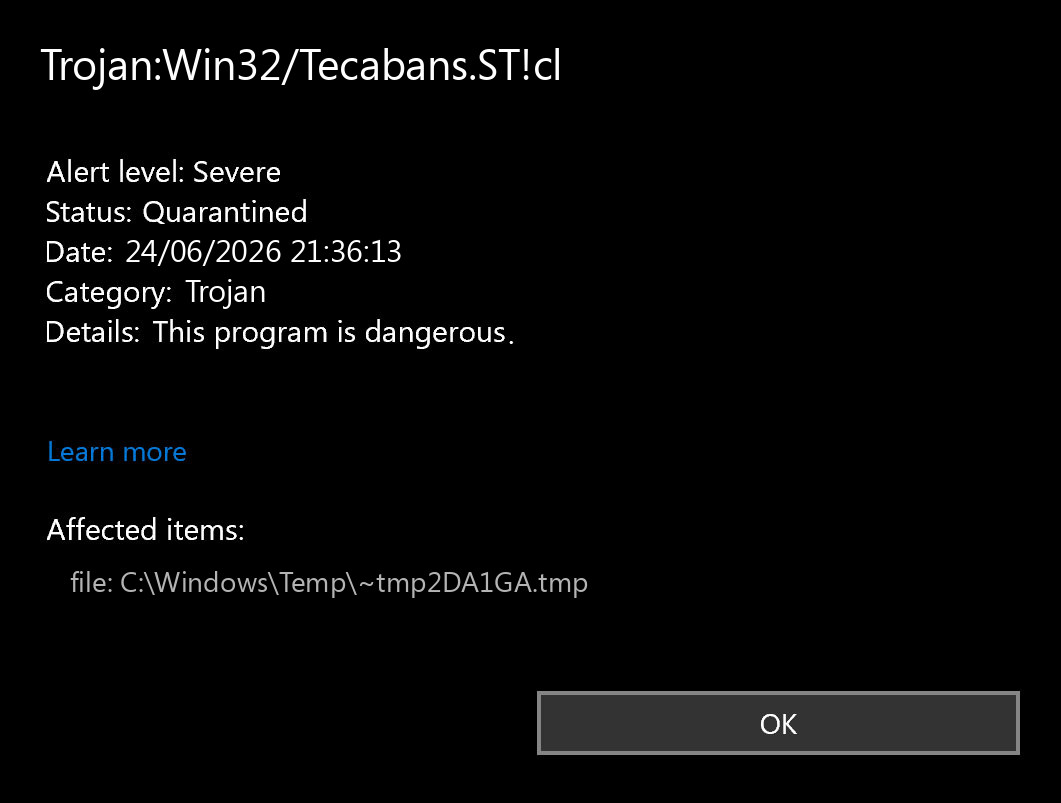
Quick Verdict
| Question | What to do |
|---|---|
| Defender says the status is quarantined or removed. | Leave it that way while you investigate. Quarantine is safer than restore. |
| The file came from a crack, trainer, mod, unknown archive, fake update, or Discord/Telegram link. | Treat it as real malware. Delete the source package and scan for persistence. |
| The file belongs to a trusted app you installed from the official site. | Verify publisher, signature, hash, and recent false-positive reports before restoring. |
| The alert comes back after reboot or after the same app runs. | Check Startup, Task Scheduler, browser changes, Defender exclusions, and run a deeper scan. |
Does your alert say Tecabans.STV!cl? Copy the full label and affected path: ST!cl and STV!cl are different detection labels. Keep the flagged item quarantined and base the scan-or-verify decision on whether the file ran and where it came from. Do not assume the two labels describe identical malware behavior.
What Is Trojan:Win32/Tecabans.ST!cl?
Trojan:Win32/Tecabans.ST!cl is a Defender detection name, not a full incident report. Microsoft classifies Tecabans as a trojan-family detection and says Defender detects and removes it; Microsoft also describes this type of threat as capable of actions chosen by a malicious actor [1]. The suffix !cl is an internal Microsoft indicator, so the useful question is not what every suffix means, but what file on your PC triggered the alert.
That context matters because this label can appear in different situations: a risky downloaded executable, a packed installer, a game mod, a suspicious temporary file, or occasionally a legitimate app that behaves in a way machine-learning defenses dislike. Google results for the exact label show a mix of Microsoft pages, a fresh removal guide, YouTube explainers, and forum-style false-positive anxiety. That is why this page focuses on the restore-or-remove decision instead of repeating a generic trojan definition.
Check the Path and Source First
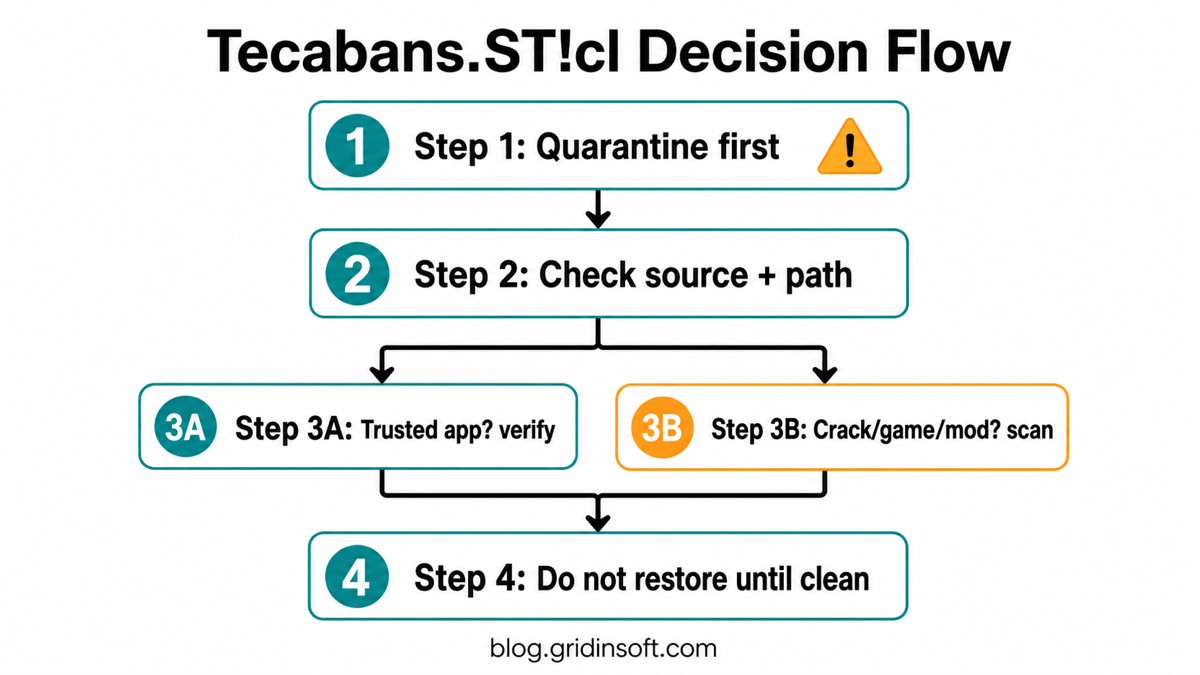
Open Windows Security, go to Protection history, expand the Tecabans alert, and copy the affected item path before clearing history. The same detection means different things depending on the location:
- %USERPROFILE%\Downloads or %TEMP%: usually a recent download, installer, archive extraction, or browser cache item. Remove the source and scan before restoring anything.
- %APPDATA%, %LOCALAPPDATA%, or %PROGRAMDATA%: more suspicious if the file is executable, recently created, or tied to startup.
- A game, mod, trainer, crack, or repack folder: treat the alert seriously. These sources often bundle loaders, stealers, miners, or persistence.
- A signed app under Program Files: verify the publisher and official download source. Do not restore only because the folder looks familiar.
- Email attachment, browser cache, or archive: delete the original message/download and scan. You do not need to open the file for Defender to detect it.
False Positive or Real Infection?
A possible false positive needs evidence. You want a trusted publisher, a clean official download source, a stable reputation, no suspicious startup entries, and no repeated alert after definitions update. A real infection is more likely when the file came from a cracked tool, game cheat, unknown archive, fake installer, or a link sent through Discord, Telegram, email, or a compromised social account.
Before restoring, update Microsoft Defender definitions and run a full scan. If the file is important, upload it to your vendor’s official submission portal instead of adding an exclusion immediately. Exclusions are a common way for malware to stay active after the visible file is quarantined.
How to Remove Trojan:Win32/Tecabans.ST!cl Safely
If you ran the suspicious file or the alert keeps returning, use this scan-and-cleanup path. Keep Microsoft Defender enabled and leave its quarantined item blocked.
- Save the alert details. Open Windows Security → Virus & threat protection → Protection history. Note the affected path, action status, and detection time. Do not choose Restore or Allow.
- Install Gridinsoft Anti-Malware and update its detection database. Eligible new users can request the free trial in the app and activate it with the code sent by email.
- Run a Full Scan and review the results. Check the detected names and file locations. Another scanner may use a different name from Tecabans; compare the affected files rather than expecting identical labels.
- Apply cleanup to confirmed threats. Review the suggested actions, then quarantine or remove detected items. Delete an untrusted source installer or archive so you do not run it again.
- Restart and check the original symptom. Run a follow-up scan if needed. A clean scan is useful evidence, but does not guarantee that no compromise occurred. If the alert returns, continue with the targeted checks below.
Optional manual checks if the symptom remains
If the alert persists after scanning and restarting, check Startup Apps, Task Scheduler, Services, browser extensions, and Defender exclusions. Remove only entries you can link to the suspicious file. Use a clean device for password changes if the file ran or accounts show suspicious activity.
If Tecabans Keeps Coming Back
A recurring Tecabans alert usually means something is recreating the file or re-triggering the same behavior. Check whether the path changes after every reboot. If the folder is always under AppData, Temp, Startup, a browser profile, or a game/mod directory, focus on the parent app and persistence, not just the quarantined file.
For broader Defender-name decoding, use the Microsoft Defender detection names guide. For similar exact-label triage where users worry about false positives, compare Wacatac.H!ml and Ravartar!rfn. If the source was a game or mod download, the post-game/mod infostealer checklist covers account-session cleanup.
FAQ
Is Trojan:Win32/Tecabans.ST!cl always malware?
No detection name proves the full story by itself, but a Tecabans.ST!cl alert should be treated as dangerous until you verify the affected file. Keep quarantine, check the path and source, and scan if the file ran or came from a risky download.
Can I restore the file if I think it is a false positive?
Only after you verify the publisher, source, signature, and reputation, update Defender, and confirm the alert does not return. Do not restore files from cracks, trainers, unknown archives, or fake updates.
Does quarantine mean I am already safe?
Quarantine is a good first step, but it does not prove there are no leftovers. If the file executed, came from a risky source, or the alert repeats, check startup locations and run a full scan.
Should I reinstall Windows after Tecabans.ST!cl?
Not as the first move. Reinstall only if there are signs of remote access, repeated persistence after cleanup, credential theft, many detections, or failed scans. Most cases should start with quarantine, source removal, full scan, and account safety checks.
References
- Microsoft Security Intelligence. “Trojan:Win32/Tecabans.ST!cl threat description.” Microsoft, accessed June 24, 2026. https://www.microsoft.com/en-us/wdsi/threats/malware-encyclopedia-description?Name=Trojan%3AWin32%2FTecabans.ST%21cl&ThreatID=2147945033
- Microsoft Security Intelligence. “Antimalware updates change log.” Microsoft, accessed June 24, 2026. https://www.microsoft.com/en-us/wdsi/definitions/antimalware-definition-release-notes