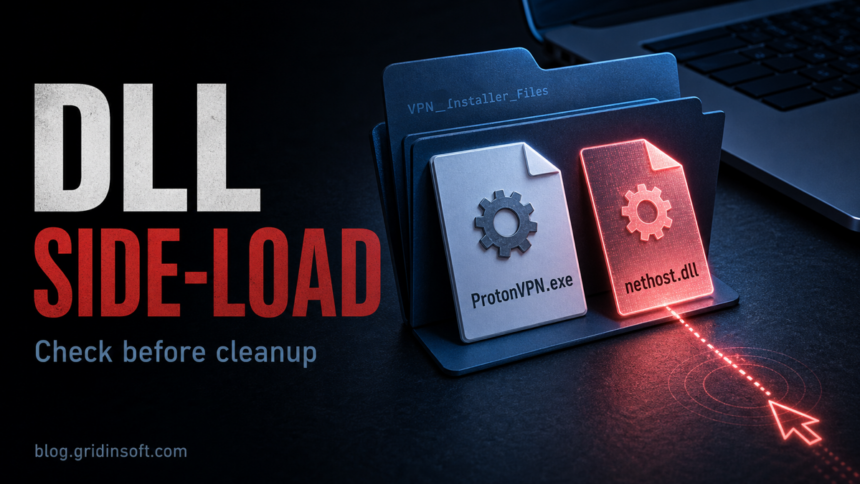
nethost.dll beside ProtonVPN.exe is suspicious when Proton VPN was not installed intentionally, appears in AppData, Downloads, Public, or another odd folder, or arrives with remote-control symptoms. Treat that combination as a possible DLL side-loading case: disconnect the computer, preserve the path and timestamps, scan the files, and clean persistence before you sign back in to accounts.
A legitimate VPN program can load DLL files during normal operation, and nethost.dll is also a real .NET hosting component in some software stacks. The risk starts when a legitimate-looking ProtonVPN.exe is placed next to an unexpected DLL and launched from a user-writable folder. Researchers have documented cases where attackers used a ProtonVPN executable to side-load a malicious nethost.dll and create command-and-control sessions [1]. Other fake Proton VPN campaigns have used DLL hijacking and fake download sites to deliver stealers [2].
What this file combination means
DLL side-loading is a technique where a trusted or ordinary executable loads a malicious DLL from the same folder or a preferred search path. MITRE tracks this under hijack execution flow and DLL search order abuse [5]. The executable may look harmless, but the DLL beside it can run attacker code.
For this specific case, the important question is not whether Proton VPN itself is malware. The official Proton VPN Windows app is a legitimate product, and Proton publishes its own Windows download and install guidance [3]. The question is whether the copy on your PC came from the official source, sits in the expected installation path, and is loading DLLs that belong there.
Red flags that make nethost.dll more dangerous
ProtonVPN.exeis in%AppData%,%LocalAppData%,C:\Users\Public\Downloads, a temporary folder, or a random archive folder instead of the normal installed app location.- You did not install Proton VPN, or you installed it from a search ad, YouTube link, Telegram post, game-mod page, cracked software bundle, or mirror site.
- The folder contains
nethost.dll, scripts, unusual.jar,.dat,.bkt, or archive files you do not recognize. - A security tool reports
nethost.dll,ProtonVPN.exe, Remcos, Tedy, a backdoor, or an infostealer in the same chain. - The mouse moves by itself, messaging apps open unexpectedly, browser sessions are touched, or accounts show sign-ins you did not make.
- The alert returns after reboot, or exclusions, scheduled tasks, startup entries, services, or unknown remote-access tools keep reappearing.
What to do first if remote control is possible
- Disconnect from the internet. Pull Ethernet or disable Wi-Fi. Do not keep troubleshooting while a possible remote session is active.
- Do not delete the folder immediately. Note the full path, file names, timestamps, file sizes, and any security-tool detection names.
- From a clean device, change passwords for email, banking, password manager, Steam, Discord, Telegram, VPN, and any account opened on the infected PC.
- Sign out other sessions where the service allows it. Prioritize email and password-manager accounts because they can reset everything else.
- Do not run copied forum fixlists or random cleanup scripts. A wrong script can remove evidence, break Windows, or miss persistence.
Check whether ProtonVPN.exe is legitimate
Start with context. If you knowingly installed Proton VPN from the official site, the app should appear in Windows installed apps and have a normal vendor path. If the executable is sitting in a loose folder next to nethost.dll, especially under a user profile or public download directory, that is not enough to trust it.
Use these checks before cleanup:
- Right-click
ProtonVPN.exe, open Properties, and review the digital signature. A missing or broken signature is a strong warning. - Compare the folder with the official Proton VPN installation flow. If you did not get it from Proton’s official Windows page, assume the source is untrusted until proven otherwise [3].
- Submit both
ProtonVPN.exeandnethost.dllto a file reputation checker from a clean browser session. Do not upload private documents or archives. - Check whether
nethost.dllhas Microsoft/.NET metadata. Microsoft documents native .NET hosting APIs that usenethost, but that does not make every file with that name safe [4].
Where to check for persistence
Side-loaded malware often depends on another launcher or startup path. After disconnecting the machine, check these locations:
- Startup folders:
shell:startupandshell:common startup. - Registry Run keys:
HKCUSoftwareMicrosoftWindowsCurrentVersionRunandHKLMSoftwareMicrosoftWindowsCurrentVersionRun. - Scheduled Tasks: recently created tasks with PowerShell, Java,
cmd.exe,mshta.exe,wscript.exe, or odd VPN/update names. - Services: new services pointing to AppData, Public, ProgramData, Temp, or a folder with the suspicious DLL.
- AppData and ProgramData: folders named like updates, VPN installers, OneDrive updates, browser helpers, or random strings.
- Remote-access tools: AnyDesk, TeamViewer, RustDesk, Quick Assist traces, unknown browser remote-control extensions, or remote shells you did not install.
- Security exclusions: Defender or another security tool exclusions for the suspicious folder, PowerShell, Java, or archive paths.
If you see signs of account access or hands-on remote control, treat the incident as more than a single bad DLL. A backdoor or infostealer cleanup needs file removal, persistence removal, and account recovery.
How to clean the system
- Keep the PC offline while preparing cleanup.
- Remove the suspicious ProtonVPN folder only after you have recorded the path and scan result.
- Uninstall any Proton VPN entry you do not recognize. If you use Proton VPN legitimately, reinstall only from the official Proton source after cleanup.
- Run a full malware scan with Gridinsoft Anti-Malware or another trusted security tool. Scan the whole system, not only the folder with
nethost.dll. - Remove detected backdoors, stealers, loaders, scripts, scheduled tasks, services, and exclusions.
- Reboot and scan again. If the same folder or alert returns, persistence is still active.
- From a clean device, finish password changes, revoke sessions, rotate recovery codes, and enable MFA on important accounts.
After uninstalling the suspicious app or deleting the visible threat, use Gridinsoft Anti-Malware to check hidden files, startup entries, scheduled tasks, bundled apps, browser changes, and other persistence points that can restore malware.
Download Anti-MalwareWhen a clean reinstall is safer
A normal cleanup is reasonable when the files were blocked before execution, there are no remote-control symptoms, no credential theft signs, and a second scan is clean after reboot. A clean Windows reinstall is safer when the mouse moved by itself, a messaging app was opened, account data was touched, security exclusions were added, or a RAT/backdoor label such as Remcos appears in the same incident.
Before reinstalling, copy only personal documents, photos, and known-clean data. Avoid carrying over executables, scripts, cracked tools, game mods, unknown installers, browser extension folders, and archives from the suspicious period.
How to avoid the same infection path
- Download VPN clients only from the vendor’s official domain or verified repository.
- Avoid sponsored download links for security tools, VPNs, game utilities, and hardware helpers unless you verify the domain carefully.
- Do not run installers from password-protected archives shared in chat, video descriptions, or game-mod comments.
- Keep Windows, browsers, .NET runtimes, and security tools updated.
- Investigate any new VPN, updater, or remote-access tool that appears without a clear install history.
Related Tedy!MTB Defender Alert
If the same incident also produced a Trojan:Win64/Tedy!MTB alert, keep the item quarantined and use the Tedy guide to check the affected path, companion DLLs, startup entries, and account-safety steps.
FAQ
Is nethost.dll always malware?
No. nethost.dll can be part of legitimate .NET hosting. It becomes suspicious when it appears beside an unexpected executable, in a user-writable folder, or in a chain that a security tool flags.
Is Proton VPN malware?
No. Proton VPN is a legitimate VPN product. Malware actors can still abuse lookalike downloads, fake sites, or a legitimate-looking executable name. Judge the file by source, signature, path, and behavior.
Can I just delete nethost.dll?
Only deleting the DLL may leave the launcher, scheduled task, service, or account compromise untouched. Record the path, scan the system, remove persistence, and rotate passwords from a clean device.
Why did my mouse move by itself?
That can happen during legitimate remote support, but if you did not start a support session it may indicate a RAT, remote desktop tool, browser session theft, or another hands-on intrusion. Disconnect first and investigate from offline state.
References
- Sophos X-Ops. “Sophos MDR tracks two ransomware campaigns using email bombing, Microsoft Teams vishing.” Sophos News, January 21, 2025, accessed June 2, 2026. https://news.sophos.com/en-us/2025/01/21/sophos-mdr-tracks-two-ransomware-campaigns-using-email-bombing-microsoft-teams-vishing/
- Gabriele Orini. “From fake Proton VPN sites to gaming mods, this Windows infostealer is everywhere.” Malwarebytes Threat Intelligence, April 15, 2026, accessed June 2, 2026. https://www.malwarebytes.com/blog/threat-intel/2026/04/from-fake-proton-vpn-sites-to-gaming-mods-this-windows-infostealer-is-everywhere
- Proton VPN. “How do I install and uninstall Proton VPN on Windows?” Proton Support, accessed June 2, 2026. https://protonvpn.com/support/install-windows-vpn/
- Microsoft. “Write a custom .NET host to control the .NET runtime from your native code.” Microsoft Learn, updated December 10, 2025, accessed June 2, 2026. https://learn.microsoft.com/en-us/dotnet/core/tutorials/netcore-hosting
- MITRE ATT&CK. “Hijack Execution Flow: DLL, Sub-technique T1574.001.” MITRE, accessed June 2, 2026. https://attack.mitre.org/techniques/T1574/001/