Trojan:Win32/Vundo.gen!D is a Microsoft Defender detection connected to the Vundo/Virtumonde malware family. Classic Vundo infections were known for browser hijacking, fake antivirus pop-ups, unwanted DLLs, Browser Helper Objects, redirects, and downloading additional malware. The gen!D suffix means Defender is using a generic signature for a Vundo-like file or behavior, not necessarily naming one exact historical variant.
| Detection name | Trojan:Win32/Vundo.gen!D |
| Also related to | Vundo, Virtumonde, VirtuMonde, Trojan:Win32/Vundo, Win32/Virtumonde |
| Detected by | Microsoft Defender Antivirus |
| Main risk | Browser hijacking, adware, rogue security pop-ups, additional malware downloads, credential exposure |
| Best first action | Keep the file quarantined, note the detected path, run a full scan, then check browsers and persistence points. |
Is Trojan:Win32/Vundo.gen!D Dangerous?
Yes, treat it as dangerous unless you can prove it is a false positive. Vundo/Virtumonde is an old but well-known malware family, and generic Defender detections can still appear when a modern file behaves like that family or uses related indicators.
Do not restore the file from quarantine just to see what happens. First check the file path, where it came from, whether Defender says it was removed or only detected, and whether the computer shows signs of browser hijacking or pop-up spam.
What Is Vundo or Virtumonde?
Vundo, also known as Virtumonde, is a Windows malware family historically associated with unwanted browser components, DLL-based persistence, fake security ads, redirects, and rogue antispyware promotions. Older infections often used Browser Helper Objects and suspicious DLL files to inject into browser activity and push pop-ups or redirects.
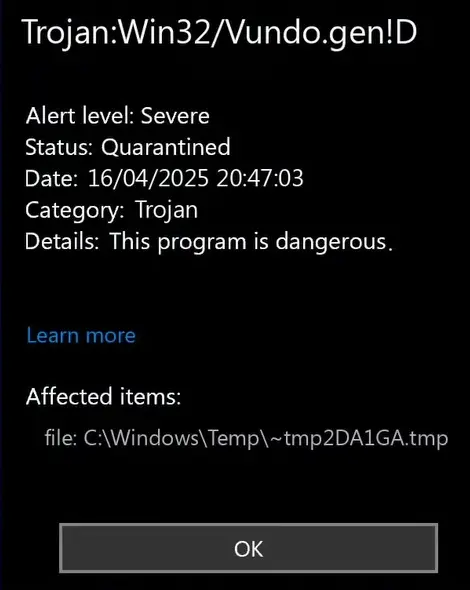
Microsoft’s older Virtumonde description notes that the family has been distributed as DLL files and installed as browser helper components without user consent. That context matters because the right cleanup is not only “delete one file”; you also need to check browser settings, startup entries, scheduled tasks, and other persistence locations.
What Does gen!D Mean?
The gen part usually means a generic detection. Defender is not saying “this is one exact sample with a human-readable family tree.” It is saying the file or behavior matches a broader pattern that belongs to Vundo-like malware.
That makes two things true at the same time:
- The alert can represent a real infection and should not be ignored.
- The exact name alone is not enough to understand the full case. The file path, source, hash, and surrounding symptoms matter.
How to Tell If It Is an Active Infection
Open Windows Security > Virus & threat protection > Protection history. Click the detection and write down the affected item path, status, and action taken.
| What Defender shows | What it usually means | What to do next |
| Status: Quarantined or Removed | Defender blocked the detected file. | Run a full scan and check whether the alert returns after reboot. |
| Status: Active or Remediation incomplete | Something may still be running or locked. | Use Safe Mode, Microsoft Defender Offline, and a second-opinion scan. |
Path under Downloads, Temp, archive, or installer folder |
The threat may be tied to a downloaded file or installer. | Delete the source package and avoid restoring the file. |
Path under AppData, ProgramData, startup folders, or random DLL names |
Possible persistence or active infection. | Scan fully and inspect startup entries, scheduled tasks, and browser extensions. |
Common Symptoms of Vundo-Style Malware
Not every case shows visible symptoms. But if this detection is real, you may see one or more of these signs:
- Fake antivirus or “your PC is infected” pop-ups.
- Browser redirects to search, ad, or fake security pages.
- Unknown browser extensions or settings that return after removal.
- Slow browser startup, high CPU usage, or random processes using the network.
- Security websites, search engines, or update sites failing to load.
- Suspicious DLL files launched through
rundll32.exe. - New startup items or scheduled tasks with random-looking names.
False Positive or Real Threat?
A false positive is possible, especially with old software, unsigned utilities, modified installers, cracks, packed files, or files downloaded from mirrors. But Vundo is not a harmless label, so do not start by allowing the item.
Use this quick test:
- Likely real threat: the file came from a crack, unknown installer, fake update, email attachment, suspicious archive, or ad-driven download.
- Needs investigation: the file is in
AppData,Temp, startup folders, or keeps returning after quarantine. - Possible false positive: the file is from a trusted vendor, digitally signed, downloaded from the vendor’s official site, and multiple reputable scanners do not flag it.
If you suspect a false positive, upload only the file hash or the file itself to a reputable multi-scanner from a safe environment. Do not execute the file to “test” it.
How to Remove Trojan:Win32/Vundo.gen!D
Use a layered cleanup. Vundo-style detections can leave browser and startup changes behind even after the original file is quarantined.
1. Keep Defender quarantine in place
Do not restore the detected file. If Defender already removed it, leave it removed and continue with a full check.
2. Run a full Microsoft Defender scan
- Open Windows Security.
- Go to Virus & threat protection.
- Select Scan options.
- Run a Full scan.
3. Use Microsoft Defender Offline if the alert returns
If Defender says remediation is incomplete, or the same detection returns after reboot, run Microsoft Defender Offline scan. It scans before normal Windows startup, which helps when malware is locked or loaded early.
4. Run Microsoft Safety Scanner or another second-opinion scan
Microsoft Safety Scanner (MSERT) is useful for a one-time check. A second-opinion anti-malware scan can also catch leftovers such as unwanted extensions, adware, startup entries, and bundled components.
After uninstalling the suspicious app or deleting the visible threat, use Gridinsoft Anti-Malware to check hidden files, startup entries, scheduled tasks, bundled apps, browser changes, and other persistence points that can restore malware.
Download Anti-Malware5. Delete the source package
If the detection came from a downloaded installer, archive, crack, game mod, browser plugin, or email attachment, delete the entire source package. Do not keep the archive “just in case”; packed installers are a common reason Defender catches only one file first.
6. Check startup entries and scheduled tasks
- Press Ctrl+Shift+Esc and open Startup apps.
- Disable unknown or recently added entries.
- Open Task Scheduler.
- Look for tasks that launch random EXE/DLL files, scripts, or browser URLs.
- Remove entries only when you are sure they are unwanted.
7. Reset affected browsers
Vundo/Virtumonde is strongly associated with browser manipulation, so check every browser you use.
- Tap on the three dots (...) in the top right corner and Choose Settings.

- Choose Reset and Clean up and Restore settings to their original defaults.

- Tap Reset settings.

Quick Access: Type chrome://settings/reset in the address bar.
- Open Safari.
- In the menu bar, click Safari > Clear History.
- Select all history and click Clear History.
- Go to Safari > Settings (or Preferences).
- Click the Privacy tab and select Manage Website Data... > Remove All.
- In the Advanced tab, check Show features for web developers.
- In the menu bar, select Develop > Empty Caches.
- Launch Brave browser.
- Click the menu icon in the top right corner and select Settings.
- Click Additional settings > Reset settings.
- Tap Restore settings to their original defaults.
- Confirm by clicking Reset settings.
Quick Access: Type brave://settings/reset in the address bar.
- In the upper right corner tap the three-line icon and Choose Help.

- Choose More Troubleshooting Information.

- Choose Refresh Firefox... then Refresh Firefox.

Quick Access: Type about:support and click Refresh Firefox.
- Tap the three dots.

- Choose Settings.

- Tap Reset Settings, then Click Restore settings to their default values.

Quick Access: Type edge://settings/reset in the address bar.
- Launch the Opera browser.
- Click the Opera menu button in the top left corner and select Settings.
- Scroll down to the Advanced section in the left sidebar and click Reset and clean up.
- Click Restore settings to their original defaults.
- Click Reset settings to confirm.
Quick Access: Type opera://settings/reset in the address bar.
After reset, manually review extensions. Remove unknown shopping helpers, search extensions, downloaders, “security” add-ons you did not install, and anything that returns after you delete it.
What to Do After Removal
After scans are clean and the detection no longer returns:
- Restart Windows and run one more quick scan.
- Update Windows, browsers, Java if installed, and other internet-facing apps.
- Change passwords used on the infected PC, especially email, banking, social, work, gaming, and crypto accounts.
- Check browser notification permissions and remove suspicious websites.
- Review recently installed apps and uninstall software you do not recognize.
If the PC was used for sensitive work or banking while the infection was active, monitor accounts for unusual sign-ins and transactions.
FAQ
Is Trojan:Win32/Vundo.gen!D the same as Virtumonde?
It is related. Vundo and Virtumonde are names used for the same broad malware family. Defender’s gen!D suffix means the detected file matched a generic Vundo-like signature.
Can Defender remove Vundo by itself?
Often yes, if the detected file is not active or protected by persistence. If Defender says remediation is incomplete or the alert returns, run Defender Offline and a second-opinion scan.
Should I restore Trojan:Win32/Vundo.gen!D from quarantine?
No. Restore only if you have strong evidence that the file is a false positive, came from an official vendor source, and has been checked safely. For normal users, keeping it quarantined is the right move.
Why does Vundo cause browser pop-ups?
Classic Vundo/Virtumonde infections were known for browser helper components, redirects, and rogue security ads. Modern detections may still require browser cleanup because extensions and settings can survive after file removal.
What if Defender detected it but says it was removed?
Run a full scan, reboot, and check Protection history again. If the detection does not return and no suspicious browser or startup symptoms remain, the immediate threat may be handled.
Is Trojan:Win32/Vundo.gen!D always a false positive?
No. False positives can happen, but this detection should be treated as a real threat until scans, file source, signature, and system behavior suggest otherwise.
Bottom Line
Trojan:Win32/Vundo.gen!D is not a detection to casually ignore. Keep the file quarantined, check where it was found, run a full scan, use Defender Offline if it comes back, and clean browsers and startup entries. If the alert was tied to a suspicious installer or archive, delete the whole source package and change passwords used on that PC.
Related Microsoft Defender guides