

Yes. In Windows 11, you can select Delivery Optimization Files in Disk Cleanup to reclaim the space shown for that item. Windows removes cached pieces of Microsoft downloads. Your installed updates, Store apps and personal files stay in place. If the item shows only a few kilobytes, you can leave it alone. Windows also clears this cache automatically.
How to clear just the Delivery Optimization cache
- Open Windows Update in Settings. If an update is downloading or installing and you have room to finish it, let it complete first. Restart if Windows asks you to. That gives you a better time to measure how much space you recover.
- Open Start, search for Disk Cleanup and open the app. If Windows asks which drive to scan, start with the drive where Windows is installed, usually C:.
- In Files to delete, find Delivery Optimization Files and read the size on that row. Tick its box. Clear the checks beside other categories if you only want to remove this cache. The total below the list adds up all checked items.
- Select OK, then Delete Files. When cleanup finishes, open Disk Cleanup again on the same drive to check the row. If it shows zero bytes or no longer appears, move on.
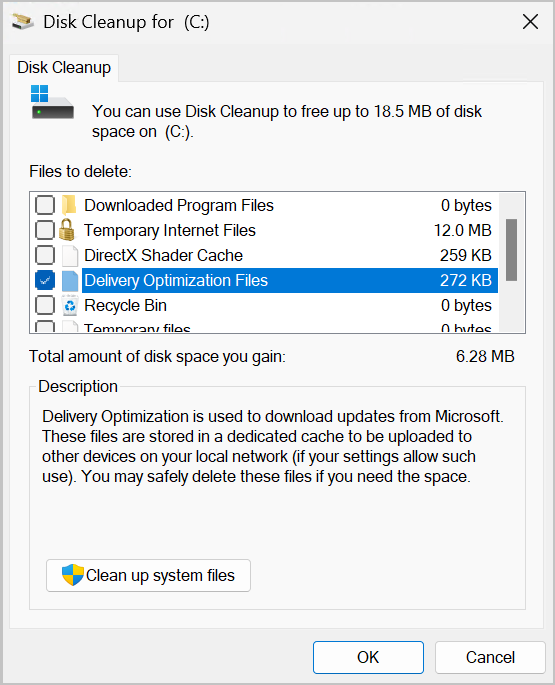
Microsoft’s example shows 272 KB next to Delivery Optimization Files and 6.28 MB in the total. That larger number is a reason to review the rest of the list before confirming. If you need gigabytes and the cache contains kilobytes, check Settings > System > Storage to see what actually occupies the drive. The Windows disk space guide explains which categories to review, including Downloads and previous Windows installations.
What happens to updates, and why the files come back
Suppose your PC has just installed a Windows update. Delivery Optimization can keep parts of the download for reuse or for sharing with other eligible PCs. Disk Cleanup removes eligible cached copies. The installed update has its own place in Windows, so clearing the download cache does not roll it back. The trade-off is bandwidth. If content is needed again, a device may have to download it again.
A later Windows update or Microsoft Store download can populate the cache again. Seeing the category return after Patch Tuesday is expected. You can leave it for Windows to manage. If a large transfer is the concern, open Settings > Windows Update > Advanced options > Delivery Optimization > Activity monitor. The numbers there cover network activity for the month, so clearing files will not reset that history. For a transfer happening right now, follow the Service Host network usage guide to identify the downloader before changing bandwidth settings.
What if the folder is on D: or says “Access denied”?
Delivery Optimization normally caches content on the operating system drive. An administrator can configure a different drive or folder. If you found a folder named DeliveryOptimization on D:, its name alone does not tell you who created it or whether Windows currently uses it.
Close File Explorer and use Disk Cleanup. If it offers the other drive, check whether it lists Delivery Optimization Files there. If there is no matching category, leave the folder permissions in place. On a work or school PC, give IT the drive letter, folder name and available disk space so they can check the configured cache location. Taking ownership, force-deleting a protected folder or disabling the service adds risk without confirming what is using the space.
References
- Microsoft. Delivery Optimization in Windows. Microsoft Support. Accessed November 18, 2026.
- Microsoft. Delivery Optimization reference. Microsoft Learn. Accessed November 18, 2026.