TrojanDownloader:Win64/Penguish.PO!MTB should stay quarantined while you check what Defender detected. If the warning returns, compare the event time, affected item and action status: an old Protection History card needs a different response from a newly detected file or process. If an unfamiliar installer already ran, disconnect the PC and use a separate clean device for account recovery while you arrange cleanup.
There is also a trap in the search results for this detection. A GitHub Desktop report initially blamed an official MSI, but the reporter later corrected the download source to a search-promoted page delivering a different executable. That distinction matters before you decide an alert is a false positive.
Read the Penguish alert before changing anything
Open Windows Security → Virus & threat protection → Protection history. Expand the newest Penguish event and save its exact name, time, status and complete affected-item entry. Note the download or app you used immediately beforehand. If this is a work computer, send those details to IT before attempting cleanup.
Microsoft distinguishes a quarantined item from an alert requiring action or an incomplete cleanup. Quarantine contains the item; restoring it puts it back. Protection History also retains past events, so the continued presence of a card alone does not establish a fresh infection.1
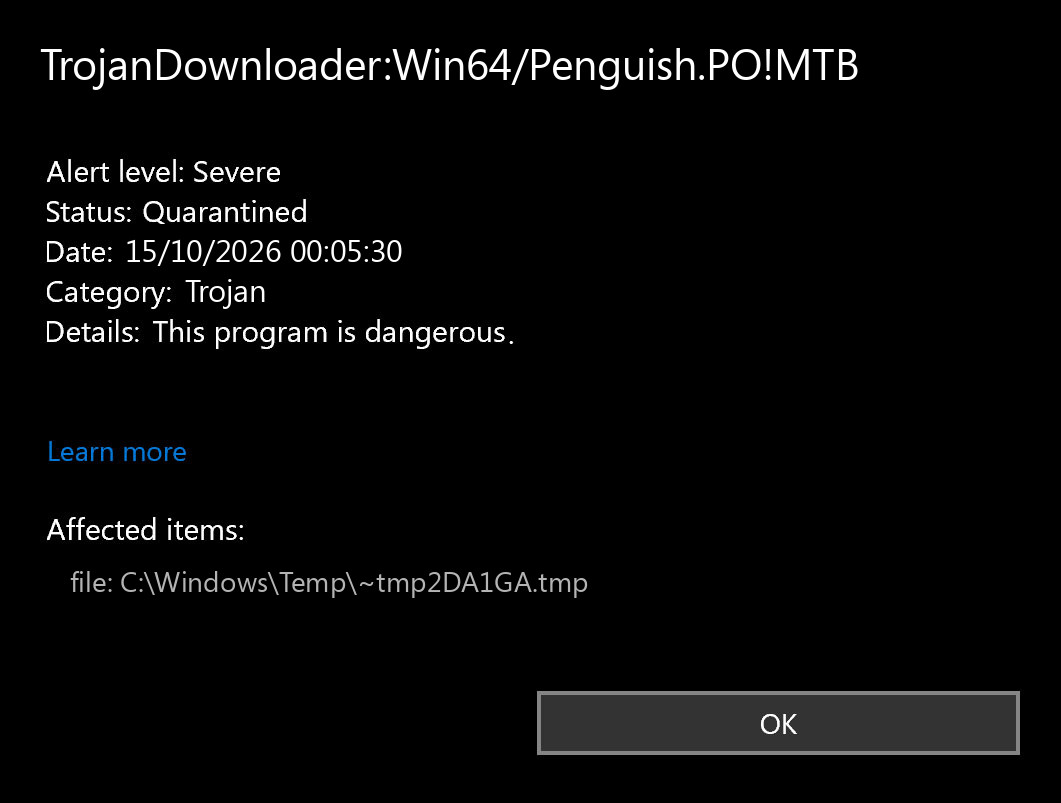
Check your own event details: the time and affected path can differ from the alert shown above. The detection name is not a fixed filename, and it does not tell you which additional programs, if any, ran. The Defender detection-name guide explains the label fields; the affected item determines the next step.
Why does Penguish.PO!MTB keep coming back?
Use the newest event to choose the branch below. These are diagnostic possibilities, not a claim that every Penguish detection uses the same persistence mechanism.
The same old event remains; its detection time has not advanced.
Check the latest scan result and action status. Keep quarantine in place. Do not erase Defender’s history database to make the card disappear.
A new event names the same download, archive or extracted file.
Stop opening or extracting it. Remove the identified unsafe source and its copies through normal file management or your security tool. Check whether a download or sync app is bringing that exact item back.
A new event appears after restart or an app launch, particularly in %LOCALAPPDATA%\Temp or another writable folder.
Run the cleanup flow below. A component may be recreating the item; deleting the entire folder can damage legitimate software without resolving the cause.
The affected item is a process:pid entry rather than a file path.
Save the complete event and its time for investigation. A PID identifies a process instance and can later be reused. Do not delete whichever program happens to have that number in Task Manager now.
If Defender also reports Trojan:Win64/Lazy.PGLI!MTB, record it as a separate event. Matching times may help an investigation, but two names alone do not establish that the detections are one malware family.
The GitHub Desktop report was corrected
In September 2025, GitHub issue #20986 initially described a Penguish alert against the GitHub Desktop 3.5.2 MSI. The reporter subsequently said the download had actually come from a Bing-promoted repository page, whose link delivered GitHubDesktopSetup-x64.exe. A GitHub contributor confirmed that the linked attack report described the situation and directed readers to the official releases page or download site.2
This is not evidence that the official 3.5.2 MSI was malicious or that Penguish is a confirmed false positive. It illustrates why an issue title, familiar filename or GitHub-looking page is insufficient to clear a download.
For your installer, check the actual download destination in browser history, not just the search-result title. Start a replacement download from the publisher’s official website. Compare the exact version and installer type, inspect the digital signature and expected publisher where available, and compare a file hash only against a trustworthy value for that exact build. A hash copied from an unrelated forum post does not establish provenance.
Keep the original file quarantined while checking. Do not restore it just to obtain a signature or hash; use recorded details or ask the publisher to review the detection. If the evidence suggests a false positive, follow the file-specific reporting process and wait for a resolution. A clean result from another scanner is useful context, but it does not settle a behavior-based or process-only alert.
Remove the source and scan the PC
If a suspect installer ran, or new events recur after quarantine, a loader, scheduled task, service, browser change or bundled component may remain. A full scan can check beyond the one item Defender displayed. You do not need to begin by deleting registry keys or manually dismantling startup entries.
- Contain the item. Keep it quarantined or let the security tool remove it. Stop retrying the suspicious installer. If you already allowed it, review that exact entry under Windows Security’s Allowed threats and choose Don’t allow.3
- Obtain Gridinsoft Anti-Malware from its official download. Install it and update the detection database. If you disconnected a potentially compromised PC, use a clean device to obtain the official installer and keep the affected PC’s network access limited to necessary recovery steps.
- Run a Full Scan. Review the detected threats and apply the recommended cleanup. Save the scan report so that a recurring item can be compared with the earlier Defender event.
- Restart and check the original symptom. Look for a genuinely new Penguish timestamp or a recreated file. Do not reopen the suspect installer to test whether it still triggers an alert.
If the installer or scanner cannot run, or new detections persist, Microsoft Defender Offline is a fallback. Save your work, open Virus & threat protection → Scan options → Microsoft Defender Antivirus (offline scan) and follow the restart prompt. It scans in the recovery environment; check Protection History afterward, then return to the full cleanup scan when access is restored.3
For continuing fresh events, use the Windows security audit or get qualified help with the saved reports. Investigate the identified source rather than copying another person’s registry deletions, cleanup script or list of filenames. Broad exclusions for Downloads, AppData or a whole drive hide useful evidence and leave files unchecked.
If you ran the installer, protect accounts in parallel
Do not postpone account recovery until a scan finishes. From a separate clean device, secure your main email account, change affected or reused passwords, revoke unfamiliar sessions and connected apps, and check recovery details. If developer credentials were accessible on the PC, review GitHub sessions and rotate exposed access tokens or other secrets. Contact your bank promptly if you see unauthorized payments.
These precautions respond to possible exposure after running unknown software; the Penguish label alone does not prove that credentials were stolen. A later clean scan also cannot revoke a session or recover a secret that already left the device.
If new detections continue after cleanup, security settings keep reverting, or you cannot establish the system’s integrity, consider a clean Windows installation from trusted media. Back up necessary documents rather than unknown installers, scripts or a complete suspect browser profile. A single contained download that never ran does not automatically require a reinstall.
References
- Microsoft Support. “Protection History in the Windows Security App.” Accessed October 14, 2026. Protection History states and actions.
- Interface007 and GitHub Desktop contributors. “Installer is reported as TrojanDownloader:Win64/Penguish.PO!MTB,” issue #20986. GitHub, September 8–9, 2025; accessed October 14, 2026. Original report, correction and contributor response.
- Microsoft Support. “Virus and Threat Protection in the Windows Security App.” Accessed October 14, 2026. Scan options and Allowed threats.