AvastSvc.exe is normally the protected background service used by Avast Antivirus. A short CPU, disk, or memory spike can be expected while Avast updates, scans new files, or checks a large download. Sustained high usage while the PC is otherwise idle is different: confirm the process, watch what Avast is doing, update the app, and use Avast’s Repair option before considering a clean reinstall. Do not delete AvastSvc.exe, disable the service permanently, or download a replacement EXE. If the file is outside the Avast installation folder or lacks a trusted Avast or Gen Digital signature, treat it as a suspicious copy instead.
What is AvastSvc.exe?
AvastSvc.exe runs as Avast Service and supports the antivirus engine’s background work. Avast explains that its Windows product uses several processes because system services, sandboxed components, user-interface processes, and on-demand functions have different jobs. Multiple Avast entries in Task Manager are therefore not automatically a problem, and they should not normally consume unusually high resources when the system is settled.[1]
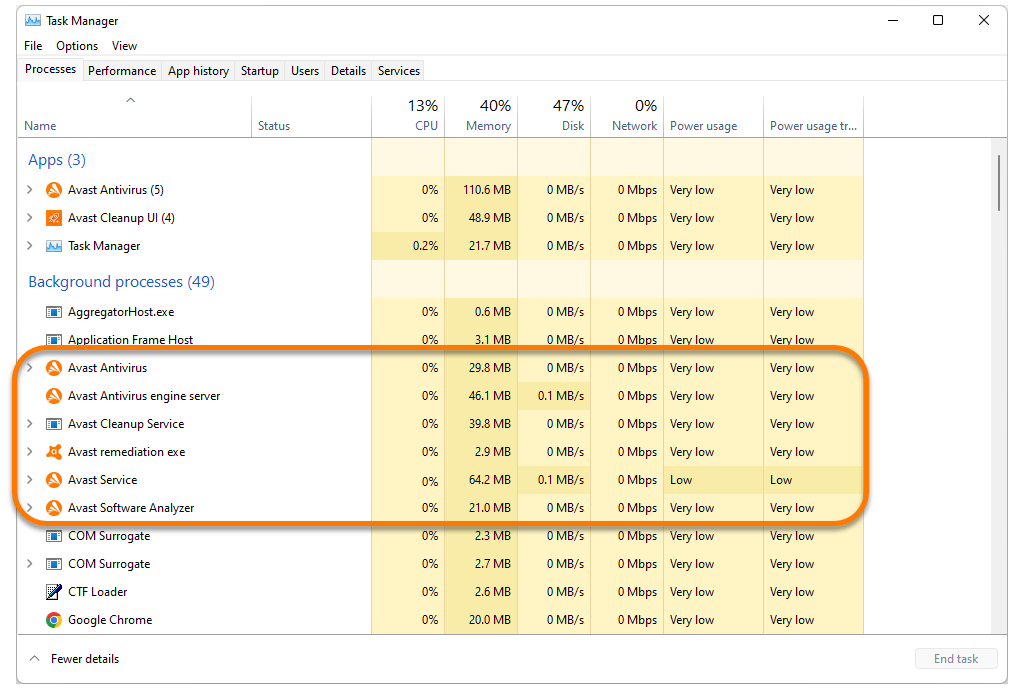
The process name alone does not tell you whether a spike is harmless. The useful questions are what Avast is doing, how long the load lasts, whether it returns after a restart, and whether the executable belongs to the installed Avast package.
Quick decision: wait, repair, or investigate?
- CPU or disk rises during a scan, update, large download, archive extraction, or software installation: Let the active task finish and check whether usage falls afterward. A temporary spike is not evidence of malware.
- Avast Service stays busy for 15–30 minutes after startup: Open Avast and look for a scan or update. Restart once after any pending update, then measure again.
- High CPU or disk returns at idle, with no scan or update visible: Update Avast, restart Windows, and use Avast Repair. Note whether one folder, download, or app consistently triggers the spike.
- Memory keeps growing instead of leveling off: Close heavy apps, finish any Avast scan, update the product, and restart. If the same growth returns, Repair or reinstall Avast.
- AvastSvc.exe is in Downloads, Temp, AppData, a random folder, or Avast is not installed: Do not allowlist it. Check the signature and scan the PC for the file and its launcher or persistence.
- You want to stop the load by deleting the service: Do not delete the executable or service. Use supported Avast controls, Repair, or a clean uninstall so another trusted antivirus can take over.
There is no single “normal” CPU or memory percentage for every PC. A four-core laptop, a many-core desktop, an HDD, and an SSD will show the same antivirus task differently. Judge the pattern: a bounded burst tied to visible work is less concerning than a resource curve that remains high after the work should have ended.
Measure the pattern before changing protection
- Open Task Manager. Sort the Processes or Details view by CPU, Disk, and Memory. Confirm that Avast Service or AvastSvc.exe is the actual consumer rather than a browser, installer, Windows Update component, or storage process.
- Open Avast. Check whether a Smart Scan, full scan, update, or background task is running. If a scan is active, wait for it to finish unless the computer is overheating or unusable.
- Note the trigger. Did the spike begin after startup, a definition update, a large download, extracting an archive, installing a game, opening a mail client, or copying many files? Repeating the same trigger is more useful than changing several settings at once.
- Wait and sample again. Check resource use after ten minutes and after the visible task completes. For memory, look for continuous growth rather than one large but stable number.
- Restart once. A reboot clears a stuck update or scan state and provides a clean measurement. If the load returns immediately at idle, continue to verification and Repair.
Avoid turning off every shield as a diagnostic shortcut. That changes several variables at once and may leave the PC unprotected. If a specific trusted folder repeatedly triggers scanning, first identify the files and confirm the trigger; do not exclude an entire drive, Downloads, Temp, or unknown executables.
Verify the AvastSvc.exe path and signature
In Task Manager, right-click Avast Service or AvastSvc.exe and choose Open file location. A normal copy belongs to the Avast installation, commonly under a path such as C:\Program Files\Avast Software\Avast\AvastSvc.exe. The exact folder can vary by product and version, so use the installed package and signature together rather than trusting one hard-coded path.
Right-click the file, open Properties, and check the Digital Signatures tab. The signer should match Avast or its current parent company, Gen Digital, and Windows should report that the signature is valid. A missing signature is not automatic proof of malware, but it is a reason to stop, avoid allowlisting the file, and investigate further.
Red flags include:
- AvastSvc.exe runs from
Downloads,Temp,AppData, a browser profile, or an unrelated program folder. - The file appears even though Avast Antivirus is not installed.
- The signer is missing, invalid, or belongs to an unrelated publisher.
- An unknown scheduled task, startup entry, or service launches the file.
- The spike arrives with redirects, new extensions, security-setting changes, blocked outbound traffic, or repeated antivirus alerts.
If you need a broader verification sequence, use the EXE file safety checklist to check the source, signature, path, hash, and behavior without downloading a replacement executable.
Fix AvastSvc.exe high CPU, disk, or memory safely
1. Finish the active scan or update
If Avast shows an active scan or update, allow it to complete and then recheck Task Manager. Large archives, fresh game libraries, virtual-machine images, developer build folders, and newly copied backups can cause heavy read activity because many files change at once. If the spike stops when that workload ends, no service repair may be needed.
2. Update Avast and restart Windows
Install available engine, virus-definition, and application updates through Avast itself. Do not obtain AvastSvc.exe from a download site. Restart Windows if prompted, then observe the process before opening the same heavy workload again. If the issue began after an interrupted update, a completed update and restart may be enough.
3. Use Avast Repair
If the dashboard itself will not launch, use the AvastUI.exe application-error guide to separate a broken interface from a protection warning and start Repair through Windows Settings.
Avast recommends installation repair when features fail, a scan is stuck, or an application update fails. Repair rebuilds the installed components through Avast Setup, although some customized settings may return to their defaults.[2]
- Close other applications.
- Open Settings → Apps → Installed apps in Windows 11, or Apps & features on older Windows versions.
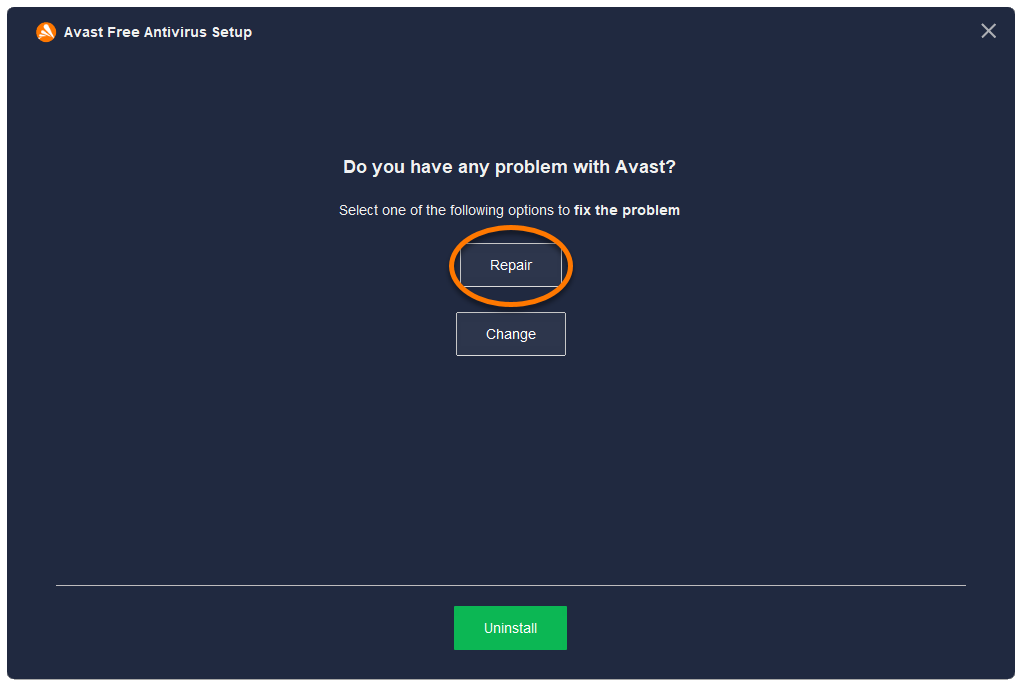
- Find Avast Free Antivirus or Avast Premium Security, open its options, and choose Uninstall. This launches Avast Setup; it does not remove the product immediately.
- Select Repair, confirm the request, and let Setup finish.
- Restart if requested, then check CPU, disk, and memory before changing any shields or exclusions.
4. Cleanly reinstall only if Repair fails
If the process remains stuck after an update, restart, and Repair, use Avast’s supported uninstall or Remove & Reinstall path. Avast’s Uninstall Tool can remove the product in Safe Mode when normal uninstallation fails or Setup reports that another operation is running.[3] Save license or account details first, and download the installer only from Avast.
Do not leave the PC without active protection. After removing Avast, confirm that Microsoft Defender Antivirus or another trusted security provider becomes active before normal browsing, email, or downloads resume. If you reinstall Avast, update it fully and measure resource use before restoring optional components or old settings.
When AvastSvc.exe may be a suspicious copy
A legitimate Avast service can have a performance problem; that does not make AvastSvc.exe malware. The suspicious branch begins when the path, signature, installed product, or surrounding behavior does not match Avast.
- Disconnect from untrusted networks if the file is making unexplained connections or appears with account, browser, or security-setting changes.
- Do not add an exclusion and do not launch the file to “test” it.
- Record the path and signer, then check Startup Apps, Task Scheduler, Services, and recently installed software for the launcher.
- Keep the suspicious copy contained and run a full Gridinsoft Anti-Malware scan. Remove confirmed detections, reboot, and scan again if the process or related activity returns.
Ending one visible process may not remove the component that starts it. A loader, scheduled task, service, bundled app, or browser change can recreate the activity after reboot. Gridinsoft Anti-Malware can check for the file and those related persistence points; it cannot prove that no exposure occurred or recover credentials that were already stolen.
If the process path is wrong, the name imitates a Windows component, or high CPU started after an unknown installer, scan for hidden miners, services, startup entries, and bundled components.
Scan a suspicious AvastSvc.exe copyWhat not to do
- Do not delete AvastSvc.exe manually. A protected antivirus service is not a standalone utility, and deleting one component can leave a broken installation.
- Do not download the EXE from a process library or driver site. Use Avast’s installer, Repair, or reinstall workflow.
- Do not permanently disable every shield to reduce CPU. That removes protection without identifying the trigger.
- Do not exclude broad locations. Excluding a drive, Downloads, Temp, scripts, or unknown executables creates a larger security gap than the original performance problem.
- Do not run registry cleaners or change service ownership. These changes can make repair and future updates harder.
Related antivirus process guides
If the busy process belongs to another security product, use the vendor-specific controls instead of applying Avast steps. The avgcsrva.exe AVG process guide covers the same normal-versus-suspicious decision for AVG, while the MsMpEng.exe high CPU guide explains Microsoft Defender’s scan, schedule, and exclusion workflow.
FAQ
Is AvastSvc.exe a virus?
Normally no. AvastSvc.exe is associated with Avast Antivirus and appears as Avast Service. Investigate it when the file is outside the Avast installation, lacks a trusted Avast or Gen Digital signature, runs without Avast installed, or arrives with other suspicious activity.
Can I end Avast Service in Task Manager?
Ending it is not a durable fix and Avast may protect or restart the service. If usage is sustained, let active work finish, update Avast, restart Windows, and use Repair. Use supported uninstall controls if you decide to replace Avast.
Why does AvastSvc.exe use disk when no scan is visible?
Background updates, real-time checks of newly changed files, a queued task, a large download or archive, another application repeatedly touching files, or a damaged Avast component can all produce disk activity. Measure the trigger and duration, then repair the installation if the load returns at idle.
Should I exclude the file or folder causing the spike?
Not until you know the files are trusted and the exclusion can be narrow. Never exclude an entire system drive, Downloads, Temp, scripts, or an unsigned AvastSvc.exe copy just to reduce resource use.
References
- Avast. “Explaining Background Processes Running in Avast Antivirus.” Official Avast Support, updated February 7, 2024; accessed September 1, 2026. Open source ↗
- Avast. “Repairing Avast Antivirus.” Official Avast Support, updated September 22, 2025; accessed September 1, 2026. Open source ↗
- Avast. “Using the Avast Uninstall Tool.” Official Avast Support, updated July 1, 2025; accessed September 1, 2026. Open source ↗