GameBar.exe is normally the Microsoft process behind Game Bar in Windows 10 and Windows 11. Seeing the process in Task Manager while no overlay appears does not by itself mean malware: the app can start, fail to draw its widgets, and close again. Press Win+G once, end a stuck Game Bar task, then update, Repair, or Reset the Game Bar package in that order. Do not download a replacement EXE or delete the copy inside the protected WindowsApps package.
Choose the Game Bar problem you actually have
- GameBar.exe runs, but
Win+Gshows nothing: check the shortcut and Game Bar setting, end the stuck process, then Repair the app. - The overlay opens and immediately closes: update Game Bar and Windows, Repair it, then use Reset only if Repair fails.
- The overlay opens, but recording will not start: test inside the game or app you want to capture, check the Capture widget, microphone permission, free space, and pending Store updates.
- You never use Game Bar: turn off capture and controller shortcuts first. Remove the package only when you understand which recording, social, performance, and controller features will disappear.
- The file is in AppData, Temp, Downloads, or another unrelated folder: treat it as a separate security problem and verify the exact file before allowing or deleting it.
What GameBar.exe does
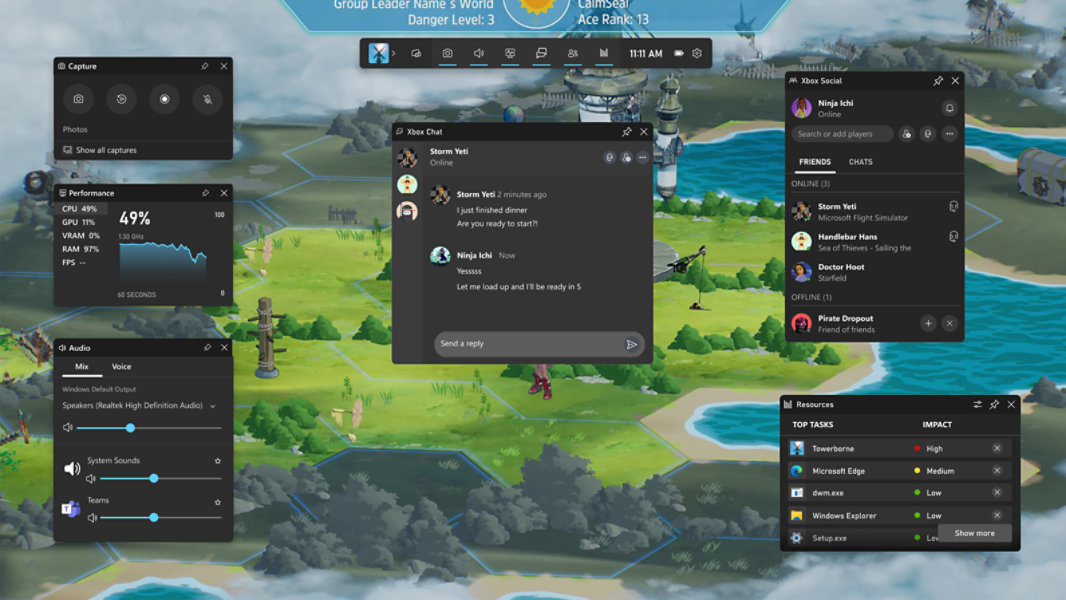
Game Bar is a Microsoft gaming overlay. It can open Capture, Audio, Performance, Resources, Xbox Social, and other widgets without leaving a game or app. The normal package name is Microsoft.XboxGamingOverlay; Windows can install it as a protected Store/system component, so the full folder name under C:\Program Files\WindowsApps\ changes with the installed version.
Do not compare your path character for character with an old screenshot or process-database entry. Instead, open Task Manager, right-click GameBar.exe, choose Open file location, and inspect the file’s Properties → Digital Signatures. A Game Bar package folder and a valid Microsoft signature are stronger evidence than one hard-coded version path.
Game Bar can also interact with controllers and Windows gaming components. If the controller or another input device causes high CPU or service crashes, use the separate GameInputSvc.exe troubleshooting guide. A working controller with a missing Win+G overlay is a Game Bar app problem, not automatically a GameInput service failure.
Why GameBar.exe can run without a visible overlay
Task Manager shows that a process started; it does not prove that every window and widget finished loading. The Game Bar process may briefly remain in the background, reopen when a game or controller asks for it, or exit after an app-package, account, graphics, capture, or widget problem.
The failure state matters more than the process name. Record whether the overlay never appears, flashes and closes, opens but ignores clicks, or records for a moment and stops. Also note whether the same failure happens over a different game or a normal desktop app. That small test separates an app-wide problem from one game’s full-screen mode, anti-cheat, graphics API, or permissions.
Fix GameBar.exe when Xbox Game Bar will not open
1. Test both supported entry points
Press Win+G. If nothing appears, open Start, search for Game Bar, and launch it once from the result. On systems that expose a Game Bar switch, open Settings → Gaming → Game Bar and confirm that the shortcut you expect is enabled. Also test without pressing the Xbox button on a controller; a disabled controller shortcut can fail while Win+G still works.
2. End only the stuck Game Bar tasks
Open Task Manager with Ctrl+Shift+Esc. End GameBar.exe and related Game Bar widget tasks, then press Win+G once. Do not end every Xbox, Gaming Services, audio, graphics, and Store process at once. If the overlay returns after ending Game Bar, the package was stuck; continue with the update and Repair steps so the problem does not immediately return.
3. Install Windows and Microsoft Store updates
Restart Windows if an update is waiting. Then open Microsoft Store, go to Library, and install updates for Game Bar and related Xbox components. Test again before resetting the app. A pending package replacement can leave the old process able to start while the overlay files or widget registrations do not match.
4. Use Repair before Reset
In Windows 11, open Settings → Apps → Installed apps or System components, find Game Bar, open Advanced options, and select Repair. Repair attempts to fix the app without clearing its data.
If Repair completes but the same failure remains, return to the same page and select Reset. Reset can clear Game Bar settings and sign-in state, so recheck capture, microphone, widget, and shortcut choices afterward. On Windows 10, the equivalent route may appear under Apps & features → Xbox Game Bar → Advanced options.
5. Repair Windows only when other components also fail
If Settings, Microsoft Store, packaged apps, or several Windows components are also crashing, the Game Bar package may not be the only damaged component. Use the supported sequence in our Windows automatic repair guide rather than pasting a registry bundle or deleting protected package folders. A broad Windows repair is not the first step when only one game refuses the overlay.
Fix Game Bar recording errors separately
An overlay that opens normally but cannot record is a different state from GameBar.exe not launching. Open the game or app first, press Win+G, and use the Capture widget. You can also test Win+Alt+R to start or stop a recording without opening every widget.
- Test a different capturable app. If recording works there, the original game, full-screen mode, protected content, graphics path, or anti-cheat may be the boundary.
- Check the capture state. Make sure a previous recording is not stuck, then close and reopen Game Bar.
- Check microphone and audio choices. Windows privacy settings can block microphone access even while video capture works.
- Check free space and the Captures folder. Confirm the destination exists and that the account can write to it. A redirected, unavailable, or full drive can stop a clip.
- Update first, then Repair or Reset. Do not jump to codec packs, registry cleaners, or a random screen-recorder download for an app-package failure.
Note the exact error text and whether the timer remains at 00:00, stops after a few seconds, or creates a zero-byte file. Those details make a support report useful and prevent unrelated fixes from being mixed together.
What to do when Game Bar keeps crashing
Open Reliability Monitor and find the Game Bar failure at the time it occurred. Record the faulting application and module instead of assuming the nearest Event Viewer warning caused the crash. Then retest after a clean restart with other overlays closed—such as a GPU overlay, chat overlay, recorder, hardware monitor, or tuning utility.
If the crash happens only with one game, update that game and its graphics driver and test windowed or borderless mode once. If Game Bar crashes over every app, prioritize the Store update, Repair, Reset, and reinstall sequence. A crash after an unknown optimizer or debloat script should also prompt you to review which Xbox/Store packages or services the script changed.
Disable, uninstall, or reinstall Game Bar safely
Disable what you do not use first
Turn off background recording, Record what happened, and unwanted controller shortcuts in Settings → Gaming or Game Bar settings. This is the most reversible choice: the package remains available, but it should stop capturing in the background or opening from the controller shortcut you disabled.
Do not disable Game Mode, Gaming Services, controller services, scheduled tasks, and every Xbox package merely to stop one overlay shortcut. Those components have different roles, and removing them together makes the original symptom harder to diagnose.
Uninstall only through the app/package interface
If your current Windows build offers Uninstall for Game Bar under Installed apps or System components, use that control. If it does not, leaving the package installed with captures and shortcuts disabled is safer than taking ownership of WindowsApps, deleting GameBar.exe, or applying a registry-removal script from a forum.
Reinstall from Microsoft Store
When Game Bar is missing or a supported uninstall was used, reinstall Game Bar from Microsoft Store, restart Windows, then test Win+G before restoring every custom widget and capture setting. Do not search for a standalone GameBar.exe download. The Store package supplies the executable, manifest, dependencies, and updates together.
When GameBar.exe may be suspicious
Investigate a same-name file that runs from %LOCALAPPDATA%, %APPDATA%, Temp, Downloads, Startup, a crack/mod folder, or another unrelated application directory. A missing or invalid Microsoft signature, an unexpected startup entry, outbound traffic, or a process that returns from the same wrong path after reboot makes the case stronger.
Do not delete the file before recording its full path, signer, parent process, and startup source. Keep an antivirus detection quarantined while you inspect it. If the suspicious copy followed an unknown installer or keeps returning, run a full Gridinsoft Anti-Malware scan after the manual checks; it can look for the same-name file together with bundled apps, scheduled tasks, startup entries, hidden files, and other persistence. A scan can identify leftovers, but it cannot prove that no account or session was exposed.
If the process path is wrong, the name imitates a Windows component, or high CPU started after an unknown installer, scan for hidden miners, services, startup entries, and bundled components.
Scan a suspicious GameBar.exeOlder Windows installations may also contain GamePanel.exe, a legacy Game Bar-related name with its own path and signature questions. Use our GamePanel.exe identity guide rather than treating the two filenames as interchangeable.
What not to do
- Do not download GameBar.exe from an EXE library, mirror, video description, or driver site.
- Do not take ownership of
C:\Program Files\WindowsAppsjust to delete or inspect the package. - Do not permanently block every Xbox, Store, GameInput, or Gaming Services component for one overlay problem.
- Do not use a registry cleaner or a large debloat script as the first repair step.
- Do not call a file malicious only because Game Bar is unwanted or appears in Task Manager.
FAQ
Is GameBar.exe a virus?
Usually no. It is normally part of Microsoft’s Game Bar package. Verify the exact path and Microsoft signature. A same-name file in AppData, Temp, Downloads, Startup, or an unrelated folder needs separate investigation.
Why is GameBar.exe running when I did not open it?
A game, controller shortcut, capture feature, widget, or Windows gaming component can start it. Brief background activity is not automatically a problem. Disable unwanted capture and controller shortcuts if you do not use them.
Will disabling Game Bar improve FPS?
Turning off background capture can reduce unnecessary recording work on some systems, but Game Bar is not the cause of every performance problem. Measure the same game before and after one reversible change instead of removing multiple Windows gaming components at once.
Should I use Repair or Reset?
Use Repair first because it aims to fix the package without clearing app data. Use Reset if Repair fails and you are prepared to recheck Game Bar settings, permissions, widgets, and sign-in state.
Can I delete GameBar.exe?
No. Do not delete the executable from WindowsApps. Disable capture/shortcuts or use the supported app uninstall control when your Windows build provides it. Reinstall the complete Game Bar package from Microsoft Store if needed.
References
- Microsoft. “Game Bar for Gaming.” Microsoft Windows, accessed September 1, 2026. Microsoft Windows.
- Microsoft. “Troubleshoot Game Bar on Windows.” Xbox Support, accessed September 1, 2026. Xbox Support.
- Microsoft. “Repair apps and programs in Windows.” Microsoft Support, accessed September 1, 2026. Microsoft Support.