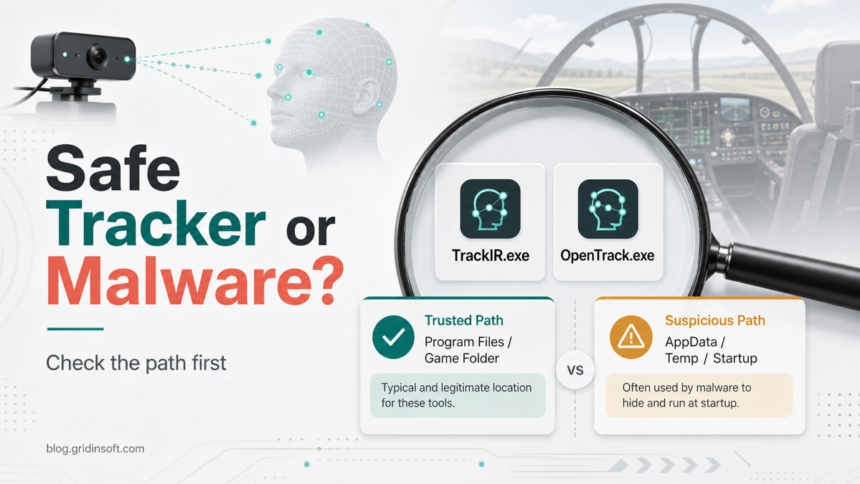
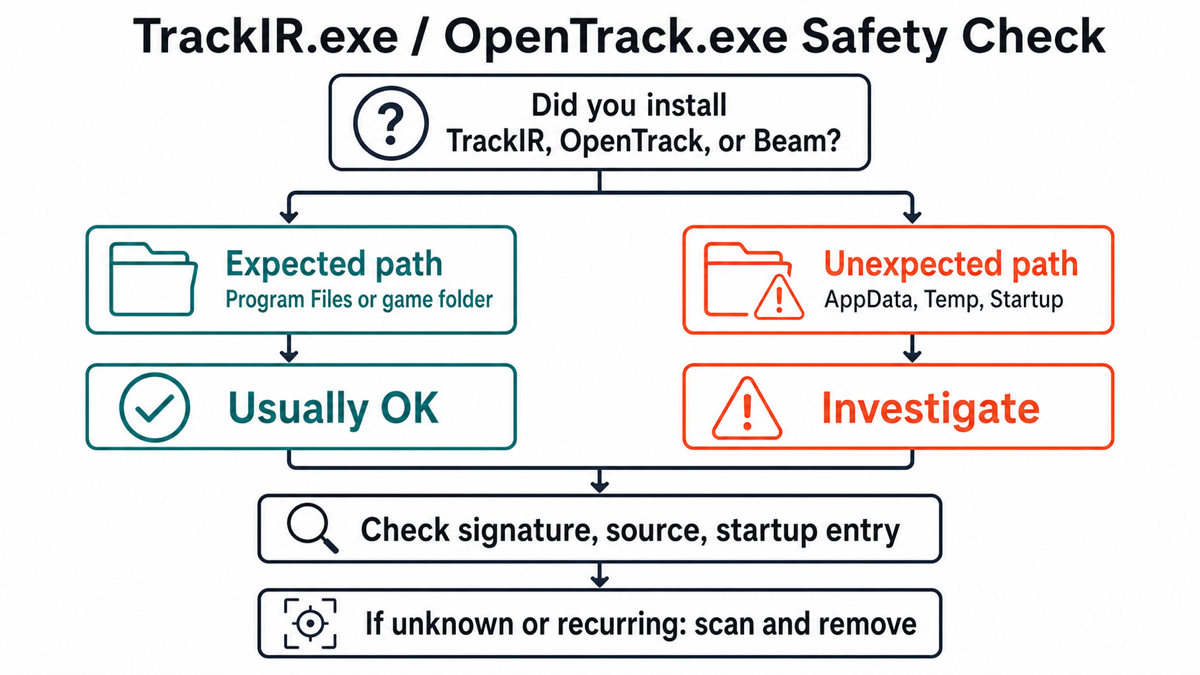
TrackIR.exe and OpenTrack.exe are usually legitimate head-tracking files when they come from the software you installed and run from the expected program or game folders. They deserve a closer malware check when the same names appear from AppData, Temp, Startup, Task Scheduler, a browser profile, or an unknown download path, especially if a security warning keeps returning after reboot.
The name alone is not enough to decide. TrackIR is a real head-tracking product, OpenTrack is a real open-source head-tracking project, and Beam Eye Tracker has used OpenTrack integration for game head tracking. But malware also borrows familiar process names. The safe answer is to verify source, path, signature, startup entry, and behavior before restoring, allowing, or deleting the file.
Quick Verdict: Safe Tracker Or Malware?
| What you see | Risk and what to do |
|---|---|
TrackIR.exe or OpenTrack.exe in the folder where you installed the tracking app or game integration. |
Usually legitimate. Check the publisher/source and scan only if there is a warning, unusual behavior, or an unknown modpack involved. |
TrackIR profile data under %APPDATA%\NaturalPoint\TrackIR 5\Profiles. |
Usually normal profile storage. A profile folder is different from an executable running from AppData. |
An executable with the same name in %APPDATA%, %TEMP%, Downloads, Startup, or a random Roaming folder. |
Suspicious until verified. Check startup entries, file signature, parent installer, and scan the system. |
| The alert returns after you delete the file or after reboot. | Possible persistence. Inspect scheduled tasks, Run keys, services, browser changes, and bundled apps. |
What TrackIR.exe And OpenTrack.exe Are
TrackIR is a head-tracking system commonly used for flight simulators, racing simulators, and other games where camera movement follows the player’s head. The official TrackIR manual also explains that TrackIR profiles are stored in the user’s AppData profile path, which is why seeing TrackIR-related profile data under AppData is not automatically malware.
OpenTrack is an open-source head-tracking application. It can receive tracking input from different devices and send the result to games or simulator software. Beam Eye Tracker also documents OpenTrack-related setup and notes that newer Beam Eye Tracker versions include OpenTrack components for supported workflows. That makes an OpenTrack-related file normal in a Beam or simulator setup, but only when the source and folder make sense.
When The File Is Usually Safe
- You intentionally installed TrackIR, OpenTrack, Beam Eye Tracker, or simulator software that uses head tracking.
- The file is inside a known application folder, game folder, Steam library folder, or the folder where you extracted OpenTrack.
- The file has a sensible publisher, version information, and modification date that match the installed app.
- The startup entry points to the same trusted folder, not to a random AppData, Temp, or Downloads location.
- Closing or uninstalling the tracking software stops the process without it reappearing from another path.
If all of those checks line up, do not delete the file just because it has an unfamiliar name. Head-tracking tools can interact with games, cameras, overlays, and input APIs, so they can look unusual compared with ordinary desktop apps.
When To Treat It As Suspicious
Investigate the file when the context does not match a real head-tracking installation. Malware often uses user-writable folders because they are easy to write to and easy to relaunch from startup entries.
- The executable runs from
%APPDATA%,%LOCALAPPDATA%,%TEMP%, Downloads, Startup, or a random folder under Roaming. - You never installed TrackIR, OpenTrack, Beam, a simulator plugin, or a head-tracking-related mod.
- The file appears after a crack, trainer, mod menu, fake driver update, or unknown game helper.
- The file has no clear publisher, no version information, a strange icon, or a recent creation time that matches a suspicious download.
- The process starts with Windows even after you disable or uninstall the tracking app.
- Security tools report a trojan, loader, stealer, miner, backdoor, or repeated suspicious-process alert rather than a one-time generic warning.
How To Check TrackIR.exe Or OpenTrack.exe
- Open the file location. In Task Manager, right-click the process and choose the file location. A trusted app folder and a random user-writable folder are very different signals.
- Check whether you installed the software. Look for TrackIR, NaturalPoint, OpenTrack, Beam Eye Tracker, simulator plugins, or a mod manager you recognize.
- Inspect startup entries. Use Windows Startup Apps and, for a deeper view, Microsoft Sysinternals Autoruns to see whether the file launches from Run keys, Startup folders, services, drivers, or scheduled tasks.
- Check properties and signature. Review the file description, publisher, digital signature tab when present, version, and creation date.
- Compare the path with the alert. A TrackIR profile folder under AppData is normal; an executable launching from AppData is not automatically normal.
- Temporarily disable the startup item instead of deleting first. If the file is legitimate, disabling it should only stop tracking from auto-starting. If it re-creates itself, scan for persistence.
- Scan the file and the system. Scan the exact file and run a full system scan if the path is wrong, the source is unknown, or the alert returns.
TrackIR.exe In AppData: Normal Folder Or Red Flag?
This is the detail that causes most confusion. TrackIR profile data under %APPDATA%\NaturalPoint\TrackIR 5\Profiles can be normal because profiles are user settings. That does not mean every TrackIR-named executable in AppData is safe.
Use this split: settings in AppData can be normal; executables launched from AppData need verification. If the alert says the actual running file is under AppData, export the alert details, keep the file quarantined, and check whether a startup entry or scheduled task is launching it.
OpenTrack.exe And Beam Eye Tracker Demo
OpenTrack may appear in a legitimate Beam Eye Tracker or simulator workflow. Beam’s own setup guidance discusses OpenTrack integration and newer Beam versions with OpenTrack components built in. That makes the Beam/OpenTrack combination plausible, not suspicious by itself.
It becomes suspicious when the OpenTrack-named file is detached from that context: wrong folder, unknown installer, no Beam/OpenTrack app installed, startup behavior you did not choose, or a security-tool alert that keeps returning after cleanup. In that case, handle it as a suspicious process, not as a normal tracking module.
What To Do If It Looks Malicious
- Disconnect from the internet if you see active account theft, remote-control behavior, or repeated security alerts.
- Do not restore or whitelist the detected file until the path and source are clear.
- Uninstall suspicious recently added apps, fake driver tools, game helpers, or mod loaders you do not recognize.
- Disable unknown startup items and scheduled tasks that launch
TrackIR.exe,OpenTrack.exe, scripts, PowerShell, or files from AppData/Temp. - Run a full malware scan, reboot, and scan again if the alert returns.
- After cleanup, reinstall TrackIR, OpenTrack, or Beam only from the official source you intended to use.
If a suspicious copy already ran, deleting the visible executable may not remove the loader, scheduled task, service, browser change, or bundled app that launches it again. Gridinsoft Anti-Malware can check for hidden files, startup entries, scheduled tasks, bundled apps, browser changes, and other persistence that remains after a manual delete.
If the process path is wrong, the name imitates a Windows component, or high CPU started after an unknown installer, scan for hidden miners, services, startup entries, and bundled components.
Scan suspicious tracking filesIf the file appeared after a game crack, trainer, mod menu, or repacked installer, use the broader post-game/mod infostealer cleanup checklist. If your main question is whether a security alert is a false positive, compare the same source/path logic with the Malware.AI false-positive guide.
What Not To Do
- Do not delete a legitimate TrackIR/OpenTrack install only because the process name is unfamiliar.
- Do not allow a file from AppData, Temp, Downloads, or Startup just because it uses a known tracker name.
- Do not create a broad antivirus exclusion for Downloads, AppData, or an entire game library.
- Do not reinstall a head-tracking tool from a mirror opened by an ad, crack site, or forum attachment.
- Do not change passwords from the same Windows profile until cleanup is complete if the file arrived with a suspicious game/mod bundle.
FAQ
Is TrackIR.exe a virus?
Usually no, if it belongs to the TrackIR software you installed and runs from the expected program folder. Treat it as suspicious when it runs from AppData, Temp, Startup, Downloads, or another unexplained path.
Is OpenTrack.exe safe?
OpenTrack is a legitimate open-source head-tracking application. The file still needs verification if it came from an unknown installer, appears in a wrong folder, launches at startup without your choice, or triggers repeated security alerts.
Why is TrackIR data in AppData?
TrackIR can store user profiles in AppData. Profile files in that location can be normal. An executable launching from AppData is a separate risk signal and should be checked.
Can Beam Eye Tracker install OpenTrack components?
Beam documents OpenTrack integration and says newer Beam Eye Tracker versions include OpenTrack components for supported setups. That context can be legitimate, but the path and startup behavior still matter.
Should I allow TrackIR.exe or OpenTrack.exe in my antivirus?
Allow only a verified file from the official or trusted software you installed. Do not whitelist broad folders or unknown copies. If the alert returns after reboot or the path is wrong, scan before allowing it.
References
- NaturalPoint. “TrackIR Software 5.5.0 Manual.” NaturalPoint, July 2024, accessed June 24, 2026. https://d1rhoi6onixddn.cloudfront.net/docs/TrackIR-software-5_5_0-Manual_24.07.pdf
- OpenTrack project. “opentrack/opentrack.” GitHub, accessed June 24, 2026. https://github.com/opentrack/opentrack
- Beam Eye Tracker. “OpenTrack Setup Guide.” Eyeware/Beam Eye Tracker, accessed June 24, 2026. https://beam.eyeware.tech/opentrack/
- Microsoft Sysinternals. “Autoruns for Windows.” Microsoft Learn, accessed June 24, 2026. https://learn.microsoft.com/en-us/sysinternals/downloads/autoruns