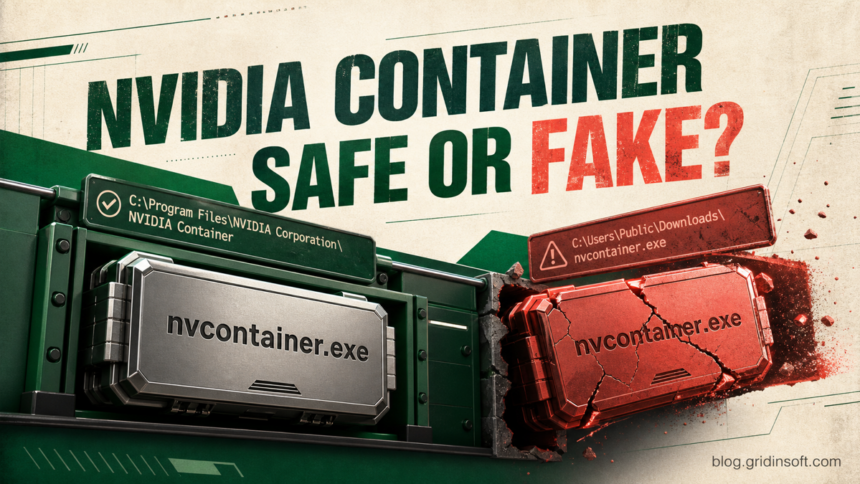
nvcontainer.exe is usually a legitimate NVIDIA Container component when it runs from an NVIDIA program folder, has a valid NVIDIA digital signature, and belongs to an installed NVIDIA driver or app service. Several NVIDIA Container processes can be normal because different driver and app functions use separate instances. Investigate a copy in Downloads, Temp, AppData, Startup, or an unrelated folder; an invalid or unexpected signer; unexplained persistence; or resource use that stays high while the PC is idle.
Do not delete every process named NVIDIA Container or disable all NVIDIA services. The name alone proves neither safety nor malware. Check the exact executable, path, signature, service context, and behavior first; then repair the official driver component or scan the suspicious copy.
What is NVIDIA Container and nvcontainer.exe?
NVIDIA uses container processes to host background work for its Windows graphics driver and companion software. A container is a process boundary: if one hosted task fails, it is less likely to take every NVIDIA function down with it. This also explains why Task Manager may show several rows with the same user-visible NVIDIA Container label.
nvcontainer.exe is one executable associated with this architecture. It should not be confused with NVDisplay.Container.exe, which can host display-driver functions and the official NVIDIA Display Container LS service. The exact mix depends on the driver package, NVIDIA App components, GPU, and installation type.
The Windows processes are also unrelated to NVIDIA Container Toolkit, the Linux and cloud software used to expose GPUs to Docker and Kubernetes containers. A Container Toolkit vulnerability report does not mean the Windows nvcontainer.exe on a gaming PC is infected or vulnerable.
Why are multiple NVIDIA Container processes running?
Multiple instances are normally expected when they point to NVIDIA-installed files and carry valid NVIDIA signatures. Separate containers may run under different accounts or host different driver, display, update, overlay, telemetry, or app functions. The number can change after an NVIDIA App or driver update and after features are enabled or removed.
| What you find | Risk and next step |
|---|---|
| NVIDIA-signed files in NVIDIA program or driver-package folders | Usually expected. Several instances alone are not a malware sign. |
| Short CPU, disk, or network activity after sign-in, a driver update, or opening NVIDIA App | Often normal. Let the update or initialization finish, then check whether usage returns to idle. |
| One instance stays busy while the PC is idle or returns after every reboot | Troubleshoot that exact PID and path. Update or repair the NVIDIA software before disabling services. |
| A same-name file in Downloads, Temp, AppData, Startup, a crack, or a random program folder | Suspicious. Preserve its path and signer details, do not launch it, and scan the file and system. |
| Missing, invalid, or non-NVIDIA signature | Do not trust the filename or icon. Investigate the parent process, persistence, and network behavior. |
How to verify nvcontainer.exe
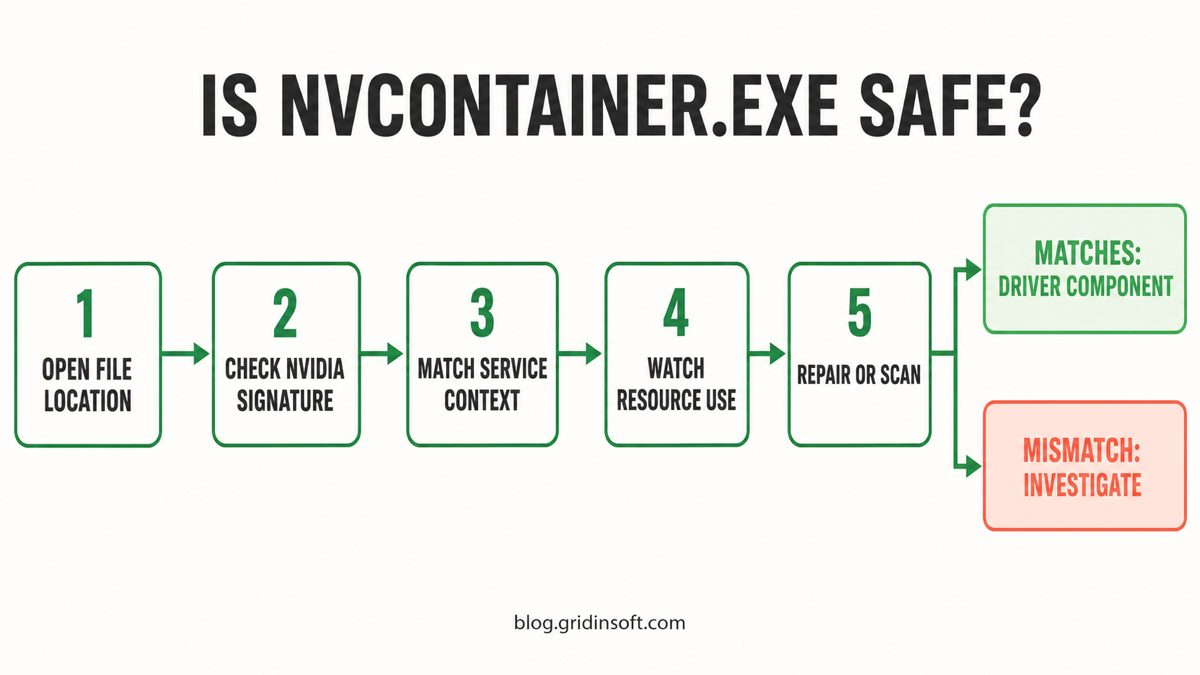
1. Open the file location for the busy process
In Task Manager, expand the NVIDIA Container group if necessary, select the instance you are checking, right-click it, and choose Open file location. A common consumer-driver location is:
C:\Program Files\NVIDIA Corporation\NvContainer\nvcontainer.exeNVIDIA can change package layouts, and NVDisplay.Container.exe may be installed through a versioned DriverStore package instead. Treat an NVIDIA-owned program or driver-package folder as a strong clue, not an automatic verdict. Downloads, %TEMP%, %APPDATA%, Startup, browser-cache folders, and unrelated application directories are not normal substitutes for the installed driver copy.
For a general workflow covering source, hash, signer, location, scan result, and behavior, use the EXE file safety checklist.
2. Check the NVIDIA digital signature
Right-click the executable, open Properties, select Digital Signatures, and inspect the signature details. Windows should report a valid signature, and the signer should identify NVIDIA Corporation. A familiar filename, green icon, or NVIDIA text in file-description fields is easy to imitate; the verified signature is harder to fake.
PowerShell can check the common path without launching the file:
Get-AuthenticodeSignature 'C:\Program Files\NVIDIA Corporation\NvContainer\nvcontainer.exe' | Format-List Status,StatusMessage,SignerCertificateLook for Status : Valid and an NVIDIA signer in the certificate subject. NotSigned, HashMismatch, an unknown signer, or a valid signature belonging to an unrelated publisher needs investigation. If your file is elsewhere, replace the command path with the exact location you opened in Task Manager.
3. Match the process to an NVIDIA service or installed app
Task Manager’s Details tab can show the PID and executable name. For a deeper check, run this built-in PowerShell query as an administrator:
Get-CimInstance Win32_Process -Filter "Name='nvcontainer.exe'" |
  Select-Object ProcessId, ParentProcessId, ExecutablePath, CommandLine
The executable path and command line should point back to the installed NVIDIA package. In services.msc, entries such as NVIDIA Display Container LS are legitimate NVIDIA services, but do not assume every process with “NVIDIA” in its description belongs to them. Match the exact file, signer, and service path.
4. Check whether the behavior fits the component
A signed process can still be broken, and malware can sometimes abuse a legitimate process. Note which PID uses resources, when the activity begins, whether it falls after an update, and whether the same executable creates unknown startup entries or child processes. Unexpected credential prompts, scripts, encoded command lines, security-setting changes, or outbound traffic to unrelated destinations do not fit a normal driver-container explanation.
How to fix NVIDIA Container high CPU, memory, disk, or network use
Do not end every NVIDIA Container process at once: that loses the evidence showing which instance is responsible and can interrupt display or app features. Work from the exact PID and use the least destructive fix first.
If the busy entry is NVIDIA Web Helper.exe or nvnodejslauncher.exe rather than nvcontainer.exe, follow the NVIDIA Web Helper.exe safe-stop and repair guide; it separates the legacy GeForce Experience helper from current NVIDIA App components.
- Record the path and PID. In Task Manager, note which instance is busy and open its file location. Confirm the signature before changing services or files.
- Check the timing. If NVIDIA App or Windows just installed a driver, let the activity finish. Close games, recording or performance overlays, and GPU-tuning utilities, then restart Windows once. If Task Manager specifically shows
PresentMon_x64.exe, use the PresentMon owner and high-CPU guide to identify the overlay before disabling it. - Update through NVIDIA App or the official NVIDIA driver download. A known driver bug or mismatched app component is more likely than malware when the file is correctly signed and located.
- Repair with a clean NVIDIA installation. If usage or application errors persist, download the correct current driver from NVIDIA, choose Custom (Advanced), select Perform a clean installation, finish the install, and reboot. NVIDIA documents this as the supported way to reset damaged driver components.
- Review the error that remains. Check Windows Reliability Monitor or Event Viewer for the faulting executable and time. A GPU driver reset, overlay conflict, tuning utility, or incomplete update needs a different response from an unsigned copy in a user folder.
- Scan when identity or behavior does not match. Keep a suspicious file quarantined, check startup entries, services, and scheduled tasks pointing to its exact path, then run a full system scan.
High memory use
Memory can rise temporarily while NVIDIA App initializes, scans installed games, applies settings, or updates a component. A steady increase that never releases memory after closing NVIDIA App or an overlay may indicate a software fault. Reboot, update the app and driver, and use the clean-install step if the signed official copy leaks memory again.
NVDisplay.Container.exe page faults: when is it a problem?
A large page-fault total alone does not diagnose disk activity, malware, or a memory leak. First check Task Manager’s Details tab for the exact executable and PID: NVDisplay.Container.exe and nvcontainer.exe are different processes, even when both appear as NVIDIA Container.
A page fault occurs when a process needs a memory page outside its current working set. A soft fault can be resolved without reading the backing store; a hard fault requires a read from the paging file or a memory-mapped file. “Hard” does not mean a hardware error. The general page-fault count does not separate those cases. Microsoft explains this distinction in the Working Set reference below.
Compare changes over the same interval instead of comparing lifetime totals from processes started at different times. Record the PID, start/end time and page-fault counts, CPU activity, working-set and private-memory trends, and any actual freeze or slowdown. Repeat under similar idle or app-use conditions. There is no universal safe count or rate that identifies an NVIDIA fault.
- Counter rises, but the PC responds normally and memory stays stable: monitor the trend. The counter alone is not a reason to delete files or scan for a supposed infection.
- Memory keeps growing or freezes recur in the verified NVIDIA copy: record the exact path, driver and NVIDIA App versions, timestamps, and what was running. Restart Windows, update the official components, and follow the driver-repair steps above if the problem persists. A clean install is a troubleshooting step, not a guaranteed page-fault fix. If you can reproduce the issue afterward, send the version details and error timeline to NVIDIA support.
- The path, signer, or security alert is suspicious: follow the suspicious-copy scan workflow below. That evidence warrants investigation independently of the counter.
Do not rename NVIDIA DLLs, disable the paging file or security protection, or kill every container to reduce the number. Those changes can break features or hide the symptom without identifying its cause.
High disk or network activity
Short bursts can accompany driver downloads, app updates, settings synchronization, or diagnostics. Continuous disk writes or repeated connections from a wrong-path or unsigned copy are different. Check the exact process and destination before allowing a firewall prompt; a filename alone is not a safe allow-list rule.
Application or shutdown errors
An nvcontainer.exe application error during a game, sign-out, restart, or shutdown often points to a damaged or conflicting driver/app component. Capture the error and faulting path, then update or clean-install the official driver. Do not assume the error caused a full PC power loss or hardware failure without checking the Windows event timeline around the crash.
Can I stop or disable NVIDIA Container?
You can end one process temporarily to confirm that it owns the symptom, but Windows or an NVIDIA service may start it again. Permanently disabling services can remove NVIDIA Control Panel, display, update, overlay, or app functions depending on the package. It also hides the symptom instead of repairing a corrupt installation.
Prefer a reboot, app/driver update, or clean install. Disable a specific service only when you have matched it to the feature you do not need, recorded its original startup setting, and confirmed that basic display functions still work. Never delete the executable from an NVIDIA or DriverStore directory as a first troubleshooting step.
What to do if nvcontainer.exe is in the wrong folder or unsigned
- Do not launch or delete it immediately. Record the full path, signature status, PID, parent process, command line, and any security alert. In a managed environment, preserve the file and logs for investigation.
- Disconnect if compromise signs are active. Unexpected remote-control behavior, scripts, new accounts, disabled security tools, credential prompts, or suspicious outbound connections justify isolating the PC.
- Check persistence. Review Startup Apps, Task Scheduler, services, and Run keys for entries that point to that exact copy. Do not remove legitimate NVIDIA entries based only on a similar name.
- Scan the file and the whole system. A same-name executable may be only the visible part of a loader or persistence chain. Gridinsoft Anti-Malware can check the suspicious copy, related files, startup entries, scheduled tasks, and other persistence; remove confirmed detections, reboot, and scan again if activity returns.
- Reinstall the official driver after cleanup. Use NVIDIA’s official installer so the legitimate signed components are restored. If you find
nvidia-sysruntime.exeor an “NVIDIA Container Runtime Monitor” claim instead, follow the separate LabubaRAT fake-NVIDIA process guide.
If the process path is wrong, the name imitates a Windows component, or high CPU started after an unknown installer, scan for hidden miners, services, startup entries, and bundled components.
Scan a suspicious nvcontainer.exe copyFAQ
Is nvcontainer.exe a virus?
Usually no: the NVIDIA-signed copy installed with the graphics driver or NVIDIA App is legitimate. A same-name file in an unrelated folder, with an invalid signer or suspicious persistence and behavior, should be treated as unverified until scanned and investigated.
Why do I have five or more NVIDIA Container processes?
Different NVIDIA driver and app functions can use separate container instances, so several rows can be normal. Verify that each executable belongs to an NVIDIA program or driver-package folder and carries a valid NVIDIA signature rather than trusting the process count.
Is it safe to end nvcontainer.exe in Task Manager?
Ending one instance for diagnosis is usually reversible, but an NVIDIA service may restart it and a related feature may stop working. Record the path and PID first. For persistent problems, repair the driver instead of repeatedly killing every container.
Should nvcontainer.exe use the network?
Installed NVIDIA software may use network access for updates, app functions, or diagnostics. Verify the signed executable and destination. A wrong-path or unsigned copy connecting to unrelated domains is not explained by the NVIDIA name.
Does an NVIDIA Container Toolkit CVE affect nvcontainer.exe on Windows?
Not by default. NVIDIA Container Toolkit is a separate Linux/cloud stack for GPU-enabled application containers. A Toolkit advisory should not be applied to a Windows graphics-driver process unless the advisory explicitly names that Windows component and version.
References
- Microsoft. Working Set. Win32 apps documentation, updated June 4, 2021; accessed October 9, 2026.
- NVIDIA Support. “NVIDIA App driver installation failed. How do I manually clean install the NVIDIA driver for my graphics card?” NVIDIA, updated May 26, 2026, accessed July 19, 2026. https://nvidia.custhelp.com/app/answers/detail/a_id/10/.
- Microsoft. “Get-AuthenticodeSignature.” PowerShell documentation, accessed July 19, 2026. https://learn.microsoft.com/en-us/powershell/module/microsoft.powershell.security/get-authenticodesignature?view=powershell-7.5.